Cross-track lesson · Run & build
Installing by Hand with tt-installer
What `tt update` does underneath, and how to run tt-installer, apt and the container pulls yourself when you want that control.
Most people should run tt update instead. It runs tt-installer for you at the version
Tenstorrent has tested with everything else, and it keeps its own pinned copies of
tt-inference-server and tt-studio. Use this page when you want to run the pieces yourself.
The pieces, in order
On a QB2 from Tenstorrent, the stack is already there — but it is the stack that was current when your box was built, not the stack that is current today. So there are two jobs here: upgrade what you have (almost everyone) and install onto a fresh Ubuntu system (fewer people). Upgrading comes first.
Upgrade before you start
Do this first, because it saves the most time. A QB2 that has been in a box for a few weeks is behind on driver, firmware, tooling and container images, and being behind rarely announces itself. It looks like broken hardware or a broken tutorial.
See where you are first:
tt-smi -s | python3 -m json.tool | grep -E 'fw_version|driver'
apt list --upgradable 2>/dev/null | grep -E 'tt-|tenstorrent' || echo '(apt packages current)'
1. Re-run tt-installer. It is the same command as a fresh install and it is safe to run again — this is the intended way to move an existing machine forward:
/bin/bash -c "$(curl -fsSL https://tenstorrent.ai/install.sh)"That brings the kernel driver, firmware, HugePages, tt-smi/tt-flash, sfpi and the
container wrappers up to the newest tested baseline. Firmware updating is on by default, so
expect it to ask about a reboot at the end.
2. Then apt. Most of the stack is packaged, and this is what picks up anything newer than the installer’s pinned baseline:
sudo apt-get update && sudo apt-get upgrade3. Pull the two git checkouts — the installer will not do it for you. tt-studio and
tt-inference-server are cloned into ~/.local/lib/, and on a re-run the installer skips a
directory that already exists (“Skipping clone, will create wrapper script only”). So they stay
at whatever revision they were first cloned at, however many times you re-run it. This is why a
box can report an old tt-studio while the docs describe a much newer one:
git -C ~/.local/lib/tt-studio pull
git -C ~/.local/lib/tt-inference-server pull
4. Refresh the container images. The tt-metalium wrapper is a plain docker run, which
pulls an image only when it is missing locally — once you have it, it never updates on its own:
docker pull ghcr.io/tenstorrent/tt-metal/tt-metalium-ubuntu-22.04-release-amd64:latest-rc(Re-running the installer with --pull-container-images does the same thing for the images it
manages.)
Do the installer first and apt second — that order is deliberate. By default the installer
pins every component to a tested golden baseline (--versions=release), and it passes
--allow-downgrades to apt to enforce it. So if you apt-get upgrade past the baseline and
then re-run the installer, it will quietly pull those packages back down. If you want the
installer itself to take the newest of everything rather than the pinned set, run it with
--versions=rolling.
--dry-run --mode-non-interactive prints the whole plan without changing anything, which is a
cheap way to see what an upgrade would actually do before you commit to it.
Installing on a fresh Ubuntu system
Prerequisites: Ubuntu 24.04 LTS (or 22.04), internet connection, sudo access.
sudo apt update && sudo apt install -y curl jq
/bin/bash -c "$(curl -fsSL https://tenstorrent.ai/install.sh)"
The installer handles drivers, firmware, kernel modules, one Python virtual environment for the hardware tooling, and the container wrappers that stand in for the old source-tree environments. Accept the defaults — they’re right for a QB2.
After it finishes, reboot:
sudo rebootThe Tenstorrent apt repository (and its signing key)
Most of what the installer puts on the machine — the tenstorrent-dkms kernel driver, tt-smi, tt-flash, tt-topology, tt-toplike, tt-metalium, tt-nn, sfpi — comes from Tenstorrent’s own apt repository. (The tt-metalium and tt-nn packages there are the C++ runtime libraries, for linking native code — they are not the Python ttnn module, which only exists inside the Metalium container.) Two things have to be in place for that: the repository line, and the key apt uses to verify it. Miss the key and apt refuses the repository outright.
tt-installer sets both up. These are the commands it runs, if you’d rather add the repository without the full installer, or need to repair it:
# 1. Keyring directory
sudo mkdir -p /etc/apt/keyrings
sudo chmod 755 /etc/apt/keyrings

# 2. The signing key — this is the step that gets skipped
sudo curl -fsSL -o /etc/apt/keyrings/tt-pkg-key.asc https://ppa.tenstorrent.com/tt-pkg-key.asc

# 3. The repository, pinned to that key
echo "deb [signed-by=/etc/apt/keyrings/tt-pkg-key.asc] https://ppa.tenstorrent.com/ubuntu/ $(. /etc/os-release && echo "$VERSION_CODENAME") main" \
  | sudo tee /etc/apt/sources.list.d/tenstorrent.list > /dev/null

# 4. Refresh
sudo apt-get update
On Debian, swap /ubuntu/ for /debian/. On Fedora, write /etc/yum.repos.d/tenstorrent.repo with gpgkey=https://ppa.tenstorrent.com/tt-pkg-key.asc — dnf fetches the key from the URL, so there’s no keyring file to manage.
Check it took:
# The key: a PGP block, non-zero size, readable by _apt (mode 644)
head -1 /etc/apt/keyrings/tt-pkg-key.asc
ls -l /etc/apt/keyrings/tt-pkg-key.asc

# The repository line, and where packages now resolve from
cat /etc/apt/sources.list.d/tenstorrent.list
apt-cache policy tt-smi
If apt update says “The repository … is not signed” or reports NO_PUBKEY, the key at /etc/apt/keyrings/tt-pkg-key.asc is missing, empty, or unreadable — re-run step 2 above and sudo apt-get update. Breaking & Fixing Things has the full diagnostic.
What ends up on your QB2
| Path | What it is |
|---|---|
~/.tenstorrent-venv/ |
Python venv for the hardware tooling — tt-smi, tt-flash, and tt-topology if you opted in. That is all it contains |
~/.local/bin/tt-metalium |
TT-Metalium container wrapper — this is the TTNN / Direct API environment |
~/.local/lib/tt-inference-server |
Serving stack; run.py launches vLLM in a container |
~/.local/bin/tt-forge |
Forge container wrapper — only if you passed --install-forge-container; it is off by default |
~/.tenstorrent-venv/bin/tt-smi |
Hardware monitoring CLI — on PATH whenever that venv is active, which on a QB2 is every login |
~/models/ |
Model weights storage (create it: mkdir -p ~/models) |
/etc/apt/keyrings/tt-pkg-key.asc |
Signing key for the Tenstorrent apt repository |
/etc/apt/sources.list.d/tenstorrent.list |
The repository line, pinned to that key via signed-by= |
As of tt-installer v3.2.0, Docker is the default container runtime (Podman is still supported — pass --install-container-runtime=podman). The Metalium container installs by default. Forge does not — --install-forge-container is off unless you ask for it, and when you do, the installer pulls ghcr.io/tenstorrent/tt-xla-slim and writes the tt-forge wrapper to ~/.local/bin/tt-forge. The pip-wheel install the TT-Forge docs describe is a separate thing you do yourself, and it belongs in its own venv — see TT-Forge.
Nothing is installed into ~/.tenstorrent-venv but the hardware tooling — keep it that way.
tt-smi and tt-flash live there, and on a factory QB2 it is activated for you in every shell.
A bad dependency resolution in that venv costs you the tools you diagnose the machine with.
Install anything of your own (huggingface_hub, Forge, vLLM) into a separate venv, or with
uv tool / pipx so it gets one automatically.
~/.local/bin is not on PATH in every shell. That is where tt-smi, tt-metalium,
tt-forge and tt-studio land, and tt-installer itself warns about this when it finishes: zsh
never reads ~/.profile, which is where Ubuntu’s default ~/.local/bin rule lives. If a
Tenstorrent command comes back command not found, run
export PATH="$HOME/.local/bin:$PATH" and add that line to your ~/.zshrc.
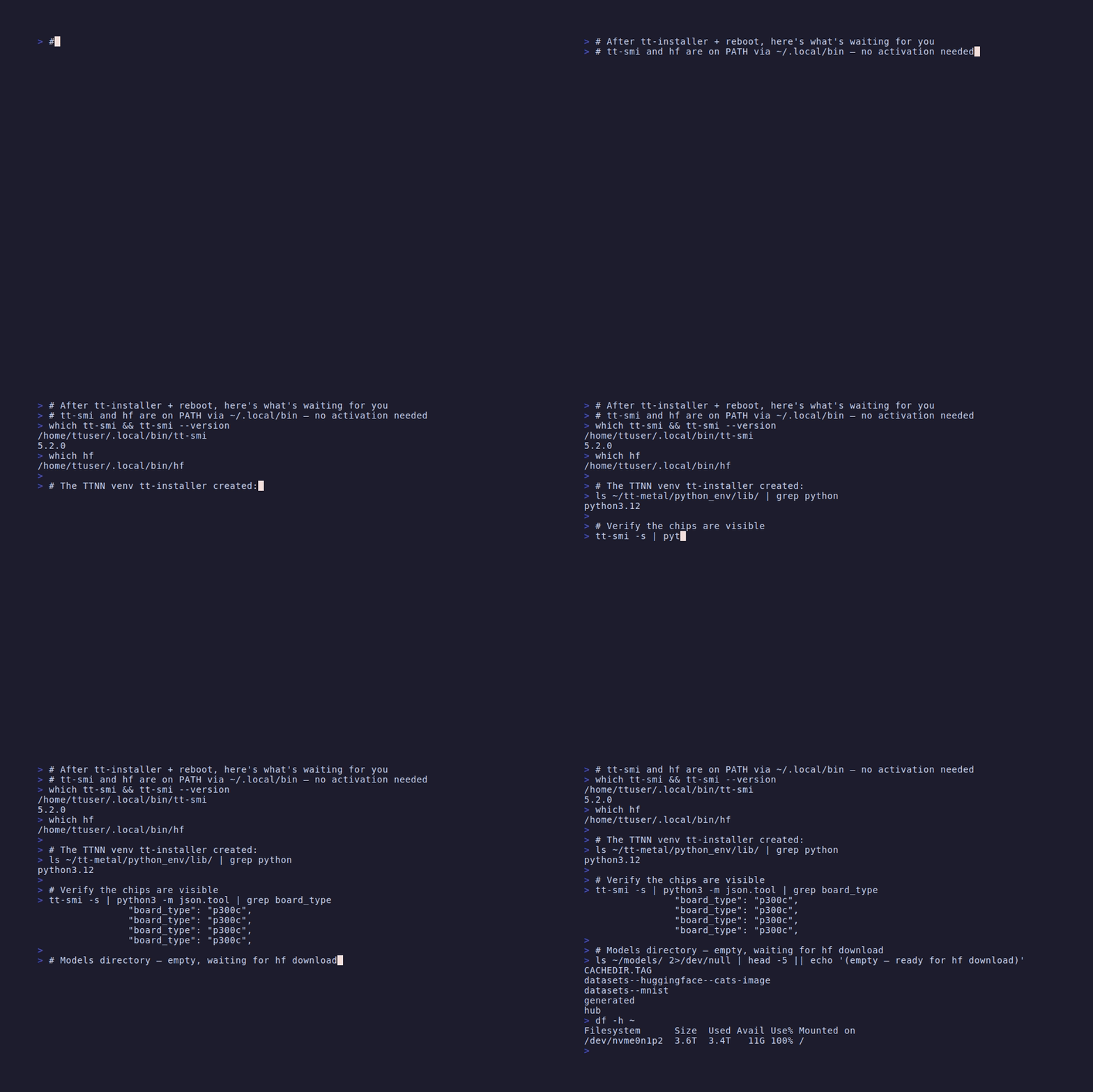
tt-smi are ready