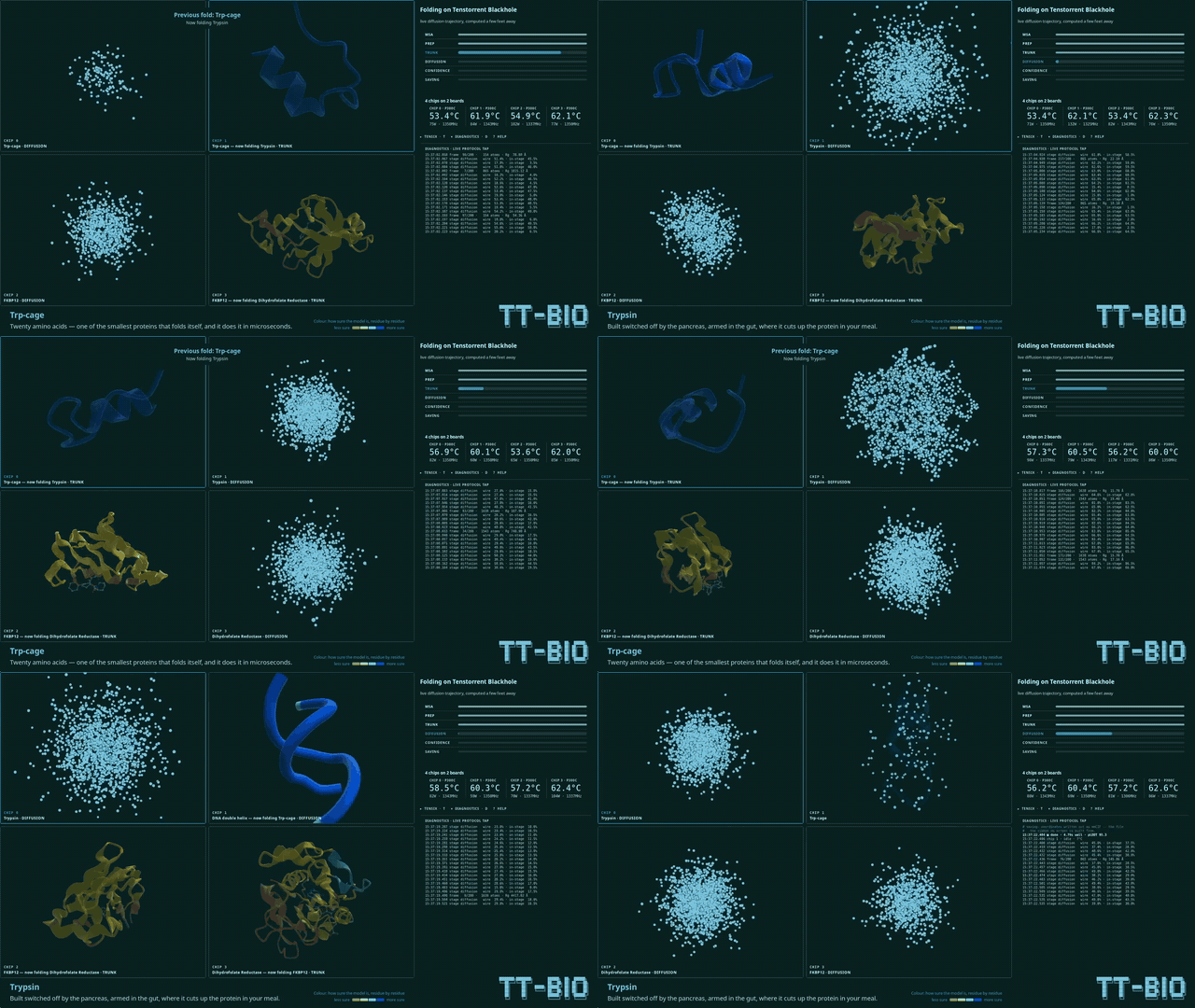
Explore Tenstorrent hardware & software for the first time
Seven chapters from first boot to first model.
Explore · Chapter 1
What to Know About Your Workstation
Your workstation is a Tenstorrent Quietbox 2: four AI accelerators inside, an operating system you may not have used before, and the software stack already configured and waiting. The machine is ready to go — what’s left is knowing what you’ve got.
This guide doesn’t assume you know Linux, or Python, or what a PCIe slot is. It assumes you’re curious, and that curiosity is enough.
What’s Inside
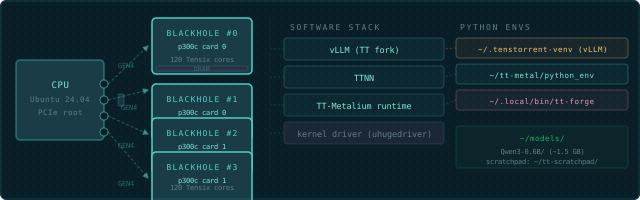
The Tenstorrent Quietbox 2 (QB2) is a workstation with two Blackhole p300c cards — four Blackhole chips in total — on PCIe. Each p300c is a dual-chip card, and each chip is independent — four separate devices from the software’s point of view, connected to a standard CPU running Ubuntu 24.04 LTS.
What
Detail
AI chips
2× Blackhole p300c cards (4 Blackhole chips)
Tensix cores per chip
120 (12×10 compute grid)
Connection
PCIe Gen4 (4 independent devices)
OS
Ubuntu 24.04 LTS
Pre-installed
Drivers, tt-smi/tt-flash, the TT-Metalium and tt-inference-server containers, tt-studio
Source tree
Not included — and neither is ~/tt-metal. TT-Metalium runs as a container (tt-metalium)
The chips don’t share memory. When you open device 0, you’re talking to one Blackhole chip. To use all four together, you use ttnn.CreateDevices({0, 1, 2, 3}) — not four separate open_device() calls.
⬡
Each Blackhole chip is a 17×12 Network on Chip (NoC) grid — 204 positions in total. Of those, 140 are Tensix compute tiles (120 are enabled on QB2's chips; the rest are harvested); the remainder are DRAM controllers, Ethernet cores for chip-to-chip links, the PCIe interface, and the routing fabric between them. The grid is how work moves — not through a shared bus, but through a programmable mesh of message-passing nodes.
🔌
Before anything else: power switch on the back panel to the ON position, then press the front power button. The fans spin up. That's the QB2 waking up. That sound is correct and expected.
What Ships Pre-Installed
Tenstorrent ships the QB2 ready to serve models. You don’t install drivers. You don’t compile anything. The full stack is already there:
Kernel driver — loaded automatically at boot, makes the chips visible to software
tt-smi — hardware monitoring tool, lives at /usr/bin/tt-smi
TTNN / TT-Metalium — as a container, started by the tt-metalium wrapper in ~/.local/bin/
Hardware tooling venv — ~/.tenstorrent-venv/, holding tt-smi and tt-flash
tt-inference-server — at ~/.local/lib/tt-inference-server; its run.py serves models with vLLM in a container
TT-Forge/XLA — container wrapper at ~/.local/bin/tt-forge, if it was installed (it’s opt-in)
tt-studio — the no-code web UI for serving models, pre-installed (launch with tt-studio)
A ready-to-run model — Qwen3-32B, weights pre-cached on disk, deployable from tt-studio with no download (your fastest path to a first token: launch tt-studio, pick it, click Run)
Firmware — already flashed to all four chips
What’s intentionally absent: ~/tt-metal — not just the source code, the whole directory. TT-Metalium reaches you as a container image instead, and tt-metalium is how you get inside it. You can build models, run inference, and work with the full API stack without ever having a checkout. Building from source is a later chapter — a much later chapter.
⚠️Pre-installed is not the same as current. That list is the stack as it stood when
your box was built — driver, firmware, tooling and container images all included. Upgrading is
not most people's first instinct, and being behind almost never announces itself: it shows up as
a tutorial that fails or hardware that looks broken. Once you've confirmed the chips respond
(Chapter 3), take the upgrade step in
Chapter 4 before you go looking for a bug.
Physical Tour
The QB2 looks like a standard tower workstation. On the inside:
CPU and motherboard running Ubuntu 24.04 LTS
Two Blackhole p300c cards (four Blackhole chips total)
RAM sized for production inference workloads
Storage for model weights — but watch it carefully (more on that in Chapter 2)
The chips run warm under load. Fans will get louder when you run inference. This is correct. The cooling is designed for sustained operation at full chip temperature.
⬡ Tensix Grid — Blackhole (P100/P150/P300c / QB2)
One Blackhole chip. You have four, on two p300c cards.
Everything from here happens in a terminal. That’s the command line — a text window where you type instructions and the machine responds. On a QB2, the terminal is your instrument panel. Learning its three or four most-used commands will get you surprisingly far.
Finding a Terminal
If you’re looking at the GNOME desktop:
Press Ctrl+Alt+T — opens a terminal on most Ubuntu setups
Or press the Super key (Windows key), type terminal, press Enter
Or right-click the desktop and choose “Open Terminal”
Once a terminal window is open, you’re in the right place. It shows a prompt ending in $ — everything you type goes after that.
The Three Commands You Need Right Now
Check disk space first. Models are large. This is non-negotiable to understand before you do anything else:
df-h ~
This shows your home directory’s disk usage. The Size column is total, Avail is what’s free. You need room — at minimum 3 GB for a small model (Qwen3-0.6B), 20+ GB for anything like Llama-3.1-8B. If you’re under 5 GB free, stop here and figure out where the space went before continuing.
Check internet connectivity:
ping-c3 google.com
If this fails, check your network cable or go to Settings → Network. Everything else in this guide requires internet access for model downloads.
Update the package list (do this once after first boot):
sudoapt update
sudo means “run as administrator.” Ubuntu will ask for your password. This doesn’t install or change anything — it just refreshes the list of what’s available. You’ll see a lot of text scroll by. That’s normal.
Live QB2 — Ubuntu 24.04, internet up, disk space, tt-smi on PATH
Ubuntu: What You Should Know
The QB2 runs Ubuntu 24.04 LTS. If this is your first time with it:
Package manager is apt — install things with sudo apt install <name>
Files are case-sensitive: Model.py and model.py are different files
Your home directory is ~ — short for /home/yourusername
sudo runs a command as administrator — use it only when a command tells you to
Your Login, Password, and SSH
Many QB2 units ship with a default login — username ttuser, password ttuser. If that’s how yours arrived, change the password the moment you’re in, before the machine is reachable on a shared network:
passwd
It asks for the current password (ttuser), then a new one twice.
Turn on SSH
Later in this guide — and on every other path — you reach the QB2 from your own laptop over SSH: forwarding a model server’s port back to your machine, copying files, running commands remotely. SSH isn’t always running on a fresh box, so turn it on once:
# Install and enable the SSH serversudoaptinstall-y openssh-server
sudo systemctl enable--nowssh# Confirm it's listening
systemctl status ssh
Then find the address other machines use to reach you:
hostname-I# the QB2's IP address on your networkhostname# its name — often <name>.local
From your laptop you can now run ssh ttuser@<that-ip>. This is what makes the remote-access steps in Serving Models on QB2 — and bringing tt-studio’s web UI to your own browser — work.
💡
Ubuntu's ufw firewall is installed but inactive by default, so nothing on the QB2 is blocked out of the box. If you or your IT team turn it on (sudo ufw status tells you), remember to allow SSH with sudo ufw allow 22/tcp — and any service port you forward later, like 8000 for the inference server.
Python: A Field Guide to the Confusion
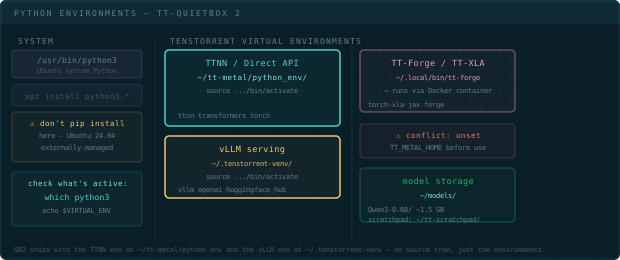
This is where new Linux users often hit a wall. Ubuntu ships with its own Python. The Tenstorrent software has its own Python environments. These are separate and don’t mix. Here’s the landscape:
What exists on your system
Name
Location
What it is
System Python
/usr/bin/python3
Ubuntu’s built-in Python — don’t pip install here
Hardware tooling venv
~/.tenstorrent-venv/
tt-smi and tt-flash. That’s the whole inventory — don’t install into it
TTNN / Direct API
inside the tt-metalium container
/opt/venv/bin/python3 once you’re in. Nothing on the host to activate
TT-Forge (TT-XLA)
pip wheel in a venv you create
Compile PyTorch/JAX models — install it yourself (see TT-Forge)
The important surprise is the third row. There is no TTNN environment on the host. You may
find older notes pointing at ~/tt-metal/python_env/ — that path doesn’t exist on a QB2 and the
installer never creates it. TT-Metalium arrives as a container image, and tt-metalium is the
wrapper that puts you inside it with your home directory mounted. import ttnn works in there
and nowhere else.
Why does this matter?
Ubuntu 24.04 enforces what’s called externally-managed Python — the system Python is protected. If you try to pip install something directly, Ubuntu will refuse with an error about breaking system packages. This is intentional. It protects you.
So when you need a Python package of your own, make it a new venv (python3 -m venv ~/.venvs/mine)
or let uv tool / pipx make one for you. What you should not do is install into
~/.tenstorrent-venv to dodge the error. That venv exists to hold tt-smi and tt-flash, your
QB2 activates it for you at login, and a dependency resolution gone wrong in there takes out the
tools you’d use to work out what broke.
What which python3 tells you
Before running any Python code, check which Python is active:
which python3
If you see /usr/bin/python3 — you’re on the host, using Ubuntu’s Python. Tenstorrent imports will fail.
If you see /home/yourname/.tenstorrent-venv/bin/python3 — you’re in the tooling venv. tt-smi works; import ttnn still won’t.
If you see /opt/venv/bin/python3 — you’re inside the tt-metalium container, which is where TTNN lives. Go ahead.
pip, pyenv, uv — a brief map
You may encounter other Python tools in documentation or online:
pip — Python package installer. Works inside a venv. Fine to use there.
pyenv — manages multiple Python versions (3.10, 3.11, etc.). The QB2 doesn’t need it — the venvs handle version isolation.
virtualenv / python -m venv — creates isolated environments. The Tenstorrent venvs were built this way.
uv — a fast, modern alternative to pip and virtualenv. uv tool install <pkg> is the tidiest way to add a CLI (like hf) without touching a managed environment.
For this guide: ignore pyenv. Reach for uv or pipx when you want a CLI of your own, and use tt-metalium when you want TTNN.
Activating and deactivating
# Enter the TTNN environment — a container, not a venv
tt-metalium
# You're now in a shell inside the container, home directory mounted.which python3 # → /opt/venv/bin/python3
python3 -c"import ttnn; print('TTNN ready')"# Leave it the way you leave any shellexit
There’s no (python_env) prefix to look for, because nothing is being activated — you’re in a
different shell on a different filesystem. which python3 is the signal: /opt/venv/bin/python3
means you’re inside.
ℹThe first tt-metalium run pulls a multi-GB image. Later runs start immediately.
💡
The QB2 has pre-activation scripts in /etc/profile.d/ that activate ~/.tenstorrent-venv automatically at login — which is why tt-smi just works. Run which python3 before sourcing any venv to see what's already active; activating on top of an active venv is messy.
⚠️tt-metalium: command not found? The wrapper lives in ~/.local/bin, which isn't on PATH in every shell — zsh never reads ~/.profile, where Ubuntu's default rule for it lives. Run export PATH="$HOME/.local/bin:$PATH" and add that line to ~/.zshrc. Same story for tt-studio and tt-forge.
board_type is the board SKU (p300c on a QB2), not a chip-family string — Blackhole doesn’t appear literally anywhere in the output. Four entries in device_info means four chips, all alive. Check it directly:
tt-smi -s| python3 -m json.tool |grep board_type
You should see "p300c" printed four times.
🌡️
Idle temperatures of 35–55°C are normal. Under full inference load, Blackhole chips run 70–85°C. The QB2 cooling system is sized for this. Hot chips doing real work is a good sign.
tt-smi -s on a live QB2 — four Blackhole chips, JSON snapshot mode
Reading the Output
A healthy QB2 shows four entries in device_info. Look at each one for:
board_info.board_type: "p300c" — the board SKU for a QB2 (two chips per card, two cards). “BLACKHOLE” doesn’t appear literally anywhere in the output — that’s the chip family the p300c board carries.
board_info.pcie_speed: 4 — an integer PCIe generation, not the string "GEN4". 4 is full speed; 3 would mean a slot compatibility issue.
board_info.pcie_width: "4" — the link width in lanes (as a string). Narrower (lower number) means lower bandwidth.
telemetry.asic_temperature in the 35–55°C range — normal at idle. Higher under load is fine. board_info and telemetry are nested sub-objects on each device entry, not flat fields — see the JSON sample above.
⚡
Chips enumerating means the hardware is alive — but the fastest proof it actually runs a model is the preloaded Qwen3-32B: launch tt-studio, pick it from the Deploy dropdown, and chat. No download. Full walkthrough in Your First Model.
If You See Fewer Than Four
A missing device usually means one of three things:
PCIe link not established:
sudodmesg|grep-i tenstorrent |tail-20
sudo is required here — Ubuntu 24.04 restricts the kernel log buffer by default, and a plain dmesg fails with “read kernel buffer failed: Operation not permitted.”
Look for errors about PCIe enumeration or firmware loading failure. A loose card is possible — the QB2 ships with cards seated, but transit happens.
If firmware versions differ across devices, or show 0.0.0, you may need to reflash. See the tt-flash documentation for instructions.
Driver not loaded:
lsmod |grep tenstorrent
If nothing prints, the kernel driver isn’t loaded. This shouldn’t happen on a stock QB2, but if it does:
sudo modprobe tenstorrent
🔬What tt-smi actually reads: The monitoring daemon talks to the chips via the kernel driver over PCIe. Temperatures come from on-chip thermal sensors. Power readings come from board-level current monitors. The data path: chip hwmon → kernel driver → tt-smi → your terminal. If a chip is missing from output, the driver never established a PCIe link to it.
Watching in Real Time
For a live view of all four chips while running inference:
tt-smi
This opens the interactive TUI — press q to quit. You’ll see per-chip utilization, temperature, and memory usage update live. Useful when a model is running and you want to see all four chips light up.
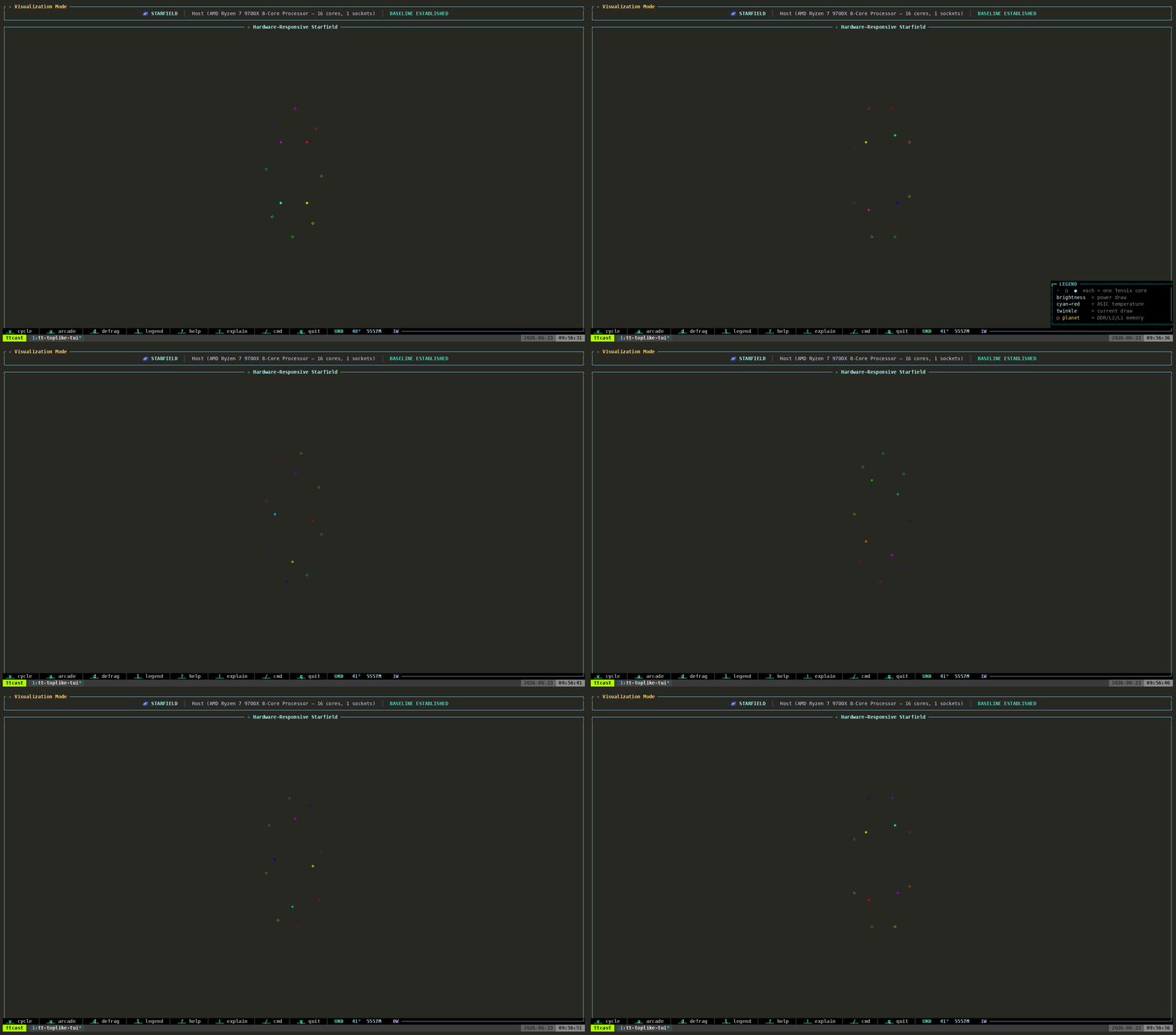
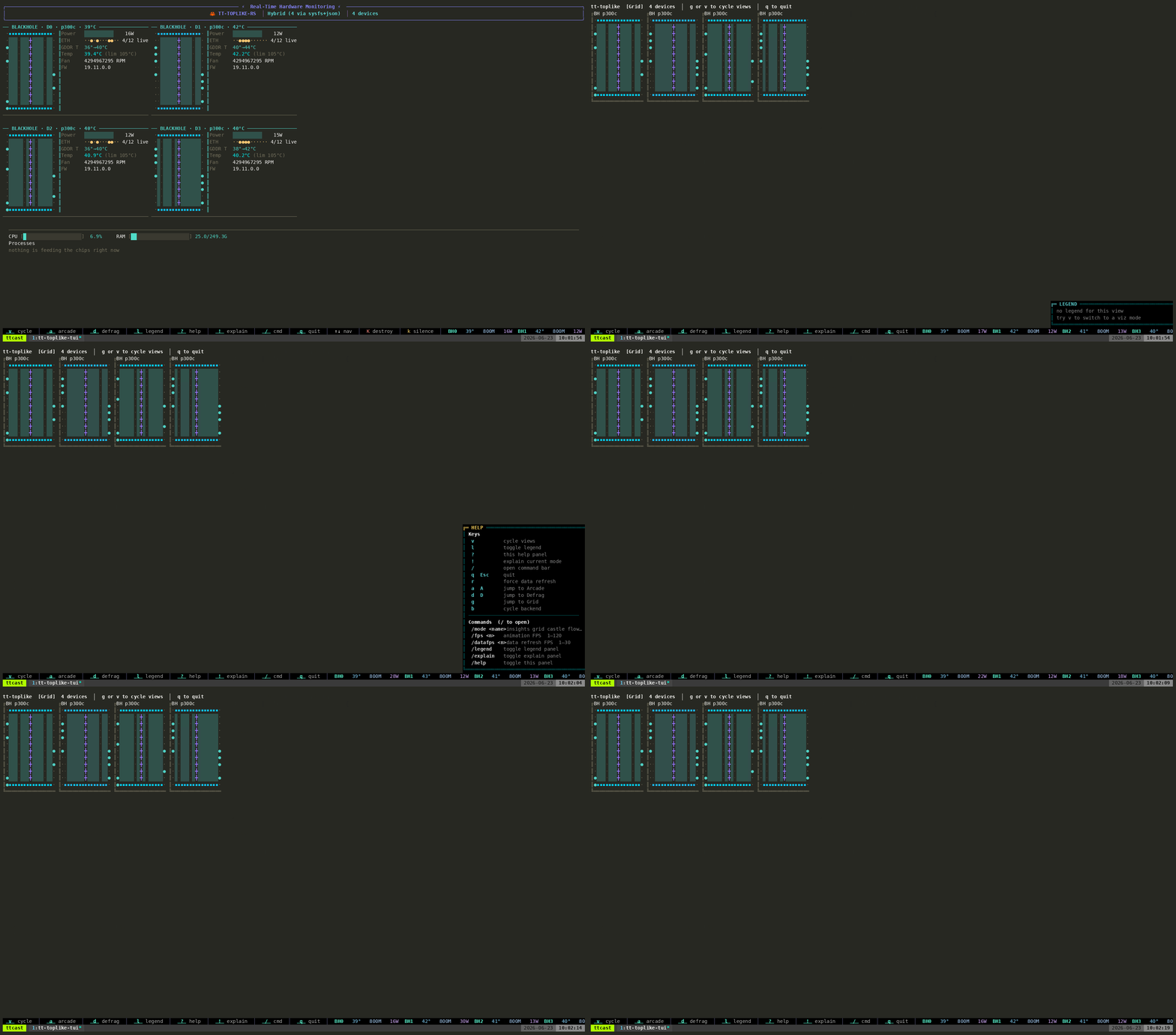
For something richer than the built-in TUI, tt-toplike renders the same telemetry as live ASCII art — every chip’s power, temperature, and DRAM state, animated:
tt-toplike — the host and all four Blackhole chips, live telemetry as ASCII art
On a QB2 from Tenstorrent, this is already done. The venvs are there, the driver is loaded, the firmware is flashed. This chapter is for understanding what exists and where — so you know which environment to activate when, and what to do if something’s missing.
✅
If your QB2 came pre-configured: jump to What You Have below. The install already ran.
Installing the Tenstorrent Software Stack
On a QB2 from Tenstorrent, the stack is already there — but it is the stack that was current
when your box was built, not the stack that is current today. So there are two jobs here:
upgrade what you have (almost everyone) and install onto a fresh Ubuntu system (fewer
people). Upgrading comes first.
Upgrade before you start
This is the step nobody thinks to take, and it is the one that saves the most time. A QB2 that
has been in a box for a few weeks is behind on driver, firmware, tooling and container images,
and the symptoms of being behind rarely say “you are behind” — they look like broken hardware or
a broken tutorial.
1. Re-run tt-installer. It is the same command as a fresh install and it is safe to run
again — this is the intended way to move an existing machine forward:
That brings the kernel driver, firmware, HugePages, tt-smi/tt-flash, sfpi and the
container wrappers up to the newest tested baseline. Firmware updating is on by default, so
expect it to ask about a reboot at the end.
2. Then apt. Most of the stack is packaged, and this is what picks up anything newer than
the installer’s pinned baseline:
sudoapt-get update &&sudoapt-get upgrade
3. Pull the two git checkouts — the installer will not do it for you.tt-studio and
tt-inference-server are cloned into ~/.local/lib/, and on a re-run the installer skips a
directory that already exists (“Skipping clone, will create wrapper script only”). So they stay
at whatever revision they were first cloned at, however many times you re-run it. This is why a
box can report an old tt-studio while the docs describe a much newer one:
4. Refresh the container images. The tt-metalium wrapper is a plain docker run, which
pulls an image only when it is missing locally — once you have it, it never updates on its own:
(Re-running the installer with --pull-container-images does the same thing for the images it
manages.)
Do the installer first and apt second — that order is deliberate. By default the installer
pins every component to a tested golden baseline (--versions=release), and it passes
--allow-downgrades to apt to enforce it. So if you apt-get upgrade past the baseline and
then re-run the installer, it will quietly pull those packages back down. If you want the
installer itself to take the newest of everything rather than the pinned set, run it with
--versions=rolling.
--dry-run --mode-non-interactive prints the whole plan without changing anything, which is a
cheap way to see what an upgrade would actually do before you commit to it.
Installing on a fresh Ubuntu system
Prerequisites: Ubuntu 24.04 LTS (or 22.04), internet connection, sudo access.
The installer handles drivers, firmware, kernel modules, one Python virtual environment for the
hardware tooling, and the container wrappers that stand in for the old source-tree environments.
Accept the defaults — they’re right for a QB2.
After it finishes, reboot:
sudoreboot
The Tenstorrent apt repository (and its signing key)
Most of what the installer puts on the machine — the tenstorrent-dkms kernel driver, tt-smi, tt-flash, tt-topology, tt-toplike, tt-metalium, tt-nn, sfpi — comes from Tenstorrent’s own apt repository. (The tt-metalium and tt-nn packages there are the C++ runtime libraries, for linking native code — they are not the Python ttnn module, which only exists inside the Metalium container.) Two things have to be in place for that: the repository line, and the key apt uses to verify it. Miss the key and apt refuses the repository outright.
tt-installer sets both up. These are the commands it runs, if you’d rather add the repository without the full installer, or need to repair it:
# 1. Keyring directorysudomkdir-p /etc/apt/keyrings
sudochmod755 /etc/apt/keyrings
# 2. The signing key — this is the step that gets skippedsudocurl-fsSL-o /etc/apt/keyrings/tt-pkg-key.asc https://ppa.tenstorrent.com/tt-pkg-key.asc
# 3. The repository, pinned to that keyecho"deb [signed-by=/etc/apt/keyrings/tt-pkg-key.asc] https://ppa.tenstorrent.com/ubuntu/ $(. /etc/os-release &&echo"$VERSION_CODENAME") main"\|sudotee /etc/apt/sources.list.d/tenstorrent.list > /dev/null
# 4. Refreshsudoapt-get update
On Debian, swap /ubuntu/ for /debian/. On Fedora, write /etc/yum.repos.d/tenstorrent.repo with gpgkey=https://ppa.tenstorrent.com/tt-pkg-key.asc — dnf fetches the key from the URL, so there’s no keyring file to manage.
Check it took:
# The key: a PGP block, non-zero size, readable by _apt (mode 644)head-1 /etc/apt/keyrings/tt-pkg-key.asc
ls-l /etc/apt/keyrings/tt-pkg-key.asc
# The repository line, and where packages now resolve fromcat /etc/apt/sources.list.d/tenstorrent.list
apt-cache policy tt-smi
If apt update says “The repository … is not signed” or reports NO_PUBKEY, the key at /etc/apt/keyrings/tt-pkg-key.asc is missing, empty, or unreadable — re-run step 2 above and sudo apt-get update. Breaking & Fixing Things has the full diagnostic.
What ends up on your QB2
Path
What it is
~/.tenstorrent-venv/
Python venv for the hardware tooling — tt-smi, tt-flash, and tt-topology if you opted in. That is all it contains
~/.local/bin/tt-metalium
TT-Metalium container wrapper — this is the TTNN / Direct API environment
~/.local/lib/tt-inference-server
Serving stack; run.py launches vLLM in a container
~/.local/bin/tt-forge
Forge container wrapper — only if you passed --install-forge-container; it is off by default
~/.tenstorrent-venv/bin/tt-smi
Hardware monitoring CLI — on PATH whenever that venv is active, which on a QB2 is every login
~/models/
Model weights storage (create it: mkdir -p ~/models)
/etc/apt/keyrings/tt-pkg-key.asc
Signing key for the Tenstorrent apt repository
/etc/apt/sources.list.d/tenstorrent.list
The repository line, pinned to that key via signed-by=
As of tt-installerv3.2.0, Docker is the default container runtime (Podman is still supported — pass --install-container-runtime=podman). The Metalium container installs by default. Forge does not — --install-forge-container is off unless you ask for it, and when you do, the installer pulls ghcr.io/tenstorrent/tt-xla-slim and writes the tt-forge wrapper to ~/.local/bin/tt-forge. The pip-wheel install the TT-Forge docs describe is a separate thing you do yourself, and it belongs in its own venv — see TT-Forge.
Nothing is installed into ~/.tenstorrent-venv but the hardware tooling — keep it that way.tt-smi and tt-flash live there, and on a factory QB2 it is activated for you in every shell.
A bad dependency resolution in that venv costs you the tools you diagnose the machine with.
Install anything of your own (huggingface_hub, Forge, vLLM) into a separate venv, or with
uv tool / pipx so it gets one automatically.
~/.local/bin is not on PATH in every shell. That is where tt-smi, tt-metalium,
tt-forge and tt-studio land, and tt-installer itself warns about this when it finishes: zsh
never reads ~/.profile, which is where Ubuntu’s default ~/.local/bin rule lives. If a
Tenstorrent command comes back command not found, run
export PATH="$HOME/.local/bin:$PATH" and add that line to your ~/.zshrc.
After tt-installer and reboot — the tooling venv and tt-smi are ready
What You Have
On a QB2 from Tenstorrent, the stack is pre-installed. Here’s your map:
Component
Location
When to use it
TTNN / Metalium
tt-metalium wrapper in ~/.local/bin/
Direct API work, TTNN operations, cookbook examples
Hardware tooling
~/.tenstorrent-venv/ — tt-smi, tt-flash
Monitoring and firmware. Nothing else belongs in here
Serving
~/.local/lib/tt-inference-server
Serving models via HTTP, OpenAI-compatible API — runs vLLM in a container
Forge/XLA
tt-forge wrapper in ~/.local/bin/
Compile PyTorch/JAX models via container — opt-in, may not be present
tt-smi
in ~/.tenstorrent-venv/bin/ — on PATH once that venv is active
Hardware monitoring, always available
Model storage
~/models/ (convention)
Where you put downloaded model weights
Scratch space
~/tt-scratchpad/
Working directory for scripts and experiments
There is no ~/tt-metal and no ~/tt-metal/python_env. Older QB2 notes — and earlier
versions of this page — told you to activate a TTNN venv at that path. Nothing on a current
machine creates it: tt-installer ships TT-Metalium as a container image and gives you the
tt-metalium wrapper instead. If a command in some other guide starts with
source ~/tt-metal/python_env/bin/activate, substitute tt-metalium.
Installing on a fresh Ubuntu machine?tt-installer uses Docker containers for Metalium and
(optionally) Forge. It creates ~/.tenstorrent-venv for the Python hardware tools and installs
the tt-metalium / tt-forge wrapper scripts in ~/.local/bin/. The paths here reflect a
configured QB2; a fresh install may differ slightly.
Create the scratch directory if it doesn’t exist yet:
mkdir-p ~/tt-scratchpad ~/models
The Three Environments, Explained
Two of them are containers and one is a venv. That’s the thing worth internalising: only the
hardware tooling lives in a virtual environment on the host.
TTNN — the tt-metalium container
This is the workhorse. Use it for direct Python API work — opening devices, running TTNN operations, the cookbook examples in this guide.
tt-metalium
# you're now in a shell inside the container, home directory mounted
python3 -c"import ttnn; print('TTNN ready')"exit
TTNN is already on the container’s default interpreter (/opt/venv/bin/python3), so there’s
nothing to activate. The first run pulls a multi-GB image; later runs start immediately.
Serving — tt-inference-server
Use this to run a model as a server with an OpenAI-compatible HTTP API. You don’t invoke vllm
yourself and it isn’t installed on the host — it ships inside a container that
tt-inference-server launches:
exportHF_TOKEN=hf_... # gated repos need it even when the weights are already local
python3 ~/.local/lib/tt-inference-server/run.py \--model Llama-3.1-8B-Instruct \--workflow server \
--tt-device p300x2 \
--docker-server
run.py picks the container image, sets TT_METAL_ARCH_NAME, MESH_DEVICE and the vLLM
timeouts per model, and publishes the API on port 8000. --tt-device p300x2 is the whole QB2 —
two P300 boards, four chips. Add --print-docker-cmd to see the docker run it would issue.
Or use tt-studio for a no-code UI that handles all of this for you.
Watch the startup log for a line saying the tt platform has been selected. Without it, vLLM is
running but cannot see your hardware — see the
vLLM on QB2 chapter, which also covers running vllm serve
by hand if you want the lower-level control surface.
TT-Forge (tt-forge wrapper)
tt-forge is a Docker container wrapper installed to ~/.local/bin/ by tt-installer. It runs the TT-XLA/Forge compiler stack without requiring a local Python venv:
# Use the tt-forge wrapper directly
tt-forge --help
For scripting with import forge in Python, use the tt-forge-fe source tree or check docs.tenstorrent.com/tt-forge for current installation instructions.
Confirming Each Environment Works
Run this check sequence:
# TTNN — inside the container
tt-metalium -c'python3 -c "import ttnn; print(\"OK TTNN\")"'""# The serving stack — the launcher is a file on disk, so just check it's there
python3 ~/.local/lib/tt-inference-server/run.py --help> /dev/null &&echo'✓ tt-inference-server'# The hardware toolingwhich tt-smi && tt-smi --version
All three should respond without errors.
Note what is not in that list: there’s no import vllm check, because vLLM isn’t installed on
the host — it lives in the container run.py starts. If you run python3 -c "import vllm" in
~/.tenstorrent-venv and get a ModuleNotFoundError, nothing is broken; that venv only ever
contained tt-smi and tt-flash.
If any Tenstorrent command comes back command not found, the wrapper is almost certainly
installed and merely unreachable — add ~/.local/bin to your PATH (see below).
Checking what which python3 reports on the host versus inside tt-metalium
📁Why there's no ~/tt-metal at all: TT-Metalium reaches your QB2 as a container image — ghcr.io/tenstorrent/tt-metal/tt-metalium-ubuntu-22.04-release-amd64 — with the Python environment and compiled shared libraries inside it. Nothing is unpacked into your home directory, which is why ls ~/tt-metal comes back empty-handed and why the TTNN import only works after tt-metalium. Most users never need more than that. If you do want a real checkout to build from source (for kernel modification or upstream contributions), the build-tt-metal lesson walks through it.
Installing tt-smi if it’s Missing
On a QB2 it shouldn’t be missing, but on another Ubuntu system:
# Option A — public PyPI (any machine, no PPA needed):
pip install tt-smi
# Option B — via apt (requires the Tenstorrent repository, set up by tt-installer):sudoaptinstall tt-smi
Both install the same tool. Option A works anywhere with Python; option B integrates with your system package manager. On a freshly installed Ubuntu machine without tt-installer, option A is the easier path.
Option B needs the Tenstorrent repository and its signing key at /etc/apt/keyrings/tt-pkg-key.asc — see The Tenstorrent apt repository above. If apt complains the repository isn’t signed, that key is what’s missing.
Disk Space and Model Storage
Models consume significant disk space. Plan accordingly:
Model
Size on disk
Qwen3-0.6B
~1.5 GB
Qwen3-8B
~16 GB
Llama-3.1-8B-Instruct
~16 GB
Llama-3.1-70B
~140 GB
The convention across all Tenstorrent documentation is ~/models/<model-name>/. Nothing enforces this — you can store models anywhere and point --model at any path — but using the convention means every tutorial command works without substitution.
Check space before any download:
df-h ~/models
After tt-installer and reboot — the tooling venv and tt-smi are ready
Everything up to now was preparation. This is the part where the machine does something interesting. Four chips, waiting. One small model, about to arrive.
Running Your First Model
⚡Already loaded: your QB2 ships with Qwen3-32B pre-cached on disk. The no-download path to your first token is tt-studio — run tt-studio, pick Qwen3-32B from the Deploy Model dropdown, click Run. The first deploy takes a few minutes (no multi-GB download — the weights are already there). You enter a Hugging Face token once — the tooling asks for one up front, not because Qwen3-32B is gated (it is Apache-2.0 and ungated). Prefer the command line? Those same weights are reachable from tt-inference-server and from plain vllm serve — see Use the Model That's Already on Your Box in the vLLM chapter.
This chapter takes the other path — the hands-on one, where you talk to a chip directly in Python and pull a tiny model down yourself. The starter is Qwen/Qwen3-0.6B — no license gate, 1.5 GB, runs on any Tenstorrent hardware.
First, get into the TTNN environment. On a factory QB2 there is no ~/tt-metal
checkout on the host — TT-Metalium ships as a container, and the QB2 provides a
wrapper command that starts it:
tt-metalium
That drops you into a shell inside the container with your home directory mounted.
TTNN is already on the default interpreter, so there is no venv to activate. Check it:
which python3
# → /opt/venv/bin/python3
ℹFirst run downloads the image.tt-metalium pulls a multi-GB
container the first time you run it. Later runs start immediately.
Now do the handshake — open a device, confirm it responds, close it:
If you see Device open: without errors, chip 0 is alive and responding. Repeat with device_id=1, 2, 3 to verify all four.
⚠️QB2 note: To work with all four chips together, use ttnn.CreateDevices({0, 1, 2, 3}) — not four separate open_device() calls. Opening and closing devices individually can cause dispatch core errors on multi-chip configs.
⚠️The chips can only have one owner. If a model is already deployed
through tt-studio, it holds the devices and their hugepages, and opening a device here
fails with a UMD error like Expected NOC address: 0x1000000000000000, but got
0x1000000040000000. That is contention, not broken hardware — stop the deployed
model (or docker ps and stop the inference container) and try again.
Download a model
Downloading weights by hand needs the hf CLI, which is not part of the QB2’s
preinstalled stack — huggingface_hub isn’t in any environment the installer creates, so
hf isn’t on your PATH. Install it first, and install it somewhere other than~/.tenstorrent-venv: that venv holds tt-smi and tt-flash, a factory QB2 activates it
for you in every shell, and a bad dependency resolution in there costs you the tooling you
diagnose the machine with. uv tool and pipx each give the CLI its own environment, which
is exactly what you want:
Ubuntu 24.04 is an externally-managed Python, so a plain pip install on the host will
refuse — that refusal is the system protecting itself, not an error to force past with
--break-system-packages.
Then pull the weights (run this on the host, not inside tt-metalium):
# hf — not huggingface-cli. The command is hf.
hf download Qwen/Qwen3-0.6B --local-dir ~/models/Qwen3-0.6B
This creates ~/models/Qwen3-0.6B/ with the HuggingFace-format weights (~1.5 GB). Check your disk first:
df-h ~
You need at least 3 GB free for this model alone. Larger models (Llama-3.1-8B) need 16+ GB.
TTNN device open handshake on chip 0 — then Qwen3-0.6B files on disk
What Just Happened
When that Python snippet ran without errors, the Blackhole chip opened a dispatch channel through the PCIe link, initialized its RISC-V cores, and confirmed it can receive work. Nothing computed yet. But the handshake — software to silicon — is the prerequisite for everything else.
⬡ Tensix Grid — Blackhole (P100/P150/P300c / QB2)
ttnn.open_device(0) — what happens inside the chip.
Use the Model That’s Already on Your Box
Before you download another model, know what you already have. Your QB2 shipped with
Qwen3-32B on disk — and not just the weights:
What
Size
Can you re-download it?
The weights
~62 GB
Yes, given time and disk
Compiled Blackhole kernels
~30 GB
No
The second row is the one to care about. Those are the model’s operations already compiled
for a four-chip mesh — the work that otherwise happens the first time you serve a model,
while you watch a quiet log and wonder whether it has hung. It cannot be fetched from
Hugging Face because nobody publishes it; it is built against your topology. Tenstorrent
pre-built it and shipped it to you.
So the case for using it isn’t that downloading is slow. It’s that a download can’t give
you the kernel cache — pull the weights yourself and you still pay the compile, having
thrown away the more valuable half of what shipped. You’d also be spending another ~62 GB on
a disk that already holds this model once. And it is no compromise: Qwen3-32B runs a 131K
context window across all four chips and serves up to 8 concurrent requests.
Confirm it arrived — the same check Tenstorrent’s ISO acceptance test runs:
du-sh ~/data/tt-cache/
You want roughly 87G–91G. Much smaller or missing means the model didn’t make it onto
your box, and the rest of this section won’t work.
Give it a name you’ll remember
The weights are real Hugging Face model files, but they are not in a Hugging Face cache —
a factory QB2 has no ~/.cache/huggingface and no ~/models at all. They sit in
tt-inference-server’s storage layout, under a directory named for a build label. One symlink
puts them on the path the rest of this guide already uses, so you never type that name again:
A symlink, not a copy — a copy would be another 62 GB for no benefit. Check it resolves:
ls ~/models/Qwen3-32B/config.json
Now ~/models/Qwen3-32B sits beside the ~/models/Qwen3-0.6B you’d get from hf download,
and tools take it as an ordinary path:
This replaces the launch command near it — it is not a next step. One model owns the four
chips and port 8000 at a time, so if you already started something (the command above, or a
deploy from tt-studio), stop it before running this: Ctrl-C, or docker ps then
docker stop <id>. sudo lsof -w /dev/tenstorrent/* printing nothing means the chips are
free. Pick whichever launch you want; don’t run both.
# run.py requires HF_TOKEN whenever --docker-server is used, local weights or not.# That is a workflow precondition, not a license gate: Qwen3-32B is Apache-2.0 and# ungated. Omit it and you get "⛔ HF_TOKEN not set." before anything starts.exportHF_TOKEN=hf_...
python3 ~/.local/lib/tt-inference-server/run.py \--model Qwen3-32B \
--tt-device p300x2 \--workflow server --docker-server \
--host-weights-dir ~/models/Qwen3-32B
--host-weights-dir mounts that directory into the container read-only: your weights can’t
be modified by the server, and no second copy is made. Once it is up, the server reports the
model by its full Hugging Face repo id — query it as Qwen/Qwen3-32B, not Qwen3-32B, or
read the exact string from curl -s http://localhost:8000/v1/models. The same path works for a direct
vllm serve ~/models/Qwen3-32B with HF_MODEL=~/models/Qwen3-32B, if you have built that
environment.
Not --host-hf-cache. It’s the flag that sounds right. It reuses a Hugging Face cache —
resolving HOST_HF_HOME, then HF_HOME, then ~/.cache/huggingface — and on a factory QB2
none of those exist, so you get a fresh 62 GB download of a model you already own.
--host-hf-cache is for weights you pulled with hf download; --host-weights-dir is for
the ones that shipped. Leave HF_HOME alone too — it plays no part in reaching this model.
Serving a Model with vLLM
Already started Qwen3-32B above? Skip this section. It launches a second model on the
same four chips and the same port 8000, and that will fail — the chips have one owner at a
time. This section is the path for serving a model other than the one that shipped. If you took the
pre-cached route, the examples below still apply with two different substitutions — they are
easy to cross-wire:
run.py --model takes the short spec name: Qwen3-32B, never the repo id.
The "model" field in curl and the Python SDK takes the full id the server reports:
Qwen/Qwen3-32B, where the examples say meta-llama/Llama-3.1-8B-Instruct.
curl -s http://localhost:8000/v1/models settles the second one on your box.
The fastest path to actually generating text is vLLM. It handles model loading,
tokenization, batching, and presents an OpenAI-compatible HTTP API.
On a QB2 you do not invoke vllm yourself, and it is not installed in
~/.tenstorrent-venv — that venv holds only the hardware tooling (tt-smi, tt-flash).
vLLM ships inside a container that tt-inference-server launches for you:
cd ~/.local/lib/tt-inference-server
exportHF_TOKEN=hf_... # required; gated repos need it even when weights are local
python3 run.py \--model Llama-3.1-8B-Instruct \--workflow server \
--tt-device p300x2 \
--docker-server
run.py selects the right container image, sets TT_METAL_ARCH_NAME, MESH_DEVICE and
the vLLM RPC timeout for you, and publishes the OpenAI-compatible API. Add
--print-docker-cmd to see the exact docker run it would issue before it launches.
--tt-device p300x2 is the whole QB2 — two P300 boards, four Blackhole chips. Passing
p300 uses a single board, so half the machine sits idle. Check what a given model
supports: not every model is built for every topology.
--host-hf-cache reuses weights you pulled yourself with hf download, mounting the
Hugging Face cache read-only instead of downloading a second copy into a Docker volume. It
resolves HOST_HF_HOME, then HF_HOME, then ~/.cache/huggingface — so it only helps once
you have actually downloaded something. It is not how you reach the Qwen3-32B that
shipped with the box: those weights live outside any Hugging Face cache, and
--host-weights-dir is the flag for them. See above.
Llama-3.1-8B is the safer first model here. Very small models like Qwen3-0.6B will load — the
plugin maps them by architecture — but they have no tuned implementation in tt-metal’s
tt_transformers, so output quality is not something to judge the hardware by. Note that
Qwen3-0.6B is not in tt-inference-server’s model list at all: it is fine for the direct
TTNN handshake above, but you cannot serve it with the command in this section.
You’ll see initialization messages as the model loads. This takes a minute or two on first run — the model weights are being compiled for the Blackhole architecture. Subsequent runs are faster.
Once you see INFO: Application startup complete, the server is ready. In a new terminal:
The response is JSON. The answer is in choices[0].message.content.
💡Why two different models? Qwen3-0.6B is the starter for the direct TTNN path earlier in this chapter: ~1.5 GB, no Hugging Face license gate, fast to pull. For serving, use Llama-3.1-8B-Instruct — Qwen3-0.6B has no tuned tt_transformers implementation and is not in tt-inference-server's model list, so the vLLM command above cannot serve it.
Using tt-studio (the Web UI)
tt-studio
tt-studio is a web interface for running models on QB2 without writing a line of code. It handles model selection, container lifecycle, and inference end-to-end — open a browser, pick a model, get tokens back. It’s the lowest-effort path to your first token on a QB2.
Start it with the pre-installed wrapper command:
tt-studio
⚠️tt-studio: command not found? The wrapper lives in
~/.local/bin, which is not on PATH in every shell — zsh in
particular never reads ~/.profile, where Ubuntu's default
~/.local/bin rule lives. Fix it for this shell with
export PATH="$HOME/.local/bin:$PATH", and add that line to
~/.zshrc to make it stick. The same applies to tt-metalium,
tt-forge and tt-inference-server — the last of these is a wrapper
that runs run.py out of ~/.local/lib/tt-inference-server, so you can
call it either way.
Then open http://localhost:3000 in your browser, pick a model from the Deploy Model dropdown, and click Run. On a QB2, Qwen3-32B is already there with its weights pre-cached — its first deploy skips the multi-GB download and is ready in a few minutes. Other models download on first use; after that, every run loads fast from the on-disk cache. (tt-studio v2.8.0 also fixed the cold first-chat delay after an idle model, so that first token comes back quickly.)
tt-studio is at v2.10.0 as of this writing. Since v2.8.0 it’s added an OpenClaw general agent you can deploy like any model (v2.9.0), and an Apps Marketplace connecting deployed chat models to external tools plus hybrid RAG retrieval with reranking (v2.10.0).
ℹWhat the wrapper does:tt-studio is a convenience command the QB2 ships. Under the hood it launches the same stack you'd get by cloning the repo and running python3 run.py — that sets up the submodule and .env, prompts for your Hugging Face token, selects the right Docker overlays for your hardware, and brings up the Django + React app plus the model containers, then serves the UI at localhost:3000. On any other machine, that clone-and-run.py flow is how you'd start it.
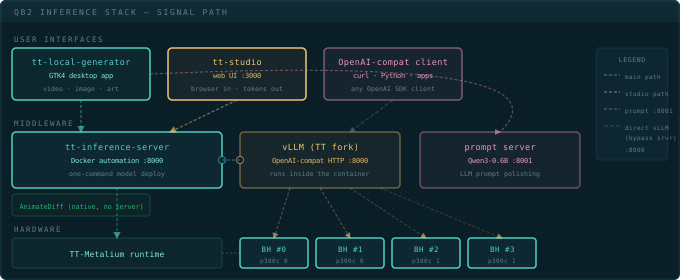
What’s happening under the hood: tt-studio is a UI sitting on top of tt-inference-server. When you select a model and click Run, tt-studio spins up a Docker container running the TT fork of vLLM on port 8000. Your browser talks to tt-studio; tt-studio talks to that container. tt-local-generator routes through the same container — both are UIs sitting on top of tt-inference-server, just with different front ends.
To access tt-studio from your laptop while the QB2 is on your network, forward the port over SSH:
ssh-L3000:localhost:3000 user@qb2-hostname
Then open http://localhost:3000 on your local machine as if you were sitting in front of the QB2.
For a deeper look at how the inference server is wired up, the tt-vscode-toolkit lesson on tt-inference-server walks through the architecture interactively — Docker flags, model download, port mapping, and what logs to watch on first boot.
ℹTwo UIs, one server: tt-studio and tt-local-generator are both front ends for tt-inference-server. You can switch between them freely — they talk to the same running container on port 8000.
🤖New since v2.8.0 — your QB2 as a coding backend: tt-studio can serve a deployed model to Claude Code and OpenCode through a built-in gateway, so a coding agent runs against your own chips instead of a cloud API. v2.8.0 also added text-to-video (WAN) and image (Flux) generation; v2.9.0 added a deployable OpenClaw general agent; v2.10.0 added an Apps Marketplace and hybrid RAG. See Serving Models on QB2 for the coding-agent setup.
tt-studio is a single command — starts a web UI at localhost:3000, accessible via SSH tunnel from your laptop
Multi-Device: Using All Four Chips
To spread a model across all four Blackhole chips, use CreateDevices instead of open_device:
CreateDevices handles the mesh configuration that lets the chips coordinate. Models loaded this way can distribute layers across chips, increasing the effective memory pool and throughput. Large models (Llama-3.1-70B) require this — they don’t fit on one chip’s memory alone.
⬡ One mesh, four chips — what CreateDevices opens
CreateDevices spans all four chips: a large model's layers spread across them for more memory and throughput. (A small model like Qwen3-0.6B runs happily on one chip.)
Opening TTNN device and browsing model files on a live QB2
Everything so far — tt-smi, tt-installer, tt-metalium, tt-inference-server, tt-studio — is a separate tool with its own flags and its own mental model. tt-cli (the tt command) is Tenstorrent’s answer to that sprawl: one entry point that either does the thing itself or delegates to the tool that already does.
⚠️Already have something answering to tt? `tt` is a short, popular name, and more than one Tenstorrent tool has claimed it over time. Run tt --help after installing — if the commands don't look like device/model/serve/update, something earlier on your PATH is answering instead. See If tt already means something else below.
Installing it
tt-cli is a Python package (tenstorrent on PyPI), and it wants to live in its own isolated environment so it can safely update itself later:
uv tool install tenstorrent
uv tool update-shell # puts ~/.local/bin on PATH for future shellsexportPATH="$HOME/.local/bin:$PATH"# ...and this one, right now
tt --help
uv tool update-shell edits shell startup files (.bashrc, .zshrc) — it can’t change the PATH of the shell you’re already sitting in. Without that export, tt --help in the same terminal either fails outright or picks up something else already on PATH (see below). The export only matters for this one session; a new terminal after update-shell has run once already has ~/.local/bin in place. The rest of this chapter’s examples assume that same session, so do this once, up front.
No uv? A QB2 that’s already run tt-installer has it at ~/.local/bin/uv (the installer’s --use-uv python path pulls it in as a side effect), so this is usually already true on a real box. On a fresh Ubuntu machine, get it first:
curl-LsSf https://astral.sh/uv/install.sh |sh
pipx install tenstorrent or a plain venv + pip install tenstorrent both work too — see DEVELOPERS.md for the full list. Whatever you pick, keep tt-cli in a venv with nothing else in it — that isolation is what lets tt self update upgrade it in place later instead of refusing.
If tt already means something else
uv tool install puts its shim at ~/.local/bin/tt. On a normal interactive shell, ~/.local/bin comes before the rest of PATH, so the install “just works” — but a non-login shell (a plain docker run <image> bash -c '...', some CI runners) skips ~/.profile entirely and can leave whatever else answers to tt in place.
If tt --help doesn’t look like this chapter:
Find out what’s actually running:which -a tt lists every tt on your PATH, in the order the shell would try them.
Check ~/.local/bin comes first. If it doesn’t, either start a login shell (bash -l) or fix the order yourself: export PATH="$HOME/.local/bin:$PATH".
In the meantime, call it by its full path — ~/.local/bin/tt --help — to confirm the install itself worked before chasing PATH.
Don’t uninstall the other tool to make room. uv tool uninstall tenstorrent and reinstalling won’t change the PATH order either — the fix is always PATH order, not which tool is present.
Upgrading the stack
tt update is the one command that replaces “check tt-smi’s changelog, check tt-installer’s changelog, remember which .deb versions are compatible with which firmware.” It converges your system onto a single tested golden set — one pinned version per component (firmware, kernel driver, tt-smi, tt-flash, and more), published and CI-validated by tt-sw-manifest:
tt update --dry-run   # show the plan, change nothing
tt update             # apply it (prompts before anything that resets a device)
--dry-run prints a table like this (captured on a real QB2 board):
tt-flash/tt-smi are pulled in as their own isolated uv-managed tools under ~/.local/share/tenstorrent/ — separate from whatever’s already in ~/.tenstorrent-venv, so the two can’t conflict. The system-stack row is where tt update hands off to tt-installer (which needs sudo) to converge drivers, firmware, and the rest of the apt-delivered pieces.
✅Not run nested in a container. The system-stack row reloads the kernel driver and can install/enable Docker via systemd — real host-level operations. Run tt update on the machine itself, not inside a docker run shell (which typically has no systemd/PID 1 to hand the install off to, and would fail partway through anyway). The tt-cli-managed tool rows (tt-flash, tt-smi) install fine either way.
Firmware will not be downgraded by accident
This is the part worth trusting rather than guessing about, so here’s what’s actually in the source (tt-cli’s commands/update.py / backends/installer.py, current as of v1.0.1):
Plain tt update — no --force, no version argument — passes --update-firmware=on to tt-installer. That flag hands the per-device version check to tt-flash, which flashes only devices whose running firmware is older than the golden bundle. A device already at or ahead of golden is left alone.
--force is what opts into a downgrade — it’s the flag whose help text literally says “even when that means a downgrade.” Passing an explicit tt update <version> (an older installer release) implies --force too, “since an explicit version means you know what you’re doing.”
Confirmed on a real board during testing: this box’s firmware (19.15.0.0) was already newer than this golden release’s pinned target (19.13.1). A plain tt update --yes printed the standard “could not confirm current firmware, continue?” prompt (because tt-smi wasn’t installed yet at plan time) but — per the source path above — would not have flashed anything once it got there, since is_any_fw_semver_higher only trips the reset warning when the target is newer than what’s installed.
So: the happy path already avoids what you’re worried about. Just run tt update without --force and without naming an older version, and firmware only ever moves forward.
tt update does not touch tt-studio, and gets its own copy of tt-inference-server
This matters if you’ve already been through Installing the Stack: tt update isn’t a drop-in replacement for re-running tt-installer by hand, because the two disagree about where — and whether — two specific pieces of the stack live.
tt-inference-server: two separate checkouts, not one shared copy.tt-installer clones it to ~/.local/lib/tt-inference-server — the path this guide’s manual run.py commands use everywhere else. tt-cli passes --no-install-inference-server to tt-installer and instead manages its own pinned clone, at ~/.local/share/tenstorrent/tools/tt-inference-server-<version>/src/ (~/.local/share/tenstorrent/tools/tt-inference-server-v0.22.0/src/run.py on this box) — confirmed straight from tt-cli’s source (tools/supplement.toml’s [tools.tt-inference-server] entry, tools/installers.py’s GitVenvInstaller). tt serve and tt model commands go through this second copy. Both can exist on the same machine at different versions; neither one updates the other.
tt-studio isn’t managed by tt-cli at all.tt update also passes --no-install-studio, but there’s no matching tt-studio entry anywhere in tt-cli’s own tool registry — it doesn’t install a copy, doesn’t track a version, and doesn’t update one. If ~/.local/lib/tt-studio already exists from an earlier plain tt-installer run, tt update prints a one-time warning suggesting you delete it for disk space; it never offers to update it.
⚠️
So tt update alone will not keep tt-studio current, and won't touch the ~/.local/lib/tt-inference-server copy this guide's other manual run.py examples point at. If you use both tt-cli and tt-studio, keep running git -C ~/.local/lib/tt-studio pull and git -C ~/.local/lib/tt-inference-server pull yourself (see agents.md's upgrade section) — tt update covers the system stack and tt-cli's own tools, not those two.
Validating it worked
tt device status # per-board temp, power, clock — a one-line-per-chip tt-smi summary
tt device info # firmware bundle versions, PCI info, per device
tt model list # the model catalog, filtered to what this box's hardware can run
tt self update --check# confirms tt itself is current
tt device status on a two-chip P300 board looks like this:
                Tenstorrent devices (driver: TT-KMD 2.11.0)
┏━━━┳━━━━━━━┳━━━━━━━━━━━━━━┳━━━━━━━━━┳━━━━━━━━┳━━━━━━━━━━━┳━━━━━━━━━┳━━━━━━┓
┃ # ┃ Board ┃ Bus ID       ┃ Temp    ┃ Power  ┃ AIClk     ┃ Voltage ┃ DRAM ┃
┡━━━╇━━━━━━━╇━━━━━━━━━━━━━━╇━━━━━━━━━╇━━━━━━━━╇━━━━━━━━━━━╇━━━━━━━━━╇━━━━━━┩
│ 0 │ p300c │ 0000:01:00.0 │ 41.2 °C │ 17.0 W │ 800.0 MHz │ 0.72 V  │ True │
│ 1 │ p300c │ 0000:02:00.0 │ 43.6 °C │ 13.0 W │ 800.0 MHz │ 0.73 V  │ True │
└───┴───────┴──────────────┴─────────┴────────┴───────────┴─────────┴──────┘
If tt device status complains that tt-smi isn’t installed, that’s normal on a box that has never run tt update yet through tt-cli — it manages its own pinned copy separately from anything already in ~/.tenstorrent-venv. Run tt update once and the error goes away.
📎
As of v1.0.1, tt model list takes --community (Hugging Face community bundles) and filters like --type/--hw/--cached — the README's older --catalog flag isn't there; the catalog is just the default when you don't pass --community.
Serving a model the short way
Once tt update has converged the system stack, the rest of the workflow you saw in Your First Model collapses into two commands:
tt serve Qwen3-32B --port8000# in one terminal
tt launch openwebui # in another — auto-discovers what's being served
tt model info Qwen3-32B already reports cached yes on a box with the pre-cached weights from Your First Model — tt serve finds them the same way tt-inference-server’s run.py does, no re-download. (Qwen3-0.6B, the small model used for the direct TTNN device handshake in that chapter, isn’t in the catalog tt serve draws from — same restriction as run.py, not a tt-cli limitation.)
tt model ps shows what’s running and where; tt model stop Qwen3-32B stops it. This runs through tt-cli’s own tt-inference-server checkout — see tt update does not touch tt-studio above — not the ~/.local/lib/tt-inference-server copy the manual run.py commands elsewhere in this guide use, though both wrap the same underlying project.
You unboxed a machine that most people have never touched. You confirmed four Blackhole chips were alive and talking to the system. You navigated Python environments that would trip up someone who wasn’t paying attention. You ran a model on accelerator hardware and watched tokens come back. That’s not a tutorial warmup — that’s the actual thing.
The rest is up to you.
Tools in Your World
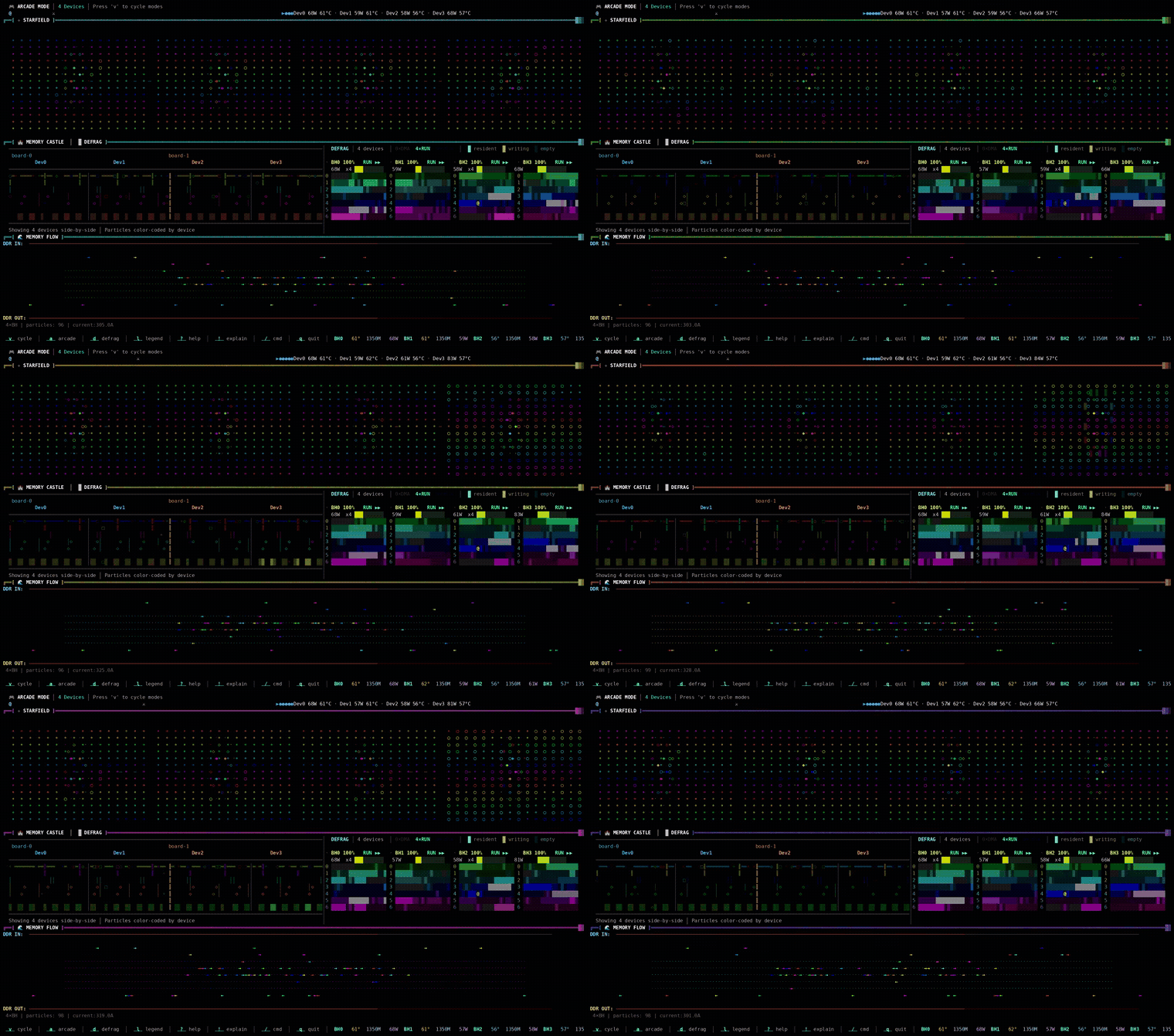
The QB2 ships with a full stack, but the ecosystem is bigger. Start with tt-toplike — htop for your chips, except the telemetry comes alive as ASCII art:
tt-toplike insights mode — all four Blackhole chips under live inference, power and DRAM state rendered in real time
vLLM, performance tuning, TT-Forge, and multi-chip inference.
Run & build · Chapter 1
Coming From CUDA
You know cudaMalloc. You know grid-dim and block-dim. You’ve tuned shared memory usage, you’ve written custom CUDA kernels, and you’ve debugged timing issues with Nsight. You have a mental model of how GPU compute actually works, not just how PyTorch wraps it.
That mental model transfers here, but not intact. Some pieces map cleanly. Some don’t exist. And some things you were papering over on the GPU are now explicit, visible, and tunable. The next ten minutes remaps the terrain.
Pick Your Altitude
The first question a CUDA developer asks is “where’s my model.cuda()?” The honest answer is that there isn’t one entry point — there are three, and which one you reach for depends on how much control you want. CUDA has the same three tiers; you just rarely think about them as a stack because NVIDIA blurs the seams.
The closest thing to model.cuda() is the top tier: TT-Forge traces your graph and lowers it to Tensix automatically. That’s Chapter 6 — reach for it when you want the model to just run. The two bottom tiers are for the cases TTNN doesn’t cover: TT-Lang lets you write a custom kernel in Python with no C++, and TT-Metalium is the C++ floor where every abstraction disappears. Both live in the Builder/Hacker track — and, as the last section of this chapter explains, the TT-Lang tier is far more reachable than “write your own kernel” sounds on CUDA.
This track lives in the middle, at TTNN — the tier where you have hand-optimized ops but still write Python, not kernels. It’s the sweet spot for performance work that doesn’t require descending to the metal, so that’s where the rest of this chapter focuses.
Thread Blocks vs. Tensix Tiles
On a GPU, a thread block is the unit of cooperative work: a group of threads that can share L1/shared memory and synchronize. The programmer launches a grid of blocks; the hardware schedules them onto SMs.
On Blackhole, the unit is a Tensix core. There are 120 enabled per chip (a 12×10 block of the 14×10 physical Tensix grid), sitting inside a larger 17×12 NoC grid that also carries DRAM, Ethernet, and PCIe nodes. Each core has its own L1 SRAM, its own set of RISC-V processing cores (five of them), and its own connection to the Network-on-Chip (NoC) fabric that threads through the entire grid. Tensix cores don’t share memory with each other. There’s no “block-scope” shared memory. There’s only what one core holds, and what it explicitly sends over the NoC to another.
This is the fundamental shift. On CUDA, data sharing between threads in a block is cheap and implicit — shared memory just works. On Tensix, data movement is the thing you design around. Every byte a core receives came from somewhere specific, via a routed packet on the NoC. That movement is visible to you. It’s also where the performance is.
There’s a deeper reason it’s visible: there is no warp scheduler hiding memory latency. On a GPU, when one warp stalls waiting on a global-memory read, the SM scheduler instantly swaps in another resident warp — latency disappears behind oversubscription, and you mostly don’t think about it. Tensix has no such trick. Instead, each core runs an explicit reader → compute → writer pipeline: one RISC-V core streams tiles into L1, the matrix engine works on them, another core streams results out, and they overlap by design rather than by lucky scheduling. At the TTNN level you don’t write that pipeline — the ops do — but it’s why tensor layout matters so much here. A layout that lets the reader stage clean tiles keeps the pipeline full; one that forces a reshuffle stalls it, and there’s no spare warp to paper over the gap.
L1 SRAM vs. Shared Memory
Each Tensix core has 1.5 MB of L1 SRAM. On a GPU, your shared memory budget is typically 48–96 KB per SM, and you fight for it. On Tensix, you have a full 1.5 MB per core to work with.
The catch: that memory doesn’t auto-populate. On a GPU, you launch a kernel and global memory reads happen via caches. On Tensix, you write the code that moves data from DRAM (the rows at the top and bottom of the chip grid) into the L1 of whichever cores need it. TTNN does this for you when you use its built-in ops — but if you drop to Metalium, you’re writing those NoC reads yourself.
For someone writing at the TTNN Python level (which is where this track lives), the takeaway is simpler: tensor operations in TTNN are already written to stage data correctly. You don’t write data movement code. But you do care about tensor layout, because layout determines whether the underlying kernels can move data efficiently or have to reshuffle it first.
TTNN as the CUDA Runtime Equivalent
Think of TTNN the way you think of libcudart plus cuBLAS plus cuDNN — all fused into one Python API. It handles device open/close, tensor allocation in device memory, op dispatch, kernel compilation (via Metalium under the hood), and synchronization.
The critical difference from cuBLAS: TTNN compiles ops JIT on first invocation. When you run a matrix multiply for the first time on a new tensor shape, Metalium generates a Tensix kernel for that exact configuration. Subsequent calls with the same shape hit the op cache and run fast. This is why first-run latency can be a few seconds — and why subsequent runs are fast enough to serve production traffic.
ℹ
Running this yourself? It assumes you're inside tt-metalium (see Your First Kernel). torch isn't preinstalled there — bootstrap it once per container session with uv pip install --python /opt/venv/bin/python3 torch --index-url https://download.pytorch.org/whl/cpu.
import ttnn
import torch
# Open a single chip (device_id=0)
device = ttnn.open_device(device_id=0)# Move a PyTorch tensor to device
torch_a = torch.randn(1024,1024)
a = ttnn.from_torch(torch_a, device=device, dtype=ttnn.bfloat16)# This compiles on first run, then caches
result = ttnn.matmul(a, a)# Pull back to CPU
out = ttnn.to_torch(result)
ttnn.close_device(device)
Compare this to CUDA: cudaMemcpy, cublasSgemm, cudaMemcpy back. The pattern is the same. The surface is different.
ttnn.from_torch copies the tensor to device DRAM (the DRAM banks at row 0 and row 11 of the Blackhole grid). The compute cores never touch DRAM directly — they pull tiles into L1 over the NoC when the kernel runs. You don’t manage this. TTNN does. But knowing it’s happening helps you reason about bandwidth.
What Transfers From CUDA Knowledge
Tensor shapes, batch dimensions, attention head patterns — all of this maps directly. The math doesn’t change. The numerics don’t change (bfloat16 is first-class here, same as modern GPUs). Batching strategies that work on GPU work on Tensix.
Knowledge of kernel fusion matters. The same principle applies: fewer round-trips through memory means faster execution. TTNN has fused ops (fused attention, fused feedforward) that follow the same logic as FlashAttention on CUDA.
Multi-device tensor parallelism maps directly too. The QB2 has four chips. When you run a 70B model, attention heads get split across chips the same way they’d split across GPUs in a tensor-parallel setup. The API is different — ttnn.CreateDevices({0,1,2,3}) instead of torch.distributed — but the concept transfers.
What Doesn’t Transfer
CUBLAS and cuDNN don’t exist here. There’s no drop-in replacement. If your code calls torch.nn.functional.conv2d and you want it to run on Blackhole, you need to either use TTNN’s conv2d op or compile via TT-Forge (which traces PyTorch graphs and lowers them to TTNN). You can’t just model.cuda() and move on.
Device memory pointers are gone. CUDA lets you grab a raw void* to device memory and pass it around. TTNN tensors are opaque objects — no raw pointer access. If your code does custom CUDA pointer arithmetic, that approach doesn’t port. You use TTNN ops, or you write Metalium kernels (a Tinker track topic).
Unified memory has no equivalent. There’s no cudaMallocManaged. Data is either on CPU or on the device, and you move it explicitly via ttnn.from_torch and ttnn.to_torch.
Grid launch syntax is gone. There’s no <<<gridDim, blockDim>>>. Kernel dispatch is handled by the TTNN op, which decides how to tile the work across the Tensix grid. You influence this via tensor layout and op selection, not by choosing block/thread dimensions.
CUDA Concept Mapping Table
CUDA Concept
Tensix / TTNN Equivalent
Streaming Multiprocessor (SM)
Tensix core
Thread block
Tile computation on one Tensix core
Shared memory
L1 SRAM per Tensix core (1.5 MB)
Global memory
DRAM banks (rows 0 and 11 of chip grid)
cudaMemcpy H2D
ttnn.from_torch(tensor, device=device)
cudaMemcpy D2H
ttnn.to_torch(tt_tensor)
cuBLAS sgemm
ttnn.matmul(a, b)
CUDA kernel launch <<<g,b>>>
TTNN op dispatch (automatic)
Warp
RISC-V core thread within one Tensix core
NCCL multi-GPU
ttnn.CreateDevices({0,1,2,3}) mesh fabric
Nsight profiling
ttnn.experimental.profiler, tt-toplike
torch.cuda.synchronize()
ttnn.synchronize_device(device)
Blackhole’s NoC Fabric
The four Blackhole chips in your QB2 sit on two p300c cards, linked by Warp cables and on-chip Ethernet — not PCIe (PCIe is only the host-to-card link). Intra-chip, the NoC connects every core to every other core and to the DRAM banks at roughly 1 TB/s aggregate bandwidth. This is not the same topology as NVLink or PCIe between discrete GPUs — it’s a different architecture where the cost of moving data within a chip is much lower relative to compute throughput than on a GPU.
For multi-chip workloads, the four chips form a mesh using their Ethernet cores (the left and right columns of the chip grid). This is how tensor-parallel models distribute their KV-cache updates — not through the host CPU, but directly chip-to-chip.
If you’ve read benchmarks or write-ups based on a single Blackhole card (the P150b, for example), they transfer directly: every chip in your QB2 is that same Blackhole part. The per-chip mental model — Tensix grid, L1, NoC, the reader/compute/writer pipeline — is identical. What the QB2 adds on top is the four-chip mesh for scaling past a single card; nothing about the single-chip picture changes.
⬡ Tensix Grid — Blackhole (P100/P150/P300c / QB2)
Matrix multiply: DRAM rows stage the operand tiles, compute cores pull them over the NoC and run.
The Blackhole NoC is a 2D torus mesh, not a crossbar or bus. Two independent NoC overlays (NOC0 and NOC1) carry traffic in opposite directions to avoid deadlock. When you write Metalium kernels, you choose which NoC to use for which transfers. At the TTNN level, the compiler makes these choices. Understanding the topology helps you reason about why certain tensor layouts perform better — the ones that minimize cross-NoC traffic in the hot inner loops.
Custom Kernels Without the Dread — and the Agentic Shortcut
On CUDA, “you’ll need a custom kernel” is a sentence that ends a lot of afternoons. It means C++, it means reasoning about occupancy and warp divergence and memory coalescing, and it means racing against bugs that only show up at certain block sizes. It’s also exactly the kind of code that AI coding agents are bad at: so much of a CUDA kernel’s correctness lives in implicit, unstated assumptions — what’s resident, what’s coalesced, which warp got there first — that there’s nothing concrete for an agent to verify against. The spec isn’t in the source; it’s in the programmer’s head.
The middle-lower tier, TT-Lang, inverts that. It’s a Python DSL (no C++) for writing the one custom op TTNN doesn’t expose — a fused pattern, a non-standard attention variant, an activation with a specific numerical property. And it’s built around the same reader → compute → writer structure from earlier in this chapter, except now you write the three sections explicitly: the reader declares exactly which tiles arrive and from where, compute is pure tile math on those arrivals, the writer declares exactly what leaves. Nothing is implicit.
That explicitness is the whole trick, and it’s why agentic development gets you remarkably far here. Because the full spec lives in the source — arrivals in, math, departures out — an AI coding agent has something complete to generate against and something concrete to check its work against. You describe the kernel in those three terms, the agent fills in the TT-Lang syntax, and the structure itself eliminates most of the ambiguity that makes agent-written CUDA hallucinate. So the practical ladder for someone coming from CUDA looks like this:
Let TT-Forge compile the whole model — most of the time you stop here.
Reach for TTNN ops when you want to hand-tune a hot path in Python.
Hand an agent a reader/compute/writer spec and let it write the TT-Lang for the rare custom kernel — instead of booking an afternoon to hand-write CUDA C.
You can travel a long way down that ladder without ever becoming a full-time kernel author. When you do want to go deeper into TT-Lang yourself — the decorators, circular-buffer semantics, the browser-based simulator — that’s the TT-Lang chapter in the Builder/Hacker track.
Setting Expectations
One more thing that won’t transfer from a decade of CUDA: the assumption that the stack is finished. CUDA is twenty years mature; the TT software stack is young and moving fast. The top-tier compiler frontends in particular are still evolving — by the time you read Chapter 6 you’ll see we already had to retire one PyTorch entry point in favor of TT-XLA. Expect occasional rough edges, expect the first run of a new op shape to JIT-compile for a few seconds before it caches, and expect to read the docs against the source now and then.
That’s not a warning to stay away — it’s the texture of working close to the edge of an open stack. The flip side is that the layers are genuinely open, the team is reachable, and unanswered questions tend to get answers. When something doesn’t behave the way this guide describes, the Tenstorrent Discord and the GitHub issue trackers are where practitioners (and TT engineers) actually work problems out.
Four chips. Up to 560 Tensix compute cores available at once. The question isn’t whether the hardware can handle real models — it’s which ones, at what scale, and how to get them here.
What’s Supported
The QB2 supports a focused set of model families, optimized for Blackhole silicon. These aren’t compatibility hacks — they’re models with hand-tuned TTNN kernels for the Blackhole architecture, validated for throughput and output quality.
Model Family
Variants
Chips Required
Disk Space
Qwen3
0.6B, 8B, 14B
1 (0.6B/8B), 2-4 (14B)
1.5 GB / ~16 GB / 28 GB
Qwen3
32B
4
~64 GB
Llama 3.1
8B-Instruct
1
~16 GB
Llama 3.1
70B-Instruct
4
~140 GB
Llama 3.3
70B-Instruct
4
~140 GB
Mistral
7B-Instruct
1
~14 GB
The model zoo lesson in tt-vscode-toolkit covers this in interactive depth, with live benchmarks you can run against your own QB2: tt-vscode-toolkit lessons →
Beyond text: video and image generation
The QB2 isn’t only a text box. tt-studio (v2.8.0 and current as of v2.10.0) adds two generative-media families to the same deploy-and-run flow:
WAN — text-to-video. Describe a scene, get a short generated clip.
Flux — text-to-image. A high-quality diffusion image generator.
They deploy exactly like the language models: open tt-studio at localhost:3000, pick the model from the Deploy Model dropdown, and click Run. tt-studio spins up the right container on your Blackhole chips and gives you a prompt box — no pipeline code, no separate install.
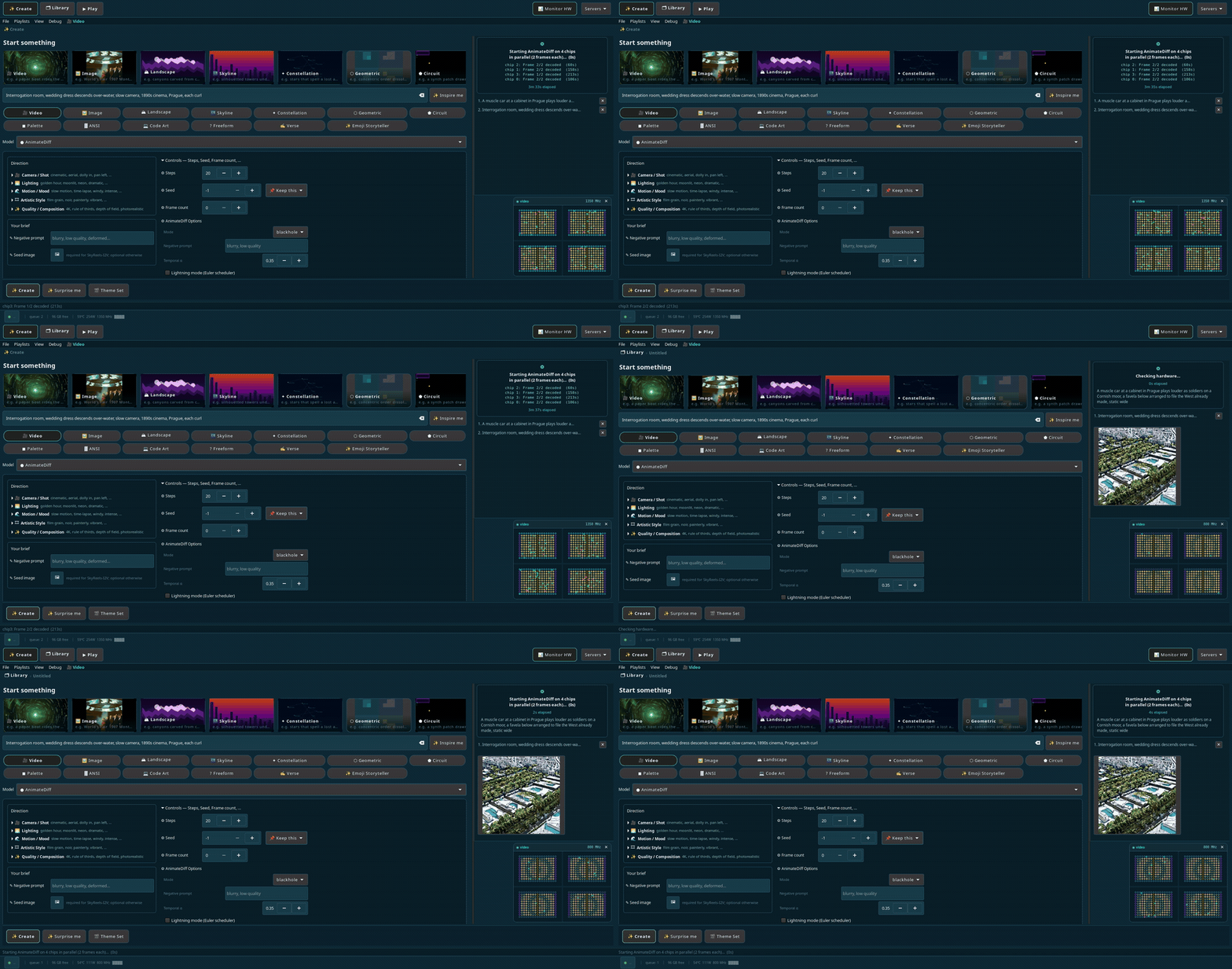
Which UI for media? tt-studio now handles video and image generation in the browser. tt-local-generator is the GTK4 desktop app for the same job — both sit on top of tt-inference-server, so pick whichever fits how you like to work. For a guided walkthrough of video specifically, see the QB2 Video Generation lesson.
These are heavier than an 8B chat model — a text-to-video diffusion run leans on more of the board than a single-chip LLM. If a deploy is slow to go green the first time, that’s compilation and weight loading; subsequent runs load from the on-disk cache.
Picking a Starting Point
Qwen3-0.6B is the fastest way to confirm the stack is working. It downloads in seconds, loads in under a minute, and produces real answers. Think of it as the “hello world” of this hardware — with one caveat worth knowing before you build a plan around it: it is absent from tt-inference-server’s model list, so run.py --model Qwen3-0.6B has nothing to select. It’s a smoke test for direct TTNN work and for a hand-rolled vllm serve, not a model you can deploy down the managed path.
Llama-3.1-8B-Instruct is where you start if you need production-quality output on a single chip. Strong reasoning, strong instruction-following, 128K context. The model most people actually use for serious work on a single Blackhole.
Qwen3-8B is a strong alternative in the same size class as Llama-3.1-8B. Use it if your workload benefits from Qwen’s architectural choices, or to compare against the 0.6B for quality/speed tradeoffs. Note that tt-inference-server lists it for p300 (two chips) but notp300x2 — and the two-chip mesh is the one that has failed fabric bring-up on our hardware. Llama-3.1-8B-Instruct, which has both a p300 and a p300x2 entry, is the lower-risk pick in this size class on a QB2.
Llama-3.1-70B-Instruct requires all four chips and 140 GB of storage. It’s the top-of-rack option for workloads where quality is the priority. Inference speed is lower than the 8B, but the output quality difference is real on complex tasks.
Qwen3-32B is the best zero-download default: it comes pre-cached on QB2, so there’s no multi-gigabyte pull standing between you and a real model. It needs all four chips (32B is the same size class as a 70B for chip-sizing purposes — use --tt-device p300x2), runs a 131K context window, and serves up to 8 concurrent requests. If you want a strong model running in the next sixty seconds, this is it.
Llama-3.3-70B-Instruct is the flagship choice — the same four-chip, 131K-context, up-to-8-concurrent profile as Qwen3-32B, but Meta’s newest 70B-class weights for maximum output quality. See the dedicated Llama-3.3-70B lesson for a full walkthrough.
Two more models are worth knowing about before you reach for them — especially for agentic or tool-calling use (see agents.md’s Coding Agents section for the tt-studio gateway setup), because neither holds up well under sustained multi-step agent loops:
gemma-4-31B-it — EXPERIMENTAL. In our testing this model crashed the runtime under sustained
agentic load. It’s also the most context-limited of the models in this chapter (49K vs. 131K+
for the Qwen3/Llama models) and only serves one request at a time
(max_num_seqs=1, single-stream — no continuous-batching headroom). Fine for short, supervised
sessions; don’t point a long-running agent loop at it yet.
Qwen3.6-27B — reasoning-first, not agent-first. It has the longest context window here
(262K) and a dedicated tool parser (qwen3_coder), but it’s tuned to reason at length before
acting, which tends to derail multi-step agent/tool loops that expect fast, decisive tool calls.
Like gemma-4-31B-it, it’s single-stream (max_num_seqs=1). Good for one-shot reasoning-heavy
prompts; not the model to hand an autonomous coding agent.
Downloading Models
Downloads go through the hf CLI — not huggingface-cli, not Python API calls. It’s faster and it handles partial downloads and resumption correctly.
It is not pre-installed. huggingface_hub isn’t in any environment tt-installer creates, so
hf won’t be on your PATH out of the box. Install it into an environment of its own — not
~/.tenstorrent-venv, which holds tt-smi and tt-flash and is activated for you at login:
# Make sure the models directory existsmkdir-p ~/models
# Qwen3-0.6B — 1.5 GB, fast start
hf download Qwen/Qwen3-0.6B --local-dir ~/models/Qwen3-0.6B
# Llama-3.1-8B-Instruct — 16 GB, requires HF login with license acceptance
hf download meta-llama/Llama-3.1-8B-Instruct --local-dir ~/models/Llama-3.1-8B-Instruct
# Qwen3-8B — ~16 GB
hf download Qwen/Qwen3-8B --local-dir ~/models/Qwen3-8B
# Llama-3.1-70B-Instruct — 140 GB, plan your storage
hf download meta-llama/Llama-3.1-70B-Instruct --local-dir ~/models/Llama-3.1-70B-Instruct
Llama models require accepting the Meta license on Hugging Face first. If hf download returns a 401 or 403, run hf login and authenticate with a token that has access to the gated model.
Check your disk space before downloading large models. df -h ~/models shows available space. The 70B model is 140 GB — if your root partition is 256 GB, that’s a significant commitment. A partial download leaves the directory in an incomplete state; use hf download --resume-download to continue interrupted downloads.
Model Storage Layout
Every Tenstorrent tutorial uses the ~/models/<family>-<variant>/ convention. The tt-inference-server --model flag accepts a path or a model name, but matching the convention means tutorial commands work verbatim.
Shard count depends on model size, not family — small models like Qwen3-0.6B download as one
model.safetensors file; larger ones split across several model-0000N-of-0000M.safetensors
files (verified against the actual repo file listings: Qwen3-0.6B is genuinely single-file —
confirmed by downloading it — and Llama-3.1-8B-Instruct is 4 shards).
Qwen3 Reasoning Modes
Qwen3 models support two inference modes: thinking mode and non-thinking mode. In thinking mode, the model emits <think>...</think> tokens before its final answer — extended chain-of-thought reasoning that improves quality on multi-step problems at the cost of more tokens and higher latency.
When calling through the OpenAI-compatible API, enable_thinking is a chat-template
parameter, not a top-level sampling one — it goes through extra_body’s chat_template_kwargs,
the same way vLLM passes any other kwarg into the tokenizer’s apply_chat_template():
# Thinking mode (default for Qwen3) — slower, more thorough
response = client.chat.completions.create(
model="Qwen/Qwen3-32B",
messages=[{"role":"user","content":"What is 17 * 23 + 48?"}],
extra_body={"chat_template_kwargs":{"enable_thinking":True}})# Non-thinking mode — faster, direct answers
response = client.chat.completions.create(
model="Qwen/Qwen3-32B",
messages=[{"role":"user","content":"What is 17 * 23 + 48?"}],
extra_body={"chat_template_kwargs":{"enable_thinking":False}})
Leave room for the thinking block. With thinking on and a tight max_tokens, the entire
budget goes into <think>…</think> and you get back finish_reason: "length" with no answer at
all — which reads like a broken model rather than a truncated one. Either raise max_tokens or
pass extra_body={"chat_template_kwargs": {"enable_thinking": False}}, as above.
For conversational workloads where speed matters, non-thinking mode is the better choice. For tasks where the reasoning trace improves output quality — math, code, multi-hop questions — thinking mode earns its overhead.
Single-Chip vs. Four-Chip Layout
When you run a single-chip model, all 120 Tensix cores on one chip handle the entire forward pass. When you scale to four chips with tensor parallelism, attention heads split across chips and activations flow chip-to-chip via the Ethernet cores in the left and right columns of the grid.
⬡ 70B tensor-parallel — attention heads split across four chips
One chip for small models. Four chips sharing attention heads for 70B scale.
Check Space Before Downloading
# Check available spacedf-h ~/models
# Verify a download completed (no missing shards)ls-lh ~/models/Llama-3.1-8B-Instruct/*.safetensors |wc-l
A correctly downloaded Llama-3.1-8B-Instruct should have 4 safetensors shards. Qwen3-0.6B has 1.
Qwen3-0.6B already downloaded — files, size, and the hf download command
This is the chapter with the most practical density. By the end of it you’ll have a running OpenAI-compatible inference server, a working curl command, and a Python client snippet you can drop into any application. Everything in this chapter is production-ready, not toy code.
The Deployment Stack
There are two ways to run models as a server, and only one of them works out of the box.
The tt-inference-server path wraps the vLLM backend in a Docker container with
one-command deploy syntax. This is what tt-studio and tt-local-generator use internally. It
handles Docker pulls, environment setup, and port mapping automatically. It is pre-installed
at ~/.local/lib/tt-inference-server, and it is the whole of this chapter.
The direct vLLM path runs vllm serve yourself, for flags the managed path doesn’t
expose or a newer vLLM than the pinned image ships. vLLM is not installed on a QB2 — not
in ~/.tenstorrent-venv, not on the host at all; the copy the managed path uses lives inside
a container image. Building that environment is its own project, so it has its own lesson:
Build Your Own vLLM Environment →. Come back here when
you want a server running rather than a toolchain.
Both produce the same OpenAI-compatible API on port 8000.
Serving with tt-inference-server
tt-inference-server is pre-installed at ~/.local/lib/tt-inference-server. It handles the Docker container lifecycle for you.
# run.py validates HF_TOKEN whenever --docker-server is passed — even when the# weights are already local. Without it you get "⛔ HF_TOKEN not set." and no server.exportHF_TOKEN=hf_...
# Deploy Llama-3.1-8B-Instruct with one command
python3 ~/.local/lib/tt-inference-server/run.py \--model Llama-3.1-8B-Instruct \
--tt-device p300x2 \--workflow server --docker-server
# p300x2 = a QB2: two P300 cards, four Blackhole chips# On first run: Docker pull + weight compilation (~5 min)# Then: port 8000 is ready
--tt-device p300x2 is what identifies a QB2 — two P300 cards, four chips, and the value you
want almost every time. p300 selects a single card (two chips), which is the mesh that has
failed fabric bring-up on our hardware — prefer p150 if you deliberately want less than the
whole box. p100 is a single Blackhole chip, so it under-uses a QB2 rather than failing
loudly. Not every model has an entry for every topology: Qwen3-8B, for instance, is listed for
p300 but not p300x2, while Llama-3.1-8B-Instruct and Qwen3-32B both have p300x2
entries. The full list of options is in the tt-inference-server lesson →
On this path you do not set MESH_DEVICE or TT_MESH_GRAPH_DESC_PATH yourself — run.py
derives them per model from its spec, and on a QB2 the correct value is model-dependent.
Three more flags worth knowing on this path.--host-hf-cache reuses weights you’ve already
downloaded yourself to the Hugging Face cache instead of re-pulling them into a fresh Docker
volume — see “Check Space Before Downloading” in the previous
chapter for why that disk hit matters. Note it is the wrong flag for the pre-cached Qwen3-32B,
which sits outside any Hugging Face cache — use --host-weights-dir for that, as above. --no-auth skips JWT authentication for
local, unauthenticated serving (fine on a trusted LAN, not for internet exposure). --service-port
sets the port the managed model’s container API listens on — e.g. --service-port 8002. A full
command combining them:
# Llama-3.1-8B-Instruct here, not Qwen3-32B: --host-hf-cache reuses weights you# downloaded yourself, and this is a model you would have pulled with `hf download`.
python3 ~/.local/lib/tt-inference-server/run.py \--model Llama-3.1-8B-Instruct \
--tt-device p300x2 \--workflow server --docker-server \
--no-auth --service-port 8002 --host-hf-cache
Use the Model That’s Already on Your Box
Before you download another model, know what you already have. Your QB2 shipped with
Qwen3-32B on disk — and not just the weights:
What
Size
Can you re-download it?
The weights
~62 GB
Yes, given time and disk
Compiled Blackhole kernels
~30 GB
No
The second row is the one to care about. Those are the model’s operations already compiled
for a four-chip mesh — the work that otherwise happens the first time you serve a model,
while you watch a quiet log and wonder whether it has hung. It cannot be fetched from
Hugging Face because nobody publishes it; it is built against your topology. Tenstorrent
pre-built it and shipped it to you.
So the case for using it isn’t that downloading is slow. It’s that a download can’t give
you the kernel cache — pull the weights yourself and you still pay the compile, having
thrown away the more valuable half of what shipped. You’d also be spending another ~62 GB on
a disk that already holds this model once. And it is no compromise: Qwen3-32B runs a 131K
context window across all four chips and serves up to 8 concurrent requests.
Confirm it arrived — the same check Tenstorrent’s ISO acceptance test runs:
du-sh ~/data/tt-cache/
You want roughly 87G–91G. Much smaller or missing means the model didn’t make it onto
your box, and the rest of this section won’t work.
Give it a name you’ll remember
The weights are real Hugging Face model files, but they are not in a Hugging Face cache —
a factory QB2 has no ~/.cache/huggingface and no ~/models at all. They sit in
tt-inference-server’s storage layout, under a directory named for a build label. One symlink
puts them on the path the rest of this guide already uses, so you never type that name again:
A symlink, not a copy — a copy would be another 62 GB for no benefit. Check it resolves:
ls ~/models/Qwen3-32B/config.json
Now ~/models/Qwen3-32B sits beside the ~/models/Qwen3-0.6B you’d get from hf download,
and tools take it as an ordinary path:
This replaces the launch command near it — it is not a next step. One model owns the four
chips and port 8000 at a time, so if you already started something (the command above, or a
deploy from tt-studio), stop it before running this: Ctrl-C, or docker ps then
docker stop <id>. sudo lsof -w /dev/tenstorrent/* printing nothing means the chips are
free. Pick whichever launch you want; don’t run both.
# run.py requires HF_TOKEN whenever --docker-server is used, local weights or not.# That is a workflow precondition, not a license gate: Qwen3-32B is Apache-2.0 and# ungated. Omit it and you get "⛔ HF_TOKEN not set." before anything starts.exportHF_TOKEN=hf_...
python3 ~/.local/lib/tt-inference-server/run.py \--model Qwen3-32B \
--tt-device p300x2 \--workflow server --docker-server \
--host-weights-dir ~/models/Qwen3-32B
--host-weights-dir mounts that directory into the container read-only: your weights can’t
be modified by the server, and no second copy is made. Once it is up, the server reports the
model by its full Hugging Face repo id — query it as Qwen/Qwen3-32B, not Qwen3-32B, or
read the exact string from curl -s http://localhost:8000/v1/models. The same path works for a direct
vllm serve ~/models/Qwen3-32B with HF_MODEL=~/models/Qwen3-32B, if you have built that
environment.
Not --host-hf-cache. It’s the flag that sounds right. It reuses a Hugging Face cache —
resolving HOST_HF_HOME, then HF_HOME, then ~/.cache/huggingface — and on a factory QB2
none of those exist, so you get a fresh 62 GB download of a model you already own.
--host-hf-cache is for weights you pulled with hf download; --host-weights-dir is for
the ones that shipped. Leave HF_HOME alone too — it plays no part in reaching this model.
Verifying the Server
Once the server reports ready, confirm it’s working:
# List available models — start here, and use the id it printscurl-s http://localhost:8000/v1/models | python3 -m json.tool
# First chat completioncurl-s http://localhost:8000/v1/chat/completions \-H"Content-Type: application/json"\-d'{
"model": "meta-llama/Llama-3.1-8B-Instruct",
"messages": [
{"role": "user", "content": "Explain tensor parallelism in one sentence."}
],
"max_tokens": 120
}'| python3 -m json.tool
The response JSON has the generated text at choices[0].message.content. If you get a connection refused, the server isn’t ready yet — give it another 30 seconds.
"model" has to match what the server actually loaded, or you get back a 404, not a
fallback — {"error": {"message": "The model \Qwen3-0.6B` does not exist.", “code”: 404}}. Take the string from /v1/modelsrather than from an example. **The server does not use the short name you pass to–model** — run.py hands the container the model's full Hugging Face repo id (hf_model_repo) and nothing renames it, so –model Llama-3.1-8B-Instructis served asmeta-llama/Llama-3.1-8B-Instruct, and –model Qwen3-32BasQwen/Qwen3-32B. The direct-vLLM path is different — its –served-model-nameflag renames the model explicitly — but that is [its own lesson](/lessons/build-your-own-vllm/). The examples below use the managed path's naming; substitute whatever your box actually reports —curl -s http://localhost:8000/v1/models | python3 -m json.tool` tells you.
Serving a Qwen3 model instead? They reason before answering, so a small max_tokens gets
spent entirely inside the <think> block and comes back as finish_reason: "length" with an
empty answer. Add "chat_template_kwargs": {"enable_thinking": false} to the request body above
(or extra_body={"chat_template_kwargs": {"enable_thinking": False}} in the Python SDK examples
below) for direct replies — see Qwen3 Reasoning Modes. Llama and
other non-reasoning models don’t need it; sending it anyway isn’t guaranteed to be a harmless
no-op on every model, so only add it for a model that actually supports it.
OpenAI Python SDK
The server is API-compatible with OpenAI’s client library. Point base_url at localhost:8000 and set api_key to any non-empty string — the server ignores it.
from openai import OpenAI
client = OpenAI(
base_url="http://localhost:8000/v1",
api_key="not-checked")
response = client.chat.completions.create(
model="meta-llama/Llama-3.1-8B-Instruct",
messages=[{"role":"system","content":"You are a concise technical assistant."},{"role":"user","content":"What is the Tenstorrent NOC fabric?"}],
max_tokens=256,
temperature=0.7)print(response.choices[0].message.content)
This is the integration point for any application that already talks to OpenAI. Change the base URL, change the model name, and the rest of the code runs unchanged.
Serving a Qwen3 model instead? Add extra_body={"chat_template_kwargs": {"enable_thinking": False}} to create() — see the note under Verifying the Server above.
Only add it when the served model is actually a reasoning model; Llama and similar models don’t
need it.
Streaming Responses
For applications that need to show text as it generates — chat interfaces, interactive tools — use the streaming mode:
stream = client.chat.completions.create(
model="meta-llama/Llama-3.1-8B-Instruct",
messages=[{"role":"user","content":"Describe continuous batching."}],
stream=True)for chunk in stream:
delta = chunk.choices[0].delta
if delta.content:print(delta.content, end="", flush=True)print()# newline at end
Each chunk arrives as a server-sent event; the OpenAI SDK unwraps them into delta objects. The pattern is identical to streaming from api.openai.com — because it’s the same API.
Continuous Batching
This is one of the QB2’s practical advantages in production. vLLM’s continuous batching algorithm fills the KV-cache space as requests arrive, packing multiple users’ decode steps into the same chip invocation. You’re not running one request at a time — the server is interleaving decode steps from multiple concurrent clients across every chip cycle.
For single-user interactive work, this doesn’t matter. For serving a team, an API endpoint, or anything with concurrent load, it means the throughput numbers scale with parallelism rather than collapsing under it. A second concurrent user adds very little overhead up to the throughput ceiling of the chip.
Continuous batching is fundamentally different from static batching. Static batching waits to collect N requests before dispatching — it adds latency to achieve throughput. Continuous batching inserts new decode sequences into the in-flight batch as slots open up, achieving throughput without adding per-request waiting time. vLLM pioneered this for transformer inference. Tenstorrent’s vLLM backend carries it onto Blackhole, where KV-cache management happens in L1 and DRAM across the chip grid.
Port Map
Keep these ports clear. Other services on the QB2 use them.
tt-studio’s LiteLLM gateway (coding-agent surface — see agents.md)
8001
tt-local-generator’s prompt server — not tt-inference-server
8002
a managed model’s container API, when serving with --service-port 8002
If port 8000 is already in use when you try to start vLLM, check for a running tt-studio or
tt-inference-server instance first.
On a box already running tt-studio, port 8000 is taken before you start — its backend container
publishes it, and vllm serve exits with OSError: [Errno 98] Address already in use. Because
the listener is a container mapping, lsof -i :8000 often shows nothing useful; docker ps names
the real owner. Easiest fix is to leave tt-studio alone and serve on a free port such as 8003,
remembering to change it in the curl commands too.
Remote Access via SSH Port Forward
The vLLM server listens on localhost only by default. To access it from another machine on your network — or from your laptop over SSH — use port forwarding:
# Run this on your laptop / remote machine# Forwards your local port 8000 to the QB2's port 8000ssh-L8000:localhost:8000 your-user@your-qb2-hostname
# Now on your laptop, this works:curl http://localhost:8000/v1/models
Keep the SSH session open while you use the forwarded port. For a persistent setup, look at autossh or tmux to keep the tunnel alive.
Don’t expose port 8000 directly to the internet without authentication. The OpenAI-compatible API has no built-in auth layer — it trusts any caller. For internal network use or behind a VPN it’s fine. For public exposure, put a reverse proxy with authentication in front of it.
Multi-Chip: Using All Four Chips
--tensor-parallel-size does not work here. The Tenstorrent platform rejects both tensor
parallel and pipeline parallel outright, before anything reaches the device. Multi-chip is
selected by the mesh shape instead. If you have seen --tensor-parallel-size 4 in older
QB2 notes — including earlier versions of this page — that is why it failed.
On the managed path you don’t choose the mesh — run.py derives it per model from its spec.
For a 70B across all four Blackhole chips that is just:
python3 ~/.local/lib/tt-inference-server/run.py \--model Llama-3.1-70B-Instruct \
--tt-device p300x2 \--workflow server --docker-server
The model weights distribute across all four chips’ DRAM, and the KV cache is allocated per
chip across the mesh. From the client’s perspective the API is identical — same URL, same
request format.
Setting the mesh by hand is a direct-vLLM concern — MESH_DEVICE, its accepted names, and the
case difference from --tt-device are covered in Build Your Own vLLM
Environment. One thing carries over to this path regardless:
Two-chip meshes fail on our QB2. Whichever path you use, asking for exactly two chips dies
during fabric bring-up:
Fabric Router Sync: Timeout after 10000 ms on Device 2 ... Ethernet handshake likely failed
One chip and all four both work; two does not, reproducibly across board resets. On this path
that means --tt-device p300 is the value to avoid — prefer p150 to go narrower, or
p300x2 for the whole box.
Why a P300 box writes a cache directory called P150x4. On the first run for a model,
tt-metal converts the weights into ~/models/<model>/<device-name>/, and that name comes from
the number of chips in the mesh, not the board type — four Blackhole chips are labelled
P150x4 even though they are two P300 cards. It is not a sign you picked the wrong hardware.
The cache is per-mesh-size, so switching between P150 and P300x2 writes a second directory
and pays the conversion again. An unexpectedly slow “second” start usually means the mesh
changed, not that something broke.
Status on our hardware. The four-chip serving path brings up correctly — the plugin selects
the TT platform, opens all four chips, loads weights and allocates the KV cache on the mesh, and
the OpenAI-compatible endpoints respond. We have not yet signed off on output quality: in our
testing generation degenerated into repetition, and we reproduced that across two vLLM versions,
three models, and both one- and four-chip meshes — so it is not specific to the mesh. Our current
suspicion is host firmware and driver versions running ahead of the tested pairings. Treat
four-chip throughput numbers as unverified until that is resolved.
When Startup Stalls
Startup has long silent stretches, so “stuck” and “working” look alike in the log. Two quiet
phases are normal: building rotary-embedding matrices, which prints nothing at all, and the
warmup prefill sweeps that follow weight loading. Warmup also emits
TT_FATAL: Only TILE layout is supported for BFLOAT8_B dtype! at critical level, sometimes
hundreds of times — it is caught internally and startup continues. Worth knowing if you script a
log watcher, since grepping for FATAL will trip on it.
A real device hang looks different: the log stops, CPU sits near 100%, and RSS stops moving
entirely. Real work moves RSS. Confirm with a native stack dump:
uv tool install py-spy # isolated install — not into the vLLM venv you're diagnosing
py-spy dump --native--pid"$(pgrep -n-f'VLLM::EngineCore')"
-n on pgrep matters if more than one matching process is running: py-spy --pid takes exactly
one PID, and an unfiltered pgrep -f can print several.
A hang in the command queue is unmistakable — pthread_cond_wait under
FDMeshCommandQueue::wait_for_outstanding_reads, meaning the device never acknowledged a write.
--native matters: the plain Python stack only shows ttnn.from_torch and looks like ordinary
work.
The usual cause is stale state from a run that did not exit cleanly, and a reset clears it:
sudolsof-w /dev/tenstorrent/* # must print nothing before you continue
tt-smi -r# reset all boards
lsof exits 1 when nothing holds the devices, so for this check non-zero is the answer you
want.
Stop vLLM with Ctrl-C or SIGTERM, never kill -9. A graceful exit lets the engine drain its
command queue and close the mesh device; killing it mid-queue is what leaves boards wedged, so
the next start hangs and gets the blame. Note too that boards can report healthy under
tt-smi -s — sane temperatures, dram_status: true — while still holding state that hangs a
fresh mesh. Healthy telemetry does not rule out needing a reset.
Going further
Two things this chapter deliberately leaves out, because each is a project rather than a step:
Running a model is table stakes. Knowing how to interpret what the hardware is doing while it runs — and what to change when the numbers don’t look right — is what separates production-ready deployments from experiments that worked once and then didn’t.
tt-toplike: Real-Time Hardware View
tt-toplike is htop for your Blackhole chips. Install it once, run it alongside inference, watch what the hardware does.
# Install from the Tenstorrent apt repository (set up by tt-installer)sudoapt update &&sudoaptinstall tt-toplike
# "Repository is not signed"? Re-download the signing key, then retry:# sudo curl -fsSL -o /etc/apt/keyrings/tt-pkg-key.asc https://ppa.tenstorrent.com/tt-pkg-key.asc# No repository? Grab the .deb from https://github.com/tenstorrent/tt-toplike/releases# and install it with `sudo dpkg -i tt-toplike_*.deb` — or via cargo: cargo install tt-toplike# Launch in arcade mode — real-time chip visualization
tt-toplike --mode arcade
# Other modes worth knowing
tt-toplike --mode starfield # particle visualization of chip activity
tt-toplike --mode flow # DRAM bandwidth-focused display
tt-toplike --mode normal # table mode, scriptable output
The arcade mode is not decoration. The activity pattern it shows maps directly to what the chips are computing — dense uniform patterns during prefill, pulsing DRAM-heavy patterns during decode. Once you can read those patterns, you can tell at a glance whether a run is behaving as expected.
While vLLM runs, pull hardware metrics in a second terminal:
# Snapshot mode — outputs JSON, no TUI
tt-smi -s# Pretty-print it
tt-smi -s| python3 -m json.tool
For repeated polling, a small script is more reliable than cramming this into a
one-liner (also: asic_temperature/power/aiclk are nested under
telemetry, not flat fields on each device entry — see Is This Thing
On? — and there’s no device_id field to
print, so enumerate the list instead). Save as ~/tt-scratchpad/tt-smi-watch.py:
import json, sys
data = json.load(sys.stdin)for i, d inenumerate(data["device_info"]):
t = d["telemetry"]print(f"Chip {i}: {t['asic_temperature']}°C {t['power']}W aiclk={t['aiclk']}MHz")
The JSON field names you care about per chip: asic_temperature, power, aiclk, current (utilization).
What Good Numbers Look Like
These are reference ranges for a healthy QB2 under inference load. Exact values vary by model, batch size, and ambient conditions.
Metric
Idle
Single-chip inference
4-chip 70B inference
aiclk
800–900 MHz
~1000 MHz (boosted)
~1000 MHz
asic_temperature
30–45°C
55–75°C
65–80°C
power per chip
20–40 W
75–120 W
100–150 W
current (util)
low
high during prefill
high during prefill
If aiclk is consistently below 800 MHz under load, the chip may be thermal-throttling. If temperatures exceed 85°C, check airflow — the QB2 case needs clearance on all sides.
The QB2 fans are loud under full load. This is by design. The acoustic output is a direct signal that the cooling system is working. Fan noise doesn’t indicate a problem; silently cool chips might.
Prefill vs. Decode: Two Different Hardware Modes
Transformer inference has two fundamentally different phases, and they stress the hardware differently.
Prefill processes the entire input prompt in parallel. Every token in your system prompt and user message gets computed at once, across all layers. This phase is compute-bound — the Tensix cores are running at full utilization, arithmetic throughput is the limiting factor. In tt-toplike arcade mode, you see dense uniform activity across the chip grid.
Decode generates one token at a time, autoregressively. Each step uses the full KV-cache (which grows with sequence length) but only computes one new output token. This phase is memory-bandwidth-bound — the cores are bottlenecked on loading the KV-cache from DRAM into L1 for each step, not on arithmetic. In tt-toplike flow mode, you see DRAM read bandwidth spiking with each token.
⬡ Tensix Grid — Blackhole (P100/P150/P300c / QB2)
Prefill: compute-bound, all cores lit. Decode: memory-bound, DRAM rows pulsing.
Understanding this split matters for workload design. Long prompts mean long prefill (slow time-to-first-token). Short prompts with long generated outputs mean fast prefill but decode throughput determines how fast the text appears.
Batch Size and Throughput
Larger batches improve throughput at the cost of time-to-first-token. In vLLM’s continuous batching model, “batch size” isn’t something you explicitly set — the scheduler fills decode slots dynamically as they become available.
You can influence this with --max-num-seqs (maximum concurrent sequences) when starting the server:
On the managed path, pass it straight through to the server:
Driving vllm serve yourself (from your own vLLM venv — it is not installed on the host; see
vLLM on QB2):
source ~/.venvs/vllm-tt/bin/activate
exportTT_METAL_ARCH_NAME=blackhole
exportMESH_DEVICE=P300x2 # all four chips; avoid the two-chip P300 meshexportHF_MODEL=~/models/Llama-3.1-8B-Instruct
vllm serve "$HF_MODEL"\
--max-num-seqs 16\--port8000
For single-user interactive use, lower values (4–8) reduce first-token latency. For batch workloads or multi-user serving, higher values improve throughput — but there is no single safe ceiling that applies across every model on a QB2.
The safe --max-num-seqs ceiling is per-model, not a universal box number. Don’t carry a
“16–32 is safe” rule from one model to the next. Qwen3-32B and Llama-3.3-70B-Instruct tolerate
concurrency up to 8. gemma-4-31B-it and Qwen3.6-27B are single-stream — --max-num-seqs 1 is the
supported ceiling, and pushing past it is exactly the kind of sustained load that has crashed the
runtime on gemma-4-31B-it in our testing. Check the model zoo chapter
for the current model before assuming a concurrency setting carries over.
TTNN Performance Mode
For direct TTNN code (not vLLM), TTNN exposes a performance mode hint. The exact API is subject to change — check the current TTNN documentation for the precise call — but the concept is a mode flag that tells the runtime to prefer aggressive optimization over compilation speed.
# Check the TTNN docs for the current API — this is illustrative# The concept: trade slower JIT compilation for faster inferenceimport ttnn
# Example — verify the exact call in the current TTNN release# ttnn.set_performance_mode(ttnn.PerformanceMode.AGGRESSIVE)
In vLLM, performance optimization happens at the model-loading stage. The compilation step at first run is when the kernels are tuned.
Scaling Across Chips
Chips are added by widening the mesh, not with --tensor-parallel-size — the Tenstorrent
platform rejects tensor and pipeline parallel outright. On a QB2 that means
MESH_DEVICE=P300x2 for all four chips, or MESH_DEVICE=P150 for one. The two-chip mesh in
between (MESH_DEVICE=P300, a single card) has failed fabric bring-up reproducibly on our
hardware — so “half the box” is not a tuning knob you can lean on. See
vLLM on QB2 for the error it produces.
Within the mesh, a model’s weights and attention heads distribute across the chips, and the
chips coordinate activations over their Ethernet cores directly, without routing through the
CPU.
This matters for scaling intuition: four chips does not mean 4x throughput, because partial
activations have to cross chip boundaries at each layer. What you reliably gain is 4x the
memory pool — fitting a model that would not fit on one chip — plus a real but sublinear
throughput improvement from the compute scale-out.
The Explore TT-Metalium lesson in tt-vscode-toolkit covers how tensor parallel communication is implemented at the kernel level — specifically how AllReduce operations route through the Ethernet cores rather than through the host. Worth reading once you’ve got inference running smoothly and want to understand the mechanics under vLLM.
Profiling with TTNN
For direct TTNN code (not the vLLM server), ttnn.experimental.profiler can emit per-op timing data. This is the Blackhole equivalent of torch.profiler — it shows you which ops are taking the most cycles and where the bottlenecks are.
# Illustrative — check current TTNN docs for the exact profiler APIimport ttnn
with ttnn.experimental.profiler.profile():
result = ttnn.matmul(a, b)# profiler output goes to a file; inspect with tt-vscode-toolkit perf viewer
The OptimizerFW tool via tt-forge provides higher-level optimization passes that can analyze a full PyTorch model graph and suggest kernel-level improvements.
tt-toplike on a live QB2 — four Blackhole chips, real-time clock and power readings
You’ve rerouted the mental model, picked a model that fits the hardware, stood up a production inference server, and watched the hardware breathe through prefill and decode. That’s the Run & build track done. What it opens up is considerably larger.
Interactive Lessons in tt-vscode-toolkit
The VS Code extension ships lessons that run against your QB2 directly — not simulated, not mocked. Real inference, real hardware feedback, real timing numbers. Each lesson is a structured walkthrough with code cells you execute against the machine.
Everything so far has been inference — download weights, serve them, measure them. The QB2 also builds and trains models, via tt-train (the ttml library), and the tt-vscode-toolkit lesson set for this has grown into a full arc, not a single lesson:
The multi-device lesson is the one worth calling out on a QB2 specifically: it documents near-linear data-parallel scaling across all four chips, which is exactly the hardware you have.
Three Things to Try Next
Run Llama-3.3-70B with all four chips. The largest model QB2 officially supports: 70 billion parameters, 128K context, tensor-parallel across all four Blackhole chips. The lesson has the exact Docker command, prerequisites checklist, and a variant for the DeepSeek-R1 reasoning model that uses the same infrastructure. Download the weights (140 GB — plan ahead), start the server, and run a request that would be genuinely difficult to answer. Watch tt-smi -s while it generates — the hardware doing real work looks different from the hardware doing toy work.
Build a Python application against the OpenAI-compatible API. The server is running on localhost:8000. The OpenAI SDK works unchanged. Take something you’ve built against api.openai.com — a chatbot, a summarizer, a classification pipeline — and point it at your QB2. Measure the latency. Compare the cost per token. This is where the practical value of local inference becomes tangible rather than theoretical.
Take the Tinker track. The Run & build track ends at the TTNN surface. The Tinker track goes below it: Metalium kernels, NoC data movement, dispatch programming, the full architecture exposure. If you’ve ever wanted to understand how a matmul actually runs on silicon — not the math, the execution — that track is the path.
You ran serious inference on serious hardware and you understand why it works the way it does. That’s a meaningful thing to know. The QB2 is a beginning, and you’ve got your bearings.
vLLM is a curated serving runtime. It knows exactly which models it supports, it has them tuned and tested, and it presents a clean HTTP API for inference. Tremendous for what it does. But it covers a specific list.
TT-Forge is the other gate. You bring the model — any PyTorch nn.Module, any JAX function, any ONNX export — and the compiler traces it, lowers it to Tensix operations, and hands back something that runs on your QB2 hardware. One call. Hardware execution. No server, no model list to consult.
If vLLM is the highway, TT-Forge is the ability to go anywhere.
Before You Begin — Install Forge
Forge is not part of a default tt-installer run. tt-installer sets up the base — driver, firmware, hugepages, and the ~/.tenstorrent-venv environment that holds tt-smi and tt-flash. Forge itself you install as a pip wheel from Tenstorrent’s package index. That’s how the TT-Forge docs want you to do it — not a container wrapper, not a 45-minute source build.
(tt-installer can give you Forge as a container instead, via --install-forge-container, which
writes a tt-forge wrapper to ~/.local/bin/. It’s off unless you ask for it, and it’s a
separate path from the wheel below — pick one.)
First confirm the base is ready (Ubuntu 24.04, Python 3.12):
tt-smi # should show the System Management Interface
Then make Forge a venv of its own. Don’t install it into ~/.tenstorrent-venv: Forge pins its
own torch / torch-xla stack, and resolving that on top of your hardware tooling means a bad
Forge install is also a broken tt-smi.
pip install pjrt-plugin-tt --extra-index-url https://pypi.eng.aws.tenstorrent.com/
tt-forge-install     # pulls in any missing system dependencies
pip install tt-forge is the convenience meta-package that wraps the same thing.
The ResNet-50 example below also needs torchvision, which neither of these installs.
Check your installed torch version first (python3 -c "import torch; print(torch.__version__)"
— confirmed 2.11.0+cpu as of this writing) and install a matching torchvision with
--no-deps, so pip’s resolver can’t silently upgrade torch itself and break the
already-installed torch_xla (confirmed live: a plain pip install torchvision without
--no-deps pulled torch 2.14.0, and import torch_xla then failed with
undefined symbol: _ZN5torch8autograd10deleteNodeEPNS0_4NodeE):
If your installed torch is a different version, match torchvision’s version to it via
PyTorch’s compatibility matrix rather than
reusing 0.26.0 blindly.
Don’t want to touch your host Python? Tenstorrent ships prebuilt images: docker run -it --rm --device /dev/tenstorrent -v /dev/hugepages-1G:/dev/hugepages-1G ghcr.io/tenstorrent/tt-xla-slim:latest. Building from source is documented too, but the docs are explicit that it’s for developing Forge itself, not for running models.
This image’s own torchvision is currently broken, independent of anything you do —
confirmed live: import torchvision fails there with
RuntimeError: operator torchvision::nms does not exist (an ABI mismatch between the
image’s bundled torch and torchvision builds). If you hit that, reinstall it inside the
container the same way described above (matching, --no-depstorchvision).
API note: older material — including earlier drafts of this guide — used import forge; forge.compile(model, sample_inputs=...) for PyTorch via the tt-forge-fe frontend. That frontend has been superseded: tt-forge-fe now redirects to tt-forge-onnx, and TT-XLA is the current PyTorch + JAX frontend. PyTorch now compiles through torch.compile(model, backend="tt") (shown below). forge.compile() survives only in the ONNX frontend.
The Compilation Paths
Two frontends cover every framework. Both lower to the same TT-MLIR compiler and the same Tensix backend — the framework you start from doesn’t change where you land.
Framework
Frontend
Entry point
Chips
PyTorch
TT-XLA
torch.compile(model, backend="tt")
single & multi
JAX / Flax
TT-XLA
jax.jit (+ pjrt_plugin_tt)
single & multi
ONNX / TF / Paddle
TT-Forge-ONNX
forge.compile(model, inputs)
single only
TT-XLA is the primary frontend and the one to reach for first: it takes both PyTorch (through torch-xla) and JAX (through jax.jit), and it’s the only path that scales across multiple chips. TT-Forge-ONNX is the TVM-based route for models that arrive as ONNX, TensorFlow, or PaddlePaddle graphs, and it’s single-chip only.
Your First Compile
ResNet-50 is the right first target — well-understood architecture, small enough to compile fast. This is the canonical PyTorch quickstart from the TT-Forge docs:
import torch
import torch_xla.core.xla_model as xm
import torch_xla.runtime as xr
import tt_torch # registers "tt" as a torch.compile backendfrom torchvision.models import resnet50, ResNet50_Weights
# Point PyTorch/XLA at the Tenstorrent device
xr.set_device_type("TT")
device = xm.xla_device()# Load ResNet-50 in bfloat16 — Blackhole's native float format
model = resnet50(weights=ResNet50_Weights.DEFAULT).to(torch.bfloat16).eval()# Compile for Tensix and move the compiled model onto the device
compiled_model = torch.compile(model, backend="tt").to(device)# Run inference on hardware
input_tensor = torch.randn(1,3,224,224, dtype=torch.bfloat16).to(device)with torch.no_grad():
output = compiled_model(input_tensor)print(output.cpu().argmax(dim=-1).item())# predicted ImageNet class
What torch.compile(model, backend="tt") does: torch-xla traces the model into a StableHLO graph, the TT-MLIR pipeline lowers that graph to Tensix kernels, and you get back a callable that dispatches to hardware. The first compilation is slow (tens of seconds for ResNet, longer for large models). Subsequent calls with the same input shapes hit a compiled cache and run fast.
**xr.set_device_type("TT") opens all four chips and brings up the 4-chip ring fabric —
if it was left in a bad state by a process that didn’t exit cleanly, you’ll see Fabric Router Sync: Timeout after 10000 ms on device open, same failure mode (and same fix) as
the vLLM chapter’s stale-fabric-state note:
tt-smi -r to reset the boards before retrying.
Loading in torch.bfloat16 matters: Blackhole is bfloat16-native, so it gives you full hardware throughput. Float32 works, but leaves performance on the table.
Here is the chip view during compilation and inference:
⬡ Tensix Grid — Blackhole (P100/P150/P300c / QB2)
The compile step dispatches weight loads from DRAM then fans work across the Tensix grid.
compiled_model is a drop-in replacement for the original PyTorch model. Swap it into any existing inference loop — code that calls model(input) works unchanged once the model and its inputs are on the TT device. The only additions are the torch_xla device setup and the torch.compile(..., backend="tt") call.
The tt-forge-models Zoo
Writing model-loading boilerplate for hundreds of architectures is tedious. Somebody already did it. tt-forge-models is the standardized model zoo for TT-Forge — 800+ model variants tested in CI, every one exposing the same ModelLoader interface and loadable in two lines.
Directory structure is not uniformly flat — verified against the real repo. Models with
one obvious task (ResNet, CLIP, DeiT) go straight to the framework directory; models that serve
several downstream tasks (BERT, DINOv2, Llama) add a task-type directory in between:
If an import at the depth shown above 404s, that’s why — check the task-type directories for
the model you want rather than assuming the flat pattern.
Every loader.py exports a ModelLoader class with two instance methods (not static —
ModelLoader.load_model(...) raises TypeError: missing 1 required positional argument: 'self', confirmed live; instantiate first). load_model() returns a standard PyTorch
nn.Module and load_inputs() returns matching sample tensors — so you compile them exactly
like any other model:
import torch, tt_torch
from third_party.tt_forge_models.bert.masked_lm.pytorch import ModelLoader
# Load the pretrained model and representative inputs
loader = ModelLoader()
model = loader.load_model(dtype_override=torch.bfloat16)
inputs = loader.load_inputs(dtype_override=torch.bfloat16)# compile for Tensix and run — same torch.compile path as before
compiled = torch.compile(model, backend="tt").to(device)
output = compiled(inputs.to(device))
Five models worth knowing immediately:
Model
What it does
Good for
ResNet-50
Image classification, 1000-class ImageNet
Fast compile baseline, benchmarking
BERT-base
Bidirectional text encoder
Embedding tasks, classification, QA
CLIP
Paired image-text embedding
Semantic search, zero-shot classification
DINOv2
Self-supervised vision transformer
Feature extraction, segmentation
DeiT
Data-efficient image transformer
Vision tasks, strong bfloat16 performance
Models not on this table: BLOOM, GPT-2, LLaMA, YOLOv4, BEiT, and 190+ more. Browse the full zoo in the forge-models-zoo lesson.
dtype_override=torch.bfloat16 is the recommended default for all models. Blackhole runs bfloat16 at native hardware throughput. If you need float32 for precision reasons, omit the override — but expect slower inference.
JAX and TT-XLA
For JAX and Flax models, the compilation path uses TT-XLA. Import pjrt_plugin_tt and the TT hardware backend registers automatically:
import jax
import jax.numpy as jnp
import pjrt_plugin_tt # registers TT hardware as the XLA backend# Any JAX function — jax.jit traces it and compiles to TT hardware@jax.jitdefpredict(params, x):return model.apply(params, x)
output = predict(params, batch)
The pjrt_plugin_tt import is the entire setup. After that, jax.jit compiles to Tensix cores instead of CPU or GPU. Flax transformer models slot directly into this pattern — load the model, load weights, wrap model.apply in jax.jit, run inference.
Someone at Tenstorrent decided the best way to stress-test the compiler stack across hundreds of model architectures was to make it a roguelike game. They were right.
tt-forge-compiletron is a model-compilation expedition game (it lives at tenstorrent/tt-forge-compiletron). You launch expeditions into the model zoo. Each expedition compiles a different model. The chip runs the compilation. You score points. You build a bestiary.
Compiletron drives the source-built tt-forge-fe / forge.compile() frontend (its forge backend), which is why its setup builds ~/tt-forge-fe from source rather than using the wheels above. That’s the legacy PyTorch path now being superseded by TT-XLA’s torch.compile(backend="tt"). The tool still works and is a great compiler stress-test; just know it’s pinned to the older frontend, not the pip-install flow this chapter opened with.
Set it up, then start it:
cd ~/code/tt-forge-compiletron
bash scripts/install.sh          # installs forge venv, XLA venv, clones tt-forge-models
python3 expedition.py run --tui
A three-screen Textual TUI opens. The countdown is four seconds — then the expedition begins automatically.
The bestiary (data/bestiary.json) is a persistent record of every model you’ve successfully compiled. Base score per compile: 200 points. First time you compile a model, ever: multiplier of 5, making it 1,000 points. Freshness and rarity bonuses stack on top. The scoring structure incentivizes breadth: you gain more by compiling 10 new models than by recompiling the same model 10 times.
Compiletron supports both compiler backends from a single interface — verified against the
actual --backend argument, which has four choices, not two:
Backend
What runs
Invoke with
auto
Routes each model to the right backend automatically
Default
forge
PyTorch models via forge.compile()
--backend forge
xla
JAX/Flax models via jax.jit + PJRT
--backend xla
mixed
Even-numbered chips run forge, odd-numbered run xla
--backend mixed
Side quests activate when the mesh is busy with a large model compilation. Idle chips get assigned fast curated models to compile in parallel, keeping hardware utilization high and points accumulating while you wait. The game manages chip allocation automatically.
For unattended recording (VHS demos, overnight compilation runs), use --auto-quit SECS —
verified against the actual argument: it’s a countdown in seconds after the summary screen
appears, not a count of models compiled:
python3 expedition.py run --tui --auto-quit 30
The expedition runs its normal course; once the summary screen shows, the game waits 30
seconds and then quits on its own — bestiary saved, score written to disk — instead of
waiting on a keypress.
⬡ Four chips compiling at once — main model + side quests
All four chips busy — main expedition on Chip 0, three side quests running simultaneously.
Compiletron was built to find compiler bugs. It works through that bestiary systematically, surfacing edge cases in graph lowering and kernel generation that sequential targeted testing would miss. Every expedition you run contributes data to that effort. Points are real. The bestiary is real. And the compiler gets better.
Tinker with models and the software & hardware stack
TTNN, TT-Lang, and TT-Forge from the ground up.
Tinker · Chapter 1
The TT-Metal Architecture
Before you write a single line of kernel code, you should understand what you’re writing it for. The Blackhole chip is not a GPU wearing a different nametag. The memory model is different. The execution model is different. The abstraction layers are deliberately transparent. Once you see the architecture clearly, the API choices stop being arbitrary and start being obvious.
The Stack From Top to Bottom
Four layers sit between your Python and the chip. Each layer is real and each layer compiles:
TT-Lang        →  Python DSL, looks like Python, compiles to assembly
TTNN           →  Python ops, tensor API, calls into Metalium
TT-Metalium    →  C++ kernel API, explicit data movement, JIT compile
Kernel Driver  →  firmware, PCIe dispatch, ring buffers
You can enter this stack at any level. TTNN is the right entry point for standard ops. TT-Lang is the right entry point when you need a custom pattern and want AI-assisted development. Metalium is where you go when the abstraction has to disappear.
Blackhole Grid Anatomy
The Blackhole chip is a 17-column by 12-row network-on-chip (NoC) grid. Every cell in that grid is a node. Not every node is a compute core. The grid has four distinct zones:
Tensix cores — columns 1-7 and 9-15, rows 1-10. One hundred and forty physical tiles, of which 120 are enabled on QB2’s chips (two columns are harvested). These are the compute nodes. Each Tensix core is itself a small computer.
DRAM controllers — rows 0 and 11, running the full width of the chip. 32 GB of GDDR6 per chip (64 GB per p300c card). The chip’s main memory lives here, physically along the chip edges, close to the NoC’s routing paths.
ETH ports — column 0 and column 16. These connect chips together. On a QB2’s four Blackhole chips, the ETH ports form the chip-to-chip fabric used by CreateDevices when you open a multi-chip mesh.
PCIe interface — column 8, the center column. Every command from your Python application crosses here. ttnn.open_device(0) sends a dispatch message through this column.
⬡ Tensix Grid — Blackhole (P100/P150/P300c / QB2)
One Blackhole chip. Four of these — on two p300c cards — live in your QB2.
Inside a Tensix Core
Zoom in on any one of those Tensix nodes. Each Tensix core contains:
RISC-V control processor — a small general-purpose CPU that executes your kernel logic
Matrix engine (FPU) — hardware-accelerated matrix multiply and elementwise ops; this is what makes it fast
Register tile files — SRCA, SRCB, and DST registers that hold 32×32 element tiles during computation
L1 SRAM — fast on-core scratchpad memory; your kernel reads data here before the FPU touches it
Two NoC endpoints — one for reads (inbound), one for writes (outbound); both can operate independently and concurrently
The L1 SRAM is crucial. Moving data from DRAM to a Tensix core’s L1 is an explicit operation you control. Nothing is cached automatically. This sounds like a burden and becomes a superpower: you know exactly where every byte is.
The Three-Kernel Model
Every Metalium operation on a Tensix core involves three co-running kernels. All three run on the same core, concurrently:
Data-movement-reader (BRISC) — reads tiles from DRAM or another core’s L1 into this core’s L1 via the read NoC endpoint
Compute — pops tiles from L1 into the SRCA/SRCB registers, runs the matrix engine, writes results to DST, pushes results back to L1
Data-movement-writer (NCRISC) — takes finished tiles from L1 and sends them to DRAM or another core’s L1 via the write NoC endpoint
🔬Why three kernels? The answer is overlap. On a conventional GPU, compute waits for data to arrive, then data waits for compute to finish. On a Tensix core, the reader can be pulling the next tile from DRAM while the FPU is processing the current tile, while the writer is sending the previous tile downstream. Three pipelines, one core, no idle cycles in the steady state. This is what makes utilization numbers look so different from GPU profiles.
Tiles: The Native Unit
TTNN doesn’t think in terms of individual floats or rows. It thinks in 32×32 tiles. A tensor of shape (64, 64) becomes 4 tiles of shape (32, 32). The tile format — BFP8, BFP16, or FP32 — is set when you create a tensor:
ℹ
The code samples below assume you're inside tt-metalium (see Your First Kernel). torch isn't preinstalled there — bootstrap it once per container session with uv pip install --python /opt/venv/bin/python3 torch --index-url https://download.pytorch.org/whl/cpu (the CPU wheel, since TTNN does the actual chip work).
import ttnn, torch
device = ttnn.open_device(device_id=0)# Create a tensor — TTNN tiles it automatically on device transfer
t = torch.randn(64,64)
t_tt = ttnn.from_torch(t, dtype=ttnn.bfloat16, layout=ttnn.TILE_LAYOUT, device=device)# t_tt is now four 32x32 BF16 tiles distributed in the chip's DRAMprint(t_tt.shape)# torch.Size([64, 64])print(t_tt.dtype)# bfloat16
ttnn.close_device(device)
The 32×32 tile size is not adjustable — it is the hardware’s register file size. Every operation on the matrix engine processes one tile at a time. Kernels are written to process tiles, readers fetch tiles, writers send tiles.
The NoC Fabric
The two-dimensional mesh NoC lets any core read from or write to any other core’s L1, or any DRAM bank, by address. There is no coherence protocol, no cache hierarchy. You own the data movement. The routing is deterministic and the bandwidth is high — but contention is possible, which is why the profiler shows per-link NoC traffic.
For a single-chip operation, you’re moving tiles from DRAM row-0 or row-11 nodes, across the mesh, to your compute cores’ L1. For a multi-chip operation via CreateDevices, tiles cross the ETH columns at the chip edges and appear at another chip’s ETH columns before continuing across that chip’s mesh.
A Minimal TTNN Example
This is the entire open-device-matmul-close pattern, which you’ll recognize from every tutorial:
import ttnn, torch
# Open chip 0
device = ttnn.open_device(device_id=0)# Move data onto the chip
a = ttnn.from_torch(torch.randn(64,64), dtype=ttnn.bfloat16,
layout=ttnn.TILE_LAYOUT, device=device)
b = ttnn.from_torch(torch.randn(64,64), dtype=ttnn.bfloat16,
layout=ttnn.TILE_LAYOUT, device=device)# Dispatch the matmul kernel — compiles JIT on first run
c = ttnn.matmul(a, b)# Pull result back to CPU
result = ttnn.to_torch(c)print(result.shape)
ttnn.close_device(device)
Nothing in this example is magic. Each step maps to a real chip operation: the from_torch calls dispatch DMA transfers through the PCIe column to DRAM; matmul dispatches reader/compute/writer kernels to a set of Tensix cores; to_torch moves the result tiles back through PCIe to host RAM.
Reading about architecture is preparation. Writing code is proof. This chapter takes you from zero to a dispatched, JIT-compiled, hardware-executed kernel, written in about fifteen lines of Python. You don’t need to clone anything or build anything — just write one short script and run it.
Setting Up the Environment
Everything runs inside the TT-Metalium container. There’s no venv to activate and no
~/tt-metal on the host — the tt-metalium wrapper is the door:
tt-metalium
You’re now in a shell inside the container, with your home directory mounted at /home/user
(so ~ still means your files). TTNN is on the default interpreter — check before you export
anything:
which python3 # → /opt/venv/bin/python3echo"$TT_METAL_ARCH_NAME"
TT_METAL_ARCH_NAME must be blackhole. Without it the runtime defaults to Wormhole and
dispatches incorrect kernel variants; the QB2 has Blackhole chips. Set it if that last command
printed nothing (it isn’t baked into the image — confirmed empty in a real container):
exportTT_METAL_ARCH_NAME=blackhole
The container’s ttnn is a runtime-only install — no torch, and no pip to fetch it with
(only uv, and ensurepip). Bootstrap torch once per container session; the CPU wheel is
what you want here, since TTNN — not torch — is doing the actual chip work, and the default
index otherwise pulls a multi-GB CUDA build you’ll never use on this hardware:
Both that export and this pip install are gone when you exit — the container is --rm.
Only edits under your home directory survive, so keep scripts in ~/tt-scratchpad/ and re-run
the exports/install each session (or put them in a small script under your home directory and
source it after tt-metalium).
Your First Run: Tensor Addition
Write the script yourself — it’s short, and typing it once is worth more than running someone
else’s copy. Save this as ~/tt-scratchpad/ttnn_add_tensors.py:
import ttnn, torch
# 1. Open the chip — handshake through PCIe column 8
device = ttnn.open_device(device_id=0)# 2. Create two tensors on the host
a = torch.randn(32,32)
b = torch.randn(32,32)# 3. Move both to the chip (DMA transfer to DRAM)
a_tt = ttnn.from_torch(a, dtype=ttnn.bfloat16, layout=ttnn.TILE_LAYOUT, device=device)
b_tt = ttnn.from_torch(b, dtype=ttnn.bfloat16, layout=ttnn.TILE_LAYOUT, device=device)# 4. Run the elementwise add kernel
c_tt = ttnn.add(a_tt, b_tt)# 5. Pull the result back to host RAM
c = ttnn.to_torch(c_tt)# 6. Close the device — flushes all pending work and releases the chip
ttnn.close_device(device)print("Result shape:", c.shape)
Then run it:
python3 ~/tt-scratchpad/ttnn_add_tensors.py
First run: expect 30 to 60 seconds of compile time before any output. This is the JIT compiler building the addition kernel from LLVM IR down to Tensix assembly, then writing the binary to the kernel cache.
Second run: fast. The cache is warm. Recompilation only happens when kernel parameters change.
Tensors Become Tiles
A key conceptual shift: TTNN does not operate on individual elements. It operates on 32×32 tiles. When you pass a (32, 32) tensor, that’s one tile. When you pass a (64, 64) tensor, that becomes four tiles.
The tile transformation happens automatically during from_torch with layout=ttnn.TILE_LAYOUT. You can inspect the layout:
Larger tensors spread across more tiles, and those tiles get dispatched to more cores concurrently. A (512, 512) tensor becomes 256 tiles; the dispatch system assigns each tile to a Tensix core. The parallelism is automatic at the tile level.
⬡ Tensix Grid — Blackhole (P100/P150/P300c / QB2)
Reader → L1 → FPU → L1 → writer. The three-kernel pipeline at work.
Understanding JIT Compilation
The first run is slow for a specific reason: Metalium compiles kernels just-in-time. Here’s what happens during that 60-second wait:
TTNN resolves the op’s dtype, shape, and memory layout to a kernel variant
The kernel variant (C++ source) is templated with those parameters
LLVM compiles C++ to RISC-V assembly for the Tensix host processor
The Tensix-specific FPU operations are lowered to assembly for the matrix engine
Both binaries are written to the kernel cache at ~/.cache/ttnn/
Subsequent calls with the same parameters skip all of this. The compiled binary is reused. If you change tensor shapes or dtypes, partial recompilation fires for the changed variants only.
💡Warm the cache before benchmarking. Run your kernel at least twice before measuring performance. The first run's 60-second compile overhead has nothing to do with chip throughput — it is a host-side software cost that disappears completely after the first execution.
Matmul: Putting the FPU to Real Work
Elementwise addition barely exercises the matrix engine. Matrix multiplication does. The call is minimal:
device = ttnn.open_device(device_id=0)
a = ttnn.from_torch(torch.randn(256,256), dtype=ttnn.bfloat16,
layout=ttnn.TILE_LAYOUT, device=device)
b = ttnn.from_torch(torch.randn(256,256), dtype=ttnn.bfloat16,
layout=ttnn.TILE_LAYOUT, device=device)
c = ttnn.matmul(a, b)
result = ttnn.to_torch(c)print(result.shape)# torch.Size([256, 256])
ttnn.close_device(device)
A (256, 256) matmul is 64 output tiles. The dispatch system maps those 64 output tiles to 64 compute cores, running in parallel. The reader for each core fetches the relevant row tiles from A and column tiles from B. The FPU accumulates. The writer ships results to DRAM. All of this runs concurrently across 64 Tensix cores.
Keeping Tensors in L1
By default, tensors live in DRAM. Every op reads from DRAM and writes results to DRAM. For chained operations, this incurs unnecessary round-trips. You can pin a tensor to L1 memory instead:
# Keep the tensor in L1 between ops — avoid the DRAM round-trip
a_l1 = ttnn.to_memory_config(a, ttnn.L1_MEMORY_CONFIG)
b_l1 = ttnn.to_memory_config(b, ttnn.L1_MEMORY_CONFIG)

c = ttnn.matmul(a_l1, b_l1)
This works when the tensor fits in L1. For large tensors it won’t — DRAM is 32 GB per chip, L1 is small per-core scratchpad. Use L1 pinning for intermediate results in tight compute loops.
Kernel Fusion: Chaining Ops
TTNN supports kernel fusion when you chain ops. The compiler detects the dependency and merges compute kernels:
# These three ops may fuse into a single kernel dispatch
c = ttnn.relu(ttnn.matmul(a, b))
Whether fusion fires depends on shape compatibility and the current kernel fusion rules. When it fires, the reader runs once, the fused compute kernel does matmul + relu on each tile, and the writer runs once. When it doesn’t fire, each op dispatches separately. The profiler tells you which happened (see Chapter 4).
📚Go deeper with explore-metalium. The TT-VSCode Toolkit's explore-metalium lesson (30 min) walks through writing a custom kernel in TT-Metalium C++. It covers the reader/compute/writer split at the C++ level — the same model abstracted by TTNN. Run it after this chapter to see what's underneath the Python API.
TTNN covers a large territory of standard ops — matmul, attention, layernorm, convolution. But ML research moves faster than op libraries. The moment you want a fusion pattern that TTNN doesn’t expose, a non-standard attention variant, a custom activation function with a specific numerical property, you need to go lower. TT-Lang is that lower level, without requiring C++.
What TT-Lang Is
TT-Lang is a Python DSL that compiles to Tensix assembly. You write Python-like syntax with decorators that declare data-movement intent. The compiler translates that intent into reader kernels, compute kernels, and writer kernels. The three-kernel model you read about in Chapter 1 becomes the explicit structure of every TT-Lang program.
The key design principle: explicit data movement. Where TTNN hides the read/compute/write split, TT-Lang exposes it as the primary vocabulary. You declare what the reader fetches from where, what compute does to tiles in registers, what the writer sends where. No implicit sharing. No hidden transfers.
This explicitness is intentional and strategic. It makes TT-Lang programs easy for AI coding agents to generate, verify, and debug — because the spec is complete in the source code. The reader section tells you exactly what arrives. The compute section is pure math on those arrivals. The writer section is exactly what leaves. No ambiguity remains.
The Kernel Decorators
TT-Lang programs are organized around the ttl module’s decorators — verified against the
real, installed package rather than assumed. ttl is not part of the factory tooling venv
(~/.tenstorrent-venv holds only tt-smi/tt-flash, as elsewhere in this guide) or the
TT-Metalium container (confirmed absent from both, live) — it comes from pip install tt-lang
into a venv of your own, the same way the tt-lang-intro lesson
sets one up (python3 -m venv ttlang-venv && ... && pip install tt-lang tt-lang-setup):
@ttl.operation(grid=...) — the outer program; grid="auto" lets the compiler size it
@ttl.compute() — runs on the FPU; consumes filled dataflow buffers, does the math, fills the output buffer
@ttl.datamovement() — runs on a data-movement RISC core; there’s one decorator for both directions, not separate reader/writer ones — a function’s role (producer vs. consumer) comes from whether it calls .reserve() (fill a slot) or .wait() (drain a slot) on a given buffer, not from its decorator
A minimal vector addition kernel in TT-Lang looks like this:
Three functions, three processors, one core. They run concurrently. The dataflow buffers
between them are the synchronization mechanism — reserve() blocks until a slot is free to
fill, wait() blocks until a slot is filled and ready to drain. This backpressure propagation
means the pipeline self-regulates. Every tile makes one DRAM read (read) and one DRAM write
(write); the + happens entirely in L1, inside compute.
🤖The three-kernel model maps cleanly to LLM prompting. Describe what the reader fetches (tensor shapes, dtypes, source addresses). Describe what compute does (the mathematical operation, tile count). Describe what the writer sends (destination, same tile count). An AI coding agent can fill in the exact TT-Lang syntax from that spec with high reliability. The explicit structure eliminates the ambiguity that causes hallucination in implicit GPU kernel code.
Single-Core Data Flow
Here is what happens at the hardware level when vector_add runs on one Tensix core:
⬡ Tensix Grid — Blackhole (P100/P150/P300c / QB2)
One Tensix core running all three TT-Lang sections concurrently.
TT-Lang vs TTNN: When to Use Which
They are not competing tools. They are different entry points into the same hardware, appropriate for different problems:
Situation
Use
Standard ops: matmul, attention, layernorm, conv
TTNN — highly optimized, already there
Custom op that TTNN doesn’t expose
TT-Lang — write it in Python, no C++ required
Performance-critical custom fusion
TT-Metalium C++ — maximum control, no Python overhead
The usual path: start with TTNN. When you hit a wall — a pattern that TTNN can’t express, a fusion the compiler misses, a numerical property you need to enforce — drop to TT-Lang. Write the custom section in TT-Lang, combine it with TTNN for the standard sections.
The TT-Lang Playground
You don’t need a QB2 to experiment with TT-Lang. The ttlang-sim browser-based simulator lets you write kernels, inspect the circular buffer state, and verify correctness without hardware.
For the structured lesson with exercises and a graded environment:
The lesson runs inside VS Code with the TT-VSCode Toolkit extension. It uses a local simulator so compilation is instant. After the lesson, running the same kernel on QB2 hardware is a one-line change.
🔬Dataflow buffers as the memory model. The L1 SRAM between the read data-movement function and compute, and between compute and write, is organized as dataflow buffers (DFBs) — fixed-size ring structures, made with ttl.make_dataflow_buffer_like(). When a producer fills a slot (.reserve()), it stalls until a consumer drains one (.wait()) if the ring is full. This backpressure propagation is how three concurrent functions stay synchronized without explicit locks. The hardware implements the buffer arbitration; you just see reserve() and wait(). Understanding this explains why tile count and L1 size set the performance envelope: a kernel that fully pipelines needs at least two blocks in each buffer simultaneously — hence block_count=2 above.
A kernel that runs is not necessarily a kernel that runs well. The Blackhole chip has 120 enabled Tensix cores per chip and 480 across your four-chip QB2. If your kernel is using 12 of them, the other 468 are idle and the machine is waiting. Profiling tells you which case you’re in.
tt-toplike: Your Primary Monitoring Tool
While your kernel runs, run tt-toplike in a second terminal. It is the most direct window into what the chip is doing right now.
# Open a second terminal, then:
tt-toplike --mode starfield
In starfield mode, each star represents a chip. Brightness is proportional to power draw, which correlates with active compute. A bright, dense star field means cores are working. A dim star means most cores are idle.
Switch modes for different views:
tt-toplike --mode flow        # NOC traffic visualization — data movement patterns
tt-toplike --mode arcade      # per-core utilization as a game-style display
tt-toplike --mode castle      # stacked bar view, useful for multi-chip comparisons
Leave flow mode running while you tune a kernel for DRAM bandwidth. The NOC traffic pattern tells you whether data is moving in a spread-out mesh pattern (good: parallel fetch from multiple DRAM banks) or a narrow column (bad: serial bottleneck).
tt-smi Snapshots
For point-in-time metrics in JSON format, use tt-smi -s. This is safe to pipe, parse, and log:
tt-smi -s
The output includes per-chip:
aiclk — current clock frequency in MHz (Blackhole target: ~1000-1200 MHz under load)
power — board power in watts
asic_temperature — ASIC die temperature in °C
voltage — core voltage
Temperature bands to know:
Range
State
40–60°C
Idle / light load — normal
60–80°C
Sustained load — normal, expected during inference
80–90°C
High load — fans at full speed, performance still normal
>90°C
Throttle zone — aiclk drops automatically to protect the chip
If tt-smi -s shows aiclk significantly below spec during a compute-heavy run, thermal throttling is occurring. Check airflow around the QB2, confirm the fans are unobstructed, and check ambient temperature.
TTNN Op Profiling
For per-operation timing at the Python level, TTNN exposes a profiler — it lives at top-level ttnn.profiler, not ttnn.experimental.profiler (that namespace doesn’t have a profiler at all), and it’s a Tracy-based interface rather than a start/stop/get_report cycle:
import ttnn
device = ttnn.open_device(device_id=0)# ... your ops here ...
a = ttnn.from_torch(...)
b = ttnn.from_torch(...)
c = ttnn.matmul(a, b)# Pull the perf data TTNN has already been collecting for dispatched ops
report = ttnn.profiler.get_all_programs_perf_data()for entry in report:print(entry)
ttnn.close_device(device)
⚠️On the standard tt-metalium container, this runs without error but report comes back empty — confirmed live: get_all_programs_perf_data() returns {} after a real dispatched matmul. Real per-op data needs a Tracy-enabled tt-metal build, which the release image isn't; setting TT_METAL_DEVICE_PROFILER=1 to force it doesn't unlock anything either — it crashes outright (TT_FATAL: TT_METAL_DEVICE_PROFILER requires a Tracy-enabled build of tt-metal), confirmed live. For a stock QB2, wrap ops in wall-clock timing instead (below) or use tt-toplike for a live device-level view (aiclk/power, not per-op) — Tracy profiling is a from-source-build topic, out of scope for a factory image.
import time, ttnn
device = ttnn.open_device(device_id=0)
a = ttnn.from_torch(...)
b = ttnn.from_torch(...)
ttnn.synchronize_device(device)# drain anything still in flight first
start = time.perf_counter()
c = ttnn.matmul(a, b)
ttnn.synchronize_device(device)# block until the dispatched op actually finishes
elapsed = time.perf_counter()- start
print(f"matmul: {elapsed *1000:.2f} ms")
ttnn.close_device(device)
Wall-clock timing without the synchronize_device calls measures dispatch latency, not
execution time — TTNN queues ops asynchronously, so the Python call returns before the
chip has necessarily finished the work.
The profiler report gives you op-level durations. Here’s how to interpret the patterns:
DRAM bandwidth bottleneck: Your matmul shows kernel dispatch time far below theoretical, but actual throughput is slow. The FPU is fast; the bottleneck is feeding it. Solution: increase L1 reuse with ttnn.to_memory_config(t, ttnn.L1_MEMORY_CONFIG) for intermediate tensors, or increase tile size so each DRAM fetch covers more compute.
Core underutilization: A large fraction of dispatch time is kernel launch overhead rather than compute. This means you have many small tiles dispatched serially. Solution: increase tensor dimensions (more tiles, more parallel cores) or batch multiple inputs together.
aiclk drops during profiling: Thermal throttling. The profiler timestamps are wall-clock accurate, but the kernel is running slower than its rated frequency. Fix the thermal situation before optimizing the kernel.
Kernel fusion mismatch: You expected relu(matmul(a, b)) to fuse but the profiler shows two separate dispatches. Check that both tensors have compatible memory configs and dtypes — fusion won’t fire across memory config mismatches.
Utilization: Sparse vs Dense
The visual version of the profiling story is utilization — how many cores are active at once:
⬡ Tensix Grid — Blackhole (P100/P150/P300c / QB2)
Sparse = parallelism opportunity. Dense = machine at work.
Tiling Strategy
The 32×32 tile size is fixed by hardware. But the number of tiles in flight, and how they map to cores, is under your control through tensor dimensions and batch size.
Larger input tensors mean more tiles, more core parallelism, better amortization of kernel launch overhead. A single (32, 32) matmul uses one output core. A (1024, 1024) matmul uses 1024 output cores.
Larger batch sizes mean more independent inputs processed simultaneously. Each input in a batch can be dispatched to a different set of cores. Throughput increases linearly until you run out of cores or L1 capacity.
The tradeoff: larger batches increase first-token latency. The chip has to buffer the full batch before returning any result. For interactive latency, keep batches small. For throughput benchmarks, fill the chip.
The Optimization Loop
A practical profiling workflow for a new kernel:
Run the kernel once to warm the JIT cache
Run tt-smi -s to check thermal baseline
Start tt-toplike --mode flow in a second terminal
Run the kernel with the profiler enabled
Find the longest op in the profiler report
Check its utilization in tt-toplike — sparse means increase batch or tensor size; dense with slow throughput means DRAM bandwidth is the limit
Adjust one variable, re-run, compare durations
Do not optimize what you haven’t measured. The chip’s actual bottleneck is rarely the one you’d guess from first principles.
🔬Full performance analysis requires building from source. The deepest profiling — per-kernel cycle counts, NOC link utilization per hop, RISC-V instruction traces — requires the TT-Metal source tree and the perf tooling that builds with it. The build-tt-metal lesson (60 min) covers building from source on the QB2. The source-built tools expose profiling capabilities that the pre-built environment doesn't include.
You’ve seen the architecture, dispatched a kernel, written a TT-Lang program, and read a profiler report. The surface area ahead is larger than any guide can cover in full. This chapter points you at the productive edges of that surface — the things worth building toward.
Next Lessons
These four structured lessons continue from where this track ends. They are interactive, run inside VS Code with the TT-VSCode Toolkit, and include real code you run on your QB2:
Build tt-metal from source if you’re serious about optimization. The pre-built environment is a complete API surface; the source-built environment adds per-cycle profiling, kernel modification, and the ability to send patches upstream.
Projects Worth Building
Custom attention variant in TT-Lang. Standard multi-head attention is in TTNN. But sliding window attention, linear attention, grouped-query attention with non-standard head dimensions, or a custom masking pattern — these require a TT-Lang kernel. Write it using ttl.operation with one @ttl.compute() function and two @ttl.datamovement() functions (see TT-Lang Introduction for the real, current decorator set — not @reader/@writer, which earlier drafts of this guide used and which don’t exist in the actual ttl module). One data-movement function fetches Q, K, V tile blocks into dataflow buffers; the compute function runs the tile-level matmul and softmax; the other data-movement function drains results out. The explicit tile arithmetic forces you to understand exactly what attention is doing at the register level.
Profile a TTNN cookbook pattern end-to-end. Pick any TTNN recipe from the cookbook-overview lesson — a transformer block, a convolution layer, an embedding lookup. Run it on QB2 with the profiler enabled. Find the bottleneck op. Try to shrink it: L1 memory configs, batch size changes, dtype changes. Document the before-and-after numbers. This produces a reusable reference for the specific pattern on Blackhole hardware.
Explore tt-awesome. The community kernel repository collects implementations, benchmarks, and examples contributed by the Tenstorrent community. It is the fastest way to see what other builders are doing on the same hardware. Read a kernel you didn’t write, run it, profile it, try to improve it.
Keep tt-toplike running in a tmux pane during all development. The modes give you different lenses on the same hardware:
# Split your tmux: kernel in the top pane, monitoring below
tmux split-window -v'tt-toplike --mode flow'
When you dispatch a new kernel and the starfield or flow display changes noticeably, you know the chip responded. When you make an optimization change and the display looks the same, the optimization may not have landed the way you thought. The visual feedback is faster than reading profiler output for qualitative iteration.
The Other Tracks
This track focused on kernel writing and architecture. Two other paths cover complementary territory:
The thing worth remembering is this: every layer of the TT-Metal stack is real and reachable. TTNN is not a black box above a black box. TT-Lang compiles to assembly you can disassemble. The three-kernel model maps to three RISC-V programs running on three processors embedded in each Tensix core. The NoC is a real two-dimensional mesh and you can observe individual links. The DRAM banks are physical rows on the chip grid and you can pin data to specific banks.
Most tools hide the machine. This one doesn’t. The abstraction stack is a ladder, not a ceiling. Climb as far as the problem requires.
TTNN is a hardware API. TT-Lang is a hardware DSL. Both give you explicit control over tiles, kernels, and data movement. Both speak fluent Tensix. Both require you to think in terms of the chip’s actual execution model.
TT-Forge is a different kind of animal. It is a compiler. You give it a PyTorch model or a JAX model. It traces, lowers, compiles, and hands you back something that runs natively on Tensix cores. No tiles. No kernels. No data-movement-reader configuration. The compiler handles the translation. Your model runs.
Neither approach is better. They expose different truths about the hardware. TTNN and TT-Lang are surgical instruments. TT-Forge is a factory floor. Knowing when to pick each one is the actual skill.
The Compilation Pipeline
Two entry points converge on the same Tensix machine code. Understanding both helps you understand TT-Forge’s architecture.
torch.compile(model, backend="tt") routes the model through torch-xla, which traces it into a StableHLO graph — a stable, framework-neutral IR. The TT-XLA PJRT plugin hands that StableHLO to TT-MLIR, the Tenstorrent MLIR dialect that describes ops in terms the Tensix pipeline understands. The MLIR pipeline compiles that representation all the way to Tensix machine code.
The JAX path:
Your JAX function → @jax.jit → PJRT plugin → StableHLO → TT-MLIR dialect → Tensix kernels
JAX JIT compilation traces the decorated function to StableHLO. The PJRT plugin registered by import pjrt_plugin_tt routes that representation through the same TT-MLIR pipeline. Both paths land on the same compiler backend. Both produce the same class of Tensix kernels.
The convergence is intentional — and it’s why both frameworks share one frontend, TT-XLA, built on the PJRT interface and StableHLO. Model-framework choice doesn’t divide the ecosystem: PyTorch users and JAX users compile to the same machine. (ONNX, TensorFlow, and PaddlePaddle take a separate TVM-based frontend, TT-Forge-ONNX, which still exposes the forge.compile() API and is single-chip only.)
⬡ Tensix Grid — Blackhole (P100/P150/P300c / QB2)
The compile pipeline in motion. Weights arrive via PCIe, buffer in DRAM, dispatch to Tensix.
Prerequisite: Install Forge
Forge is not installed by default — a stock tt-installer run gives you the driver and the hardware-tooling environment, not Forge. The TT-Forge docs install it as a pip wheel from Tenstorrent’s package index; for the PyTorch/JAX work in this chapter that’s the TT-XLA frontend. Give it a venv of its own rather than putting it in ~/.tenstorrent-venv, which exists to hold tt-smi and tt-flash:
Building from source (tt-forge-fe, ~/tt-forge-fe/env/activate) is still an option, but the docs are clear it’s for developing the compiler itself — not a prerequisite for running models. The ML-practitioner TT-Forge chapter covers the wheel, Docker-image, and ONNX install paths in detail.
Compiling a Model in Practice
Here is a complete BEiT image classification example using the tt-forge-models zoo, compiled through TT-XLA:
import torch
import torch_xla.core.xla_model as xm
import torch_xla.runtime as xr
import tt_torch # registers "tt" as a torch.compile backendfrom third_party.tt_forge_models.beit.pytorch import ModelLoader
# Point PyTorch/XLA at the Tenstorrent device
xr.set_device_type("TT")
device = xm.xla_device()# load_model()/load_inputs() are instance methods, not static — instantiate# first (confirmed live: ModelLoader.load_model(...) raises TypeError:# missing 1 required positional argument: 'self')
loader = ModelLoader()# Load the BEiT-base-patch16-224 model at bfloat16 precision
model = loader.load_model(dtype_override=torch.bfloat16).eval()
inputs = loader.load_inputs(dtype_override=torch.bfloat16)# Compile to Tensix machine code and move onto the device.# First call: torch-xla traces to StableHLO, the TT-MLIR pipeline compiles it# (seconds to minutes depending on model size). Later calls hit the cache.
compiled = torch.compile(model, backend="tt").to(device)
output = compiled(inputs.to(device))# Same output structure as the original modelprint(output.logits.argmax(-1))
Walk through what happens at each line. loader.load_model() fetches BEiT-base from HuggingFace and returns a standard PyTorch nn.Module. The dtype_override=torch.bfloat16 argument casts weights to bfloat16, the Blackhole chip’s native float format.
torch.compile(model, backend="tt") is where the work happens. torch-xla traces the model into a StableHLO graph; the TT-MLIR pipeline tunes tile shapes, assigns cores, schedules data movement, and emits Tensix machine code. The compiled callable is API-identical to the original nn.Module — call it with inputs, get outputs — except the computation now executes on Blackhole hardware instead of your CPU.
First-call JIT time is real. BEiT compiles in a few seconds; a large vision transformer can take a few minutes. Subsequent calls with the same input shapes skip compilation and hit the cached kernels directly.
Always load in torch.bfloat16 for Blackhole deployment. The chip has hardware-accelerated BFP8 and BFP16 math. FP32 works but runs slower.
The tt-forge-models zoo at ~/code/tt-forge-models defines a standardized interface for 800+ model variants. Every loader implements the ForgeModel abstract base class from base.py, as instance methods (confirmed live, both in base.py’s abstract signatures and in every concrete loader checked — load_model/load_inputs all take self):
__init__(self, variant=None) — picks the checkpoint variant at construction time, not at load time
load_model(self, *, dtype_override=None, **kwargs) — fetches, instantiates, and returns a ready-to-compile nn.Module
load_inputs(self, **kwargs) — returns sample tensors that match the model’s expected input shape and dtype
Each loader module exports a ModelVariant enum naming its specific checkpoints — as a
separate top-level name, not an attribute of ModelLoader (confirmed live:
ModelLoader.ModelVariant raises AttributeError; the module’s own __init__.py does
from .loader import ModelLoader, ModelVariant, two independent imports). BEiT’s loader has
variants for different patch sizes and training configurations. ResNet’s loader offers:
The ModelTask taxonomy in config.py organizes models by task type: NLP_CAUSAL_LM, CV_IMAGE_CLS, CV_OBJECT_DETECTION, and others. ModelGroup classifies models by family — Vision Transformers, CNNs, generative language models. The taxonomy is machine-readable, which matters for the compiletron game (more below).
This standardization exists so you can swap models without rewriting your compilation harness. The compilation loop is always:
import torch
from third_party.tt_forge_models.<model>.pytorch import ModelLoader, ModelVariant

loader = ModelLoader(variant=ModelVariant.SOME_VARIANT)
model = loader.load_model(dtype_override=torch.bfloat16)
inputs = loader.load_inputs()
compiled = torch.compile(model, backend="tt").to(device)
Read the full forge-models zoo lesson for traversal patterns and custom variant registration.
The JAX path requires one extra step before the compile call: import pjrt_plugin_tt at the top of your script. This import registers the TT PJRT plugin as a JAX backend. After that, @jax.jit decorated functions trace and compile through the same TT-MLIR pipeline.
import jax
import jax.numpy as jnp
import pjrt_plugin_tt # registers TT as JAX backend@jax.jitdefforward(x):return jnp.sin(x)+ jnp.cos(x)
x = jnp.ones((128,128))
result = forward(x)# compiles to Tensix on first call
Three layers of the stack are now in front of you. They are not competing alternatives. They solve different problems at different altitudes.
Use
When
TT-Forge
You have an existing PyTorch or JAX model and want Tensix execution without rewriting ops
TTNN
You need control over tiling strategy, memory placement, or custom tensor ops within a larger model
TT-Lang
You are writing a new compute kernel, optimizing an existing one, or need instruction-level control
The most common pattern in practice: use TT-Forge for whole-model compilation. Drop to TTNN for custom ops that TT-Forge doesn’t yet support or where you need tiling control. Drop to TT-Lang for the one inner loop that the profiler says dominates your runtime.
Forge and TTNN are composable. A compiled model can call into TTNN ops, and a TTNN program can lean on torch.compile(backend="tt") for the transformer backbone while hand-tuning specialized attention variants in TTNN. The layers were designed to coexist.
TT-Forge Compiletron
The tt-forge-compiletron at ~/code/tt-forge-compiletron is a roguelike model compilation game built on top of the forge pipeline. It is also a serious tool for surveying the compile-compatibility landscape of the zoo and of HuggingFace at large.
Compiletron’s forge backend drives the source-built tt-forge-fe / forge.compile() frontend — the legacy PyTorch path now being superseded by TT-XLA’s torch.compile(backend="tt"). That’s why its launch activates ~/tt-forge-fe/env/activate rather than the wheel environment. The tool remains an excellent compiler stress-test; just note it’s pinned to the older frontend.
Set it up, then launch it:
cd ~/code/tt-forge-compiletron
bash scripts/install.sh --forge# installs forge venv + tt-forge-fe shim, clones tt-forge-models
python3 expedition.py run --tui --seed-only --backend forge
The three-screen Textual TUI shows the model queue, live compilation progress per chip, and a running score. The --seed-only flag restricts the model pool to the tt-forge-models zoo — hundreds of curated models guaranteed to have standardized loaders. Drop --seed-only to enable --frontier-only mode, which discovers models live from HuggingFace based on download velocity and rarity signals.
Internally, expedition.py delegates to a router that reads ModelConfig.task and ModelConfig.group metadata from each zoo entry. That metadata informs backend selection (forge vs xla) and chip assignment. The --backend mixed flag alternates backends across the model queue, which is useful for cross-backend compile-rate comparison.
The bestiary at data/bestiary.json is a persistent record of every model the compiletron has ever attempted: compile status, timing, output shape, error class if it failed. The router uses the bestiary to deprioritize known-broken models and surface fresh targets. It is also the primary artifact if you are contributing compile-fix patches upstream — the bestiary tells you exactly which models need work and what failed.
Performance timeseries land in data/perf_history.jsonl — one JSON object per compile run, appended chronologically. Use it to track compile-time regressions across forge versions or to graph throughput trends after a driver update.
The --bench-passes N flag runs N inference passes after a successful compile and records tokens-per-second or images-per-second into the timeseries. Use this to measure real inference throughput, not just compile success.
Scoring: a successful compile earns a +200 base score. First-ever compile of a model (not yet in the bestiary) earns a ×5 multiplier for a +1,000 point burst. Freshness and rarity bonuses stack on top. Running in --frontier-only mode against live HuggingFace models maximizes scoring upside but also maximizes compile-time surprises.
Next steps: The compiletron’s First Voice feature runs a themed inference pass after each successful compile, printing the model’s first decoded output on Tenstorrent silicon. It is genuinely entertaining as a throughput warm-up, but the underlying pattern — compile once, inference repeatedly, measure throughput via perf_history.jsonl — is the same pattern you use in production model benchmarking.
Want an AI pair-programmer that runs on your own silicon? Since tt-studio v2.8.0, it can serve a deployed model to Claude Code or OpenCode through a local gateway — the coding agent runs against your Blackhole chips instead of a cloud API. The full setup is in Serving Models on QB2.
Customize your workstation and make it truly your own
LEDs, demos, Ubuntu setup, and controlled chaos.
Customize · Chapter 1
LED Customization
Four chips on your desk. Each one has indicators, tiny tells of internal state. By default they sit there doing their jobs in silence, lights blinking at whatever the firmware thinks is worth reporting. You can change that.
This chapter is about making the QB2 communicate on your terms, using tt-smi to query chip state and steer the indicators toward something more informative, more decorative, or more satisfying. The machine becomes a physical dashboard.
tt-qb-lights: RGB That Responds to Your Hardware
If your QB2 is in a case with addressable RGB — or if you have a motherboard like the ASRock B850M-C with onboard RGB — there’s a ready-made solution that does this properly: tt-qb-lights, a Rust systemd service built by Taylor Singletary specifically for Tenstorrent hardware.
Rather than calling tt-smi on a loop, it reads directly from /sys/class/hwmon/blackhole-pci-* — the same kernel interface lm-sensors uses — so it’s low overhead and doesn’t depend on any Tenstorrent CLI tools being in your PATH. It talks to OpenRGB over TCP (port 6742), so any RGB device OpenRGB supports becomes a live hardware dashboard.
What it does:
Smooth color gradients driven by ASIC temperature — cool teal at idle, cycling through your chosen palette as the chips heat up
Power-based brightness: dims to ~30% when idle, climbs to full brightness under load
Warning pulse: lights pulse when temperature crosses a configurable threshold (default 70°C)
Six built-in color schemes including QuietBox Sunset (inspired by the QB2 wallpaper), TT Dark, and Tenstorrent Branding (official teal → pink → gold → red)
Live-editable config at ~/.config/tt-qb-lights/config.toml — change schemes and restart, no rebuild needed
Quick setup:
# Clone and buildgit clone https://github.com/tsingletaryTT/tt-qb-lights ~/code/tt-qb-lights
cd ~/code/tt-qb-lights
# Automated installer — checks prerequisites, builds, guides you through setup
./install.sh
# Or manually:cargo build --release# Test without touching your lights
./target/release/tt-qb-lights --single-shot # prints sensor readings
./target/release/tt-qb-lights --dry-run --debug# shows color decisions# Initialize your config
./target/release/tt-qb-lights --init# Then edit: nano ~/.config/tt-qb-lights/config.toml
Requires: Rust 1.70+, OpenRGB installed and running with its SDK server enabled, Tenstorrent drivers loaded (so sensors | grep blackhole shows devices).
./install.sh handles the full prerequisites check — Rust, OpenRGB, lm-sensors, build tools — and asks before installing anything. Use it on a fresh machine rather than running the steps manually.
The service file handles startup ordering so OpenRGB starts before tt-qb-lights:
sudo systemctl enable openrgb
sudo systemctl enable tt-qb-lights
sudo systemctl start tt-qb-lights
journalctl -u tt-qb-lights -f# watch it go
Worth saying plainly: tt-smi has no LED control of its own. Check for yourself:
tt-smi --help|grep-i led
Nothing prints — current tt-smi (check yours with tt-smi --version) has zero LED-related flags, and there’s no --set-led or equivalent hiding under a different name. tt-smi’s job is telemetry: it reads chip state and reports it. Driving actual lights is a separate concern, handled by whatever RGB control stack your hardware uses — which is exactly what tt-qb-lights above already wires up for you via OpenRGB.
What follows is the DIY version of the same idea, for anyone who wants a different RGB setup or a starting point to hack on: read chip telemetry from tt-smi -s, and drive your own LEDs through whatever tool actually controls them (OpenRGB’s CLI/API, a vendor tool, a GPIO script — not tt-smi).
Run tt-smi -s to get a JSON snapshot of all chip state before you start scripting. This gives you the live field names you’ll be parsing.
What tt-smi -s Gives You
Every 1-second pulse of tt-smi -s returns a JSON document with a device_info list — one entry per chip, each with nested sub-objects rather than flat fields. The ones that matter for LED-driving logic live under telemetry:
telemetry.asic_temperature — ASIC die temperature in Celsius (as a string, e.g. "40.3")
telemetry.current — current draw in amps
telemetry.power — power consumption in watts
telemetry.voltage — chip supply voltage
telemetry.aiclk — AI clock frequency in MHz (higher when actively computing)
Firmware version lives separately, under firmwares.fw_bundle_version — there’s no arc_fw_version field.
A chip sitting idle has low aiclk. A chip running inference has elevated aiclk and rising asic_temperature. Those two signals alone let you build a three-state indicator: idle, working, hot.
A Monitoring Script
This script reads tt-smi -s every two seconds and calls your RGB tool’s own command based on chip temperature. It assumes OpenRGB’s CLI is on your PATH (openrgb --help to check) — swap in whatever you actually have:
#!/usr/bin/env python3"""
QB2 LED monitor — drives chip indicators from tt-smi telemetry.
Reads chip temperature every 2s and sets LED state accordingly.
Temperature thresholds:
< 60°C → steady green (idle / normal)
60-80°C → pulsing amber (active inference)
> 80°C → rapid blink red (thermal throttle zone)
This targets OpenRGB's CLI (`openrgb --help` to see its own device/mode/color flags —
there is no tt-smi LED command to discover; that was never real).
Adjust LED_CMD_* below to match your RGB tool's actual syntax.
"""import subprocess
import json
import time
import sys
# ── LED command templates ─────────────────────────────────────────────────────# Fill these in from your RGB tool's own --help output (e.g. `openrgb --help`).# There is no tt-smi equivalent — tt-smi only reports telemetry.
LED_CMD_COOL ="openrgb --device {device_id} --mode static --color 00FF80"# steady teal
LED_CMD_ACTIVE ="openrgb --device {device_id} --mode breathing --color FFA000"# pulsing amber
LED_CMD_HOT ="openrgb --device {device_id} --mode flashing --color FF0000"# rapid red
TEMP_ACTIVE_THRESHOLD =60.0# °C — above this = chip is working
TEMP_HOT_THRESHOLD =80.0# °C — above this = thermal warning
POLL_INTERVAL_SEC =2.0defget_chip_state():"""Return list of per-chip dicts from tt-smi -s JSON output."""
result = subprocess.run(["tt-smi","-s"],
capture_output=True, text=True, timeout=5)if result.returncode !=0:return[]try:
data = json.loads(result.stdout)return data.get("device_info",[])except(json.JSONDecodeError, AttributeError):return[]defset_led(device_id:int, mode:str):"""Drive a chip LED. mode is one of: cool, active, hot."""
cmd_template ={"cool": LED_CMD_COOL,"active": LED_CMD_ACTIVE,"hot": LED_CMD_HOT,}.get(mode, LED_CMD_COOL)
cmd = cmd_template.format(device_id=device_id)
subprocess.run(cmd.split(), capture_output=True)defclassify(chip:dict)->str:"""Decide LED mode from a device_info entry — temperature lives under telemetry."""try:
temp =float(chip.get("telemetry",{}).get("asic_temperature",0.0))except(TypeError, ValueError):# Telemetry field missing or non-numeric (transient tt-smi hiccup) —# treat as unknown rather than crashing the monitor loop.return"cool"if temp > TEMP_HOT_THRESHOLD:return"hot"if temp > TEMP_ACTIVE_THRESHOLD:return"active"return"cool"defmain():print("QB2 LED monitor starting. Ctrl-C to stop.")
prev_modes ={}whileTrue:
chips = get_chip_state()ifnot chips:print(" [warn] No chip data from tt-smi — is the driver loaded?",file=sys.stderr)for i, chip inenumerate(chips):
mode = classify(chip)if prev_modes.get(i)!= mode:
set_led(i, mode)
temp = chip.get("telemetry",{}).get("asic_temperature","?")print(f" chip {i}: {mode} (temp={temp}°C)")
prev_modes[i]= mode
time.sleep(POLL_INTERVAL_SEC)if __name__ =="__main__":try:
main()except KeyboardInterrupt:print("\nStopped.")
Save this as ~/scripts/qb2-led-monitor.py and mark it executable:
[Unit]Description=QB2 LED MonitorAfter=default.target[Service]ExecStart=/usr/bin/python3 /home/%i/scripts/qb2-led-monitor.pyRestart=on-failureRestartSec=5StandardOutput=journalStandardError=journal[Install]WantedBy=default.target
Enable and start it:
# Enable lingering so user services survive logout
loginctl enable-linger $USER# Reload systemd and start the service
systemctl --user daemon-reload
systemctl --userenable qb2-led-monitor.service
systemctl --user start qb2-led-monitor.service
# Check it's running
systemctl --user status qb2-led-monitor.service
journalctl --user-u qb2-led-monitor.service -f
The LEDs will now respond to chip state automatically, every time you log in.
⬡ Tensix Grid — Blackhole (P100/P150/P300c / QB2)
Heat map across one Blackhole chip. Your LED script mirrors this in physical hardware.
The classify() function in the script is the right place to add more nuance — voltage spike detection, fan speed crossings, or any other field from tt-smi -s. The monitor loop doesn’t care what you feed it.
The telemetry fields your LED script reads — temperature, power, aiclk, firmware version per chip
There’s a specific moment that happens when someone skeptical about specialized hardware sees tt-toplike running. Their face shifts. The demos in this chapter produce that moment reliably. They’re not benchmarks. They’re invitations — to look, to question, to want to understand what the machine is actually doing.
Four demos. Each one stands alone. All of them run on your QB2 today.
Demo 1: Arcade Mode
Open a terminal. Start a model serving in another session, or just leave the hardware idle. Then run:
tt-toplike --mode arcade
The screen fills. A hero character moves with chip telemetry — position, speed, direction all derived from actual hardware readings. AICLK frequency, power draw, thermal state. The game is the monitor. The monitor is the game.
This is the first thing to show anyone who claims hardware monitoring is inherently boring. It isn’t. It just needs better defaults.
To exit: q or Ctrl-C.
The demo lands harder when the chips are busy. Start a model in one terminal, then open arcade mode in another. The activity you see reflects real computation.
Arcade mode's hero ⚔ snake duel — chip power and utilization vs. the serving model's tokens/s and queue depth, live
Install tt-toplike if it isn’t already present:
# tt-toplike is in the Tenstorrent apt repository (set up by tt-installer):sudoapt update &&sudoaptinstall tt-toplike
# "Repository is not signed"? The signing key is missing — see# /tinkerer/04-break-and-fix/ pattern 9, or re-download it:# sudo curl -fsSL -o /etc/apt/keyrings/tt-pkg-key.asc https://ppa.tenstorrent.com/tt-pkg-key.asc# No repository on this machine? Install the .deb from GitHub releases instead:# https://github.com/tenstorrent/tt-toplike/releasessudo dpkg -i tt-toplike_*.deb
# Or: cargo install tt-toplike
Demo 2: Flow Mode
Where arcade mode is expressive, flow mode is accurate-expressive. Run:
tt-toplike --mode flow
Particle streams trace the NOC — Tenstorrent’s Network on Chip. During inference, data moves from the DRAM perimeter into the compute cores and back out again, each hop a real transaction on a real fabric. Flow mode makes those streams visible as animated particles.
Watch what happens when you start or stop inference. The particle density changes. The path patterns change. You’re watching the chip’s actual communication graph in motion.
This one tends to generate the most questions. “What are those things?” is how good conversations start.
Demo 3: AI Video Generation — Live Generative Art
tt-local-generator is a GTK4 desktop app that runs video generation entirely locally, no API key, no cloud dependency. The Wan2.2 text-to-video model produces 480×832 clips using all four Blackhole chips. Each clip takes roughly six minutes.
Set up a continuous generation loop and you have a generative art installation:
# tt-local-generator is in the Tenstorrent apt repository (set up by tt-installer):sudoapt update &&sudoaptinstall tt-local-generator
# Launch the app
tt-local-generator
No repository on this machine? Install the .deb from GitHub releases instead — releases page:
sudo dpkg -i tt-local-generator_*.deb
tt-local-generator-models-all is also in the PPA — a metapackage that pulls every supported model family (~360 GB). Worth knowing it exists; not something to apt install on a whim. Pull individual model weights as you need them instead.
In the app, open the video generation panel. Write a prompt. Let it run. The app has an “attractor mode” that generates clips continuously and plays them fullscreen. Walk away. Come back to a wall of generated cinema.
For a polished installation setup — fullscreen display, auto-start on login, continuous prompts — see the QB2 video generation lesson.
The AnimateDiff integration in tt-local-generator also runs natively on QB2. Shorter clips, different aesthetic, same local-only principle. See tt-animatediff for the standalone library.
tt-local-generator's AnimateDiff integration finishing across four Blackhole chips, live hardware monitor included
Demo 4: Local 70B with No Internet Required
Four chips. A language model with 70 billion parameters. No API key. No latency spike from a datacenter on another continent.
The fastest path is through tt-inference-server, which handles the Docker container and weight caching automatically:
p300x2 is the spec matching a QuietBox 2 — two P300 cards, four Blackhole chips. Older notes
said p150x4, which addresses the same four chips with a less card-aware fabric description.
Both can load a model; they are separate spec entries with different pinned commits, and
p300x2 is the validated one for this model. If that image tag
has moved on, add --print-docker-cmd to the run.py equivalent to read the current one:
cd ~/.local/lib/tt-inference-server
python3 run.py --model Llama-3.3-70B-Instruct --tt-device p300x2 \--workflow server --docker-server --print-docker-cmd
Wait for Application startup complete — first run downloads 140 GB of weights, so plan ahead. Then ask it something that requires reasoning:
curl-s http://localhost:8000/v1/chat/completions \-H"Content-Type: application/json"\-d'{
"model": "meta-llama/Llama-3.3-70B-Instruct",
"messages": [{"role": "user", "content": "Explain the tradeoffs between data-parallel and model-parallel inference for large language models. Be specific about memory and latency."}]
}'| python3 -c"import json,sys; d=json.load(sys.stdin); print(d['choices'][0]['message']['content'])"
The response comes from silicon in your own office. The model that required a specialized cloud service a year ago runs on hardware you own.
That’s the demo.
For the full walkthrough — prerequisites, HuggingFace token setup, the DeepSeek reasoning model variant, and troubleshooting — see Running Llama-3.3-70B on QB2.
⬡ Tensix Grid — Blackhole (P100/P150/P300c / QB2)
One Blackhole chip running a slice of Llama-3.1-70B. All four of yours look like this, simultaneously.
tt-toplike on a live QB2 — checking the tool and hardware state before launching
Demo 5: TT-Forge Compiletron — Hunt the Wild Model
The premise is simple: compile as many models as possible, score points, and try not to hit something that crashes the runtime.
tt-forge-compiletron is a roguelike model compilation game. It is also a genuine engineering survey tool. The gameplay loop runs models from the tt-forge-models zoo (200+ curated PyTorch and JAX models) through forge.compile() on your Blackhole chips. Each successful compile earns points. First-ever compile of a model earns a ×5 multiplier. The scoring system rewards breadth, rarity, and speed.
The TUI is three screens running in a Textual interface: a model queue on the left, live per-chip compilation status in the center, and a running scoreboard with ASCII art banners rendered in pyfiglet. When a model compiles successfully, the First Voice feature kicks in — a themed inference pass that prints the model’s first decoded output on Tenstorrent silicon. The first time a language model generates a token on your hardware, it announces itself with a banner.
The bestiary at data/bestiary.json grows with every session. It records compile status, timing, and failure class for every model attempted. Come back later and it knows what you’ve already conquered.
Set up and launch:
cd ~/code/tt-forge-compiletron
source ~/tt-forge-fe/env/activate
python3 expedition.py run --tui --seed-only --limit8--chips4
--seed-only pulls from the curated zoo only, --limit 8 caps the session at eight models, --chips 4 assigns all four Blackhole cards. A good starting session.
First Voice is the payoff. After each successful compile, the game runs one inference pass and prints the model’s decoded output. A sentiment classifier labeling its first sentence. A ResNet identifying its first image. A GPT-2 generating its first token. Watch the chip do something real with what it just learned to run.
A live tt-forge-compiletron expedition — model queue, per-chip status, and the scoreboard, all in one TUI
⬡ Four chips, four models — your QB2's two p300c cards
Four genuine Blackhole chips across two p300c cards, joined by the Samtec link. The model-zoo game compiles a different model on each, in parallel.
Demo 6: tt-bio — Watch a Protein Fold in Real Time
Not every demo has to be about tokens. tt-bio runs Boltz-2 — a biomolecular structure and binding-affinity model — on Blackhole, approaching physics-based free-energy-perturbation accuracy at roughly 1000× the speed. It scales from a single card up through a full QuietBox (4×) to a Galaxy (32×), and it’s an actively released project, not a one-off port.
# The [tenstorrent] extra is required — without it, install-deps refuses with# "needs the ttnn wheel, which is not installed"
pip install"tt-bio[tenstorrent] @ git+https://github.com/moritztng/tt-bio.git"
tt-bio install-deps
# Fold a protein from a sequence spec — MSA runs automatically by default# (local DB, falling back to a public server); no flag needed for that.# --single_sequence skips MSA entirely if you want a fast, lower-accuracy pass.
tt-bio predict your-protein.yaml --model boltz2
tt-bio install-deps pins a specific ttnn build and will silently downgrade your system’s sfpi package to match it (observed: 7.67.0 → 7.35.3 on a QB2 with the current apt-installed sfpi). Check dpkg -l sfpi before and after if you have other tt-metal work depending on a specific sfpi version, and reinstall the version you need afterward if it matters (sudo apt install --allow-downgrades sfpi=<version>).
It also supports newer structure-prediction and binder-design models — ESMFold-2, Protenix v2, OpenFold3 (AlphaFold3-style folding of protein/RNA/DNA), and design tools like BoltzGen and RFdiffusion3 (tt-bio design INPUT --model boltzgen).
For the demo-floor version of this, there’s tt-bio-demo: a native GTK4/OpenGL booth app that renders a protein condensing out of noise into its folded structure live, with per-residue confidence coloring and a Tensix core grid alongside the render. Its quad view runs four independent folds on four chips at once — one per Blackhole on a QB2 — which makes the same “the monitor is the demo” point as arcade mode, but for structural biology instead of telemetry.
tt-bio-demo's booth loop — a protein condensing into its folded structure, live on Blackhole
This is the demo for a room that’s already seen an LLM answer a question. Watching silicon fold a protein in real time tends to land differently — it’s a visibly physical computation, not a chat response.
The QB2 ships with Ubuntu 24.04 LTS and its stock GNOME desktop — the same experience every Ubuntu user gets. It’s functional. It’s also waiting for your preferences. This chapter is about making the machine yours without breaking what Tenstorrent set up.
The rule throughout: don’t touch the tt-metal environments. Customize everything else freely.
Quick Orientation
Ubuntu 24.04 uses apt as its system package manager, with the GNOME desktop on top. Three package systems coexist:
apt# system packages — drivers, libraries, system tools
snap # containerized apps — VS Code, browser
flatpak # alternative sandbox format (install if needed)
Check available storage before installing anything heavy:
ncdu ~/
Install ncdu first if it isn’t present: sudo apt install ncdu. It’s a terminal disk usage navigator. Run it before downloading model weights too — Llama-3.1-70B is 140 GB. Surprises are unpleasant.
Do not run sudo apt upgrade without checking tt-metal kernel compatibility first. Tenstorrent drivers are kernel-version-sensitive. An automatic kernel upgrade can make your chips temporarily invisible until you reload the driver. Check the tt-metal release notes for the current supported kernel range before any major upgrade.
Desktop
Ubuntu’s GNOME desktop is what greets you on first boot. Two tools make it yours without fighting it:
Extension Manager — browse and install GNOME Shell extensions (dash-to-dock, system monitors, clipboard history):
sudoaptinstall gnome-shell-extension-manager
Most desktop settings live in dconf; script them with gsettings:
gsettings set org.gnome.desktop.interface color-scheme prefer-dark   # dark mode
gsettings set org.gnome.desktop.interface clock-show-seconds true
GNOME on Ubuntu 24.04 runs on Wayland by default — echo $XDG_SESSION_TYPE confirms it. That matters when you pick a terminal below.
Prefer KDE? GNOME is the default everyone gets, but it’s only a default — you can run KDE Plasma instead if that’s more your taste (it’s where this guide’s author does most of their own work):
sudoaptinstall kde-plasma-desktop
It installs alongside GNOME; pick the session from the gear menu on the login screen. More knobs, heavier footprint, entirely optional.
Terminal
Ubuntu’s GNOME desktop ships GNOME Terminal by default. It’s perfectly good. If you want more, a few favorites:
Kitty — GPU-accelerated, fast, tabs + splits built in:
Any of these pairs well with the rest of this setup.
Shell
The system shell is bash. Two popular upgrades:
zsh + starship prompt — zsh is feature-rich; starship is a fast, cross-shell prompt that shows git status, Python venv, and more:
sudoaptinstallzsh
chsh -s$(whichzsh)# set zsh as your login shell# Install starship (Rust binary, no system package needed)curl-sS https://starship.rs/install.sh |sh# Add to your ~/.zshrc:echo'eval "$(starship init zsh)"'>> ~/.zshrc
fish — if you want a shell that just works out of the box with autosuggestions and syntax highlighting:
sudoaptinstall fish
chsh -s$(which fish)
Log out and back in after chsh for the new shell to take effect in all sessions.
Useful CLI Tools
These are collectively small downloads, collectively large quality-of-life gains:
sudoaptinstall\htop\# interactive process monitor
ncdu \# disk usage navigator
bat \# cat with syntax highlighting — binary installs as `batcat`
ripgrep \# blazing grep replacement (rg)
fd-find \# fast find replacement — binary installs as `fdfind`
fzf \# fuzzy finder — attach to shell history, file browsing
jq \# JSON processor — useful for tt-smi -s output
tmux # terminal multiplexer — see below
On Debian/Ubuntu, bat and fd-find ship their binaries under different names — batcat and fdfind, not bat/fd (both names were already taken by other packages when these were added to the archive). Typing bat or fd after installing gets you “command not found.” Add these to your .bashrc/.zshrc:
aliasbat=batcat
aliasfd=fdfind
fzf in particular integrates with shell history (Ctrl-R) and file search (Ctrl-T) to make terminal navigation dramatically faster. Add these lines to your .bashrc or .zshrc after installing:
When you’re downloading a 140 GB model in one session, monitoring chips in another, and editing code in a third, tmux prevents terminal chaos. It also keeps processes running if your SSH connection or terminal emulator drops.
# Installsudoaptinstall tmux
# Start a new named session
tmux new -s qb2
# Attach to an existing session
tmux attach -t qb2
# Key bindings (default prefix is Ctrl-b):# Ctrl-b c new window# Ctrl-b % vertical split# Ctrl-b " horizontal split# Ctrl-b d detach (session keeps running)# Ctrl-b [ scroll mode (q to exit)
A minimal ~/.tmux.conf to add mouse support and increase scrollback:
cat>> ~/.tmux.conf <<'EOF'
set -g mouse on
set -g history-limit 50000
set -g default-terminal "tmux-256color"
EOF
Python Environment Management
Ubuntu 24.04’s system Python is externally-managed. pip install at the system level will refuse or break things. This is correct behavior. Don’t fight it.
For managing Python versions and creating isolated envs outside the tt-metal stack, use uv — it’s fast, correct, and doesn’t require a conda installation:
# Install uvcurl-LsSf https://astral.sh/uv/install.sh |sh# Create a project-local Python 3.11 env
uv venv --python3.11 .venv
source .venv/bin/activate
# Install packages into it
uv pip install numpy requests
Alternatively, pyenv for managing multiple Python versions:
curl https://pyenv.run |bash# Add to shell init (follow the printed instructions)
pyenv install3.11.9
pyenv virtualenv 3.11.9 myproject
pyenv activate myproject
Keep these entirely separate from ~/.tenstorrent-venv/. That one is a managed environment holding tt-smi and tt-flash, your QB2 activates it at login, and a bad resolution in there costs you your hardware tooling. Don’t pip-install into it manually. (There’s no TTNN venv to worry about — TTNN lives inside the tt-metalium container, where your pip installs can’t reach it anyway.)
VS Code
sudo snap install code --classic
Or download the .deb from code.visualstudio.com for a non-snap install if you prefer:
sudo dpkg -i code_*.deb
Once VS Code is installed, get the Tenstorrent extension from the marketplace. Search for “tt-vscode-toolkit” in the Extensions panel, or install from the command line:
The extension adds tt-metal project support, TTNN kernel highlighting, chip status indicators in the status bar, and guided lessons — including the QB2 video generation walkthrough.
Useful Aliases
Add these to ~/.bashrc or ~/.zshrc to cut down repetitive typing:
# Tenstorrent environment shortcutsaliasttenv='tt-metalium'# TTNN lives in the Metalium containeraliasttserve='python3 ~/.local/lib/tt-inference-server/run.py'# Readable tt-smi JSON outputaliasttsmi='tt-smi -s | python3 -m json.tool'# Watch chip state every 2 secondsaliasttwatch='watch -n2 "tt-smi -s | python3 -m json.tool"'# Quick disk checkaliasdiskcheck='ncdu ~/ --exclude ~/models'
The QB2 is a workstation, not a cloud VM with a reset button in a web console. Software changes are reversible. Hardware is physically robust. The worst case scenario for almost everything in this chapter is a few minutes of diagnostic work and a single command.
This philosophy matters. It means you should experiment freely. Break things. Learn the recovery pattern. The machine can take it.
tt-smi is the first diagnostic for anything chip-related. Before filing a bug or posting to Discord, run tt-smi -s and include the JSON output. It answers half the questions before they’re asked.
The Recovery Ladder
Before reaching for dramatic solutions, follow this order:
Run the failing command again (transient errors happen)
Check the relevant log: journalctl, docker logs, or the service’s own log file
Restart the failing service: systemctl restart <name> or docker restart <container>
Reset the boards: tt-smi -r — clears a stuck Ethernet fabric or ARC state without a full
reboot. Cheaper than reloading the driver, and it’s the fix for the suspend/resume pattern
below, so reach for it before step 5.
The vast majority of issues resolve at step 1, 2, or 3.
Common Breakage Patterns
1. pip install in the Wrong Environment
Symptom: Something installed correctly but broke an import in tt-metal, or pip install warned about an externally-managed environment.
Cause: Installing into system Python, or into ~/.tenstorrent-venv — which your QB2 activates at login, so a pip install typed without thinking lands there and can drag tt-smi down with it.
Fix:
# Identify which pip you used, and which environment is activewhich pip # or: which pip3echo"$VIRTUAL_ENV"# If it was system pip, uninstall the conflicting package
pip uninstall <package-name># If you damaged the tooling venv, rebuild it — it only ever held two tools,# so this is cheap. Deactivate first, or you'll be deleting the venv you're in.
deactivate 2>/dev/null
rm-rf ~/.tenstorrent-venv
python3 -m venv ~/.tenstorrent-venv
source ~/.tenstorrent-venv/bin/activate
pip install tt-smi tt-flash
TTNN is not at risk from any of this: it lives inside the tt-metalium container image, not in a
venv you can pip into. If TTNN itself misbehaves, the reset is docker pull on the Metalium
image, not a venv rebuild.
Going forward, give every project its own venv — or install CLIs with uv tool / pipx, which
does that for you. Never use pip install --break-system-packages unless you have a specific
reason.
2. conda Conflict with tt-metal
Symptom: Conda activated, model fails to load, TTNN throws import errors about library version mismatches.
Cause: Conda replaces system libraries in PATH, breaking tt-metal’s pinned dependencies.
Fix:
# Deactivate conda
conda deactivate
# Remove conda from PATH for this sessionunset CONDA_DEFAULT_ENV
# Long-term: add this to your .bashrc AFTER the conda init block# to prevent auto-activation:
conda config --set auto_activate_base false
Keep tt-metal environments and conda environments in separate shell sessions. They do not coexist gracefully.
3. Ethernet Fabric Stuck After Suspend/Resume
Symptom: After suspending and resuming the QB2 — or stopping and starting a serving
container without a device reset in between — the next model load or serve attempt fails with
something like:
Device 0 ... ethernet core ... Try resetting the board
Cause: Suspend/resume leaves the on-die Ethernet fabric that links the four chips in a stuck
state. The chips themselves are fine; it’s the chip-to-chip links (the same ones AllReduce uses
for tensor-parallel) that didn’t come back up cleanly. A container stop→start without a device
reset in between can trigger the same thing.
Fix:
# Reset the boards BEFORE every (re)start after a suspend/resume — don't wait# for the error to show up
tt-smi -r# Then bring the server/container back up as usual
If the fault recurs even after tt-smi -r, a full reboot (sudo reboot) is the durable fix —
it’s the only thing that reliably clears the fabric for good.
Right after tt-smi -r, running tt-smi -s immediately can transiently fail or print stale
output — even though the reset actually took. Give it a few seconds and re-run tt-smi -s
before concluding the reset didn’t work.
4. “No Devices Found” After a Kernel Upgrade
Symptom:tt-smi returns no devices. lsmod | grep tenstorrent shows nothing.
Cause: A kernel upgrade installed a new kernel without re-building or loading the Tenstorrent driver for it.
Fix:
# Check if the driver module exists for the current kernel — DKMS modules# land under updates/dkms/, not extra/ (confirmed live: the real file is# .../updates/dkms/tenstorrent.ko.zst)find /lib/modules/$(uname-r)/ -iname"*tenstorrent*"# If missing, reinstall the kernel driver package (this is the actual# package name — "tt-firmware" doesn't exist)sudoaptinstall--reinstall tenstorrent-dkms
# or re-run the tt-installer if you used that for initial setup# Reload the driversudo modprobe tenstorrent
# Verify
tt-smi -s
If sudo modprobe tenstorrent fails with “module not found”, the driver isn’t built for the current kernel. You need to either roll back the kernel or rebuild the driver. Check the tt-metal GitHub for the currently supported kernel range.
5. Model Download Corrupted Midway
Symptom: Model fails to load. Error messages about unexpected EOF or missing shards.
Fix:
# hf (not huggingface-cli) — the CLI this guide standardizes on; it resumes# partial downloads automatically, no flag needed
hf download <model-id> --local-dir ~/models/<model-name># Example for Llama-3.1-8B:
hf download meta-llama/Llama-3.1-8B-Instruct \
--local-dir ~/models/Llama-3.1-8B-Instruct
If the download is severely corrupted, delete the partial directory and start fresh:
Symptom: Python process crashes with out-of-memory error during model load or inference. The model may be too large for the chip DRAM, or you’re only using one chip for a model that needs four.
Fix:
Chips are chosen by the mesh shape — there is no --num_gpus or --tensor-parallel-size on
this platform. The simplest way to get the mesh right is to let tt-inference-server derive it
from the model’s spec:
# All four chips, needed for a 70B
python3 ~/.local/lib/tt-inference-server/run.py \--model Llama-3.1-70B-Instruct \--workflow server --tt-device p300x2 --docker-server
If you’re driving vllm serve yourself (see vLLM on QB2 for
how to get a vLLM that can — it is not installed on the host), the mesh is an environment
variable instead:
exportTT_METAL_ARCH_NAME=blackhole
exportMESH_DEVICE=P300x2 # all four chipsexportHF_MODEL=~/models/Llama-3.1-70B-Instruct
vllm serve "$HF_MODEL"--port8000
Reaching for the two-chip mesh to save capacity is a trap.MESH_DEVICE=P300 (one card, two
chips) has failed fabric bring-up reproducibly on our hardware — Fabric Router Sync: Timeout after 10000 ms ... Ethernet handshake likely failed — while one chip (P150) and all four
(P300x2) both come up fine. If you’re narrowing the mesh to fit a smaller model, go to P150
rather than P300.
Also check that DRAM on every chip is actually up (tt-smi -s doesn’t report a per-chip usage figure, only link health — board_id and dram_status live under the nested board_info object, not at the top level):
tt-smi -s| python3 -c"
import json, sys
d = json.load(sys.stdin)
for chip in d.get('device_info', []):
bi = chip.get('board_info', {})
print(bi.get('board_id', '?'), '— DRAM up:', bi.get('dram_status', '?'))
"
If a process is still holding chip memory, fuser /dev/tenstorrent/* (or checking for orphaned Python/docker processes) will find it — a stuck reservation, not something tt-smi -s surfaces directly.
7. Docker or tt-inference-server Won’t Start
Symptom:docker ps hangs or errors; tt-inference-server container fails to launch.
Fix:
# Check if Docker daemon is running
systemctl status docker# Start it if notsudo systemctl start docker# Check running containersdockerps-a# View logs from the last failed containerdocker logs $(dockerps-a-q--filter"status=exited"|head-1)# Hard-restart a specific containerdocker stop <container-name>&&docker start <container-name># If the container is corrupted, remove and repulldockerrm<container-name>docker pull <image-name># Then re-run the server start command
8. tt-toplike Crashes at Startup
Symptom:tt-toplike exits immediately or produces a panic/error message.
Cause: Almost always a driver issue — tt-toplike can’t see the chips.
Fix:
# Verify chips are visible first
tt-smi -s# If tt-smi also fails, reload the driversudo modprobe -r tenstorrent
sudo modprobe tenstorrent
tt-smi -s# should now show four devices# Then retry
tt-toplike --mode normal
If tt-smi -s works but tt-toplike still fails, reinstall it:
# tt-toplike is in the Tenstorrent apt PPA (set up by tt-installer):sudoapt update &&sudoaptinstall--reinstall tt-toplike
# apt says the repository isn't signed? See pattern 9 below.# No repository on this machine? Install the .deb from GitHub releases instead:# https://github.com/tenstorrent/tt-toplike/releasessudo dpkg -i tt-toplike_*.deb
# Or: cargo install tt-toplike --force
The tenstorrent kernel module is a loadable driver. If it was loaded for kernel 6.x.y and you’re now on 6.x.z, it may need to be rebuilt or reinstalled. dmesg | grep tenstorrent is your friend here — it shows exactly why the module failed to load.
9. apt Won’t Install Tenstorrent Packages (“repository is not signed”)
Symptom:sudo apt update or sudo apt install tt-smi (or tt-toplike, tenstorrent-dkms, tt-flash, …) fails with one of:
E: The repository 'https://ppa.tenstorrent.com/ubuntu noble InRelease' is not signed.
W: GPG error: https://ppa.tenstorrent.com/ubuntu noble InRelease: ... NO_PUBKEY ...
N: Updating from such a repository can't be done securely, and is therefore disabled by default.
Cause: The repository line in /etc/apt/sources.list.d/tenstorrent.list is pinned to a key at /etc/apt/keyrings/tt-pkg-key.asc, and that file is missing, empty, or unreadable. apt won’t touch a repository it can’t verify, so nothing from Tenstorrent installs until the key is back. Usually this means the repository was added by hand and the key step was skipped — or the download was intercepted and left a zero-byte file behind.
The hardware is interesting alone. It becomes more interesting when someone else’s kernel runs on it, or when your demo helps someone else understand what’s possible.
This chapter is about where to find those people and how to add to what they’re building.
tt-awesome
The community catalog lives at tenstorrent.github.io/tt-awesome. Models, demos, integrations, experiments — contributed by people who picked up the same hardware you have and built something worth sharing. Browse it before building. Someone may have already done the hard part, and their version might be better than yours would be.
Adding a project is a pull request to github.com/tenstorrent/tt-awesome. The bar is low: working code, a README, and a description that tells someone why they’d want to run it.
When filing a bug, include tt-smi -s output and your Ubuntu/kernel versions. A reproducer is worth ten paragraphs of description.
Discord
The Tenstorrent Discord is the fastest path to a human answer. Find the link at tenstorrent.com/community. The community includes Tenstorrent engineers, researchers running production workloads, and people who are a week into their first QB2, exactly where you were recently.
The channels worth knowing: #hardware-support for driver and chip questions, #tt-metal for software stack questions, #show-and-tell for demos. Show your tt-toplike screenshots there. People appreciate them.
Contribution Ideas
Add a demo to tt-awesome. If you’ve got something running on your QB2 that took more than an hour to figure out, it’s worth sharing. A Jupyter notebook demonstrating a novel TTNN op, a generative art setup using tt-local-generator, a custom LED monitoring script — these are all valid contributions.
Share a VHS recording. A terminal recording of your demo is worth more than a static screenshot. VHS renders .tape files into .gif or .mp4. Record your tt-toplike flow mode demo, your first 70B query, your LED script responding to thermal changes. Share to Discord or embed in a tt-awesome entry.
Write a lesson. The tt-vscode-toolkit lessons are written by people who built things and wanted to teach them. If you’ve worked through a non-trivial workflow on QB2, the lesson format is a good home for it.
File a bug. When something breaks and you fix it, the issue report benefits the next person. Document the exact error message, the kernel version, the fix. The break-and-fix patterns in this guide grew from exactly that kind of contribution.
The most useful bug reports include a tt-smi -s JSON snapshot, the full error output, and the exact sequence of commands that triggered the issue. Reproducers matter more than explanations.
Where to Go from Here
You’ve tinkered. You’ve broken things and fixed them. You’ve shown demos that stopped people mid-conversation. The next layer is the Tinker track, where the interesting question shifts from “what can this machine do?” to “what can I build on it?”
The QB2 becomes more interesting the more people are working on it together. The hardware is the same machine in every office. The software, the experiments, the failures-turned-blog-posts, the demos running on Discord at midnight — those are what actually make a platform. You’re part of that now. Build something.