
TT-VSCode-Toolkit
Interactive AI lessons, hardware monitoring, and production inference templates — all inside your editor. Works on Wormhole™ (n150, n300, T3000) and Blackhole® (p150, p300, TT-QuietBox® 2) hardware.
Or via terminal:
code --install-extension Tenstorrent.tt-vscode-toolkit
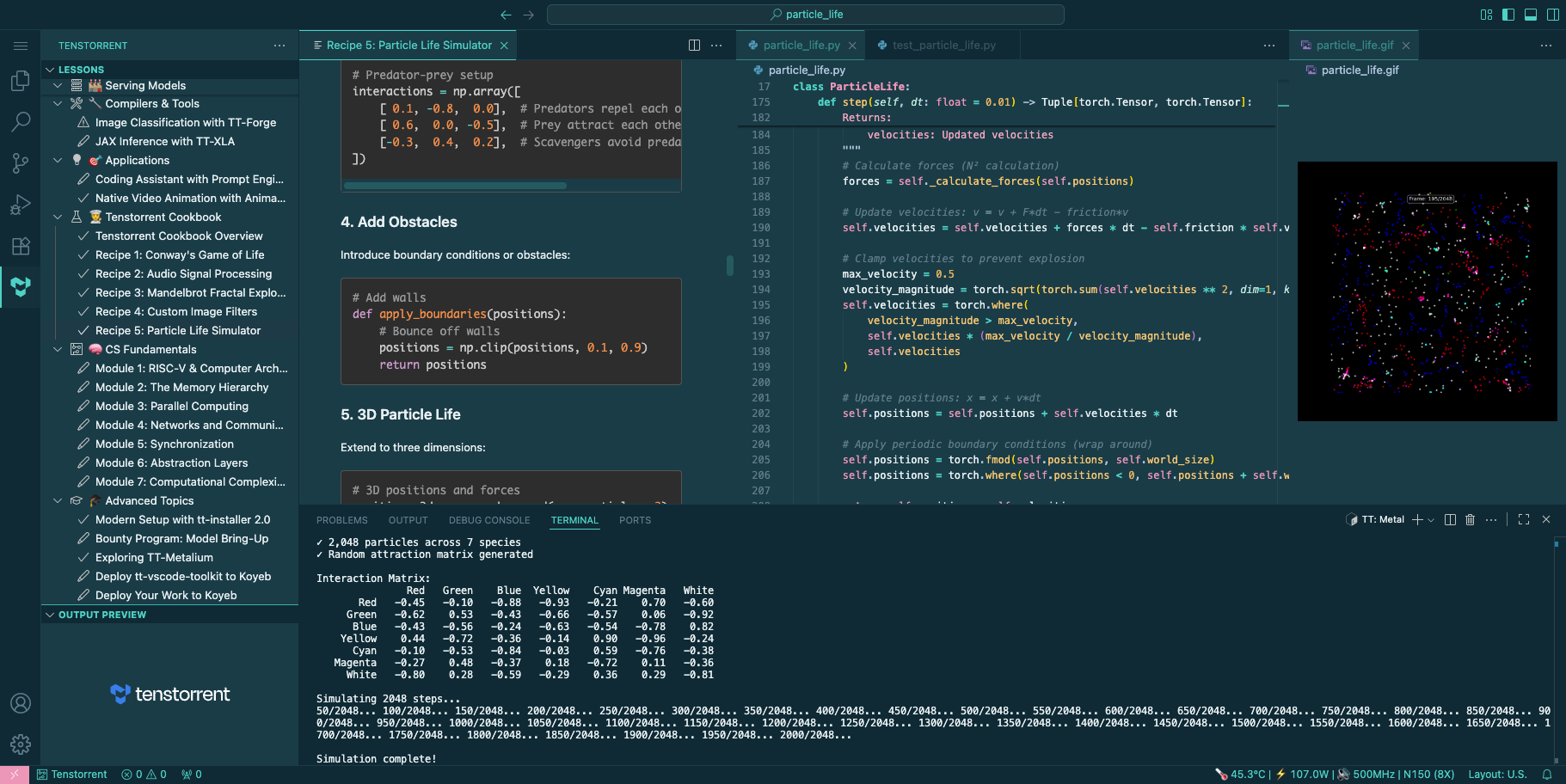
Built-in features
Everything You Need to Ship on Real AI Hardware
More than documentation — the toolkit runs shell commands for you, monitors your hardware, and manages inference servers, all without leaving your editor.
Interactive Lessons
One-click buttons that run the exact terminal commands described in the text. No copy-pasting, no tab-switching — the editor does the work.
Hardware Filter
Select your device — n150, n300, T3000, p100, TT-QuietBox 2 — and the lesson panel narrows to only lessons validated on your hardware. Filter state persists across sessions.
Live Server Control
Start and stop vLLM, TT-Inference-Server, and the prompt generator directly from the extension. Logs stream into a collapsible panel until the health check clears.
70+ Commands
Every common operation — hardware detection, model download, environment setup,
compiler activation — wired into the Command Palette
(Ctrl+Shift+P).
What you can build
Generated on Tenstorrent Hardware
Sample outputs from the Cookbook lessons and applications — all running on the Wormhole and Blackhole chips the extension targets. Agent-generated art from the Local AI Agents lesson runs on TT-QuietBox 2.
 AnimateDiff on Blackhole — World of Tomorrow (p300c)
 AnimateDiff on Blackhole — Phosphor Horizon (p300c)
 Stable Diffusion XL — image generation
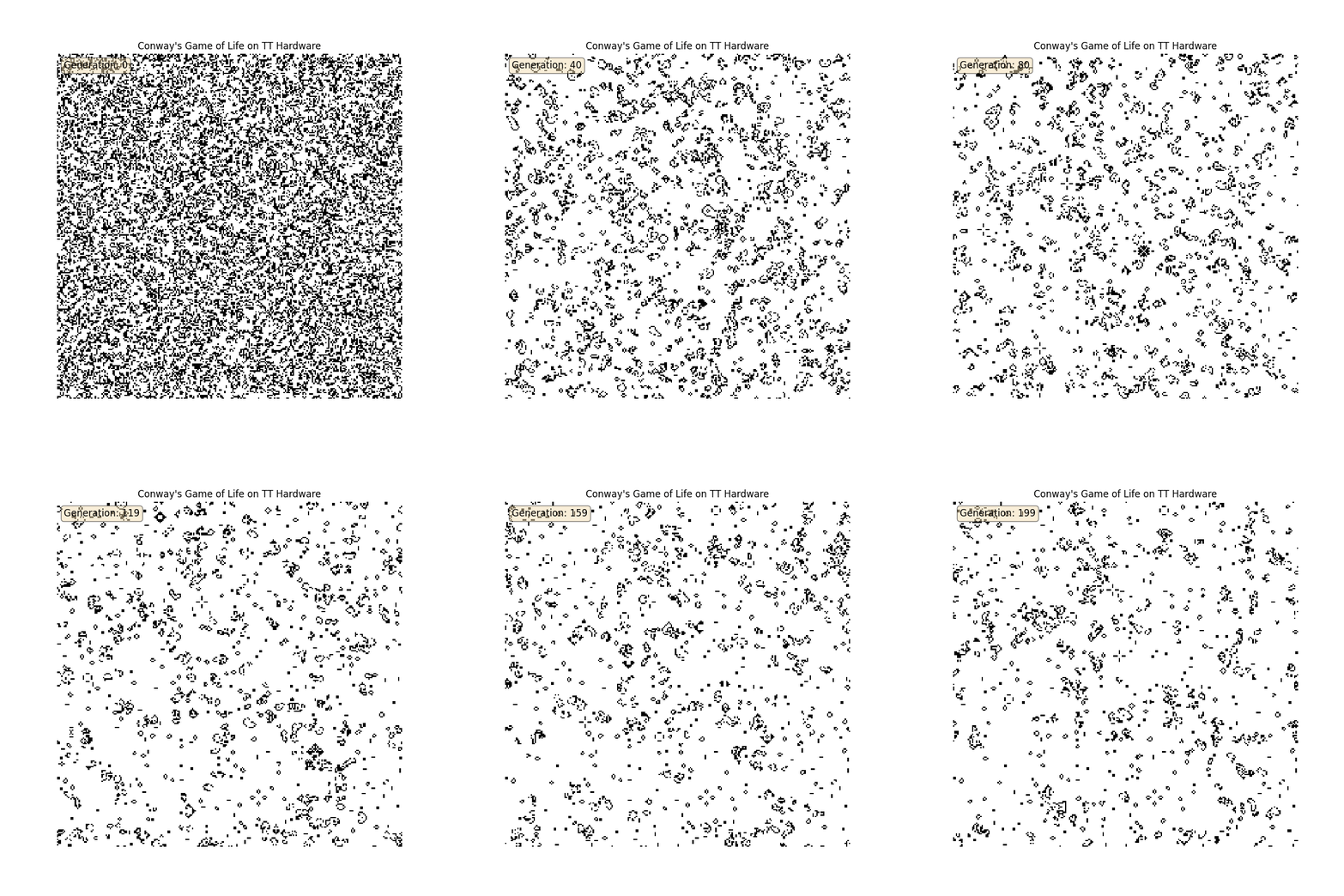 Recipe 1 — Conway's Game of Life
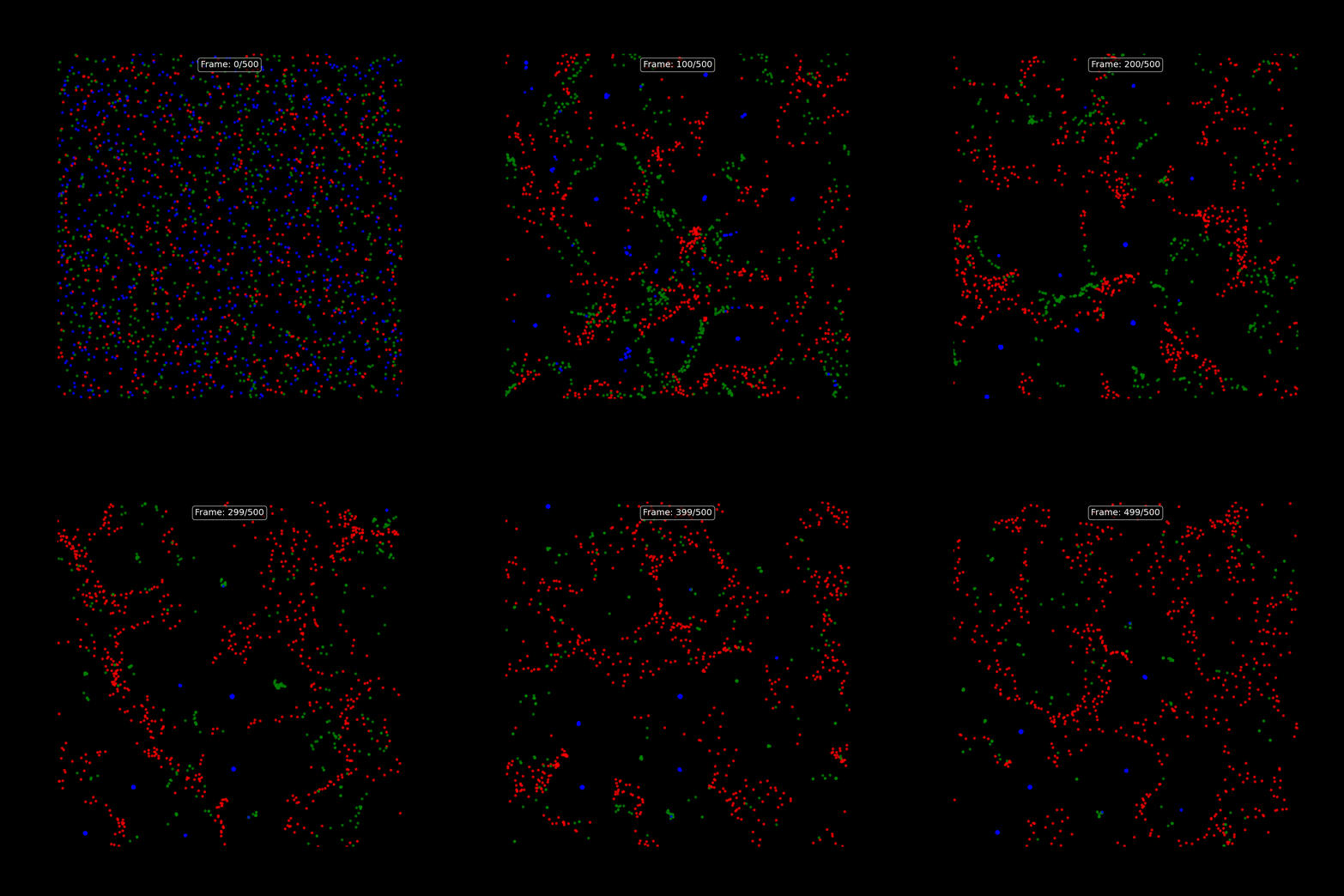 Recipe 5 — Particle Life (multi-device)
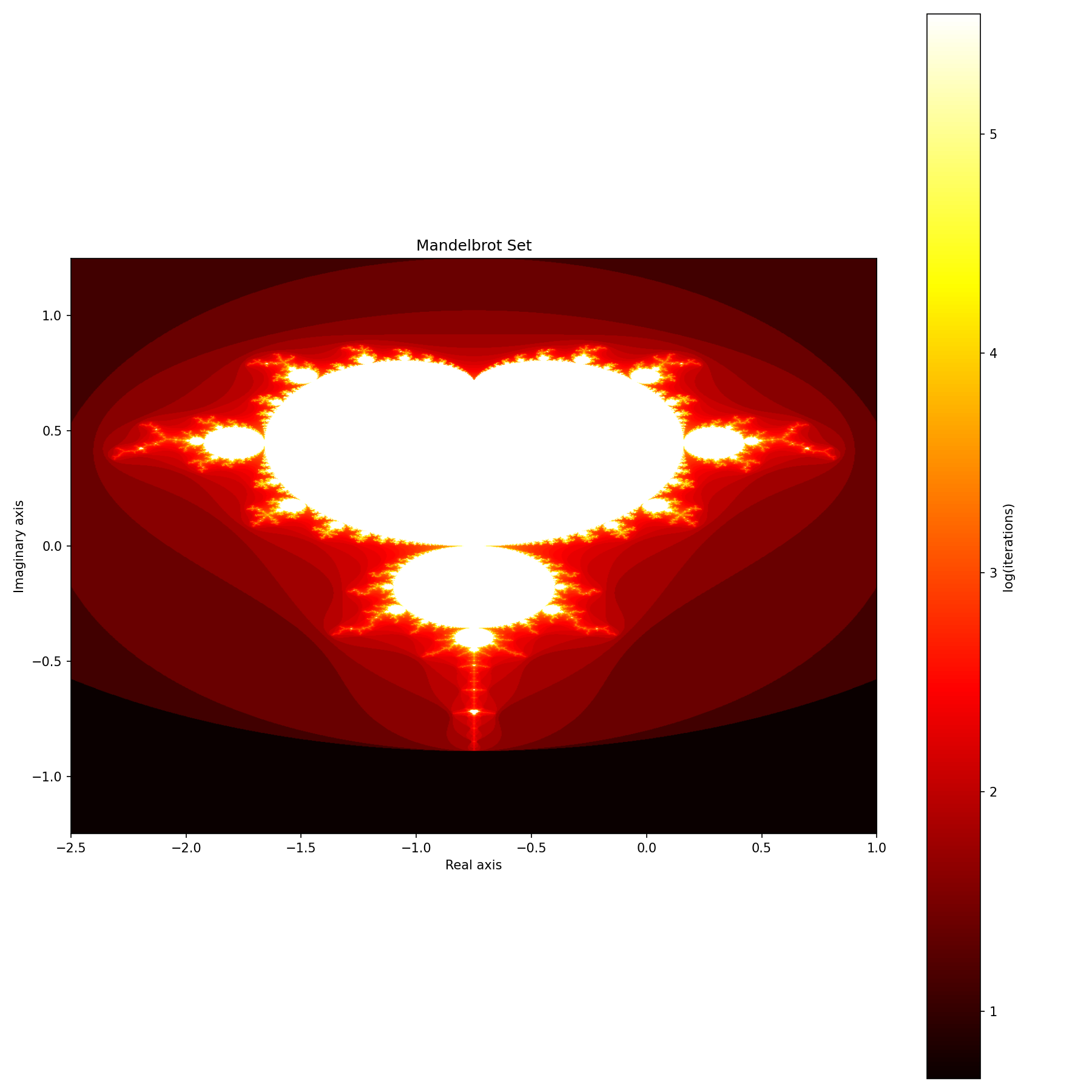 Recipe 3 — Mandelbrot Explorer
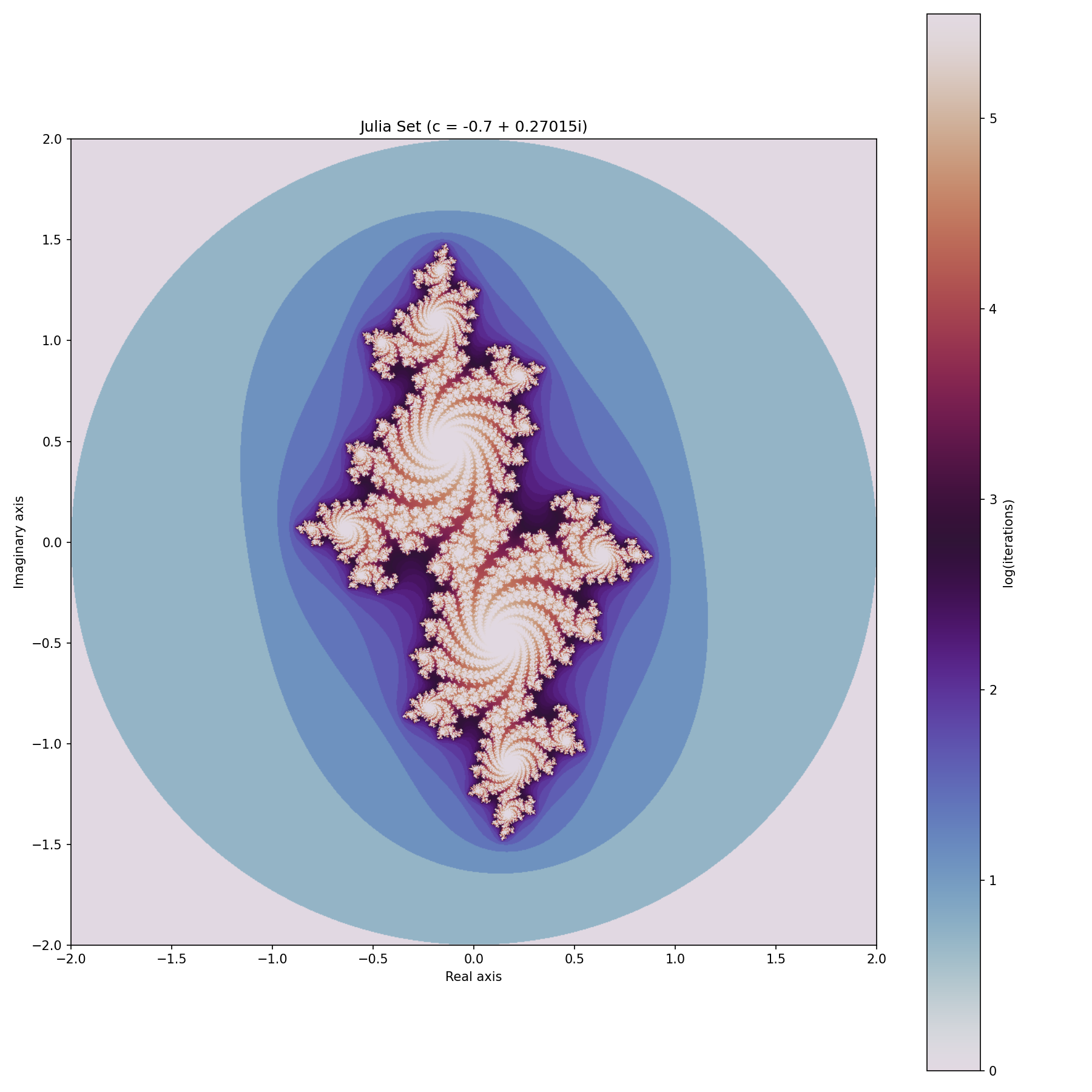 Julia Set variant
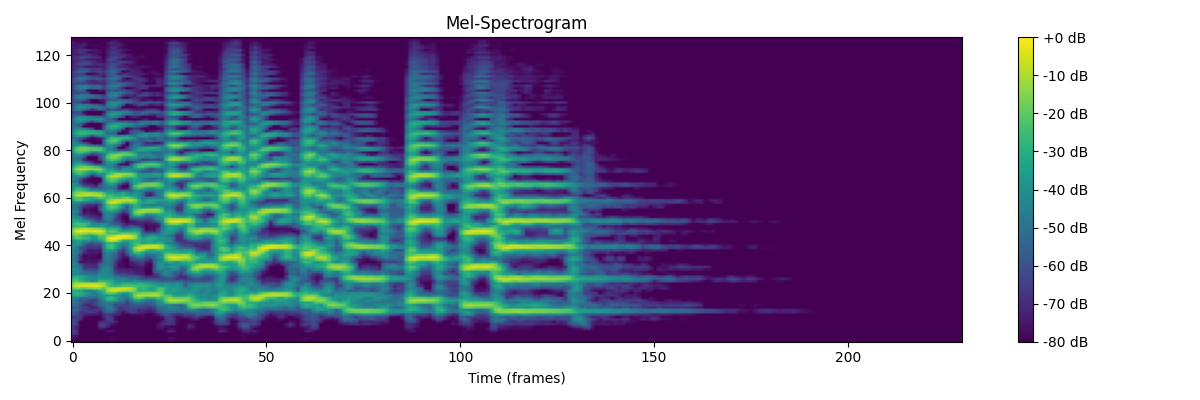 Recipe 2 — Mel Spectrogram
 Local agents — generative landscape
Lesson library
What You'll Learn
From your first inference run to deploying production-grade inference servers — each track builds on the last.
- Modern Setup with TT-Installer 2.0
- Hardware Detection
- Download Model & Run Inference
- Production Inference with TT-Inference-Server
- Production Inference with vLLM
- Image Generation with Stable Diffusion XL
- Native Video Animation with AnimateDiff
- OpenClaw AI Assistant on TT-QuietBox 2
- Generating Video on TT-QuietBox 2
- Recipe 1: Conway's Game of Life
- Recipe 3: Mandelbrot Fractal Explorer
- Recipe 5: Particle Life Simulator
Get started
Install in Your Editor
The easiest way is the VS Code Marketplace — one click or one command. A
.vsix is also available for Cursor, Windsurf, and code-server.
Install directly from the VS Code Marketplace with one command:
code --install-extension Tenstorrent.tt-vscode-toolkit
Or open VS Code, press Ctrl+Shift+X, search for
TT-VSCode-Toolkit (extension ID: Tenstorrent.tt-vscode-toolkit), and click Install.
Reload VS Code — the TT-Toolkit icon will appear in the Activity Bar. Click it to open the Lessons panel and pick your hardware.
Download the .vsix from the latest GitHub release.
gh release download --repo tenstorrent/tt-vscode-toolkit --pattern '*.vsix'
Install via the terminal:
code --install-extension tt-vscode-toolkit-*.vsix
Reload VS Code — the TT Toolkit icon will appear in the Activity Bar. Click it to open the Lessons panel and pick your hardware.
Download the .vsix from the latest release.
gh release download --repo tenstorrent/tt-vscode-toolkit --pattern '*.vsix'
Open the Extensions panel (Ctrl+Shift+X), click the
⋯ menu, choose Install from VSIX…
and select the downloaded file.
Both Cursor and Windsurf are compatible with standard .vsix packages.
Download and install in one command:
gh release download --repo tenstorrent/tt-vscode-toolkit --pattern '*.vsix' \
  && code-server --install-extension tt-vscode-toolkit-*.vsix
Or via the GUI: open the Extensions panel (Ctrl+Shift+X),
click ⋯ → Install from VSIX….
One command downloads and installs the latest release (requires GitHub CLI):
gh release download --repo tenstorrent/tt-vscode-toolkit --pattern '*.vsix' \
  && code --install-extension tt-vscode-toolkit-*.vsix
Re-running the same command updates to the latest version
(use --clobber to overwrite the existing .vsix).