vLLM on QB2
This is the chapter with the most practical density. By the end of it you’ll have a running OpenAI-compatible inference server, a working curl command, and a Python client snippet you can drop into any application. Everything in this chapter is production-ready, not toy code.
The Deployment Stack
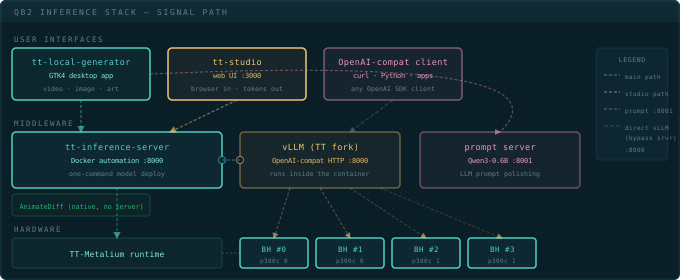
There are two ways to run models as a server, and only one of them works out of the box.
The tt-inference-server path wraps the vLLM backend in a Docker container with
one-command deploy syntax. This is what tt-studio and tt-local-generator use internally. It
handles Docker pulls, environment setup, and port mapping automatically. It is pre-installed
at ~/.local/lib/tt-inference-server, and it is the whole of this chapter.
The direct vLLM path runs vllm serve yourself, for flags the managed path doesn’t
expose or a newer vLLM than the pinned image ships. vLLM is not installed on a QB2 — not
in ~/.tenstorrent-venv, not on the host at all; the copy the managed path uses lives inside
a container image. Building that environment is its own project, so it has its own lesson:
Build Your Own vLLM Environment →. Come back here when
you want a server running rather than a toolchain.
Both produce the same OpenAI-compatible API on port 8000.
Serving with tt-inference-server
tt-inference-server is pre-installed at ~/.local/lib/tt-inference-server. It handles the Docker container lifecycle for you.
# run.py validates HF_TOKEN whenever --docker-server is passed — even when the
# weights are already local. Without it you get "⛔ HF_TOKEN not set." and no server.
export HF_TOKEN=hf_...

# Deploy Llama-3.1-8B-Instruct with one command
python3 ~/.local/lib/tt-inference-server/run.py \
  --model Llama-3.1-8B-Instruct \
  --tt-device p300x2 \
  --workflow server --docker-server

# p300x2 = a QB2: two P300 cards, four Blackhole chips
# On first run: Docker pull + weight compilation (~5 min)
# Then: port 8000 is ready
--tt-device p300x2 is what identifies a QB2 — two P300 cards, four chips, and the value you
want almost every time. p300 selects a single card (two chips), which is the mesh that has
failed fabric bring-up on our hardware — prefer p150 if you deliberately want less than the
whole box. p100 is a single Blackhole chip, so it under-uses a QB2 rather than failing
loudly. Not every model has an entry for every topology: Qwen3-8B, for instance, is listed for
p300 but not p300x2, while Llama-3.1-8B-Instruct and Qwen3-32B both have p300x2
entries. The full list of options is in the tt-inference-server lesson →
On this path you do not set MESH_DEVICE or TT_MESH_GRAPH_DESC_PATH yourself — run.py
derives them per model from its spec, and on a QB2 the correct value is model-dependent.
Three more flags worth knowing on this path. --host-hf-cache reuses weights you’ve already
downloaded yourself to the Hugging Face cache instead of re-pulling them into a fresh Docker
volume — see “Check Space Before Downloading” in the previous
chapter for why that disk hit matters. Note it is the wrong flag for the pre-cached Qwen3-32B,
which sits outside any Hugging Face cache — use --host-weights-dir for that, as above. --no-auth skips JWT authentication for
local, unauthenticated serving (fine on a trusted LAN, not for internet exposure). --service-port
sets the port the managed model’s container API listens on — e.g. --service-port 8002. A full
command combining them:
# Llama-3.1-8B-Instruct here, not Qwen3-32B: --host-hf-cache reuses weights you
# downloaded yourself, and this is a model you would have pulled with `hf download`.
python3 ~/.local/lib/tt-inference-server/run.py \
  --model Llama-3.1-8B-Instruct \
  --tt-device p300x2 \
  --workflow server --docker-server \
  --no-auth --service-port 8002 --host-hf-cache
Use the Model That’s Already on Your Box
Before you download another model, know what you already have. Your QB2 shipped with Qwen3-32B on disk — and not just the weights:
| What | Size | Can you re-download it? |
|---|---|---|
| The weights | ~62 GB | Yes, given time and disk |
| Compiled Blackhole kernels | ~30 GB | No |
The second row is the one to care about. Those are the model’s operations already compiled for a four-chip mesh — the work that otherwise happens the first time you serve a model, while you watch a quiet log and wonder whether it has hung. It cannot be fetched from Hugging Face because nobody publishes it; it is built against your topology. Tenstorrent pre-built it and shipped it to you.
So the case for using it isn’t that downloading is slow. It’s that a download can’t give you the kernel cache — pull the weights yourself and you still pay the compile, having thrown away the more valuable half of what shipped. You’d also be spending another ~62 GB on a disk that already holds this model once. And it is no compromise: Qwen3-32B runs a 131K context window across all four chips and serves up to 8 concurrent requests.
Confirm it arrived — the same check Tenstorrent’s ISO acceptance test runs:
du -sh ~/data/tt-cache/You want roughly 87G–91G. Much smaller or missing means the model didn’t make it onto
your box, and the rest of this section won’t work.
Give it a name you’ll remember
The weights are real Hugging Face model files, but they are not in a Hugging Face cache —
a factory QB2 has no ~/.cache/huggingface and no ~/models at all. They sit in
tt-inference-server’s storage layout, under a directory named for a build label. One symlink
puts them on the path the rest of this guide already uses, so you never type that name again:
mkdir -p ~/models
ln -s ~/data/tt-cache/volume_id_tt_transformers-Qwen3-32B-vqb2_launch/weights/Qwen3-32B \
      ~/models/Qwen3-32B
A symlink, not a copy — a copy would be another 62 GB for no benefit. Check it resolves:
ls ~/models/Qwen3-32B/config.jsonNow ~/models/Qwen3-32B sits beside the ~/models/Qwen3-0.6B you’d get from hf download,
and tools take it as an ordinary path:
This replaces the launch command near it — it is not a next step. One model owns the four
chips and port 8000 at a time, so if you already started something (the command above, or a
deploy from tt-studio), stop it before running this: Ctrl-C, or docker ps then
docker stop <id>. sudo lsof -w /dev/tenstorrent/* printing nothing means the chips are
free. Pick whichever launch you want; don’t run both.
# run.py requires HF_TOKEN whenever --docker-server is used, local weights or not.
# That is a workflow precondition, not a license gate: Qwen3-32B is Apache-2.0 and
# ungated. Omit it and you get "⛔ HF_TOKEN not set." before anything starts.
export HF_TOKEN=hf_...

python3 ~/.local/lib/tt-inference-server/run.py \
  --model Qwen3-32B \
  --tt-device p300x2 \
  --workflow server --docker-server \
  --host-weights-dir ~/models/Qwen3-32B
--host-weights-dir mounts that directory into the container read-only: your weights can’t
be modified by the server, and no second copy is made. Once it is up, the server reports the
model by its full Hugging Face repo id — query it as Qwen/Qwen3-32B, not Qwen3-32B, or
read the exact string from curl -s http://localhost:8000/v1/models. The same path works for a direct
vllm serve ~/models/Qwen3-32B with HF_MODEL=~/models/Qwen3-32B, if you have built that
environment.
Not --host-hf-cache. It’s the flag that sounds right. It reuses a Hugging Face cache —
resolving HOST_HF_HOME, then HF_HOME, then ~/.cache/huggingface — and on a factory QB2
none of those exist, so you get a fresh 62 GB download of a model you already own.
--host-hf-cache is for weights you pulled with hf download; --host-weights-dir is for
the ones that shipped. Leave HF_HOME alone too — it plays no part in reaching this model.
Verifying the Server
Once the server reports ready, confirm it’s working:
# List available models — start here, and use the id it prints
curl -s http://localhost:8000/v1/models | python3 -m json.tool

# First chat completion
curl -s http://localhost:8000/v1/chat/completions \
  -H "Content-Type: application/json" \
  -d '{
    "model": "meta-llama/Llama-3.1-8B-Instruct",
    "messages": [
      {"role": "user", "content": "Explain tensor parallelism in one sentence."}
    ],
    "max_tokens": 120
  }' | python3 -m json.tool
The response JSON has the generated text at choices[0].message.content. If you get a connection refused, the server isn’t ready yet — give it another 30 seconds.
"model" has to match what the server actually loaded, or you get back a 404, not a
fallback — {"error": {"message": "The model \Qwen3-0.6B` does not exist.", “code”: 404}}. Take the string from /v1/modelsrather than from an example. **The server does not use the short name you pass to–model** — run.py hands the container the model's full Hugging Face repo id (hf_model_repo) and nothing renames it, so –model Llama-3.1-8B-Instructis served asmeta-llama/Llama-3.1-8B-Instruct, and –model Qwen3-32BasQwen/Qwen3-32B. The direct-vLLM path is different — its –served-model-nameflag renames the model explicitly — but that is [its own lesson](/lessons/build-your-own-vllm/). The examples below use the managed path's naming; substitute whatever your box actually reports —curl -s http://localhost:8000/v1/models | python3 -m json.tool` tells you.
Serving a Qwen3 model instead? They reason before answering, so a small max_tokens gets
spent entirely inside the <think> block and comes back as finish_reason: "length" with an
empty answer. Add "chat_template_kwargs": {"enable_thinking": false} to the request body above
(or extra_body={"chat_template_kwargs": {"enable_thinking": False}} in the Python SDK examples
below) for direct replies — see Qwen3 Reasoning Modes. Llama and
other non-reasoning models don’t need it; sending it anyway isn’t guaranteed to be a harmless
no-op on every model, so only add it for a model that actually supports it.
OpenAI Python SDK
The server is API-compatible with OpenAI’s client library. Point base_url at localhost:8000 and set api_key to any non-empty string — the server ignores it.
from openai import OpenAI

client = OpenAI(
    base_url="http://localhost:8000/v1",
    api_key="not-checked"
)

response = client.chat.completions.create(
    model="meta-llama/Llama-3.1-8B-Instruct",
    messages=[
        {"role": "system", "content": "You are a concise technical assistant."},
        {"role": "user", "content": "What is the Tenstorrent NOC fabric?"}
    ],
    max_tokens=256,
    temperature=0.7
)

print(response.choices[0].message.content)
This is the integration point for any application that already talks to OpenAI. Change the base URL, change the model name, and the rest of the code runs unchanged.
Serving a Qwen3 model instead? Add extra_body={"chat_template_kwargs": {"enable_thinking": False}} to create() — see the note under Verifying the Server above.
Only add it when the served model is actually a reasoning model; Llama and similar models don’t
need it.
Streaming Responses
For applications that need to show text as it generates — chat interfaces, interactive tools — use the streaming mode:
stream = client.chat.completions.create(
    model="meta-llama/Llama-3.1-8B-Instruct",
    messages=[{"role": "user", "content": "Describe continuous batching."}],
    stream=True
)

for chunk in stream:
    delta = chunk.choices[0].delta
    if delta.content:
        print(delta.content, end="", flush=True)

print()  # newline at end
Each chunk arrives as a server-sent event; the OpenAI SDK unwraps them into delta objects. The pattern is identical to streaming from api.openai.com — because it’s the same API.
Continuous Batching
This is one of the QB2’s practical advantages in production. vLLM’s continuous batching algorithm fills the KV-cache space as requests arrive, packing multiple users’ decode steps into the same chip invocation. You’re not running one request at a time — the server is interleaving decode steps from multiple concurrent clients across every chip cycle.
For single-user interactive work, this doesn’t matter. For serving a team, an API endpoint, or anything with concurrent load, it means the throughput numbers scale with parallelism rather than collapsing under it. A second concurrent user adds very little overhead up to the throughput ceiling of the chip.
Continuous batching is fundamentally different from static batching. Static batching waits to collect N requests before dispatching — it adds latency to achieve throughput. Continuous batching inserts new decode sequences into the in-flight batch as slots open up, achieving throughput without adding per-request waiting time. vLLM pioneered this for transformer inference. Tenstorrent’s vLLM backend carries it onto Blackhole, where KV-cache management happens in L1 and DRAM across the chip grid.
Port Map
Keep these ports clear. Other services on the QB2 use them.
| Port | Service |
|---|---|
8000 |
vLLM / tt-inference-server (OpenAI-compatible API) |
3000 |
tt-studio (web UI) |
4000 |
tt-studio’s LiteLLM gateway (coding-agent surface — see agents.md) |
8001 |
tt-local-generator’s prompt server — not tt-inference-server |
8002 |
a managed model’s container API, when serving with --service-port 8002 |
If port 8000 is already in use when you try to start vLLM, check for a running tt-studio or tt-inference-server instance first.
On a box already running tt-studio, port 8000 is taken before you start — its backend container
publishes it, and vllm serve exits with OSError: [Errno 98] Address already in use. Because
the listener is a container mapping, lsof -i :8000 often shows nothing useful; docker ps names
the real owner. Easiest fix is to leave tt-studio alone and serve on a free port such as 8003,
remembering to change it in the curl commands too.
Remote Access via SSH Port Forward
The vLLM server listens on localhost only by default. To access it from another machine on your network — or from your laptop over SSH — use port forwarding:
# Run this on your laptop / remote machine
# Forwards your local port 8000 to the QB2's port 8000
ssh -L 8000:localhost:8000 your-user@your-qb2-hostname

# Now on your laptop, this works:
curl http://localhost:8000/v1/models
Keep the SSH session open while you use the forwarded port. For a persistent setup, look at autossh or tmux to keep the tunnel alive.
Don’t expose port 8000 directly to the internet without authentication. The OpenAI-compatible API has no built-in auth layer — it trusts any caller. For internal network use or behind a VPN it’s fine. For public exposure, put a reverse proxy with authentication in front of it.
Multi-Chip: Using All Four Chips
--tensor-parallel-size does not work here. The Tenstorrent platform rejects both tensor
parallel and pipeline parallel outright, before anything reaches the device. Multi-chip is
selected by the mesh shape instead. If you have seen --tensor-parallel-size 4 in older
QB2 notes — including earlier versions of this page — that is why it failed.
On the managed path you don’t choose the mesh — run.py derives it per model from its spec.
For a 70B across all four Blackhole chips that is just:
python3 ~/.local/lib/tt-inference-server/run.py \
  --model Llama-3.1-70B-Instruct \
  --tt-device p300x2 \
  --workflow server --docker-server
The model weights distribute across all four chips’ DRAM, and the KV cache is allocated per chip across the mesh. From the client’s perspective the API is identical — same URL, same request format.
Setting the mesh by hand is a direct-vLLM concern — MESH_DEVICE, its accepted names, and the
case difference from --tt-device are covered in Build Your Own vLLM
Environment. One thing carries over to this path regardless:
Two-chip meshes fail on our QB2. Whichever path you use, asking for exactly two chips dies during fabric bring-up:
Fabric Router Sync: Timeout after 10000 ms on Device 2 ... Ethernet handshake likely failedOne chip and all four both work; two does not, reproducibly across board resets. On this path
that means --tt-device p300 is the value to avoid — prefer p150 to go narrower, or
p300x2 for the whole box.
Why a P300 box writes a cache directory called P150x4. On the first run for a model,
tt-metal converts the weights into ~/models/<model>/<device-name>/, and that name comes from
the number of chips in the mesh, not the board type — four Blackhole chips are labelled
P150x4 even though they are two P300 cards. It is not a sign you picked the wrong hardware.
The cache is per-mesh-size, so switching between P150 and P300x2 writes a second directory
and pays the conversion again. An unexpectedly slow “second” start usually means the mesh
changed, not that something broke.
Status on our hardware. The four-chip serving path brings up correctly — the plugin selects the TT platform, opens all four chips, loads weights and allocates the KV cache on the mesh, and the OpenAI-compatible endpoints respond. We have not yet signed off on output quality: in our testing generation degenerated into repetition, and we reproduced that across two vLLM versions, three models, and both one- and four-chip meshes — so it is not specific to the mesh. Our current suspicion is host firmware and driver versions running ahead of the tested pairings. Treat four-chip throughput numbers as unverified until that is resolved.
When Startup Stalls
Startup has long silent stretches, so “stuck” and “working” look alike in the log. Two quiet
phases are normal: building rotary-embedding matrices, which prints nothing at all, and the
warmup prefill sweeps that follow weight loading. Warmup also emits
TT_FATAL: Only TILE layout is supported for BFLOAT8_B dtype! at critical level, sometimes
hundreds of times — it is caught internally and startup continues. Worth knowing if you script a
log watcher, since grepping for FATAL will trip on it.
A real device hang looks different: the log stops, CPU sits near 100%, and RSS stops moving entirely. Real work moves RSS. Confirm with a native stack dump:
uv tool install py-spy   # isolated install — not into the vLLM venv you're diagnosing
py-spy dump --native --pid "$(pgrep -n -f 'VLLM::EngineCore')"
-n on pgrep matters if more than one matching process is running: py-spy --pid takes exactly
one PID, and an unfiltered pgrep -f can print several.
A hang in the command queue is unmistakable — pthread_cond_wait under
FDMeshCommandQueue::wait_for_outstanding_reads, meaning the device never acknowledged a write.
--native matters: the plain Python stack only shows ttnn.from_torch and looks like ordinary
work.
The usual cause is stale state from a run that did not exit cleanly, and a reset clears it:
sudo lsof -w /dev/tenstorrent/*   # must print nothing before you continue
tt-smi -r                          # reset all boards
lsof exits 1 when nothing holds the devices, so for this check non-zero is the answer you
want.
Stop vLLM with Ctrl-C or SIGTERM, never kill -9. A graceful exit lets the engine drain its
command queue and close the mesh device; killing it mid-queue is what leaves boards wedged, so
the next start hangs and gets the blame. Note too that boards can report healthy under
tt-smi -s — sane temperatures, dram_status: true — while still holding state that hangs a
fresh mesh. Healthy telemetry does not rule out needing a reset.
Going further
Two things this chapter deliberately leaves out, because each is a project rather than a step:
Lesson → Build Your Own vLLM Environment Run `vllm serve` yourself — the plugin install, the numpy/ttnn override that bites everyone, and the mesh variables the managed path sets for you. Lesson → Weights, Caches and Volumes Where the shipped Qwen3-32B actually lives, why `--host-hf-cache` is the wrong flag, and how to reuse the 30 GB of pre-compiled kernels.Next: Performance Tuning →