Run and build on top of models
vLLM, performance tuning, TT-Forge, and multi-chip inference.
6 chapters · 56 min read time
Coming From CUDA
You know cudaMalloc. You know grid-dim and block-dim. You’ve tuned shared memory usage, you’ve written custom CUDA kernels, and you’ve debugged timing issues with Nsight. You have a mental model of how GPU compute actually works, not just how PyTorch wraps it.
That mental model transfers here, but not intact. Some pieces map cleanly. Some don’t exist. And some things you were papering over on the GPU are now explicit, visible, and tunable. The next ten minutes remaps the terrain.
Pick Your Altitude
The first question a CUDA developer asks is “where’s my model.cuda()?” The honest answer is that there isn’t one entry point — there are three, and which one you reach for depends on how much control you want. CUDA has the same three tiers; you just rarely think about them as a stack because NVIDIA blurs the seams.
| You want to… | On CUDA you’d use… | On Tensix, write at… |
|---|---|---|
| Just run my PyTorch/JAX model | model.to("cuda") + torch.compile |
TT-Forge / TT-XLA — torch.compile(model, backend="tt") |
| Call optimized library ops | cuBLAS / cuDNN / CUTLASS | TTNN — ttnn.matmul, ttnn.conv2d, fused attention |
| Write a custom kernel, but in Python | a hand-rolled CUDA C kernel | TT-Lang — a Python DSL; explicit reader/compute/writer |
| Drop all the way to the metal | raw CUDA C + PTX tuning | TT-Metalium — RISC-V kernels, hand-routed NoC moves |
The closest thing to model.cuda() is the top tier: TT-Forge traces your graph and lowers it to Tensix automatically. That’s Chapter 6 — reach for it when you want the model to just run. The two bottom tiers are for the cases TTNN doesn’t cover: TT-Lang lets you write a custom kernel in Python with no C++, and TT-Metalium is the C++ floor where every abstraction disappears. Both live in the Builder/Hacker track — and, as the last section of this chapter explains, the TT-Lang tier is far more reachable than “write your own kernel” sounds on CUDA.
This track lives in the middle, at TTNN — the tier where you have hand-optimized ops but still write Python, not kernels. It’s the sweet spot for performance work that doesn’t require descending to the metal, so that’s where the rest of this chapter focuses.
Thread Blocks vs. Tensix Tiles
On a GPU, a thread block is the unit of cooperative work: a group of threads that can share L1/shared memory and synchronize. The programmer launches a grid of blocks; the hardware schedules them onto SMs.
On Blackhole, the unit is a Tensix core. There are 120 enabled per chip (a 12×10 block of the 14×10 physical Tensix grid), sitting inside a larger 17×12 NoC grid that also carries DRAM, Ethernet, and PCIe nodes. Each core has its own L1 SRAM, its own set of RISC-V processing cores (five of them), and its own connection to the Network-on-Chip (NoC) fabric that threads through the entire grid. Tensix cores don’t share memory with each other. There’s no “block-scope” shared memory. There’s only what one core holds, and what it explicitly sends over the NoC to another.
This is the fundamental shift. On CUDA, data sharing between threads in a block is cheap and implicit — shared memory just works. On Tensix, data movement is the thing you design around. Every byte a core receives came from somewhere specific, via a routed packet on the NoC. That movement is visible to you. It’s also where the performance is.
There’s a deeper reason it’s visible: there is no warp scheduler hiding memory latency. On a GPU, when one warp stalls waiting on a global-memory read, the SM scheduler instantly swaps in another resident warp — latency disappears behind oversubscription, and you mostly don’t think about it. Tensix has no such trick. Instead, each core runs an explicit reader → compute → writer pipeline: one RISC-V core streams tiles into L1, the matrix engine works on them, another core streams results out, and they overlap by design rather than by lucky scheduling. At the TTNN level you don’t write that pipeline — the ops do — but it’s why tensor layout matters so much here. A layout that lets the reader stage clean tiles keeps the pipeline full; one that forces a reshuffle stalls it, and there’s no spare warp to paper over the gap.
L1 SRAM vs. Shared Memory
Each Tensix core has 1.5 MB of L1 SRAM. On a GPU, your shared memory budget is typically 48–96 KB per SM, and you fight for it. On Tensix, you have a full 1.5 MB per core to work with.
The catch: that memory doesn’t auto-populate. On a GPU, you launch a kernel and global memory reads happen via caches. On Tensix, you write the code that moves data from DRAM (the rows at the top and bottom of the chip grid) into the L1 of whichever cores need it. TTNN does this for you when you use its built-in ops — but if you drop to Metalium, you’re writing those NoC reads yourself.
For someone writing at the TTNN Python level (which is where this track lives), the takeaway is simpler: tensor operations in TTNN are already written to stage data correctly. You don’t write data movement code. But you do care about tensor layout, because layout determines whether the underlying kernels can move data efficiently or have to reshuffle it first.
TTNN as the CUDA Runtime Equivalent
Think of TTNN the way you think of libcudart plus cuBLAS plus cuDNN — all fused into one Python API. It handles device open/close, tensor allocation in device memory, op dispatch, kernel compilation (via Metalium under the hood), and synchronization.
The critical difference from cuBLAS: TTNN compiles ops JIT on first invocation. When you run a matrix multiply for the first time on a new tensor shape, Metalium generates a Tensix kernel for that exact configuration. Subsequent calls with the same shape hit the op cache and run fast. This is why first-run latency can be a few seconds — and why subsequent runs are fast enough to serve production traffic.
tt-metalium (see Your First Kernel). torch isn't preinstalled there — bootstrap it once per container session with uv pip install --python /opt/venv/bin/python3 torch --index-url https://download.pytorch.org/whl/cpu.
import ttnn
import torch

# Open a single chip (device_id=0)
device = ttnn.open_device(device_id=0)

# Move a PyTorch tensor to device
torch_a = torch.randn(1024, 1024)
a = ttnn.from_torch(torch_a, device=device, dtype=ttnn.bfloat16)

# This compiles on first run, then caches
result = ttnn.matmul(a, a)

# Pull back to CPU
out = ttnn.to_torch(result)
ttnn.close_device(device)
Compare this to CUDA: cudaMemcpy, cublasSgemm, cudaMemcpy back. The pattern is the same. The surface is different.
ttnn.from_torch copies the tensor to device DRAM (the DRAM banks at row 0 and row 11 of the Blackhole grid). The compute cores never touch DRAM directly — they pull tiles into L1 over the NoC when the kernel runs. You don’t manage this. TTNN does. But knowing it’s happening helps you reason about bandwidth.
What Transfers From CUDA Knowledge
Tensor shapes, batch dimensions, attention head patterns — all of this maps directly. The math doesn’t change. The numerics don’t change (bfloat16 is first-class here, same as modern GPUs). Batching strategies that work on GPU work on Tensix.
Knowledge of kernel fusion matters. The same principle applies: fewer round-trips through memory means faster execution. TTNN has fused ops (fused attention, fused feedforward) that follow the same logic as FlashAttention on CUDA.
Multi-device tensor parallelism maps directly too. The QB2 has four chips. When you run a 70B model, attention heads get split across chips the same way they’d split across GPUs in a tensor-parallel setup. The API is different — ttnn.CreateDevices({0,1,2,3}) instead of torch.distributed — but the concept transfers.
What Doesn’t Transfer
CUBLAS and cuDNN don’t exist here. There’s no drop-in replacement. If your code calls torch.nn.functional.conv2d and you want it to run on Blackhole, you need to either use TTNN’s conv2d op or compile via TT-Forge (which traces PyTorch graphs and lowers them to TTNN). You can’t just model.cuda() and move on.
Device memory pointers are gone. CUDA lets you grab a raw void* to device memory and pass it around. TTNN tensors are opaque objects — no raw pointer access. If your code does custom CUDA pointer arithmetic, that approach doesn’t port. You use TTNN ops, or you write Metalium kernels (a Tinker track topic).
Unified memory has no equivalent. There’s no cudaMallocManaged. Data is either on CPU or on the device, and you move it explicitly via ttnn.from_torch and ttnn.to_torch.
Grid launch syntax is gone. There’s no <<<gridDim, blockDim>>>. Kernel dispatch is handled by the TTNN op, which decides how to tile the work across the Tensix grid. You influence this via tensor layout and op selection, not by choosing block/thread dimensions.
CUDA Concept Mapping Table
| CUDA Concept | Tensix / TTNN Equivalent |
|---|---|
| Streaming Multiprocessor (SM) | Tensix core |
| Thread block | Tile computation on one Tensix core |
| Shared memory | L1 SRAM per Tensix core (1.5 MB) |
| Global memory | DRAM banks (rows 0 and 11 of chip grid) |
| cudaMemcpy H2D | ttnn.from_torch(tensor, device=device) |
| cudaMemcpy D2H | ttnn.to_torch(tt_tensor) |
| cuBLAS sgemm | ttnn.matmul(a, b) |
CUDA kernel launch <<<g,b>>> |
TTNN op dispatch (automatic) |
| Warp | RISC-V core thread within one Tensix core |
| NCCL multi-GPU | ttnn.CreateDevices({0,1,2,3}) mesh fabric |
| Nsight profiling | ttnn.experimental.profiler, tt-toplike |
torch.cuda.synchronize() |
ttnn.synchronize_device(device) |
Blackhole’s NoC Fabric
The four Blackhole chips in your QB2 sit on two p300c cards, linked by Warp cables and on-chip Ethernet — not PCIe (PCIe is only the host-to-card link). Intra-chip, the NoC connects every core to every other core and to the DRAM banks at roughly 1 TB/s aggregate bandwidth. This is not the same topology as NVLink or PCIe between discrete GPUs — it’s a different architecture where the cost of moving data within a chip is much lower relative to compute throughput than on a GPU.
For multi-chip workloads, the four chips form a mesh using their Ethernet cores (the left and right columns of the chip grid). This is how tensor-parallel models distribute their KV-cache updates — not through the host CPU, but directly chip-to-chip.
If you’ve read benchmarks or write-ups based on a single Blackhole card (the P150b, for example), they transfer directly: every chip in your QB2 is that same Blackhole part. The per-chip mental model — Tensix grid, L1, NoC, the reader/compute/writer pipeline — is identical. What the QB2 adds on top is the four-chip mesh for scaling past a single card; nothing about the single-chip picture changes.
Matrix multiply: DRAM rows stage the operand tiles, compute cores pull them over the NoC and run.
The Blackhole NoC is a 2D torus mesh, not a crossbar or bus. Two independent NoC overlays (NOC0 and NOC1) carry traffic in opposite directions to avoid deadlock. When you write Metalium kernels, you choose which NoC to use for which transfers. At the TTNN level, the compiler makes these choices. Understanding the topology helps you reason about why certain tensor layouts perform better — the ones that minimize cross-NoC traffic in the hot inner loops.
Custom Kernels Without the Dread — and the Agentic Shortcut
On CUDA, “you’ll need a custom kernel” is a sentence that ends a lot of afternoons. It means C++, it means reasoning about occupancy and warp divergence and memory coalescing, and it means racing against bugs that only show up at certain block sizes. It’s also exactly the kind of code that AI coding agents are bad at: so much of a CUDA kernel’s correctness lives in implicit, unstated assumptions — what’s resident, what’s coalesced, which warp got there first — that there’s nothing concrete for an agent to verify against. The spec isn’t in the source; it’s in the programmer’s head.
The middle-lower tier, TT-Lang, inverts that. It’s a Python DSL (no C++) for writing the one custom op TTNN doesn’t expose — a fused pattern, a non-standard attention variant, an activation with a specific numerical property. And it’s built around the same reader → compute → writer structure from earlier in this chapter, except now you write the three sections explicitly: the reader declares exactly which tiles arrive and from where, compute is pure tile math on those arrivals, the writer declares exactly what leaves. Nothing is implicit.
That explicitness is the whole trick, and it’s why agentic development gets you remarkably far here. Because the full spec lives in the source — arrivals in, math, departures out — an AI coding agent has something complete to generate against and something concrete to check its work against. You describe the kernel in those three terms, the agent fills in the TT-Lang syntax, and the structure itself eliminates most of the ambiguity that makes agent-written CUDA hallucinate. So the practical ladder for someone coming from CUDA looks like this:
- Let TT-Forge compile the whole model — most of the time you stop here.
- Reach for TTNN ops when you want to hand-tune a hot path in Python.
- Hand an agent a reader/compute/writer spec and let it write the TT-Lang for the rare custom kernel — instead of booking an afternoon to hand-write CUDA C.
You can travel a long way down that ladder without ever becoming a full-time kernel author. When you do want to go deeper into TT-Lang yourself — the decorators, circular-buffer semantics, the browser-based simulator — that’s the TT-Lang chapter in the Builder/Hacker track.
Setting Expectations
One more thing that won’t transfer from a decade of CUDA: the assumption that the stack is finished. CUDA is twenty years mature; the TT software stack is young and moving fast. The top-tier compiler frontends in particular are still evolving — by the time you read Chapter 6 you’ll see we already had to retire one PyTorch entry point in favor of TT-XLA. Expect occasional rough edges, expect the first run of a new op shape to JIT-compile for a few seconds before it caches, and expect to read the docs against the source now and then.
That’s not a warning to stay away — it’s the texture of working close to the edge of an open stack. The flip side is that the layers are genuinely open, the team is reachable, and unanswered questions tend to get answers. When something doesn’t behave the way this guide describes, the Tenstorrent Discord and the GitHub issue trackers are where practitioners (and TT engineers) actually work problems out.
Next: The Model Zoo →
The Model Zoo
Four chips. Up to 560 Tensix compute cores available at once. The question isn’t whether the hardware can handle real models — it’s which ones, at what scale, and how to get them here.
What’s Supported
The QB2 supports a focused set of model families, optimized for Blackhole silicon. These aren’t compatibility hacks — they’re models with hand-tuned TTNN kernels for the Blackhole architecture, validated for throughput and output quality.
| Model Family | Variants | Chips Required | Disk Space |
|---|---|---|---|
| Qwen3 | 0.6B, 8B, 14B | 1 (0.6B/8B), 2-4 (14B) | 1.5 GB / ~16 GB / 28 GB |
| Qwen3 | 32B | 4 | ~64 GB |
| Llama 3.1 | 8B-Instruct | 1 | ~16 GB |
| Llama 3.1 | 70B-Instruct | 4 | ~140 GB |
| Llama 3.3 | 70B-Instruct | 4 | ~140 GB |
| Mistral | 7B-Instruct | 1 | ~14 GB |
The model zoo lesson in tt-vscode-toolkit covers this in interactive depth, with live benchmarks you can run against your own QB2: tt-vscode-toolkit lessons →
Beyond text: video and image generation
The QB2 isn’t only a text box. tt-studio (v2.8.0 and current as of v2.10.0) adds two generative-media families to the same deploy-and-run flow:
- WAN — text-to-video. Describe a scene, get a short generated clip.
- Flux — text-to-image. A high-quality diffusion image generator.
They deploy exactly like the language models: open tt-studio at localhost:3000, pick the model from the Deploy Model dropdown, and click Run. tt-studio spins up the right container on your Blackhole chips and gives you a prompt box — no pipeline code, no separate install.
Which UI for media? tt-studio now handles video and image generation in the browser. tt-local-generator is the GTK4 desktop app for the same job — both sit on top of tt-inference-server, so pick whichever fits how you like to work. For a guided walkthrough of video specifically, see the QB2 Video Generation lesson.
These are heavier than an 8B chat model — a text-to-video diffusion run leans on more of the board than a single-chip LLM. If a deploy is slow to go green the first time, that’s compilation and weight loading; subsequent runs load from the on-disk cache.
Picking a Starting Point
Qwen3-0.6B is the fastest way to confirm the stack is working. It downloads in seconds, loads in under a minute, and produces real answers. Think of it as the “hello world” of this hardware — with one caveat worth knowing before you build a plan around it: it is absent from tt-inference-server’s model list, so run.py --model Qwen3-0.6B has nothing to select. It’s a smoke test for direct TTNN work and for a hand-rolled vllm serve, not a model you can deploy down the managed path.
Llama-3.1-8B-Instruct is where you start if you need production-quality output on a single chip. Strong reasoning, strong instruction-following, 128K context. The model most people actually use for serious work on a single Blackhole.
Qwen3-8B is a strong alternative in the same size class as Llama-3.1-8B. Use it if your workload benefits from Qwen’s architectural choices, or to compare against the 0.6B for quality/speed tradeoffs. Note that tt-inference-server lists it for p300 (two chips) but not p300x2 — and the two-chip mesh is the one that has failed fabric bring-up on our hardware. Llama-3.1-8B-Instruct, which has both a p300 and a p300x2 entry, is the lower-risk pick in this size class on a QB2.
Llama-3.1-70B-Instruct requires all four chips and 140 GB of storage. It’s the top-of-rack option for workloads where quality is the priority. Inference speed is lower than the 8B, but the output quality difference is real on complex tasks.
Qwen3-32B is the best zero-download default: it comes pre-cached on QB2, so there’s no multi-gigabyte pull standing between you and a real model. It needs all four chips (32B is the same size class as a 70B for chip-sizing purposes — use --tt-device p300x2), runs a 131K context window, and serves up to 8 concurrent requests. If you want a strong model running in the next sixty seconds, this is it.
Llama-3.3-70B-Instruct is the flagship choice — the same four-chip, 131K-context, up-to-8-concurrent profile as Qwen3-32B, but Meta’s newest 70B-class weights for maximum output quality. See the dedicated Llama-3.3-70B lesson for a full walkthrough.
Model-Suitability Caveats
Two more models are worth knowing about before you reach for them — especially for agentic or tool-calling use (see agents.md’s Coding Agents section for the tt-studio gateway setup), because neither holds up well under sustained multi-step agent loops:
gemma-4-31B-it — EXPERIMENTAL. In our testing this model crashed the runtime under sustained
agentic load. It’s also the most context-limited of the models in this chapter (49K vs. 131K+
for the Qwen3/Llama models) and only serves one request at a time
(max_num_seqs=1, single-stream — no continuous-batching headroom). Fine for short, supervised
sessions; don’t point a long-running agent loop at it yet.
Qwen3.6-27B — reasoning-first, not agent-first. It has the longest context window here
(262K) and a dedicated tool parser (qwen3_coder), but it’s tuned to reason at length before
acting, which tends to derail multi-step agent/tool loops that expect fast, decisive tool calls.
Like gemma-4-31B-it, it’s single-stream (max_num_seqs=1). Good for one-shot reasoning-heavy
prompts; not the model to hand an autonomous coding agent.
Downloading Models
Downloads go through the hf CLI — not huggingface-cli, not Python API calls. It’s faster and it handles partial downloads and resumption correctly.
It is not pre-installed. huggingface_hub isn’t in any environment tt-installer creates, so
hf won’t be on your PATH out of the box. Install it into an environment of its own — not
~/.tenstorrent-venv, which holds tt-smi and tt-flash and is activated for you at login:
uv tool install huggingface_hub     # or: pipx install huggingface_hub
hf version
# Make sure the models directory exists
mkdir -p ~/models
# Qwen3-0.6B — 1.5 GB, fast start
hf download Qwen/Qwen3-0.6B --local-dir ~/models/Qwen3-0.6B
# Llama-3.1-8B-Instruct — 16 GB, requires HF login with license acceptance
hf download meta-llama/Llama-3.1-8B-Instruct --local-dir ~/models/Llama-3.1-8B-Instruct
# Qwen3-8B — ~16 GB
hf download Qwen/Qwen3-8B --local-dir ~/models/Qwen3-8B
# Llama-3.1-70B-Instruct — 140 GB, plan your storage
hf download meta-llama/Llama-3.1-70B-Instruct --local-dir ~/models/Llama-3.1-70B-InstructLlama models require accepting the Meta license on Hugging Face first. If hf download returns a 401 or 403, run hf login and authenticate with a token that has access to the gated model.
Check your disk space before downloading large models. df -h ~/models shows available space. The 70B model is 140 GB — if your root partition is 256 GB, that’s a significant commitment. A partial download leaves the directory in an incomplete state; use hf download --resume-download to continue interrupted downloads.
Model Storage Layout
Every Tenstorrent tutorial uses the ~/models/<family>-<variant>/ convention. The tt-inference-server --model flag accepts a path or a model name, but matching the convention means tutorial commands work verbatim.
~/models/
  Qwen3-0.6B/
    config.json
    tokenizer.json
    model.safetensors
    ...
  Llama-3.1-8B-Instruct/
    config.json
    tokenizer.json
    model-00001-of-00004.safetensors
    ...
    ...
  Llama-3.1-70B-Instruct/
    ...
Shard count depends on model size, not family — small models like Qwen3-0.6B download as one
model.safetensors file; larger ones split across several model-0000N-of-0000M.safetensors
files (verified against the actual repo file listings: Qwen3-0.6B is genuinely single-file —
confirmed by downloading it — and Llama-3.1-8B-Instruct is 4 shards).
Qwen3 Reasoning Modes
Qwen3 models support two inference modes: thinking mode and non-thinking mode. In thinking mode, the model emits <think>...</think> tokens before its final answer — extended chain-of-thought reasoning that improves quality on multi-step problems at the cost of more tokens and higher latency.
When calling through the OpenAI-compatible API, enable_thinking is a chat-template
parameter, not a top-level sampling one — it goes through extra_body’s chat_template_kwargs,
the same way vLLM passes any other kwarg into the tokenizer’s apply_chat_template():
# Thinking mode (default for Qwen3) — slower, more thorough
response = client.chat.completions.create(
    model="Qwen/Qwen3-32B",
    messages=[{"role": "user", "content": "What is 17 * 23 + 48?"}],
    extra_body={"chat_template_kwargs": {"enable_thinking": True}}
)

# Non-thinking mode — faster, direct answers
response = client.chat.completions.create(
    model="Qwen/Qwen3-32B",
    messages=[{"role": "user", "content": "What is 17 * 23 + 48?"}],
    extra_body={"chat_template_kwargs": {"enable_thinking": False}}
)
Leave room for the thinking block. With thinking on and a tight max_tokens, the entire
budget goes into <think>…</think> and you get back finish_reason: "length" with no answer at
all — which reads like a broken model rather than a truncated one. Either raise max_tokens or
pass extra_body={"chat_template_kwargs": {"enable_thinking": False}}, as above.
For conversational workloads where speed matters, non-thinking mode is the better choice. For tasks where the reasoning trace improves output quality — math, code, multi-hop questions — thinking mode earns its overhead.
Single-Chip vs. Four-Chip Layout
When you run a single-chip model, all 120 Tensix cores on one chip handle the entire forward pass. When you scale to four chips with tensor parallelism, attention heads split across chips and activations flow chip-to-chip via the Ethernet cores in the left and right columns of the grid.
One chip for small models. Four chips sharing attention heads for 70B scale.
Check Space Before Downloading
# Check available space
df -h ~/models

# Verify a download completed (no missing shards)
ls -lh ~/models/Llama-3.1-8B-Instruct/*.safetensors | wc -l
A correctly downloaded Llama-3.1-8B-Instruct should have 4 safetensors shards. Qwen3-0.6B has 1.

Next: Serving Models on QB2 →
vLLM on QB2
This is the chapter with the most practical density. By the end of it you’ll have a running OpenAI-compatible inference server, a working curl command, and a Python client snippet you can drop into any application. Everything in this chapter is production-ready, not toy code.
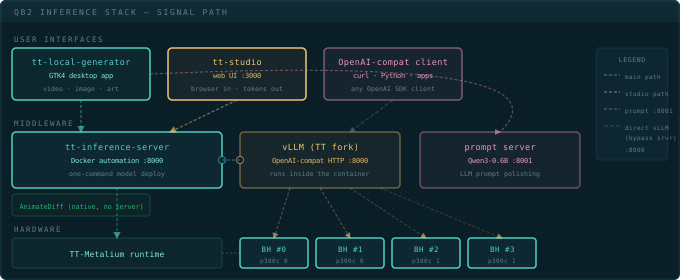
The Deployment Stack
There are two ways to run models as a server, and only one of them works out of the box.
The tt-inference-server path wraps the vLLM backend in a Docker container with
one-command deploy syntax. This is what tt-studio and tt-local-generator use internally. It
handles Docker pulls, environment setup, and port mapping automatically. It is pre-installed
at ~/.local/lib/tt-inference-server, and it is the whole of this chapter.
The direct vLLM path runs vllm serve yourself, for flags the managed path doesn’t
expose or a newer vLLM than the pinned image ships. vLLM is not installed on a QB2 — not
in ~/.tenstorrent-venv, not on the host at all; the copy the managed path uses lives inside
a container image. Building that environment is its own project, so it has its own lesson:
Build Your Own vLLM Environment →. Come back here when
you want a server running rather than a toolchain.
Both produce the same OpenAI-compatible API on port 8000.
Serving with tt-inference-server
tt-inference-server is pre-installed at ~/.local/lib/tt-inference-server. It handles the Docker container lifecycle for you.
# run.py validates HF_TOKEN whenever --docker-server is passed — even when the
# weights are already local. Without it you get "⛔ HF_TOKEN not set." and no server.
export HF_TOKEN=hf_...

# Deploy Llama-3.1-8B-Instruct with one command
python3 ~/.local/lib/tt-inference-server/run.py \
  --model Llama-3.1-8B-Instruct \
  --tt-device p300x2 \
  --workflow server --docker-server

# p300x2 = a QB2: two P300 cards, four Blackhole chips
# On first run: Docker pull + weight compilation (~5 min)
# Then: port 8000 is ready
--tt-device p300x2 is what identifies a QB2 — two P300 cards, four chips, and the value you
want almost every time. p300 selects a single card (two chips), which is the mesh that has
failed fabric bring-up on our hardware — prefer p150 if you deliberately want less than the
whole box. p100 is a single Blackhole chip, so it under-uses a QB2 rather than failing
loudly. Not every model has an entry for every topology: Qwen3-8B, for instance, is listed for
p300 but not p300x2, while Llama-3.1-8B-Instruct and Qwen3-32B both have p300x2
entries. The full list of options is in the tt-inference-server lesson →
On this path you do not set MESH_DEVICE or TT_MESH_GRAPH_DESC_PATH yourself — run.py
derives them per model from its spec, and on a QB2 the correct value is model-dependent.
Three more flags worth knowing on this path. --host-hf-cache reuses weights you’ve already
downloaded yourself to the Hugging Face cache instead of re-pulling them into a fresh Docker
volume — see “Check Space Before Downloading” in the previous
chapter for why that disk hit matters. Note it is the wrong flag for the pre-cached Qwen3-32B,
which sits outside any Hugging Face cache — use --host-weights-dir for that, as above. --no-auth skips JWT authentication for
local, unauthenticated serving (fine on a trusted LAN, not for internet exposure). --service-port
sets the port the managed model’s container API listens on — e.g. --service-port 8002. A full
command combining them:
# Llama-3.1-8B-Instruct here, not Qwen3-32B: --host-hf-cache reuses weights you
# downloaded yourself, and this is a model you would have pulled with `hf download`.
python3 ~/.local/lib/tt-inference-server/run.py \
  --model Llama-3.1-8B-Instruct \
  --tt-device p300x2 \
  --workflow server --docker-server \
  --no-auth --service-port 8002 --host-hf-cache
Use the Model That’s Already on Your Box
Before you download another model, know what you already have. Your QB2 shipped with Qwen3-32B on disk — and not just the weights:
| What | Size | Can you re-download it? |
|---|---|---|
| The weights | ~62 GB | Yes, given time and disk |
| Compiled Blackhole kernels | ~30 GB | No |
The second row is the one to care about. Those are the model’s operations already compiled for a four-chip mesh — the work that otherwise happens the first time you serve a model, while you watch a quiet log and wonder whether it has hung. It cannot be fetched from Hugging Face because nobody publishes it; it is built against your topology. Tenstorrent pre-built it and shipped it to you.
So the case for using it isn’t that downloading is slow. It’s that a download can’t give you the kernel cache — pull the weights yourself and you still pay the compile, having thrown away the more valuable half of what shipped. You’d also be spending another ~62 GB on a disk that already holds this model once. And it is no compromise: Qwen3-32B runs a 131K context window across all four chips and serves up to 8 concurrent requests.
Confirm it arrived — the same check Tenstorrent’s ISO acceptance test runs:
du -sh ~/data/tt-cache/You want roughly 87G–91G. Much smaller or missing means the model didn’t make it onto
your box, and the rest of this section won’t work.
Give it a name you’ll remember
The weights are real Hugging Face model files, but they are not in a Hugging Face cache —
a factory QB2 has no ~/.cache/huggingface and no ~/models at all. They sit in
tt-inference-server’s storage layout, under a directory named for a build label. One symlink
puts them on the path the rest of this guide already uses, so you never type that name again:
mkdir -p ~/models
ln -s ~/data/tt-cache/volume_id_tt_transformers-Qwen3-32B-vqb2_launch/weights/Qwen3-32B \
      ~/models/Qwen3-32B
A symlink, not a copy — a copy would be another 62 GB for no benefit. Check it resolves:
ls ~/models/Qwen3-32B/config.jsonNow ~/models/Qwen3-32B sits beside the ~/models/Qwen3-0.6B you’d get from hf download,
and tools take it as an ordinary path:
This replaces the launch command near it — it is not a next step. One model owns the four
chips and port 8000 at a time, so if you already started something (the command above, or a
deploy from tt-studio), stop it before running this: Ctrl-C, or docker ps then
docker stop <id>. sudo lsof -w /dev/tenstorrent/* printing nothing means the chips are
free. Pick whichever launch you want; don’t run both.
# run.py requires HF_TOKEN whenever --docker-server is used, local weights or not.
# That is a workflow precondition, not a license gate: Qwen3-32B is Apache-2.0 and
# ungated. Omit it and you get "⛔ HF_TOKEN not set." before anything starts.
export HF_TOKEN=hf_...

python3 ~/.local/lib/tt-inference-server/run.py \
  --model Qwen3-32B \
  --tt-device p300x2 \
  --workflow server --docker-server \
  --host-weights-dir ~/models/Qwen3-32B
--host-weights-dir mounts that directory into the container read-only: your weights can’t
be modified by the server, and no second copy is made. Once it is up, the server reports the
model by its full Hugging Face repo id — query it as Qwen/Qwen3-32B, not Qwen3-32B, or
read the exact string from curl -s http://localhost:8000/v1/models. The same path works for a direct
vllm serve ~/models/Qwen3-32B with HF_MODEL=~/models/Qwen3-32B, if you have built that
environment.
Not --host-hf-cache. It’s the flag that sounds right. It reuses a Hugging Face cache —
resolving HOST_HF_HOME, then HF_HOME, then ~/.cache/huggingface — and on a factory QB2
none of those exist, so you get a fresh 62 GB download of a model you already own.
--host-hf-cache is for weights you pulled with hf download; --host-weights-dir is for
the ones that shipped. Leave HF_HOME alone too — it plays no part in reaching this model.
Verifying the Server
Once the server reports ready, confirm it’s working:
# List available models — start here, and use the id it prints
curl -s http://localhost:8000/v1/models | python3 -m json.tool

# First chat completion
curl -s http://localhost:8000/v1/chat/completions \
  -H "Content-Type: application/json" \
  -d '{
    "model": "meta-llama/Llama-3.1-8B-Instruct",
    "messages": [
      {"role": "user", "content": "Explain tensor parallelism in one sentence."}
    ],
    "max_tokens": 120
  }' | python3 -m json.tool
The response JSON has the generated text at choices[0].message.content. If you get a connection refused, the server isn’t ready yet — give it another 30 seconds.
"model" has to match what the server actually loaded, or you get back a 404, not a
fallback — {"error": {"message": "The model \Qwen3-0.6B` does not exist.", “code”: 404}}. Take the string from /v1/modelsrather than from an example. **The server does not use the short name you pass to–model** — run.py hands the container the model's full Hugging Face repo id (hf_model_repo) and nothing renames it, so –model Llama-3.1-8B-Instructis served asmeta-llama/Llama-3.1-8B-Instruct, and –model Qwen3-32BasQwen/Qwen3-32B. The direct-vLLM path is different — its –served-model-nameflag renames the model explicitly — but that is [its own lesson](/lessons/build-your-own-vllm/). The examples below use the managed path's naming; substitute whatever your box actually reports —curl -s http://localhost:8000/v1/models | python3 -m json.tool` tells you.
Serving a Qwen3 model instead? They reason before answering, so a small max_tokens gets
spent entirely inside the <think> block and comes back as finish_reason: "length" with an
empty answer. Add "chat_template_kwargs": {"enable_thinking": false} to the request body above
(or extra_body={"chat_template_kwargs": {"enable_thinking": False}} in the Python SDK examples
below) for direct replies — see Qwen3 Reasoning Modes. Llama and
other non-reasoning models don’t need it; sending it anyway isn’t guaranteed to be a harmless
no-op on every model, so only add it for a model that actually supports it.
OpenAI Python SDK
The server is API-compatible with OpenAI’s client library. Point base_url at localhost:8000 and set api_key to any non-empty string — the server ignores it.
from openai import OpenAI

client = OpenAI(
    base_url="http://localhost:8000/v1",
    api_key="not-checked"
)

response = client.chat.completions.create(
    model="meta-llama/Llama-3.1-8B-Instruct",
    messages=[
        {"role": "system", "content": "You are a concise technical assistant."},
        {"role": "user", "content": "What is the Tenstorrent NOC fabric?"}
    ],
    max_tokens=256,
    temperature=0.7
)

print(response.choices[0].message.content)
This is the integration point for any application that already talks to OpenAI. Change the base URL, change the model name, and the rest of the code runs unchanged.
Serving a Qwen3 model instead? Add extra_body={"chat_template_kwargs": {"enable_thinking": False}} to create() — see the note under Verifying the Server above.
Only add it when the served model is actually a reasoning model; Llama and similar models don’t
need it.
Streaming Responses
For applications that need to show text as it generates — chat interfaces, interactive tools — use the streaming mode:
stream = client.chat.completions.create(
    model="meta-llama/Llama-3.1-8B-Instruct",
    messages=[{"role": "user", "content": "Describe continuous batching."}],
    stream=True
)

for chunk in stream:
    delta = chunk.choices[0].delta
    if delta.content:
        print(delta.content, end="", flush=True)

print()  # newline at end
Each chunk arrives as a server-sent event; the OpenAI SDK unwraps them into delta objects. The pattern is identical to streaming from api.openai.com — because it’s the same API.
Continuous Batching
This is one of the QB2’s practical advantages in production. vLLM’s continuous batching algorithm fills the KV-cache space as requests arrive, packing multiple users’ decode steps into the same chip invocation. You’re not running one request at a time — the server is interleaving decode steps from multiple concurrent clients across every chip cycle.
For single-user interactive work, this doesn’t matter. For serving a team, an API endpoint, or anything with concurrent load, it means the throughput numbers scale with parallelism rather than collapsing under it. A second concurrent user adds very little overhead up to the throughput ceiling of the chip.
Continuous batching is fundamentally different from static batching. Static batching waits to collect N requests before dispatching — it adds latency to achieve throughput. Continuous batching inserts new decode sequences into the in-flight batch as slots open up, achieving throughput without adding per-request waiting time. vLLM pioneered this for transformer inference. Tenstorrent’s vLLM backend carries it onto Blackhole, where KV-cache management happens in L1 and DRAM across the chip grid.
Port Map
Keep these ports clear. Other services on the QB2 use them.
| Port | Service |
|---|---|
8000 |
vLLM / tt-inference-server (OpenAI-compatible API) |
3000 |
tt-studio (web UI) |
4000 |
tt-studio’s LiteLLM gateway (coding-agent surface — see agents.md) |
8001 |
tt-local-generator’s prompt server — not tt-inference-server |
8002 |
a managed model’s container API, when serving with --service-port 8002 |
If port 8000 is already in use when you try to start vLLM, check for a running tt-studio or tt-inference-server instance first.
On a box already running tt-studio, port 8000 is taken before you start — its backend container
publishes it, and vllm serve exits with OSError: [Errno 98] Address already in use. Because
the listener is a container mapping, lsof -i :8000 often shows nothing useful; docker ps names
the real owner. Easiest fix is to leave tt-studio alone and serve on a free port such as 8003,
remembering to change it in the curl commands too.
Remote Access via SSH Port Forward
The vLLM server listens on localhost only by default. To access it from another machine on your network — or from your laptop over SSH — use port forwarding:
# Run this on your laptop / remote machine
# Forwards your local port 8000 to the QB2's port 8000
ssh -L 8000:localhost:8000 your-user@your-qb2-hostname

# Now on your laptop, this works:
curl http://localhost:8000/v1/models
Keep the SSH session open while you use the forwarded port. For a persistent setup, look at autossh or tmux to keep the tunnel alive.
Don’t expose port 8000 directly to the internet without authentication. The OpenAI-compatible API has no built-in auth layer — it trusts any caller. For internal network use or behind a VPN it’s fine. For public exposure, put a reverse proxy with authentication in front of it.
Multi-Chip: Using All Four Chips
--tensor-parallel-size does not work here. The Tenstorrent platform rejects both tensor
parallel and pipeline parallel outright, before anything reaches the device. Multi-chip is
selected by the mesh shape instead. If you have seen --tensor-parallel-size 4 in older
QB2 notes — including earlier versions of this page — that is why it failed.
On the managed path you don’t choose the mesh — run.py derives it per model from its spec.
For a 70B across all four Blackhole chips that is just:
python3 ~/.local/lib/tt-inference-server/run.py \
  --model Llama-3.1-70B-Instruct \
  --tt-device p300x2 \
  --workflow server --docker-server
The model weights distribute across all four chips’ DRAM, and the KV cache is allocated per chip across the mesh. From the client’s perspective the API is identical — same URL, same request format.
Setting the mesh by hand is a direct-vLLM concern — MESH_DEVICE, its accepted names, and the
case difference from --tt-device are covered in Build Your Own vLLM
Environment. One thing carries over to this path regardless:
Two-chip meshes fail on our QB2. Whichever path you use, asking for exactly two chips dies during fabric bring-up:
Fabric Router Sync: Timeout after 10000 ms on Device 2 ... Ethernet handshake likely failedOne chip and all four both work; two does not, reproducibly across board resets. On this path
that means --tt-device p300 is the value to avoid — prefer p150 to go narrower, or
p300x2 for the whole box.
Why a P300 box writes a cache directory called P150x4. On the first run for a model,
tt-metal converts the weights into ~/models/<model>/<device-name>/, and that name comes from
the number of chips in the mesh, not the board type — four Blackhole chips are labelled
P150x4 even though they are two P300 cards. It is not a sign you picked the wrong hardware.
The cache is per-mesh-size, so switching between P150 and P300x2 writes a second directory
and pays the conversion again. An unexpectedly slow “second” start usually means the mesh
changed, not that something broke.
Status on our hardware. The four-chip serving path brings up correctly — the plugin selects the TT platform, opens all four chips, loads weights and allocates the KV cache on the mesh, and the OpenAI-compatible endpoints respond. We have not yet signed off on output quality: in our testing generation degenerated into repetition, and we reproduced that across two vLLM versions, three models, and both one- and four-chip meshes — so it is not specific to the mesh. Our current suspicion is host firmware and driver versions running ahead of the tested pairings. Treat four-chip throughput numbers as unverified until that is resolved.
When Startup Stalls
Startup has long silent stretches, so “stuck” and “working” look alike in the log. Two quiet
phases are normal: building rotary-embedding matrices, which prints nothing at all, and the
warmup prefill sweeps that follow weight loading. Warmup also emits
TT_FATAL: Only TILE layout is supported for BFLOAT8_B dtype! at critical level, sometimes
hundreds of times — it is caught internally and startup continues. Worth knowing if you script a
log watcher, since grepping for FATAL will trip on it.
A real device hang looks different: the log stops, CPU sits near 100%, and RSS stops moving entirely. Real work moves RSS. Confirm with a native stack dump:
uv tool install py-spy   # isolated install — not into the vLLM venv you're diagnosing
py-spy dump --native --pid "$(pgrep -n -f 'VLLM::EngineCore')"
-n on pgrep matters if more than one matching process is running: py-spy --pid takes exactly
one PID, and an unfiltered pgrep -f can print several.
A hang in the command queue is unmistakable — pthread_cond_wait under
FDMeshCommandQueue::wait_for_outstanding_reads, meaning the device never acknowledged a write.
--native matters: the plain Python stack only shows ttnn.from_torch and looks like ordinary
work.
The usual cause is stale state from a run that did not exit cleanly, and a reset clears it:
sudo lsof -w /dev/tenstorrent/*   # must print nothing before you continue
tt-smi -r                          # reset all boards
lsof exits 1 when nothing holds the devices, so for this check non-zero is the answer you
want.
Stop vLLM with Ctrl-C or SIGTERM, never kill -9. A graceful exit lets the engine drain its
command queue and close the mesh device; killing it mid-queue is what leaves boards wedged, so
the next start hangs and gets the blame. Note too that boards can report healthy under
tt-smi -s — sane temperatures, dram_status: true — while still holding state that hangs a
fresh mesh. Healthy telemetry does not rule out needing a reset.
Going further
Two things this chapter deliberately leaves out, because each is a project rather than a step:
Lesson → Build Your Own vLLM Environment Run `vllm serve` yourself — the plugin install, the numpy/ttnn override that bites everyone, and the mesh variables the managed path sets for you. Lesson → Weights, Caches and Volumes Where the shipped Qwen3-32B actually lives, why `--host-hf-cache` is the wrong flag, and how to reuse the 30 GB of pre-compiled kernels.Next: Performance Tuning →
Performance Tuning
Running a model is table stakes. Knowing how to interpret what the hardware is doing while it runs — and what to change when the numbers don’t look right — is what separates production-ready deployments from experiments that worked once and then didn’t.
tt-toplike: Real-Time Hardware View
tt-toplike is htop for your Blackhole chips. Install it once, run it alongside inference, watch what the hardware does.
# Install from the Tenstorrent apt repository (set up by tt-installer)
sudo apt update && sudo apt install tt-toplike
# "Repository is not signed"? Re-download the signing key, then retry:
#   sudo curl -fsSL -o /etc/apt/keyrings/tt-pkg-key.asc https://ppa.tenstorrent.com/tt-pkg-key.asc
# No repository? Grab the .deb from https://github.com/tenstorrent/tt-toplike/releases
# and install it with `sudo dpkg -i tt-toplike_*.deb` — or via cargo: cargo install tt-toplike

# Launch in arcade mode — real-time chip visualization
tt-toplike --mode arcade

# Other modes worth knowing
tt-toplike --mode starfield    # particle visualization of chip activity
tt-toplike --mode flow         # DRAM bandwidth-focused display
tt-toplike --mode normal       # table mode, scriptable output
The arcade mode is not decoration. The activity pattern it shows maps directly to what the chips are computing — dense uniform patterns during prefill, pulsing DRAM-heavy patterns during decode. Once you can read those patterns, you can tell at a glance whether a run is behaving as expected.
Full documentation: docs.tenstorrent.com/tt-toplike →
tt-smi: Snapshot Mode for Scripted Monitoring
While vLLM runs, pull hardware metrics in a second terminal:
# Snapshot mode — outputs JSON, no TUI
tt-smi -s

# Pretty-print it
tt-smi -s | python3 -m json.tool
For repeated polling, a small script is more reliable than cramming this into a
one-liner (also: asic_temperature/power/aiclk are nested under
telemetry, not flat fields on each device entry — see Is This Thing
On? — and there’s no device_id field to
print, so enumerate the list instead). Save as ~/tt-scratchpad/tt-smi-watch.py:
import json, sys

data = json.load(sys.stdin)
for i, d in enumerate(data["device_info"]):
    t = d["telemetry"]
    print(f"Chip {i}: {t['asic_temperature']}°C  {t['power']}W  aiclk={t['aiclk']}MHz")
Then poll every 2 seconds:
watch -n 2 'tt-smi -s | python3 ~/tt-scratchpad/tt-smi-watch.py'The JSON field names you care about per chip: asic_temperature, power, aiclk, current (utilization).
What Good Numbers Look Like
These are reference ranges for a healthy QB2 under inference load. Exact values vary by model, batch size, and ambient conditions.
| Metric | Idle | Single-chip inference | 4-chip 70B inference |
|---|---|---|---|
aiclk |
800–900 MHz | ~1000 MHz (boosted) | ~1000 MHz |
asic_temperature |
30–45°C | 55–75°C | 65–80°C |
power per chip |
20–40 W | 75–120 W | 100–150 W |
current (util) |
low | high during prefill | high during prefill |
If aiclk is consistently below 800 MHz under load, the chip may be thermal-throttling. If temperatures exceed 85°C, check airflow — the QB2 case needs clearance on all sides.
The QB2 fans are loud under full load. This is by design. The acoustic output is a direct signal that the cooling system is working. Fan noise doesn’t indicate a problem; silently cool chips might.
Prefill vs. Decode: Two Different Hardware Modes
Transformer inference has two fundamentally different phases, and they stress the hardware differently.
Prefill processes the entire input prompt in parallel. Every token in your system prompt and user message gets computed at once, across all layers. This phase is compute-bound — the Tensix cores are running at full utilization, arithmetic throughput is the limiting factor. In tt-toplike arcade mode, you see dense uniform activity across the chip grid.
Decode generates one token at a time, autoregressively. Each step uses the full KV-cache (which grows with sequence length) but only computes one new output token. This phase is memory-bandwidth-bound — the cores are bottlenecked on loading the KV-cache from DRAM into L1 for each step, not on arithmetic. In tt-toplike flow mode, you see DRAM read bandwidth spiking with each token.
Prefill: compute-bound, all cores lit. Decode: memory-bound, DRAM rows pulsing.
Understanding this split matters for workload design. Long prompts mean long prefill (slow time-to-first-token). Short prompts with long generated outputs mean fast prefill but decode throughput determines how fast the text appears.
Batch Size and Throughput
Larger batches improve throughput at the cost of time-to-first-token. In vLLM’s continuous batching model, “batch size” isn’t something you explicitly set — the scheduler fills decode slots dynamically as they become available.
You can influence this with --max-num-seqs (maximum concurrent sequences) when starting the server:
On the managed path, pass it straight through to the server:
python3 ~/.local/lib/tt-inference-server/run.py \
  --model Llama-3.1-8B-Instruct \
  --workflow server --tt-device p300x2 --docker-server \
  --max-num-seqs 16
Driving vllm serve yourself (from your own vLLM venv — it is not installed on the host; see
vLLM on QB2):
source ~/.venvs/vllm-tt/bin/activate
export TT_METAL_ARCH_NAME=blackhole
export MESH_DEVICE=P300x2            # all four chips; avoid the two-chip P300 mesh
export HF_MODEL=~/models/Llama-3.1-8B-Instruct

vllm serve "$HF_MODEL" \
  --max-num-seqs 16 \
  --port 8000
For single-user interactive use, lower values (4–8) reduce first-token latency. For batch workloads or multi-user serving, higher values improve throughput — but there is no single safe ceiling that applies across every model on a QB2.
The safe --max-num-seqs ceiling is per-model, not a universal box number. Don’t carry a
“16–32 is safe” rule from one model to the next. Qwen3-32B and Llama-3.3-70B-Instruct tolerate
concurrency up to 8. gemma-4-31B-it and Qwen3.6-27B are single-stream — --max-num-seqs 1 is the
supported ceiling, and pushing past it is exactly the kind of sustained load that has crashed the
runtime on gemma-4-31B-it in our testing. Check the model zoo chapter
for the current model before assuming a concurrency setting carries over.
TTNN Performance Mode
For direct TTNN code (not vLLM), TTNN exposes a performance mode hint. The exact API is subject to change — check the current TTNN documentation for the precise call — but the concept is a mode flag that tells the runtime to prefer aggressive optimization over compilation speed.
# Check the TTNN docs for the current API — this is illustrative
# The concept: trade slower JIT compilation for faster inference
import ttnn

# Example — verify the exact call in the current TTNN release
# ttnn.set_performance_mode(ttnn.PerformanceMode.AGGRESSIVE)
In vLLM, performance optimization happens at the model-loading stage. The compilation step at first run is when the kernels are tuned.
Scaling Across Chips
Chips are added by widening the mesh, not with --tensor-parallel-size — the Tenstorrent
platform rejects tensor and pipeline parallel outright. On a QB2 that means
MESH_DEVICE=P300x2 for all four chips, or MESH_DEVICE=P150 for one. The two-chip mesh in
between (MESH_DEVICE=P300, a single card) has failed fabric bring-up reproducibly on our
hardware — so “half the box” is not a tuning knob you can lean on. See
vLLM on QB2 for the error it produces.
Within the mesh, a model’s weights and attention heads distribute across the chips, and the chips coordinate activations over their Ethernet cores directly, without routing through the CPU.
This matters for scaling intuition: four chips does not mean 4x throughput, because partial activations have to cross chip boundaries at each layer. What you reliably gain is 4x the memory pool — fitting a model that would not fit on one chip — plus a real but sublinear throughput improvement from the compute scale-out.
The Explore TT-Metalium lesson in tt-vscode-toolkit covers how tensor parallel communication is implemented at the kernel level — specifically how AllReduce operations route through the Ethernet cores rather than through the host. Worth reading once you’ve got inference running smoothly and want to understand the mechanics under vLLM.
Profiling with TTNN
For direct TTNN code (not the vLLM server), ttnn.experimental.profiler can emit per-op timing data. This is the Blackhole equivalent of torch.profiler — it shows you which ops are taking the most cycles and where the bottlenecks are.
# Illustrative — check current TTNN docs for the exact profiler API
import ttnn

with ttnn.experimental.profiler.profile():
    result = ttnn.matmul(a, b)

# profiler output goes to a file; inspect with tt-vscode-toolkit perf viewer
The OptimizerFW tool via tt-forge provides higher-level optimization passes that can analyze a full PyTorch model graph and suggest kernel-level improvements.

Next: Going Deeper →
Going Deeper
You’ve rerouted the mental model, picked a model that fits the hardware, stood up a production inference server, and watched the hardware breathe through prefill and decode. That’s the Run & build track done. What it opens up is considerably larger.
Interactive Lessons in tt-vscode-toolkit
The VS Code extension ships lessons that run against your QB2 directly — not simulated, not mocked. Real inference, real hardware feedback, real timing numbers. Each lesson is a structured walkthrough with code cells you execute against the machine.
Custom Training on QB2
Everything so far has been inference — download weights, serve them, measure them. The QB2 also builds and trains models, via tt-train (the ttml library), and the tt-vscode-toolkit lesson set for this has grown into a full arc, not a single lesson:
train_nanogpt.py checkpoint, then --resume to continue it), Multi-Device Training (near-linear DDP scaling to all four Blackhole chips on a QB2), and Experiment Tracking (WandB, hyperparameter comparison).The multi-device lesson is the one worth calling out on a QB2 specifically: it documents near-linear data-parallel scaling across all four chips, which is exactly the hardware you have.
Three Things to Try Next
Run Llama-3.3-70B with all four chips. The largest model QB2 officially supports: 70 billion parameters, 128K context, tensor-parallel across all four Blackhole chips. The lesson has the exact Docker command, prerequisites checklist, and a variant for the DeepSeek-R1 reasoning model that uses the same infrastructure. Download the weights (140 GB — plan ahead), start the server, and run a request that would be genuinely difficult to answer. Watch tt-smi -s while it generates — the hardware doing real work looks different from the hardware doing toy work.
Build a Python application against the OpenAI-compatible API. The server is running on localhost:8000. The OpenAI SDK works unchanged. Take something you’ve built against api.openai.com — a chatbot, a summarizer, a classification pipeline — and point it at your QB2. Measure the latency. Compare the cost per token. This is where the practical value of local inference becomes tangible rather than theoretical.
Take the Tinker track. The Run & build track ends at the TTNN surface. The Tinker track goes below it: Metalium kernels, NoC data movement, dispatch programming, the full architecture exposure. If you’ve ever wanted to understand how a matmul actually runs on silicon — not the math, the execution — that track is the path.
Community and Further Reading
Choose Your Next Track
You ran serious inference on serious hardware and you understand why it works the way it does. That’s a meaningful thing to know. The QB2 is a beginning, and you’ve got your bearings.
TT-Forge: Compile Anything
vLLM is a curated serving runtime. It knows exactly which models it supports, it has them tuned and tested, and it presents a clean HTTP API for inference. Tremendous for what it does. But it covers a specific list.
TT-Forge is the other gate. You bring the model — any PyTorch nn.Module, any JAX function, any ONNX export — and the compiler traces it, lowers it to Tensix operations, and hands back something that runs on your QB2 hardware. One call. Hardware execution. No server, no model list to consult.
If vLLM is the highway, TT-Forge is the ability to go anywhere.
Before You Begin — Install Forge
Forge is not part of a default tt-installer run. tt-installer sets up the base — driver, firmware, hugepages, and the ~/.tenstorrent-venv environment that holds tt-smi and tt-flash. Forge itself you install as a pip wheel from Tenstorrent’s package index. That’s how the TT-Forge docs want you to do it — not a container wrapper, not a 45-minute source build.
(tt-installer can give you Forge as a container instead, via --install-forge-container, which
writes a tt-forge wrapper to ~/.local/bin/. It’s off unless you ask for it, and it’s a
separate path from the wheel below — pick one.)
First confirm the base is ready (Ubuntu 24.04, Python 3.12):
tt-smi # should show the System Management InterfaceThen make Forge a venv of its own. Don’t install it into ~/.tenstorrent-venv: Forge pins its
own torch / torch-xla stack, and resolving that on top of your hardware tooling means a bad
Forge install is also a broken tt-smi.
python3 -m venv ~/.venvs/forge
source ~/.venvs/forge/bin/activate
Then install the frontend for your framework:
PyTorch & JAX — TT-XLA (the primary frontend):
pip install pjrt-plugin-tt --extra-index-url https://pypi.eng.aws.tenstorrent.com/
tt-forge-install     # pulls in any missing system dependencies
pip install tt-forge is the convenience meta-package that wraps the same thing.
The ResNet-50 example below also needs torchvision, which neither of these installs.
Check your installed torch version first (python3 -c "import torch; print(torch.__version__)"
— confirmed 2.11.0+cpu as of this writing) and install a matching torchvision with
--no-deps, so pip’s resolver can’t silently upgrade torch itself and break the
already-installed torch_xla (confirmed live: a plain pip install torchvision without
--no-deps pulled torch 2.14.0, and import torch_xla then failed with
undefined symbol: _ZN5torch8autograd10deleteNodeEPNS0_4NodeE):
pip install --no-deps torchvision==0.26.0 --index-url https://download.pytorch.org/whl/cpuIf your installed torch is a different version, match torchvision’s version to it via
PyTorch’s compatibility matrix rather than
reusing 0.26.0 blindly.
ONNX / TensorFlow / PaddlePaddle — TT-Forge-ONNX (single-chip only):
sudo apt-get install -y libgomp1 libmpc3
uv pip install tt_forge_onnx tt_tvm --extra-index-url https://pypi.eng.aws.tenstorrent.com/
Don’t want to touch your host Python? Tenstorrent ships prebuilt images: docker run -it --rm --device /dev/tenstorrent -v /dev/hugepages-1G:/dev/hugepages-1G ghcr.io/tenstorrent/tt-xla-slim:latest. Building from source is documented too, but the docs are explicit that it’s for developing Forge itself, not for running models.
This image’s own torchvision is currently broken, independent of anything you do —
confirmed live: import torchvision fails there with
RuntimeError: operator torchvision::nms does not exist (an ABI mismatch between the
image’s bundled torch and torchvision builds). If you hit that, reinstall it inside the
container the same way described above (matching, --no-deps torchvision).
API note: older material — including earlier drafts of this guide — used import forge; forge.compile(model, sample_inputs=...) for PyTorch via the tt-forge-fe frontend. That frontend has been superseded: tt-forge-fe now redirects to tt-forge-onnx, and TT-XLA is the current PyTorch + JAX frontend. PyTorch now compiles through torch.compile(model, backend="tt") (shown below). forge.compile() survives only in the ONNX frontend.
The Compilation Paths
Two frontends cover every framework. Both lower to the same TT-MLIR compiler and the same Tensix backend — the framework you start from doesn’t change where you land.
| Framework | Frontend | Entry point | Chips |
|---|---|---|---|
| PyTorch | TT-XLA | torch.compile(model, backend="tt") |
single & multi |
| JAX / Flax | TT-XLA | jax.jit (+ pjrt_plugin_tt) |
single & multi |
| ONNX / TF / Paddle | TT-Forge-ONNX | forge.compile(model, inputs) |
single only |
TT-XLA is the primary frontend and the one to reach for first: it takes both PyTorch (through torch-xla) and JAX (through jax.jit), and it’s the only path that scales across multiple chips. TT-Forge-ONNX is the TVM-based route for models that arrive as ONNX, TensorFlow, or PaddlePaddle graphs, and it’s single-chip only.
Your First Compile
ResNet-50 is the right first target — well-understood architecture, small enough to compile fast. This is the canonical PyTorch quickstart from the TT-Forge docs:
import torch
import torch_xla.core.xla_model as xm
import torch_xla.runtime as xr
import tt_torch  # registers "tt" as a torch.compile backend
from torchvision.models import resnet50, ResNet50_Weights

# Point PyTorch/XLA at the Tenstorrent device
xr.set_device_type("TT")
device = xm.xla_device()

# Load ResNet-50 in bfloat16 — Blackhole's native float format
model = resnet50(weights=ResNet50_Weights.DEFAULT).to(torch.bfloat16).eval()

# Compile for Tensix and move the compiled model onto the device
compiled_model = torch.compile(model, backend="tt").to(device)

# Run inference on hardware
input_tensor = torch.randn(1, 3, 224, 224, dtype=torch.bfloat16).to(device)
with torch.no_grad():
    output = compiled_model(input_tensor)

print(output.cpu().argmax(dim=-1).item())   # predicted ImageNet class
What torch.compile(model, backend="tt") does: torch-xla traces the model into a StableHLO graph, the TT-MLIR pipeline lowers that graph to Tensix kernels, and you get back a callable that dispatches to hardware. The first compilation is slow (tens of seconds for ResNet, longer for large models). Subsequent calls with the same input shapes hit a compiled cache and run fast.
**xr.set_device_type("TT") opens all four chips and brings up the 4-chip ring fabric —
if it was left in a bad state by a process that didn’t exit cleanly, you’ll see Fabric Router Sync: Timeout after 10000 ms on device open, same failure mode (and same fix) as
the vLLM chapter’s stale-fabric-state note:
tt-smi -r to reset the boards before retrying.
Loading in torch.bfloat16 matters: Blackhole is bfloat16-native, so it gives you full hardware throughput. Float32 works, but leaves performance on the table.
Here is the chip view during compilation and inference:
The compile step dispatches weight loads from DRAM then fans work across the Tensix grid.
compiled_model is a drop-in replacement for the original PyTorch model. Swap it into any existing inference loop — code that calls model(input) works unchanged once the model and its inputs are on the TT device. The only additions are the torch_xla device setup and the torch.compile(..., backend="tt") call.
The tt-forge-models Zoo
Writing model-loading boilerplate for hundreds of architectures is tedious. Somebody already did it. tt-forge-models is the standardized model zoo for TT-Forge — 800+ model variants tested in CI, every one exposing the same ModelLoader interface and loadable in two lines.
The repo lives at ~/code/tt-forge-models and on GitHub at tenstorrent/tt-forge-models.
Directory structure is not uniformly flat — verified against the real repo. Models with one obvious task (ResNet, CLIP, DeiT) go straight to the framework directory; models that serve several downstream tasks (BERT, DINOv2, Llama) add a task-type directory in between:
tt-forge-models/
  resnet/
    pytorch/
      loader.py       # ModelLoader class
  bert/
    masked_lm/
      pytorch/
        loader.py
      jax/
        loader.py
    question_answering/
      pytorch/
        loader.py
    sequence_classification/
      pytorch/
        loader.py
  clip/
    pytorch/
      loader.py
  dinov2/
    image_classification/
      pytorch/
        loader.py
      jax/
        loader.py       # Flax variant
  llama/
    causal_lm/
      pytorch/
        loader.py
If an import at the depth shown above 404s, that’s why — check the task-type directories for the model you want rather than assuming the flat pattern.
Every loader.py exports a ModelLoader class with two instance methods (not static —
ModelLoader.load_model(...) raises TypeError: missing 1 required positional argument: 'self', confirmed live; instantiate first). load_model() returns a standard PyTorch
nn.Module and load_inputs() returns matching sample tensors — so you compile them exactly
like any other model:
import torch, tt_torch
from third_party.tt_forge_models.bert.masked_lm.pytorch import ModelLoader

# Load the pretrained model and representative inputs
loader = ModelLoader()
model = loader.load_model(dtype_override=torch.bfloat16)
inputs = loader.load_inputs(dtype_override=torch.bfloat16)

# compile for Tensix and run — same torch.compile path as before
compiled = torch.compile(model, backend="tt").to(device)
output = compiled(inputs.to(device))
Five models worth knowing immediately:
| Model | What it does | Good for |
|---|---|---|
| ResNet-50 | Image classification, 1000-class ImageNet | Fast compile baseline, benchmarking |
| BERT-base | Bidirectional text encoder | Embedding tasks, classification, QA |
| CLIP | Paired image-text embedding | Semantic search, zero-shot classification |
| DINOv2 | Self-supervised vision transformer | Feature extraction, segmentation |
| DeiT | Data-efficient image transformer | Vision tasks, strong bfloat16 performance |
Models not on this table: BLOOM, GPT-2, LLaMA, YOLOv4, BEiT, and 190+ more. Browse the full zoo in the forge-models-zoo lesson.
dtype_override=torch.bfloat16 is the recommended default for all models. Blackhole runs bfloat16 at native hardware throughput. If you need float32 for precision reasons, omit the override — but expect slower inference.
JAX and TT-XLA
For JAX and Flax models, the compilation path uses TT-XLA. Import pjrt_plugin_tt and the TT hardware backend registers automatically:
import jax
import jax.numpy as jnp
import pjrt_plugin_tt  # registers TT hardware as the XLA backend

# Any JAX function — jax.jit traces it and compiles to TT hardware
@jax.jit
def predict(params, x):
    return model.apply(params, x)

output = predict(params, batch)
The pjrt_plugin_tt import is the entire setup. After that, jax.jit compiles to Tensix cores instead of CPU or GPU. Flax transformer models slot directly into this pattern — load the model, load weights, wrap model.apply in jax.jit, run inference.
Full walkthrough: TT-XLA / JAX lesson.
Compiletron: The Expedition Game
Someone at Tenstorrent decided the best way to stress-test the compiler stack across hundreds of model architectures was to make it a roguelike game. They were right.
tt-forge-compiletron is a model-compilation expedition game (it lives at tenstorrent/tt-forge-compiletron). You launch expeditions into the model zoo. Each expedition compiles a different model. The chip runs the compilation. You score points. You build a bestiary.
Compiletron drives the source-built tt-forge-fe / forge.compile() frontend (its forge backend), which is why its setup builds ~/tt-forge-fe from source rather than using the wheels above. That’s the legacy PyTorch path now being superseded by TT-XLA’s torch.compile(backend="tt"). The tool still works and is a great compiler stress-test; just know it’s pinned to the older frontend, not the pip-install flow this chapter opened with.
Set it up, then start it:
cd ~/code/tt-forge-compiletron
bash scripts/install.sh          # installs forge venv, XLA venv, clones tt-forge-models
python3 expedition.py run --tui
A three-screen Textual TUI opens. The countdown is four seconds — then the expedition begins automatically.
The bestiary (data/bestiary.json) is a persistent record of every model you’ve successfully compiled. Base score per compile: 200 points. First time you compile a model, ever: multiplier of 5, making it 1,000 points. Freshness and rarity bonuses stack on top. The scoring structure incentivizes breadth: you gain more by compiling 10 new models than by recompiling the same model 10 times.
Compiletron supports both compiler backends from a single interface — verified against the
actual --backend argument, which has four choices, not two:
| Backend | What runs | Invoke with |
|---|---|---|
auto |
Routes each model to the right backend automatically | Default |
forge |
PyTorch models via forge.compile() |
--backend forge |
xla |
JAX/Flax models via jax.jit + PJRT |
--backend xla |
mixed |
Even-numbered chips run forge, odd-numbered run xla |
--backend mixed |
Side quests activate when the mesh is busy with a large model compilation. Idle chips get assigned fast curated models to compile in parallel, keeping hardware utilization high and points accumulating while you wait. The game manages chip allocation automatically.
For unattended recording (VHS demos, overnight compilation runs), use --auto-quit SECS —
verified against the actual argument: it’s a countdown in seconds after the summary screen
appears, not a count of models compiled:
python3 expedition.py run --tui --auto-quit 30The expedition runs its normal course; once the summary screen shows, the game waits 30 seconds and then quits on its own — bestiary saved, score written to disk — instead of waiting on a keypress.
All four chips busy — main expedition on Chip 0, three side quests running simultaneously.
Compiletron was built to find compiler bugs. It works through that bestiary systematically, surfacing edge cases in graph lowering and kernel generation that sequential targeted testing would miss. Every expedition you run contributes data to that effort. Points are real. The bestiary is real. And the compiler gets better.