First Boot
Power on. Ubuntu loads. You log in. Now what?
Everything from here happens in a terminal. That’s the command line — a text window where you type instructions and the machine responds. On a QB2, the terminal is your instrument panel. Learning its three or four most-used commands will get you surprisingly far.
Finding a Terminal
If you’re looking at the GNOME desktop:
- Press
Ctrl+Alt+T— opens a terminal on most Ubuntu setups - Or press the Super key (Windows key), type
terminal, press Enter - Or right-click the desktop and choose “Open Terminal”
Once a terminal window is open, you’re in the right place. It shows a prompt ending in $ — everything you type goes after that.
The Three Commands You Need Right Now
Check disk space first. Models are large. This is non-negotiable to understand before you do anything else:
df -h ~This shows your home directory’s disk usage. The Size column is total, Avail is what’s free. You need room — at minimum 3 GB for a small model (Qwen3-0.6B), 20+ GB for anything like Llama-3.1-8B. If you’re under 5 GB free, stop here and figure out where the space went before continuing.
Check internet connectivity:
ping -c 3 google.comIf this fails, check your network cable or go to Settings → Network. Everything else in this guide requires internet access for model downloads.
Update the package list (do this once after first boot):
sudo apt updatesudo means “run as administrator.” Ubuntu will ask for your password. This doesn’t install or change anything — it just refreshes the list of what’s available. You’ll see a lot of text scroll by. That’s normal.

Ubuntu: What You Should Know
The QB2 runs Ubuntu 24.04 LTS. If this is your first time with it:
- Package manager is
apt— install things withsudo apt install <name> - Files are case-sensitive:
Model.pyandmodel.pyare different files - Your home directory is
~— short for/home/yourusername sudoruns a command as administrator — use it only when a command tells you to
Your Login, Password, and SSH
Many QB2 units ship with a default login — username ttuser, password ttuser. If that’s how yours arrived, change the password the moment you’re in, before the machine is reachable on a shared network:
passwdIt asks for the current password (ttuser), then a new one twice.
Turn on SSH
Later in this guide — and on every other path — you reach the QB2 from your own laptop over SSH: forwarding a model server’s port back to your machine, copying files, running commands remotely. SSH isn’t always running on a fresh box, so turn it on once:
# Install and enable the SSH server
sudo apt install -y openssh-server
sudo systemctl enable --now ssh

# Confirm it's listening
systemctl status ssh
Then find the address other machines use to reach you:
hostname -I     # the QB2's IP address on your network
hostname        # its name — often <name>.local
From your laptop you can now run ssh ttuser@<that-ip>. This is what makes the remote-access steps in Serving Models on QB2 — and bringing tt-studio’s web UI to your own browser — work.
ufw firewall is installed but inactive by default, so nothing on the QB2 is blocked out of the box. If you or your IT team turn it on (sudo ufw status tells you), remember to allow SSH with sudo ufw allow 22/tcp — and any service port you forward later, like 8000 for the inference server.
Python: A Field Guide to the Confusion
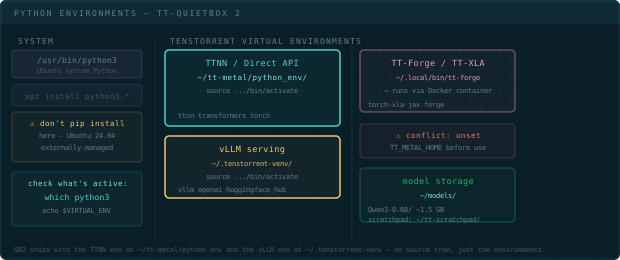
This is where new Linux users often hit a wall. Ubuntu ships with its own Python. The Tenstorrent software has its own Python environments. These are separate and don’t mix. Here’s the landscape:
What exists on your system
| Name | Location | What it is |
|---|---|---|
| System Python | /usr/bin/python3 |
Ubuntu’s built-in Python — don’t pip install here |
| Hardware tooling venv | ~/.tenstorrent-venv/ |
tt-smi and tt-flash. That’s the whole inventory — don’t install into it |
| TTNN / Direct API | inside the tt-metalium container |
/opt/venv/bin/python3 once you’re in. Nothing on the host to activate |
| TT-Forge (TT-XLA) | pip wheel in a venv you create | Compile PyTorch/JAX models — install it yourself (see TT-Forge) |
The important surprise is the third row. There is no TTNN environment on the host. You may
find older notes pointing at ~/tt-metal/python_env/ — that path doesn’t exist on a QB2 and the
installer never creates it. TT-Metalium arrives as a container image, and tt-metalium is the
wrapper that puts you inside it with your home directory mounted. import ttnn works in there
and nowhere else.
Why does this matter?
Ubuntu 24.04 enforces what’s called externally-managed Python — the system Python is protected. If you try to pip install something directly, Ubuntu will refuse with an error about breaking system packages. This is intentional. It protects you.
So when you need a Python package of your own, make it a new venv (python3 -m venv ~/.venvs/mine)
or let uv tool / pipx make one for you. What you should not do is install into
~/.tenstorrent-venv to dodge the error. That venv exists to hold tt-smi and tt-flash, your
QB2 activates it for you at login, and a dependency resolution gone wrong in there takes out the
tools you’d use to work out what broke.
What which python3 tells you
Before running any Python code, check which Python is active:
which python3If you see /usr/bin/python3 — you’re on the host, using Ubuntu’s Python. Tenstorrent imports will fail.
If you see /home/yourname/.tenstorrent-venv/bin/python3 — you’re in the tooling venv. tt-smi works; import ttnn still won’t.
If you see /opt/venv/bin/python3 — you’re inside the tt-metalium container, which is where TTNN lives. Go ahead.
pip, pyenv, uv — a brief map
You may encounter other Python tools in documentation or online:
pip— Python package installer. Works inside a venv. Fine to use there.pyenv— manages multiple Python versions (3.10, 3.11, etc.). The QB2 doesn’t need it — the venvs handle version isolation.virtualenv/python -m venv— creates isolated environments. The Tenstorrent venvs were built this way.uv— a fast, modern alternative to pip and virtualenv.uv tool install <pkg>is the tidiest way to add a CLI (likehf) without touching a managed environment.
For this guide: ignore pyenv. Reach for uv or pipx when you want a CLI of your own, and use tt-metalium when you want TTNN.
Activating and deactivating
# Enter the TTNN environment — a container, not a venv
tt-metalium

# You're now in a shell inside the container, home directory mounted.
which python3          # → /opt/venv/bin/python3
python3 -c "import ttnn; print('TTNN ready')"

# Leave it the way you leave any shell
exit
There’s no (python_env) prefix to look for, because nothing is being activated — you’re in a
different shell on a different filesystem. which python3 is the signal: /opt/venv/bin/python3
means you’re inside.
tt-metalium run pulls a multi-GB image. Later runs start immediately.
/etc/profile.d/ that activate ~/.tenstorrent-venv automatically at login — which is why tt-smi just works. Run which python3 before sourcing any venv to see what's already active; activating on top of an active venv is messy.
tt-metalium: command not found? The wrapper lives in ~/.local/bin, which isn't on PATH in every shell — zsh never reads ~/.profile, where Ubuntu's default rule for it lives. Run export PATH="$HOME/.local/bin:$PATH" and add that line to ~/.zshrc. Same story for tt-studio and tt-forge.
Next: Is This Thing On? →