Is This Thing On?
Before running a model, confirm the hardware is alive and the software can see it. One command, four chips, zero guessing.
Reading Your Hardware with tt-smi
tt-smi is the Tenstorrent System Management Interface. Your window into the chips. Run it in snapshot mode to get JSON instead of the interactive TUI:
tt-smi -sA healthy QB2 returns four entries — one per Blackhole chip. The real shape is nested, not flat — board_info and telemetry are their own sub-objects:
{
  "device_info": [
    {
      "board_info": {
        "bus_id": "0000:01:00.0",
        "board_type": "p300c",
        "board_id": "0000046131924062",
        "dram_status": true,
        "pcie_speed": 4,
        "pcie_width": "4"
      },
      "telemetry": {
        "voltage": "0.72",
        "current": "23.0",
        "power": "16.0",
        "aiclk": "800",
        "asic_temperature": "40.3"
      },
      "firmwares": {
        "fw_bundle_version": "19.13.1.0"
      }
    }
  ]
}
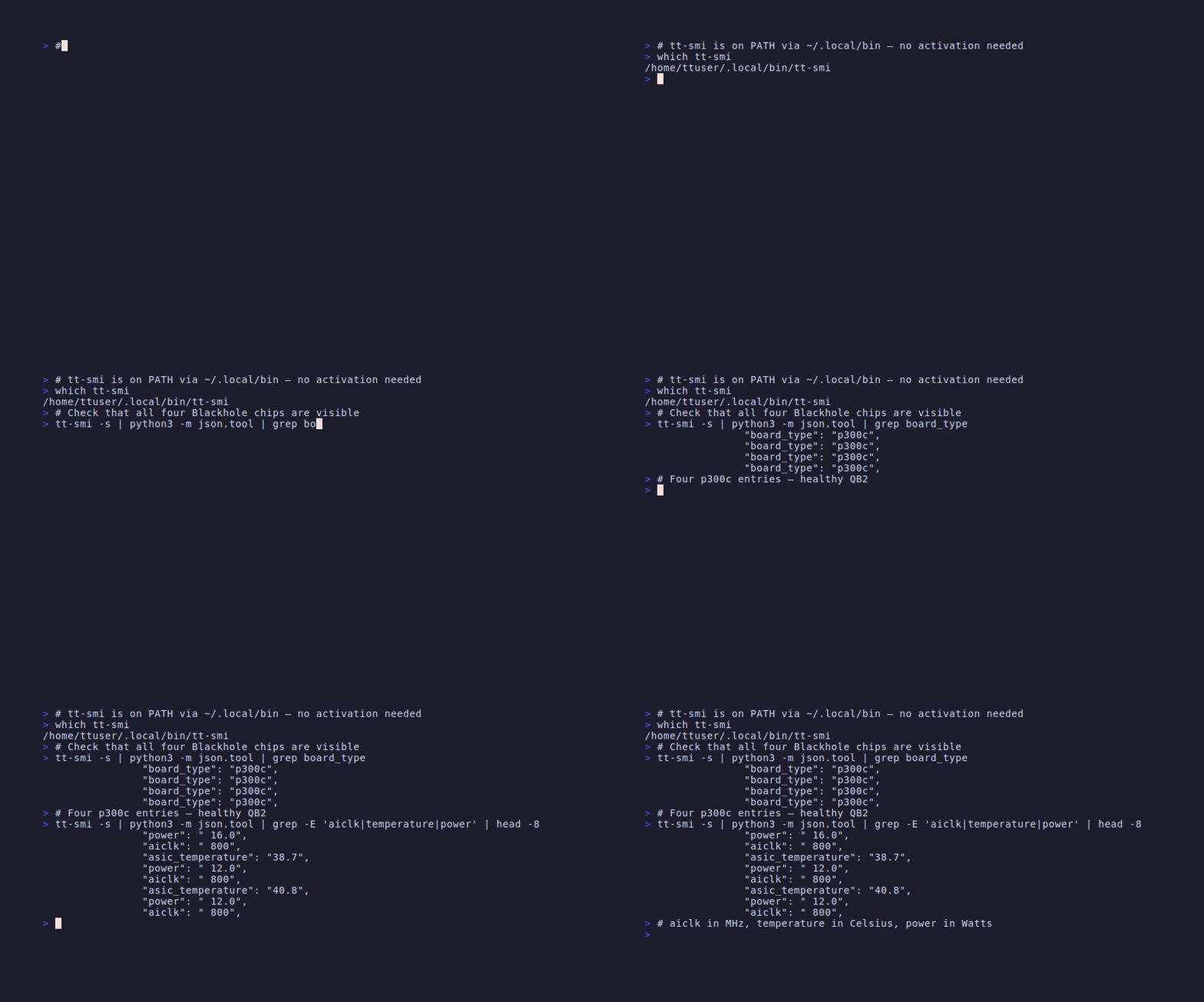
board_type is the board SKU (p300c on a QB2), not a chip-family string — Blackhole doesn’t appear literally anywhere in the output. Four entries in device_info means four chips, all alive. Check it directly:
tt-smi -s | python3 -m json.tool | grep board_typeYou should see "p300c" printed four times.
Reading the Output
A healthy QB2 shows four entries in device_info. Look at each one for:
board_info.board_type: "p300c"— the board SKU for a QB2 (two chips per card, two cards). “BLACKHOLE” doesn’t appear literally anywhere in the output — that’s the chip family the p300c board carries.board_info.pcie_speed: 4— an integer PCIe generation, not the string"GEN4".4is full speed;3would mean a slot compatibility issue.board_info.pcie_width: "4"— the link width in lanes (as a string). Narrower (lower number) means lower bandwidth.telemetry.asic_temperaturein the 35–55°C range — normal at idle. Higher under load is fine.board_infoandtelemetryare nested sub-objects on each device entry, not flat fields — see the JSON sample above.
Count the entries:
tt-smi -s | python3 -c "import sys,json; d=json.load(sys.stdin); print(len(d['device_info']), 'devices')"If you see 4 devices, move on. The QB2 is ready.
tt-studio, pick it from the Deploy dropdown, and chat. No download. Full walkthrough in Your First Model.
If You See Fewer Than Four
A missing device usually means one of three things:
PCIe link not established:
sudo dmesg | grep -i tenstorrent | tail -20sudo is required here — Ubuntu 24.04 restricts the kernel log buffer by default, and a plain dmesg fails with “read kernel buffer failed: Operation not permitted.”
Look for errors about PCIe enumeration or firmware loading failure. A loose card is possible — the QB2 ships with cards seated, but transit happens.
Firmware mismatch:
tt-smi -s | python3 -m json.tool | grep -i fw_bundle_versionIf firmware versions differ across devices, or show 0.0.0, you may need to reflash. See the tt-flash documentation for instructions.
Driver not loaded:
lsmod | grep tenstorrentIf nothing prints, the kernel driver isn’t loaded. This shouldn’t happen on a stock QB2, but if it does:
sudo modprobe tenstorrentWatching in Real Time
For a live view of all four chips while running inference:
tt-smiThis opens the interactive TUI — press q to quit. You’ll see per-chip utilization, temperature, and memory usage update live. Useful when a model is running and you want to see all four chips light up.
For something richer than the built-in TUI, tt-toplike renders the same telemetry as live ASCII art — every chip’s power, temperature, and DRAM state, animated:
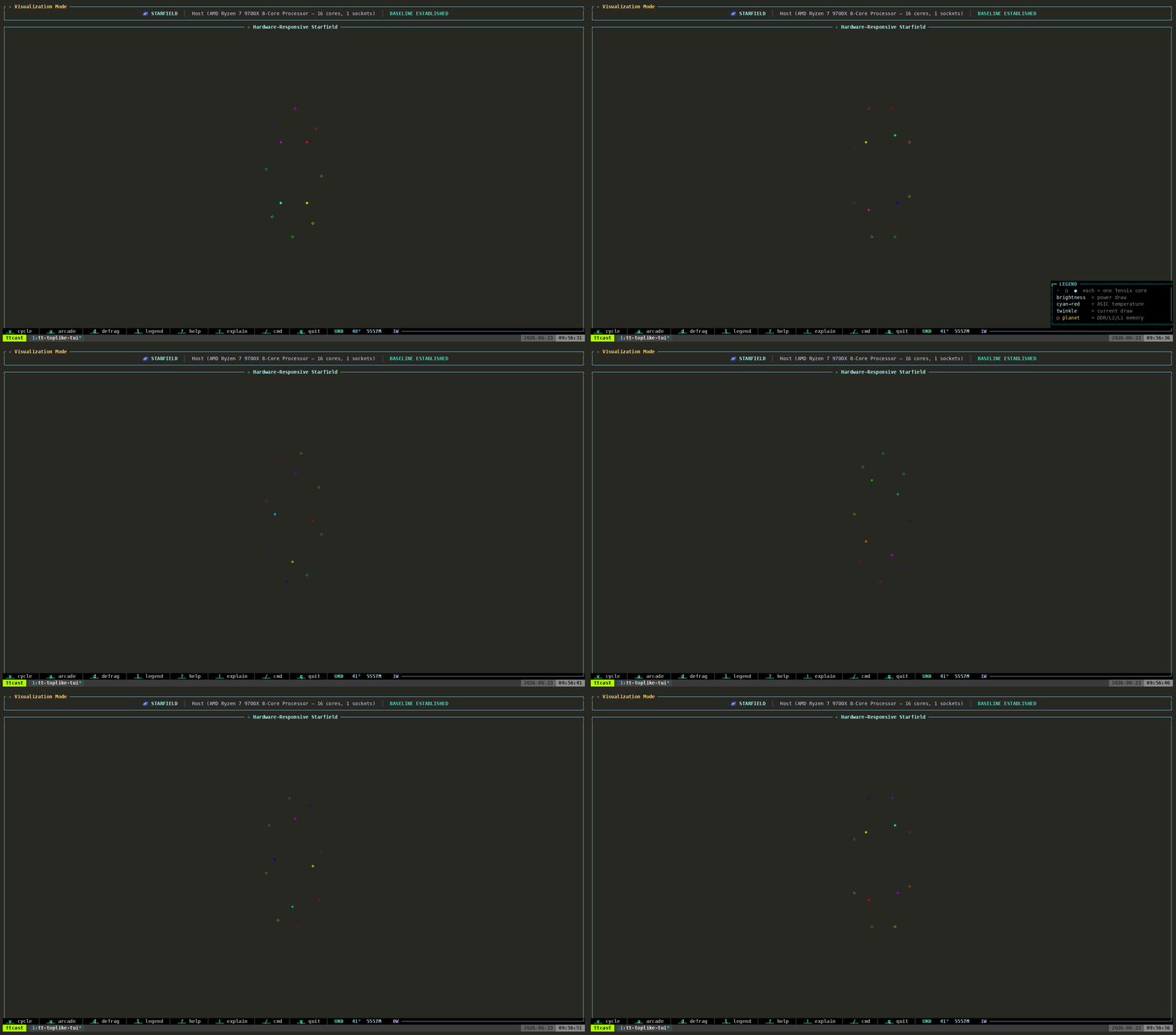
This is what active inference looks like inside one chip. Four of these run in parallel on a QB2.
Next: Installing the Stack →