Explore Tenstorrent hardware & software for the first time
Seven chapters from first boot to first model.
7 chapters · 53 min read time
What to Know About Your Workstation
Your workstation is a Tenstorrent Quietbox 2: four AI accelerators inside, an operating system you may not have used before, and the software stack already configured and waiting. The machine is ready to go — what’s left is knowing what you’ve got.
This guide doesn’t assume you know Linux, or Python, or what a PCIe slot is. It assumes you’re curious, and that curiosity is enough.
What’s Inside
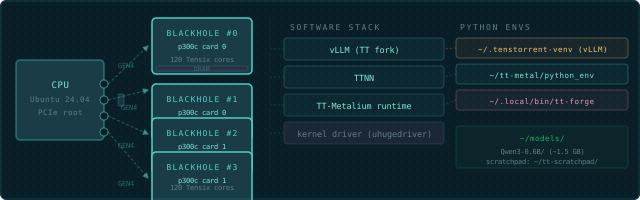
The Tenstorrent Quietbox 2 (QB2) is a workstation with two Blackhole p300c cards — four Blackhole chips in total — on PCIe. Each p300c is a dual-chip card, and each chip is independent — four separate devices from the software’s point of view, connected to a standard CPU running Ubuntu 24.04 LTS.
| What | Detail |
|---|---|
| AI chips | 2× Blackhole p300c cards (4 Blackhole chips) |
| Tensix cores per chip | 120 (12×10 compute grid) |
| Connection | PCIe Gen4 (4 independent devices) |
| OS | Ubuntu 24.04 LTS |
| Pre-installed | Drivers, tt-smi/tt-flash, the TT-Metalium and tt-inference-server containers, tt-studio |
| Source tree | Not included — and neither is ~/tt-metal. TT-Metalium runs as a container (tt-metalium) |
The chips don’t share memory. When you open device 0, you’re talking to one Blackhole chip. To use all four together, you use ttnn.CreateDevices({0, 1, 2, 3}) — not four separate open_device() calls.
What Ships Pre-Installed
Tenstorrent ships the QB2 ready to serve models. You don’t install drivers. You don’t compile anything. The full stack is already there:
- Kernel driver — loaded automatically at boot, makes the chips visible to software
tt-smi— hardware monitoring tool, lives at/usr/bin/tt-smi- TTNN / TT-Metalium — as a container, started by the
tt-metaliumwrapper in~/.local/bin/ - Hardware tooling venv —
~/.tenstorrent-venv/, holdingtt-smiandtt-flash - tt-inference-server — at
~/.local/lib/tt-inference-server; itsrun.pyserves models with vLLM in a container - TT-Forge/XLA — container wrapper at
~/.local/bin/tt-forge, if it was installed (it’s opt-in) - tt-studio — the no-code web UI for serving models, pre-installed (launch with
tt-studio) - A ready-to-run model — Qwen3-32B, weights pre-cached on disk, deployable from tt-studio with no download (your fastest path to a first token: launch
tt-studio, pick it, click Run) - Firmware — already flashed to all four chips
What’s intentionally absent: ~/tt-metal — not just the source code, the whole directory. TT-Metalium reaches you as a container image instead, and tt-metalium is how you get inside it. You can build models, run inference, and work with the full API stack without ever having a checkout. Building from source is a later chapter — a much later chapter.
Physical Tour
The QB2 looks like a standard tower workstation. On the inside:
- CPU and motherboard running Ubuntu 24.04 LTS
- Two Blackhole p300c cards (four Blackhole chips total)
- RAM sized for production inference workloads
- Storage for model weights — but watch it carefully (more on that in Chapter 2)
The chips run warm under load. Fans will get louder when you run inference. This is correct. The cooling is designed for sustained operation at full chip temperature.
One Blackhole chip. You have four, on two p300c cards.
Next: First Boot →
First Boot
Power on. Ubuntu loads. You log in. Now what?
Everything from here happens in a terminal. That’s the command line — a text window where you type instructions and the machine responds. On a QB2, the terminal is your instrument panel. Learning its three or four most-used commands will get you surprisingly far.
Finding a Terminal
If you’re looking at the GNOME desktop:
- Press
Ctrl+Alt+T— opens a terminal on most Ubuntu setups - Or press the Super key (Windows key), type
terminal, press Enter - Or right-click the desktop and choose “Open Terminal”
Once a terminal window is open, you’re in the right place. It shows a prompt ending in $ — everything you type goes after that.
The Three Commands You Need Right Now
Check disk space first. Models are large. This is non-negotiable to understand before you do anything else:
df -h ~This shows your home directory’s disk usage. The Size column is total, Avail is what’s free. You need room — at minimum 3 GB for a small model (Qwen3-0.6B), 20+ GB for anything like Llama-3.1-8B. If you’re under 5 GB free, stop here and figure out where the space went before continuing.
Check internet connectivity:
ping -c 3 google.comIf this fails, check your network cable or go to Settings → Network. Everything else in this guide requires internet access for model downloads.
Update the package list (do this once after first boot):
sudo apt updatesudo means “run as administrator.” Ubuntu will ask for your password. This doesn’t install or change anything — it just refreshes the list of what’s available. You’ll see a lot of text scroll by. That’s normal.

Ubuntu: What You Should Know
The QB2 runs Ubuntu 24.04 LTS. If this is your first time with it:
- Package manager is
apt— install things withsudo apt install <name> - Files are case-sensitive:
Model.pyandmodel.pyare different files - Your home directory is
~— short for/home/yourusername sudoruns a command as administrator — use it only when a command tells you to
Your Login, Password, and SSH
Many QB2 units ship with a default login — username ttuser, password ttuser. If that’s how yours arrived, change the password the moment you’re in, before the machine is reachable on a shared network:
passwdIt asks for the current password (ttuser), then a new one twice.
Turn on SSH
Later in this guide — and on every other path — you reach the QB2 from your own laptop over SSH: forwarding a model server’s port back to your machine, copying files, running commands remotely. SSH isn’t always running on a fresh box, so turn it on once:
# Install and enable the SSH server
sudo apt install -y openssh-server
sudo systemctl enable --now ssh

# Confirm it's listening
systemctl status ssh
Then find the address other machines use to reach you:
hostname -I     # the QB2's IP address on your network
hostname        # its name — often <name>.local
From your laptop you can now run ssh ttuser@<that-ip>. This is what makes the remote-access steps in Serving Models on QB2 — and bringing tt-studio’s web UI to your own browser — work.
ufw firewall is installed but inactive by default, so nothing on the QB2 is blocked out of the box. If you or your IT team turn it on (sudo ufw status tells you), remember to allow SSH with sudo ufw allow 22/tcp — and any service port you forward later, like 8000 for the inference server.
Python: A Field Guide to the Confusion
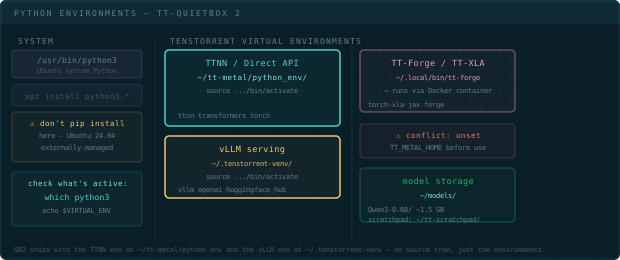
This is where new Linux users often hit a wall. Ubuntu ships with its own Python. The Tenstorrent software has its own Python environments. These are separate and don’t mix. Here’s the landscape:
What exists on your system
| Name | Location | What it is |
|---|---|---|
| System Python | /usr/bin/python3 |
Ubuntu’s built-in Python — don’t pip install here |
| Hardware tooling venv | ~/.tenstorrent-venv/ |
tt-smi and tt-flash. That’s the whole inventory — don’t install into it |
| TTNN / Direct API | inside the tt-metalium container |
/opt/venv/bin/python3 once you’re in. Nothing on the host to activate |
| TT-Forge (TT-XLA) | pip wheel in a venv you create | Compile PyTorch/JAX models — install it yourself (see TT-Forge) |
The important surprise is the third row. There is no TTNN environment on the host. You may
find older notes pointing at ~/tt-metal/python_env/ — that path doesn’t exist on a QB2 and the
installer never creates it. TT-Metalium arrives as a container image, and tt-metalium is the
wrapper that puts you inside it with your home directory mounted. import ttnn works in there
and nowhere else.
Why does this matter?
Ubuntu 24.04 enforces what’s called externally-managed Python — the system Python is protected. If you try to pip install something directly, Ubuntu will refuse with an error about breaking system packages. This is intentional. It protects you.
So when you need a Python package of your own, make it a new venv (python3 -m venv ~/.venvs/mine)
or let uv tool / pipx make one for you. What you should not do is install into
~/.tenstorrent-venv to dodge the error. That venv exists to hold tt-smi and tt-flash, your
QB2 activates it for you at login, and a dependency resolution gone wrong in there takes out the
tools you’d use to work out what broke.
What which python3 tells you
Before running any Python code, check which Python is active:
which python3If you see /usr/bin/python3 — you’re on the host, using Ubuntu’s Python. Tenstorrent imports will fail.
If you see /home/yourname/.tenstorrent-venv/bin/python3 — you’re in the tooling venv. tt-smi works; import ttnn still won’t.
If you see /opt/venv/bin/python3 — you’re inside the tt-metalium container, which is where TTNN lives. Go ahead.
pip, pyenv, uv — a brief map
You may encounter other Python tools in documentation or online:
pip— Python package installer. Works inside a venv. Fine to use there.pyenv— manages multiple Python versions (3.10, 3.11, etc.). The QB2 doesn’t need it — the venvs handle version isolation.virtualenv/python -m venv— creates isolated environments. The Tenstorrent venvs were built this way.uv— a fast, modern alternative to pip and virtualenv.uv tool install <pkg>is the tidiest way to add a CLI (likehf) without touching a managed environment.
For this guide: ignore pyenv. Reach for uv or pipx when you want a CLI of your own, and use tt-metalium when you want TTNN.
Activating and deactivating
# Enter the TTNN environment — a container, not a venv
tt-metalium

# You're now in a shell inside the container, home directory mounted.
which python3          # → /opt/venv/bin/python3
python3 -c "import ttnn; print('TTNN ready')"

# Leave it the way you leave any shell
exit
There’s no (python_env) prefix to look for, because nothing is being activated — you’re in a
different shell on a different filesystem. which python3 is the signal: /opt/venv/bin/python3
means you’re inside.
tt-metalium run pulls a multi-GB image. Later runs start immediately.
/etc/profile.d/ that activate ~/.tenstorrent-venv automatically at login — which is why tt-smi just works. Run which python3 before sourcing any venv to see what's already active; activating on top of an active venv is messy.
tt-metalium: command not found? The wrapper lives in ~/.local/bin, which isn't on PATH in every shell — zsh never reads ~/.profile, where Ubuntu's default rule for it lives. Run export PATH="$HOME/.local/bin:$PATH" and add that line to ~/.zshrc. Same story for tt-studio and tt-forge.
Next: Is This Thing On? →
Is This Thing On?
Before running a model, confirm the hardware is alive and the software can see it. One command, four chips, zero guessing.
Reading Your Hardware with tt-smi
tt-smi is the Tenstorrent System Management Interface. Your window into the chips. Run it in snapshot mode to get JSON instead of the interactive TUI:
tt-smi -sA healthy QB2 returns four entries — one per Blackhole chip. The real shape is nested, not flat — board_info and telemetry are their own sub-objects:
{
  "device_info": [
    {
      "board_info": {
        "bus_id": "0000:01:00.0",
        "board_type": "p300c",
        "board_id": "0000046131924062",
        "dram_status": true,
        "pcie_speed": 4,
        "pcie_width": "4"
      },
      "telemetry": {
        "voltage": "0.72",
        "current": "23.0",
        "power": "16.0",
        "aiclk": "800",
        "asic_temperature": "40.3"
      },
      "firmwares": {
        "fw_bundle_version": "19.13.1.0"
      }
    }
  ]
}
board_type is the board SKU (p300c on a QB2), not a chip-family string — Blackhole doesn’t appear literally anywhere in the output. Four entries in device_info means four chips, all alive. Check it directly:
tt-smi -s | python3 -m json.tool | grep board_typeYou should see "p300c" printed four times.

Reading the Output
A healthy QB2 shows four entries in device_info. Look at each one for:
board_info.board_type: "p300c"— the board SKU for a QB2 (two chips per card, two cards). “BLACKHOLE” doesn’t appear literally anywhere in the output — that’s the chip family the p300c board carries.board_info.pcie_speed: 4— an integer PCIe generation, not the string"GEN4".4is full speed;3would mean a slot compatibility issue.board_info.pcie_width: "4"— the link width in lanes (as a string). Narrower (lower number) means lower bandwidth.telemetry.asic_temperaturein the 35–55°C range — normal at idle. Higher under load is fine.board_infoandtelemetryare nested sub-objects on each device entry, not flat fields — see the JSON sample above.
Count the entries:
tt-smi -s | python3 -c "import sys,json; d=json.load(sys.stdin); print(len(d['device_info']), 'devices')"If you see 4 devices, move on. The QB2 is ready.
tt-studio, pick it from the Deploy dropdown, and chat. No download. Full walkthrough in Your First Model.
If You See Fewer Than Four
A missing device usually means one of three things:
PCIe link not established:
sudo dmesg | grep -i tenstorrent | tail -20sudo is required here — Ubuntu 24.04 restricts the kernel log buffer by default, and a plain dmesg fails with “read kernel buffer failed: Operation not permitted.”
Look for errors about PCIe enumeration or firmware loading failure. A loose card is possible — the QB2 ships with cards seated, but transit happens.
Firmware mismatch:
tt-smi -s | python3 -m json.tool | grep -i fw_bundle_versionIf firmware versions differ across devices, or show 0.0.0, you may need to reflash. See the tt-flash documentation for instructions.
Driver not loaded:
lsmod | grep tenstorrentIf nothing prints, the kernel driver isn’t loaded. This shouldn’t happen on a stock QB2, but if it does:
sudo modprobe tenstorrentWatching in Real Time
For a live view of all four chips while running inference:
tt-smiThis opens the interactive TUI — press q to quit. You’ll see per-chip utilization, temperature, and memory usage update live. Useful when a model is running and you want to see all four chips light up.
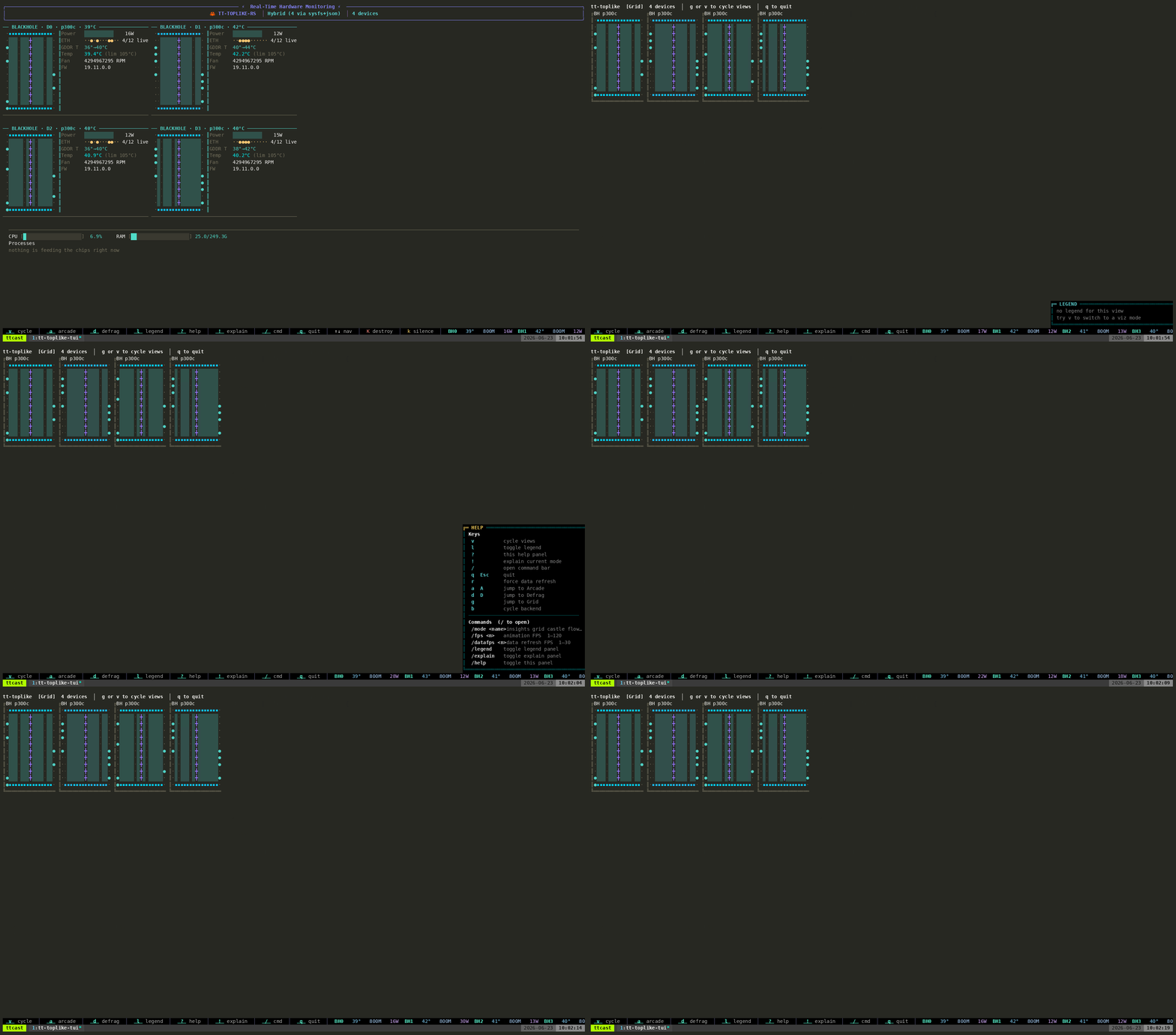
For something richer than the built-in TUI, tt-toplike renders the same telemetry as live ASCII art — every chip’s power, temperature, and DRAM state, animated:
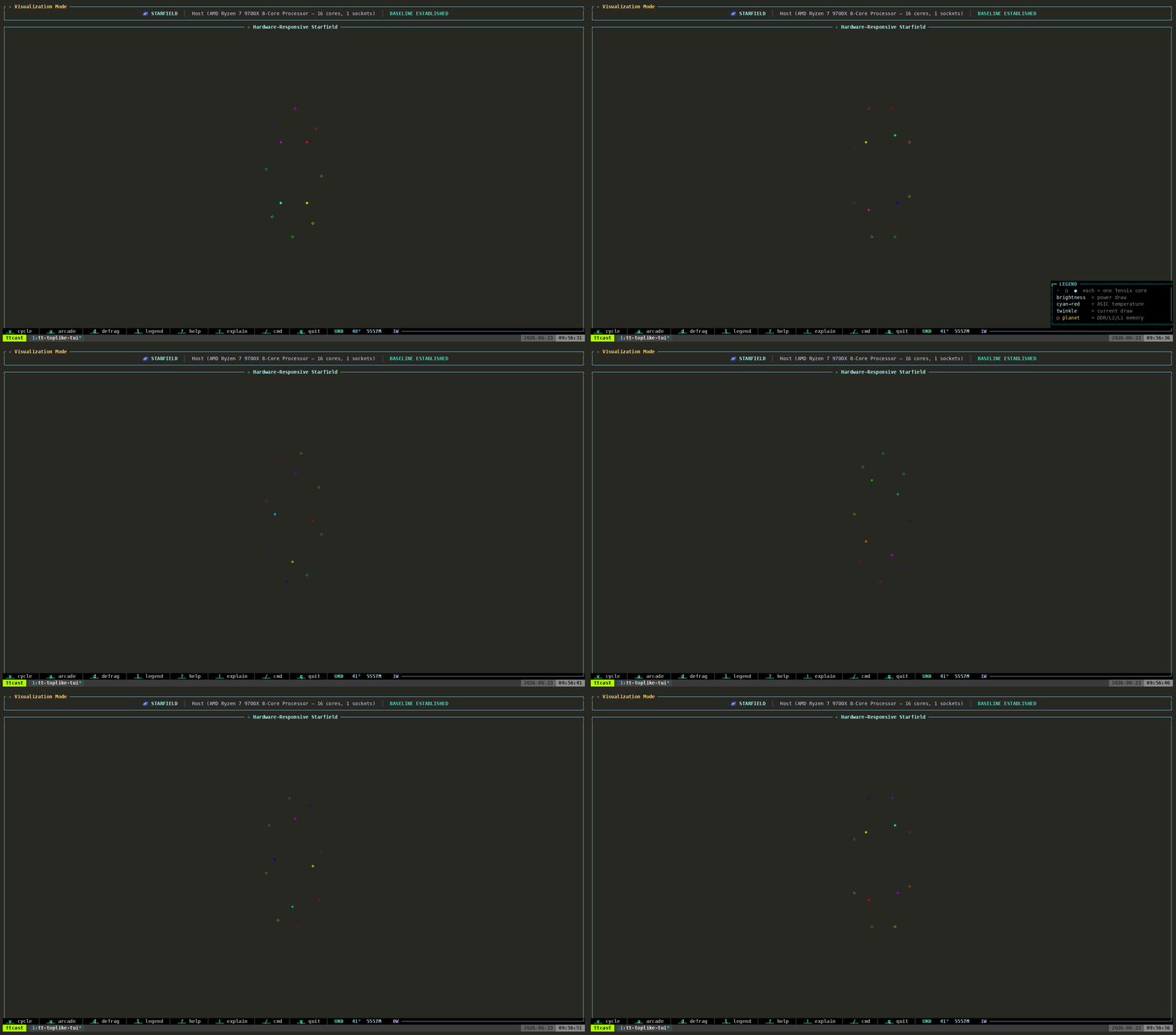
This is what active inference looks like inside one chip. Four of these run in parallel on a QB2.
Next: Installing the Stack →
Installing the Stack
On a QB2 from Tenstorrent, this is already done. The venvs are there, the driver is loaded, the firmware is flashed. This chapter is for understanding what exists and where — so you know which environment to activate when, and what to do if something’s missing.
Installing the Tenstorrent Software Stack
On a QB2 from Tenstorrent, the stack is already there — but it is the stack that was current when your box was built, not the stack that is current today. So there are two jobs here: upgrade what you have (almost everyone) and install onto a fresh Ubuntu system (fewer people). Upgrading comes first.
Upgrade before you start
This is the step nobody thinks to take, and it is the one that saves the most time. A QB2 that has been in a box for a few weeks is behind on driver, firmware, tooling and container images, and the symptoms of being behind rarely say “you are behind” — they look like broken hardware or a broken tutorial.
See where you are first:
tt-smi -s | python3 -m json.tool | grep -E 'fw_version|driver'
apt list --upgradable 2>/dev/null | grep -E 'tt-|tenstorrent' || echo '(apt packages current)'
1. Re-run tt-installer. It is the same command as a fresh install and it is safe to run again — this is the intended way to move an existing machine forward:
/bin/bash -c "$(curl -fsSL https://tenstorrent.ai/install.sh)"That brings the kernel driver, firmware, HugePages, tt-smi/tt-flash, sfpi and the
container wrappers up to the newest tested baseline. Firmware updating is on by default, so
expect it to ask about a reboot at the end.
2. Then apt. Most of the stack is packaged, and this is what picks up anything newer than the installer’s pinned baseline:
sudo apt-get update && sudo apt-get upgrade3. Pull the two git checkouts — the installer will not do it for you. tt-studio and
tt-inference-server are cloned into ~/.local/lib/, and on a re-run the installer skips a
directory that already exists (“Skipping clone, will create wrapper script only”). So they stay
at whatever revision they were first cloned at, however many times you re-run it. This is why a
box can report an old tt-studio while the docs describe a much newer one:
git -C ~/.local/lib/tt-studio pull
git -C ~/.local/lib/tt-inference-server pull
4. Refresh the container images. The tt-metalium wrapper is a plain docker run, which
pulls an image only when it is missing locally — once you have it, it never updates on its own:
docker pull ghcr.io/tenstorrent/tt-metal/tt-metalium-ubuntu-22.04-release-amd64:latest-rc(Re-running the installer with --pull-container-images does the same thing for the images it
manages.)
Do the installer first and apt second — that order is deliberate. By default the installer
pins every component to a tested golden baseline (--versions=release), and it passes
--allow-downgrades to apt to enforce it. So if you apt-get upgrade past the baseline and
then re-run the installer, it will quietly pull those packages back down. If you want the
installer itself to take the newest of everything rather than the pinned set, run it with
--versions=rolling.
--dry-run --mode-non-interactive prints the whole plan without changing anything, which is a
cheap way to see what an upgrade would actually do before you commit to it.
Installing on a fresh Ubuntu system
Prerequisites: Ubuntu 24.04 LTS (or 22.04), internet connection, sudo access.
sudo apt update && sudo apt install -y curl jq
/bin/bash -c "$(curl -fsSL https://tenstorrent.ai/install.sh)"
The installer handles drivers, firmware, kernel modules, one Python virtual environment for the hardware tooling, and the container wrappers that stand in for the old source-tree environments. Accept the defaults — they’re right for a QB2.
After it finishes, reboot:
sudo rebootThe Tenstorrent apt repository (and its signing key)
Most of what the installer puts on the machine — the tenstorrent-dkms kernel driver, tt-smi, tt-flash, tt-topology, tt-toplike, tt-metalium, tt-nn, sfpi — comes from Tenstorrent’s own apt repository. (The tt-metalium and tt-nn packages there are the C++ runtime libraries, for linking native code — they are not the Python ttnn module, which only exists inside the Metalium container.) Two things have to be in place for that: the repository line, and the key apt uses to verify it. Miss the key and apt refuses the repository outright.
tt-installer sets both up. These are the commands it runs, if you’d rather add the repository without the full installer, or need to repair it:
# 1. Keyring directory
sudo mkdir -p /etc/apt/keyrings
sudo chmod 755 /etc/apt/keyrings

# 2. The signing key — this is the step that gets skipped
sudo curl -fsSL -o /etc/apt/keyrings/tt-pkg-key.asc https://ppa.tenstorrent.com/tt-pkg-key.asc

# 3. The repository, pinned to that key
echo "deb [signed-by=/etc/apt/keyrings/tt-pkg-key.asc] https://ppa.tenstorrent.com/ubuntu/ $(. /etc/os-release && echo "$VERSION_CODENAME") main" \
  | sudo tee /etc/apt/sources.list.d/tenstorrent.list > /dev/null

# 4. Refresh
sudo apt-get update
On Debian, swap /ubuntu/ for /debian/. On Fedora, write /etc/yum.repos.d/tenstorrent.repo with gpgkey=https://ppa.tenstorrent.com/tt-pkg-key.asc — dnf fetches the key from the URL, so there’s no keyring file to manage.
Check it took:
# The key: a PGP block, non-zero size, readable by _apt (mode 644)
head -1 /etc/apt/keyrings/tt-pkg-key.asc
ls -l /etc/apt/keyrings/tt-pkg-key.asc

# The repository line, and where packages now resolve from
cat /etc/apt/sources.list.d/tenstorrent.list
apt-cache policy tt-smi
If apt update says “The repository … is not signed” or reports NO_PUBKEY, the key at /etc/apt/keyrings/tt-pkg-key.asc is missing, empty, or unreadable — re-run step 2 above and sudo apt-get update. Breaking & Fixing Things has the full diagnostic.
What ends up on your QB2
| Path | What it is |
|---|---|
~/.tenstorrent-venv/ |
Python venv for the hardware tooling — tt-smi, tt-flash, and tt-topology if you opted in. That is all it contains |
~/.local/bin/tt-metalium |
TT-Metalium container wrapper — this is the TTNN / Direct API environment |
~/.local/lib/tt-inference-server |
Serving stack; run.py launches vLLM in a container |
~/.local/bin/tt-forge |
Forge container wrapper — only if you passed --install-forge-container; it is off by default |
~/.tenstorrent-venv/bin/tt-smi |
Hardware monitoring CLI — on PATH whenever that venv is active, which on a QB2 is every login |
~/models/ |
Model weights storage (create it: mkdir -p ~/models) |
/etc/apt/keyrings/tt-pkg-key.asc |
Signing key for the Tenstorrent apt repository |
/etc/apt/sources.list.d/tenstorrent.list |
The repository line, pinned to that key via signed-by= |
As of tt-installer v3.2.0, Docker is the default container runtime (Podman is still supported — pass --install-container-runtime=podman). The Metalium container installs by default. Forge does not — --install-forge-container is off unless you ask for it, and when you do, the installer pulls ghcr.io/tenstorrent/tt-xla-slim and writes the tt-forge wrapper to ~/.local/bin/tt-forge. The pip-wheel install the TT-Forge docs describe is a separate thing you do yourself, and it belongs in its own venv — see TT-Forge.
Nothing is installed into ~/.tenstorrent-venv but the hardware tooling — keep it that way.
tt-smi and tt-flash live there, and on a factory QB2 it is activated for you in every shell.
A bad dependency resolution in that venv costs you the tools you diagnose the machine with.
Install anything of your own (huggingface_hub, Forge, vLLM) into a separate venv, or with
uv tool / pipx so it gets one automatically.
~/.local/bin is not on PATH in every shell. That is where tt-smi, tt-metalium,
tt-forge and tt-studio land, and tt-installer itself warns about this when it finishes: zsh
never reads ~/.profile, which is where Ubuntu’s default ~/.local/bin rule lives. If a
Tenstorrent command comes back command not found, run
export PATH="$HOME/.local/bin:$PATH" and add that line to your ~/.zshrc.

tt-smi are readyWhat You Have
On a QB2 from Tenstorrent, the stack is pre-installed. Here’s your map:
| Component | Location | When to use it |
|---|---|---|
| TTNN / Metalium | tt-metalium wrapper in ~/.local/bin/ |
Direct API work, TTNN operations, cookbook examples |
| Hardware tooling | ~/.tenstorrent-venv/ — tt-smi, tt-flash |
Monitoring and firmware. Nothing else belongs in here |
| Serving | ~/.local/lib/tt-inference-server |
Serving models via HTTP, OpenAI-compatible API — runs vLLM in a container |
| Forge/XLA | tt-forge wrapper in ~/.local/bin/ |
Compile PyTorch/JAX models via container — opt-in, may not be present |
tt-smi |
in ~/.tenstorrent-venv/bin/ — on PATH once that venv is active |
Hardware monitoring, always available |
| Model storage | ~/models/ (convention) |
Where you put downloaded model weights |
| Scratch space | ~/tt-scratchpad/ |
Working directory for scripts and experiments |
There is no ~/tt-metal and no ~/tt-metal/python_env. Older QB2 notes — and earlier
versions of this page — told you to activate a TTNN venv at that path. Nothing on a current
machine creates it: tt-installer ships TT-Metalium as a container image and gives you the
tt-metalium wrapper instead. If a command in some other guide starts with
source ~/tt-metal/python_env/bin/activate, substitute tt-metalium.
Installing on a fresh Ubuntu machine? tt-installer uses Docker containers for Metalium and
(optionally) Forge. It creates ~/.tenstorrent-venv for the Python hardware tools and installs
the tt-metalium / tt-forge wrapper scripts in ~/.local/bin/. The paths here reflect a
configured QB2; a fresh install may differ slightly.
Create the scratch directory if it doesn’t exist yet:
mkdir -p ~/tt-scratchpad ~/modelsThe Three Environments, Explained
Two of them are containers and one is a venv. That’s the thing worth internalising: only the hardware tooling lives in a virtual environment on the host.
TTNN — the tt-metalium container
This is the workhorse. Use it for direct Python API work — opening devices, running TTNN operations, the cookbook examples in this guide.
tt-metalium
# you're now in a shell inside the container, home directory mounted
python3 -c "import ttnn; print('TTNN ready')"
exit
TTNN is already on the container’s default interpreter (/opt/venv/bin/python3), so there’s
nothing to activate. The first run pulls a multi-GB image; later runs start immediately.
Serving — tt-inference-server
Use this to run a model as a server with an OpenAI-compatible HTTP API. You don’t invoke vllm
yourself and it isn’t installed on the host — it ships inside a container that
tt-inference-server launches:
export HF_TOKEN=hf_...   # gated repos need it even when the weights are already local

python3 ~/.local/lib/tt-inference-server/run.py \
  --model Llama-3.1-8B-Instruct \
  --workflow server \
  --tt-device p300x2 \
  --docker-server
run.py picks the container image, sets TT_METAL_ARCH_NAME, MESH_DEVICE and the vLLM
timeouts per model, and publishes the API on port 8000. --tt-device p300x2 is the whole QB2 —
two P300 boards, four chips. Add --print-docker-cmd to see the docker run it would issue.
Or use tt-studio for a no-code UI that handles all of this for you.
Watch the startup log for a line saying the tt platform has been selected. Without it, vLLM is
running but cannot see your hardware — see the
vLLM on QB2 chapter, which also covers running vllm serve
by hand if you want the lower-level control surface.
TT-Forge (tt-forge wrapper)
tt-forge is a Docker container wrapper installed to ~/.local/bin/ by tt-installer. It runs the TT-XLA/Forge compiler stack without requiring a local Python venv:
# Use the tt-forge wrapper directly
tt-forge --help
For scripting with import forge in Python, use the tt-forge-fe source tree or check docs.tenstorrent.com/tt-forge for current installation instructions.
Confirming Each Environment Works
Run this check sequence:
# TTNN — inside the container
tt-metalium -c 'python3 -c "import ttnn; print(\"OK TTNN\")"'""

# The serving stack — the launcher is a file on disk, so just check it's there
python3 ~/.local/lib/tt-inference-server/run.py --help > /dev/null && echo '✓ tt-inference-server'

# The hardware tooling
which tt-smi && tt-smi --version
All three should respond without errors.
Note what is not in that list: there’s no import vllm check, because vLLM isn’t installed on
the host — it lives in the container run.py starts. If you run python3 -c "import vllm" in
~/.tenstorrent-venv and get a ModuleNotFoundError, nothing is broken; that venv only ever
contained tt-smi and tt-flash.
If any Tenstorrent command comes back command not found, the wrapper is almost certainly
installed and merely unreachable — add ~/.local/bin to your PATH (see below).

which python3 reports on the host versus inside tt-metalium~/tt-metal at all: TT-Metalium reaches your QB2 as a container image — ghcr.io/tenstorrent/tt-metal/tt-metalium-ubuntu-22.04-release-amd64 — with the Python environment and compiled shared libraries inside it. Nothing is unpacked into your home directory, which is why ls ~/tt-metal comes back empty-handed and why the TTNN import only works after tt-metalium. Most users never need more than that. If you do want a real checkout to build from source (for kernel modification or upstream contributions), the build-tt-metal lesson walks through it.
Installing tt-smi if it’s Missing
On a QB2 it shouldn’t be missing, but on another Ubuntu system:
# Option A — public PyPI (any machine, no PPA needed):
pip install tt-smi

# Option B — via apt (requires the Tenstorrent repository, set up by tt-installer):
sudo apt install tt-smi
Both install the same tool. Option A works anywhere with Python; option B integrates with your system package manager. On a freshly installed Ubuntu machine without tt-installer, option A is the easier path.
Option B needs the Tenstorrent repository and its signing key at /etc/apt/keyrings/tt-pkg-key.asc — see The Tenstorrent apt repository above. If apt complains the repository isn’t signed, that key is what’s missing.
Disk Space and Model Storage
Models consume significant disk space. Plan accordingly:
| Model | Size on disk |
|---|---|
| Qwen3-0.6B | ~1.5 GB |
| Qwen3-8B | ~16 GB |
| Llama-3.1-8B-Instruct | ~16 GB |
| Llama-3.1-70B | ~140 GB |
The convention across all Tenstorrent documentation is ~/models/<model-name>/. Nothing enforces this — you can store models anywhere and point --model at any path — but using the convention means every tutorial command works without substitution.
Check space before any download:
df -h ~/modelstt-smi are readyNext: Your First Model →
Your First Model
Everything up to now was preparation. This is the part where the machine does something interesting. Four chips, waiting. One small model, about to arrive.
Running Your First Model
tt-studio, pick Qwen3-32B from the Deploy Model dropdown, click Run. The first deploy takes a few minutes (no multi-GB download — the weights are already there). You enter a Hugging Face token once — the tooling asks for one up front, not because Qwen3-32B is gated (it is Apache-2.0 and ungated). Prefer the command line? Those same weights are reachable from tt-inference-server and from plain vllm serve — see Use the Model That's Already on Your Box in the vLLM chapter.
This chapter takes the other path — the hands-on one, where you talk to a chip directly in Python and pull a tiny model down yourself. The starter is Qwen/Qwen3-0.6B — no license gate, 1.5 GB, runs on any Tenstorrent hardware.
First, get into the TTNN environment. On a factory QB2 there is no ~/tt-metal
checkout on the host — TT-Metalium ships as a container, and the QB2 provides a
wrapper command that starts it:
tt-metaliumThat drops you into a shell inside the container with your home directory mounted. TTNN is already on the default interpreter, so there is no venv to activate. Check it:
which python3
# → /opt/venv/bin/python3tt-metalium pulls a multi-GB
container the first time you run it. Later runs start immediately.
Now do the handshake — open a device, confirm it responds, close it:
python3 -c "
import ttnn
device = ttnn.open_device(device_id=0)
print('Device open:', device)
ttnn.close_device(device)
print('Done.')
"
If you see Device open: without errors, chip 0 is alive and responding. Repeat with device_id=1, 2, 3 to verify all four.
ttnn.CreateDevices({0, 1, 2, 3}) — not four separate open_device() calls. Opening and closing devices individually can cause dispatch core errors on multi-chip configs.
Expected NOC address: 0x1000000000000000, but got
0x1000000040000000
. That is contention, not broken hardware — stop the deployed
model (or docker ps and stop the inference container) and try again.
Download a model
Downloading weights by hand needs the hf CLI, which is not part of the QB2’s
preinstalled stack — huggingface_hub isn’t in any environment the installer creates, so
hf isn’t on your PATH. Install it first, and install it somewhere other than
~/.tenstorrent-venv: that venv holds tt-smi and tt-flash, a factory QB2 activates it
for you in every shell, and a bad dependency resolution in there costs you the tooling you
diagnose the machine with. uv tool and pipx each give the CLI its own environment, which
is exactly what you want:
uv tool install huggingface_hub # or: pipx install huggingface_hubUbuntu 24.04 is an externally-managed Python, so a plain pip install on the host will
refuse — that refusal is the system protecting itself, not an error to force past with
--break-system-packages.
Then pull the weights (run this on the host, not inside tt-metalium):
# hf — not huggingface-cli. The command is hf.
hf download Qwen/Qwen3-0.6B --local-dir ~/models/Qwen3-0.6B
This creates ~/models/Qwen3-0.6B/ with the HuggingFace-format weights (~1.5 GB). Check your disk first:
df -h ~You need at least 3 GB free for this model alone. Larger models (Llama-3.1-8B) need 16+ GB.

What Just Happened
When that Python snippet ran without errors, the Blackhole chip opened a dispatch channel through the PCIe link, initialized its RISC-V cores, and confirmed it can receive work. Nothing computed yet. But the handshake — software to silicon — is the prerequisite for everything else.
ttnn.open_device(0) — what happens inside the chip.
Use the Model That’s Already on Your Box
Before you download another model, know what you already have. Your QB2 shipped with Qwen3-32B on disk — and not just the weights:
| What | Size | Can you re-download it? |
|---|---|---|
| The weights | ~62 GB | Yes, given time and disk |
| Compiled Blackhole kernels | ~30 GB | No |
The second row is the one to care about. Those are the model’s operations already compiled for a four-chip mesh — the work that otherwise happens the first time you serve a model, while you watch a quiet log and wonder whether it has hung. It cannot be fetched from Hugging Face because nobody publishes it; it is built against your topology. Tenstorrent pre-built it and shipped it to you.
So the case for using it isn’t that downloading is slow. It’s that a download can’t give you the kernel cache — pull the weights yourself and you still pay the compile, having thrown away the more valuable half of what shipped. You’d also be spending another ~62 GB on a disk that already holds this model once. And it is no compromise: Qwen3-32B runs a 131K context window across all four chips and serves up to 8 concurrent requests.
Confirm it arrived — the same check Tenstorrent’s ISO acceptance test runs:
du -sh ~/data/tt-cache/You want roughly 87G–91G. Much smaller or missing means the model didn’t make it onto
your box, and the rest of this section won’t work.
Give it a name you’ll remember
The weights are real Hugging Face model files, but they are not in a Hugging Face cache —
a factory QB2 has no ~/.cache/huggingface and no ~/models at all. They sit in
tt-inference-server’s storage layout, under a directory named for a build label. One symlink
puts them on the path the rest of this guide already uses, so you never type that name again:
mkdir -p ~/models
ln -s ~/data/tt-cache/volume_id_tt_transformers-Qwen3-32B-vqb2_launch/weights/Qwen3-32B \
      ~/models/Qwen3-32B
A symlink, not a copy — a copy would be another 62 GB for no benefit. Check it resolves:
ls ~/models/Qwen3-32B/config.jsonNow ~/models/Qwen3-32B sits beside the ~/models/Qwen3-0.6B you’d get from hf download,
and tools take it as an ordinary path:
This replaces the launch command near it — it is not a next step. One model owns the four
chips and port 8000 at a time, so if you already started something (the command above, or a
deploy from tt-studio), stop it before running this: Ctrl-C, or docker ps then
docker stop <id>. sudo lsof -w /dev/tenstorrent/* printing nothing means the chips are
free. Pick whichever launch you want; don’t run both.
# run.py requires HF_TOKEN whenever --docker-server is used, local weights or not.
# That is a workflow precondition, not a license gate: Qwen3-32B is Apache-2.0 and
# ungated. Omit it and you get "⛔ HF_TOKEN not set." before anything starts.
export HF_TOKEN=hf_...

python3 ~/.local/lib/tt-inference-server/run.py \
  --model Qwen3-32B \
  --tt-device p300x2 \
  --workflow server --docker-server \
  --host-weights-dir ~/models/Qwen3-32B
--host-weights-dir mounts that directory into the container read-only: your weights can’t
be modified by the server, and no second copy is made. Once it is up, the server reports the
model by its full Hugging Face repo id — query it as Qwen/Qwen3-32B, not Qwen3-32B, or
read the exact string from curl -s http://localhost:8000/v1/models. The same path works for a direct
vllm serve ~/models/Qwen3-32B with HF_MODEL=~/models/Qwen3-32B, if you have built that
environment.
Not --host-hf-cache. It’s the flag that sounds right. It reuses a Hugging Face cache —
resolving HOST_HF_HOME, then HF_HOME, then ~/.cache/huggingface — and on a factory QB2
none of those exist, so you get a fresh 62 GB download of a model you already own.
--host-hf-cache is for weights you pulled with hf download; --host-weights-dir is for
the ones that shipped. Leave HF_HOME alone too — it plays no part in reaching this model.
Serving a Model with vLLM
Already started Qwen3-32B above? Skip this section. It launches a second model on the same four chips and the same port 8000, and that will fail — the chips have one owner at a time. This section is the path for serving a model other than the one that shipped. If you took the pre-cached route, the examples below still apply with two different substitutions — they are easy to cross-wire:
run.py --modeltakes the short spec name:Qwen3-32B, never the repo id.- The
"model"field incurland the Python SDK takes the full id the server reports:Qwen/Qwen3-32B, where the examples saymeta-llama/Llama-3.1-8B-Instruct.
curl -s http://localhost:8000/v1/models settles the second one on your box.
The fastest path to actually generating text is vLLM. It handles model loading, tokenization, batching, and presents an OpenAI-compatible HTTP API.
On a QB2 you do not invoke vllm yourself, and it is not installed in
~/.tenstorrent-venv — that venv holds only the hardware tooling (tt-smi, tt-flash).
vLLM ships inside a container that tt-inference-server launches for you:
cd ~/.local/lib/tt-inference-server

export HF_TOKEN=hf_...   # required; gated repos need it even when weights are local

python3 run.py \
  --model Llama-3.1-8B-Instruct \
  --workflow server \
  --tt-device p300x2 \
  --docker-server
run.py selects the right container image, sets TT_METAL_ARCH_NAME, MESH_DEVICE and
the vLLM RPC timeout for you, and publishes the OpenAI-compatible API. Add
--print-docker-cmd to see the exact docker run it would issue before it launches.
--tt-device p300x2 is the whole QB2 — two P300 boards, four Blackhole chips. Passing
p300 uses a single board, so half the machine sits idle. Check what a given model
supports: not every model is built for every topology.
--host-hf-cache reuses weights you pulled yourself with hf download, mounting the
Hugging Face cache read-only instead of downloading a second copy into a Docker volume. It
resolves HOST_HF_HOME, then HF_HOME, then ~/.cache/huggingface — so it only helps once
you have actually downloaded something. It is not how you reach the Qwen3-32B that
shipped with the box: those weights live outside any Hugging Face cache, and
--host-weights-dir is the flag for them. See above.
Llama-3.1-8B is the safer first model here. Very small models like Qwen3-0.6B will load — the
plugin maps them by architecture — but they have no tuned implementation in tt-metal’s
tt_transformers, so output quality is not something to judge the hardware by. Note that
Qwen3-0.6B is not in tt-inference-server’s model list at all: it is fine for the direct
TTNN handshake above, but you cannot serve it with the command in this section.
You’ll see initialization messages as the model loads. This takes a minute or two on first run — the model weights are being compiled for the Blackhole architecture. Subsequent runs are faster.
Once you see INFO: Application startup complete, the server is ready. In a new terminal:
curl -s http://localhost:8000/v1/chat/completions \
  -H "Content-Type: application/json" \
  -d '{
    "model": "meta-llama/Llama-3.1-8B-Instruct",
    "messages": [{"role": "user", "content": "What makes the Tenstorrent Blackhole chip different?"}]
  }' | python3 -m json.tool
The response is JSON. The answer is in choices[0].message.content.
tt_transformers implementation and is not in tt-inference-server's model list, so the vLLM command above cannot serve it.
Using tt-studio (the Web UI)
tt-studio
tt-studio is a web interface for running models on QB2 without writing a line of code. It handles model selection, container lifecycle, and inference end-to-end — open a browser, pick a model, get tokens back. It’s the lowest-effort path to your first token on a QB2.
Start it with the pre-installed wrapper command:
tt-studiott-studio: command not found? The wrapper lives in
~/.local/bin, which is not on PATH in every shell — zsh in
particular never reads ~/.profile, where Ubuntu's default
~/.local/bin rule lives. Fix it for this shell with
export PATH="$HOME/.local/bin:$PATH", and add that line to
~/.zshrc to make it stick. The same applies to tt-metalium,
tt-forge and tt-inference-server — the last of these is a wrapper
that runs run.py out of ~/.local/lib/tt-inference-server, so you can
call it either way.
Then open http://localhost:3000 in your browser, pick a model from the Deploy Model dropdown, and click Run. On a QB2, Qwen3-32B is already there with its weights pre-cached — its first deploy skips the multi-GB download and is ready in a few minutes. Other models download on first use; after that, every run loads fast from the on-disk cache. (tt-studio v2.8.0 also fixed the cold first-chat delay after an idle model, so that first token comes back quickly.)
tt-studio is at v2.10.0 as of this writing. Since v2.8.0 it’s added an OpenClaw general agent you can deploy like any model (v2.9.0), and an Apps Marketplace connecting deployed chat models to external tools plus hybrid RAG retrieval with reranking (v2.10.0).
tt-studio is a convenience command the QB2 ships. Under the hood it launches the same stack you'd get by cloning the repo and running python3 run.py — that sets up the submodule and .env, prompts for your Hugging Face token, selects the right Docker overlays for your hardware, and brings up the Django + React app plus the model containers, then serves the UI at localhost:3000. On any other machine, that clone-and-run.py flow is how you'd start it.
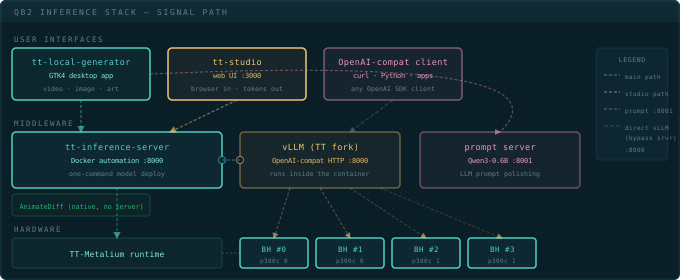
What’s happening under the hood: tt-studio is a UI sitting on top of tt-inference-server. When you select a model and click Run, tt-studio spins up a Docker container running the TT fork of vLLM on port 8000. Your browser talks to tt-studio; tt-studio talks to that container. tt-local-generator routes through the same container — both are UIs sitting on top of tt-inference-server, just with different front ends.
To access tt-studio from your laptop while the QB2 is on your network, forward the port over SSH:
ssh -L 3000:localhost:3000 user@qb2-hostnameThen open http://localhost:3000 on your local machine as if you were sitting in front of the QB2.
For a deeper look at how the inference server is wired up, the tt-vscode-toolkit lesson on tt-inference-server walks through the architecture interactively — Docker flags, model download, port mapping, and what logs to watch on first boot.

Multi-Device: Using All Four Chips
To spread a model across all four Blackhole chips, use CreateDevices instead of open_device:
tt-metalium

python3 -c "
import ttnn
devices = ttnn.CreateDevices({0, 1, 2, 3})
print('All devices:', devices)
ttnn.CloseDevices(devices)
print('Done.')
"
CreateDevices handles the mesh configuration that lets the chips coordinate. Models loaded this way can distribute layers across chips, increasing the effective memory pool and throughput. Large models (Llama-3.1-70B) require this — they don’t fit on one chip’s memory alone.
CreateDevices spans all four chips: a large model's layers spread across them for more memory and throughput. (A small model like Qwen3-0.6B runs happily on one chip.)
Next: One CLI to Run It →
One CLI to Run It
Everything so far — tt-smi, tt-installer, tt-metalium, tt-inference-server, tt-studio — is a separate tool with its own flags and its own mental model. tt-cli (the tt command) is Tenstorrent’s answer to that sprawl: one entry point that either does the thing itself or delegates to the tool that already does.
tt? `tt` is a short, popular name, and more than one Tenstorrent tool has claimed it over time. Run tt --help after installing — if the commands don't look like device/model/serve/update, something earlier on your PATH is answering instead. See If tt already means something else below.
Installing it
tt-cli is a Python package (tenstorrent on PyPI), and it wants to live in its own isolated environment so it can safely update itself later:
uv tool install tenstorrent
uv tool update-shell            # puts ~/.local/bin on PATH for future shells
export PATH="$HOME/.local/bin:$PATH"   # ...and this one, right now
tt --help
uv tool update-shell edits shell startup files (.bashrc, .zshrc) — it can’t change the PATH of the shell you’re already sitting in. Without that export, tt --help in the same terminal either fails outright or picks up something else already on PATH (see below). The export only matters for this one session; a new terminal after update-shell has run once already has ~/.local/bin in place. The rest of this chapter’s examples assume that same session, so do this once, up front.
No uv? A QB2 that’s already run tt-installer has it at ~/.local/bin/uv (the installer’s --use-uv python path pulls it in as a side effect), so this is usually already true on a real box. On a fresh Ubuntu machine, get it first:
curl -LsSf https://astral.sh/uv/install.sh | shpipx install tenstorrent or a plain venv + pip install tenstorrent both work too — see DEVELOPERS.md for the full list. Whatever you pick, keep tt-cli in a venv with nothing else in it — that isolation is what lets tt self update upgrade it in place later instead of refusing.
If tt already means something else
uv tool install puts its shim at ~/.local/bin/tt. On a normal interactive shell, ~/.local/bin comes before the rest of PATH, so the install “just works” — but a non-login shell (a plain docker run <image> bash -c '...', some CI runners) skips ~/.profile entirely and can leave whatever else answers to tt in place.
If tt --help doesn’t look like this chapter:
- Find out what’s actually running:
which -a ttlists everytton yourPATH, in the order the shell would try them. - Check
~/.local/bincomes first. If it doesn’t, either start a login shell (bash -l) or fix the order yourself:export PATH="$HOME/.local/bin:$PATH". - In the meantime, call it by its full path —
~/.local/bin/tt --help— to confirm the install itself worked before chasingPATH. - Don’t uninstall the other tool to make room.
uv tool uninstall tenstorrentand reinstalling won’t change the PATH order either — the fix is always PATH order, not which tool is present.
Upgrading the stack
tt update is the one command that replaces “check tt-smi’s changelog, check tt-installer’s changelog, remember which .deb versions are compatible with which firmware.” It converges your system onto a single tested golden set — one pinned version per component (firmware, kernel driver, tt-smi, tt-flash, and more), published and CI-validated by tt-sw-manifest:
tt update --dry-run   # show the plan, change nothing
tt update             # apply it (prompts before anything that resets a device)
--dry-run prints a table like this (captured on a real QB2 board):
  Update plan (goldens: bundled supplement.toml + golden.json v1.0.0 (cached))
┏━━━━━━━━━━━━━━━━━━━━━┳━━━━━━━━━━┳━━━━━━━━━━━┳━━━━━━━━━━━━━━━━━━━━━━┳━━━━━━━━━━┓
┃ component           ┃ kind     ┃ installed ┃ golden               ┃ action   ┃
┡━━━━━━━━━━━━━━━━━━━━━╇━━━━━━━━━━╇━━━━━━━━━━━╇━━━━━━━━━━━━━━━━━━━━━━╇━━━━━━━━━━┩
│ tt-flash            │ uv-tool  │ —         │ 3.10.0               │ install  │
│ tt-smi              │ uv-tool  │ —         │ 6.1.0                │ install  │
│ system-stack        │ system   │ —         │ firmware 19.13.1,    │ converge │
│                     │          │           │ kmd 2.10.0, …        │          │
└─────────────────────┴──────────┴───────────┴──────────────────────┴──────────┘
tt-flash/tt-smi are pulled in as their own isolated uv-managed tools under ~/.local/share/tenstorrent/ — separate from whatever’s already in ~/.tenstorrent-venv, so the two can’t conflict. The system-stack row is where tt update hands off to tt-installer (which needs sudo) to converge drivers, firmware, and the rest of the apt-delivered pieces.
system-stack row reloads the kernel driver and can install/enable Docker via systemd — real host-level operations. Run tt update on the machine itself, not inside a docker run shell (which typically has no systemd/PID 1 to hand the install off to, and would fail partway through anyway). The tt-cli-managed tool rows (tt-flash, tt-smi) install fine either way.
Firmware will not be downgraded by accident
This is the part worth trusting rather than guessing about, so here’s what’s actually in the source (tt-cli’s commands/update.py / backends/installer.py, current as of v1.0.1):
- Plain
tt update— no--force, no version argument — passes--update-firmware=ontott-installer. That flag hands the per-device version check tott-flash, which flashes only devices whose running firmware is older than the golden bundle. A device already at or ahead of golden is left alone. --forceis what opts into a downgrade — it’s the flag whose help text literally says “even when that means a downgrade.” Passing an explicittt update <version>(an older installer release) implies--forcetoo, “since an explicit version means you know what you’re doing.”- Confirmed on a real board during testing: this box’s firmware (
19.15.0.0) was already newer than this golden release’s pinned target (19.13.1). A plaintt update --yesprinted the standard “could not confirm current firmware, continue?” prompt (becausett-smiwasn’t installed yet at plan time) but — per the source path above — would not have flashed anything once it got there, sinceis_any_fw_semver_higheronly trips the reset warning when the target is newer than what’s installed.
So: the happy path already avoids what you’re worried about. Just run tt update without --force and without naming an older version, and firmware only ever moves forward.
tt update does not touch tt-studio, and gets its own copy of tt-inference-server
This matters if you’ve already been through Installing the Stack: tt update isn’t a drop-in replacement for re-running tt-installer by hand, because the two disagree about where — and whether — two specific pieces of the stack live.
- tt-inference-server: two separate checkouts, not one shared copy.
tt-installerclones it to~/.local/lib/tt-inference-server— the path this guide’s manualrun.pycommands use everywhere else.tt-clipasses--no-install-inference-servertott-installerand instead manages its own pinned clone, at~/.local/share/tenstorrent/tools/tt-inference-server-<version>/src/(~/.local/share/tenstorrent/tools/tt-inference-server-v0.22.0/src/run.pyon this box) — confirmed straight fromtt-cli’s source (tools/supplement.toml’s[tools.tt-inference-server]entry,tools/installers.py’sGitVenvInstaller).tt serveandtt modelcommands go through this second copy. Both can exist on the same machine at different versions; neither one updates the other. - tt-studio isn’t managed by
tt-cliat all.tt updatealso passes--no-install-studio, but there’s no matchingtt-studioentry anywhere intt-cli’s own tool registry — it doesn’t install a copy, doesn’t track a version, and doesn’t update one. If~/.local/lib/tt-studioalready exists from an earlier plaintt-installerrun,tt updateprints a one-time warning suggesting you delete it for disk space; it never offers to update it.
tt update alone will not keep tt-studio current, and won't touch the ~/.local/lib/tt-inference-server copy this guide's other manual run.py examples point at. If you use both tt-cli and tt-studio, keep running git -C ~/.local/lib/tt-studio pull and git -C ~/.local/lib/tt-inference-server pull yourself (see agents.md's upgrade section) — tt update covers the system stack and tt-cli's own tools, not those two.
Validating it worked
tt device status      # per-board temp, power, clock — a one-line-per-chip tt-smi summary
tt device info         # firmware bundle versions, PCI info, per device
tt model list          # the model catalog, filtered to what this box's hardware can run
tt self update --check # confirms tt itself is current
tt device status on a two-chip P300 board looks like this:
                Tenstorrent devices (driver: TT-KMD 2.11.0)
┏━━━┳━━━━━━━┳━━━━━━━━━━━━━━┳━━━━━━━━━┳━━━━━━━━┳━━━━━━━━━━━┳━━━━━━━━━┳━━━━━━┓
┃ # ┃ Board ┃ Bus ID       ┃ Temp    ┃ Power  ┃ AIClk     ┃ Voltage ┃ DRAM ┃
┡━━━╇━━━━━━━╇━━━━━━━━━━━━━━╇━━━━━━━━━╇━━━━━━━━╇━━━━━━━━━━━╇━━━━━━━━━╇━━━━━━┩
│ 0 │ p300c │ 0000:01:00.0 │ 41.2 °C │ 17.0 W │ 800.0 MHz │ 0.72 V  │ True │
│ 1 │ p300c │ 0000:02:00.0 │ 43.6 °C │ 13.0 W │ 800.0 MHz │ 0.73 V  │ True │
└───┴───────┴──────────────┴─────────┴────────┴───────────┴─────────┴──────┘
If tt device status complains that tt-smi isn’t installed, that’s normal on a box that has never run tt update yet through tt-cli — it manages its own pinned copy separately from anything already in ~/.tenstorrent-venv. Run tt update once and the error goes away.
v1.0.1, tt model list takes --community (Hugging Face community bundles) and filters like --type/--hw/--cached — the README's older --catalog flag isn't there; the catalog is just the default when you don't pass --community.
Serving a model the short way
Once tt update has converged the system stack, the rest of the workflow you saw in Your First Model collapses into two commands:
tt serve Qwen3-32B --port 8000     # in one terminal
tt launch openwebui                 # in another — auto-discovers what's being served
tt model info Qwen3-32B already reports cached yes on a box with the pre-cached weights from Your First Model — tt serve finds them the same way tt-inference-server’s run.py does, no re-download. (Qwen3-0.6B, the small model used for the direct TTNN device handshake in that chapter, isn’t in the catalog tt serve draws from — same restriction as run.py, not a tt-cli limitation.)
tt model ps shows what’s running and where; tt model stop Qwen3-32B stops it. This runs through tt-cli’s own tt-inference-server checkout — see tt update does not touch tt-studio above — not the ~/.local/lib/tt-inference-server copy the manual run.py commands elsewhere in this guide use, though both wrap the same underlying project.
Next: What Comes Next →
What Comes Next
You unboxed a machine that most people have never touched. You confirmed four Blackhole chips were alive and talking to the system. You navigated Python environments that would trip up someone who wasn’t paying attention. You ran a model on accelerator hardware and watched tokens come back. That’s not a tutorial warmup — that’s the actual thing.
The rest is up to you.
Tools in Your World
The QB2 ships with a full stack, but the ecosystem is bigger. Start with tt-toplike — htop for your chips, except the telemetry comes alive as ASCII art:
Where to Go From Here
Pick a thing you want to do and jump straight in.
Choose Your Next Track
The QB2 is a beginning. There’s a lot of surface area here, and you’ve only scratched it.