Installing a Blackhole Card
This guide explains how to install a Blackhole p100a, p150a, or p150b card in a host system, including connecting power. If you have not yet chosen components for your host system, start with Choosing Host Hardware.
Before You Begin
Disconnect power from the host computer.
Verify the system meets all the requirements in Choosing Host Hardware.
Discharge static electricity by wearing an ESD wrist strap (recommended) or touching a grounded surface before handling components or the card.
Warning
An ATX 3.1 Certified power supply or better is required. An older or inadequate supply can cause system instability.
Install the Card (desktop: p100a / p150a)
Insert the card into the PCIe x16 slot and secure it with the bracket screws. Please note, the images below are guides only, and may not match your exact system.
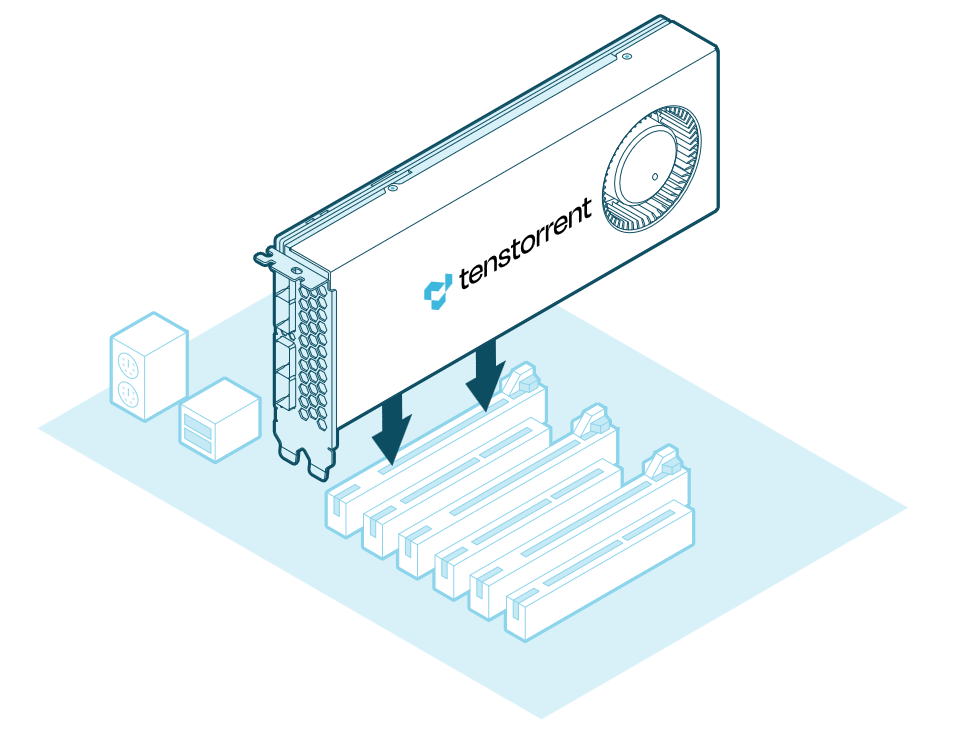
p150a pictured
After insertion, check the seating by ensuring the following:
The retention clip engages without force.
The card sits flat with no visible bow along its length.
The bracket screws thread without pulling the card out of alignment.
Warning
If the card does not seat cleanly, do not run the system. See Choosing Host Hardware to ensure your board will correctly seat Blackhole cards, and steps you can take to ensure a proper seat.
Support the card’s weight with a horizontal orientation or an anti-sag bracket. See Choosing Host Hardware.
Connect Power
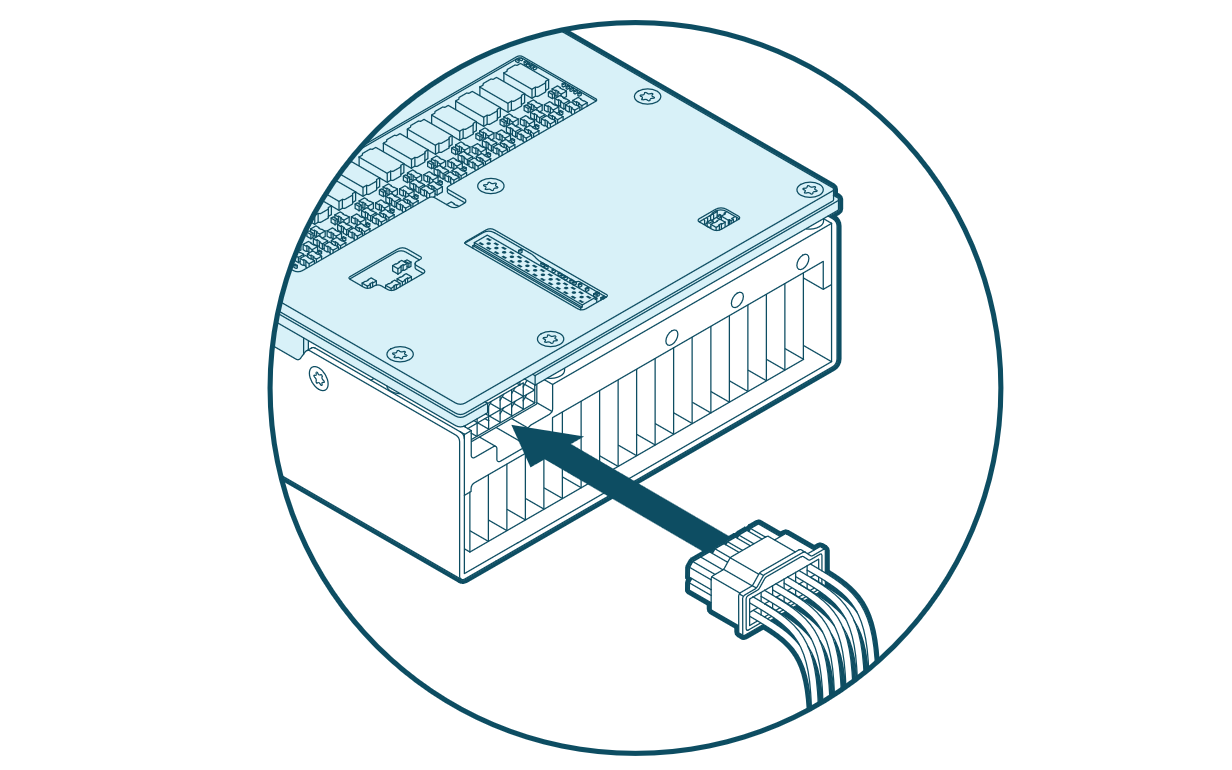
Connect a 12+4-pin 12V-2x6 cable to the plug on the back of the card.
Warning
Fully seat the power cable and avoid tight bends near the connector. A partly seated connector can cause instability or damage.
If a native 12V-2x6 connector is unavailable, use only an adapter supplied or explicitly approved by the PSU manufacturer, and connect each input cable to a separate PSU output. See FAQ and Troubleshooting.
Connect Multiple Cards (p150a / p150b)
If you are installing more than one card, cable them together before you power on. See Multi-Card Topologies.
Check that the Card is Detected
After booting, run the following command in Terminal to bring up the list of Tenstorrent devices:
sudo update-pciids
lspci -d 1e52:
You should see one Tenstorrent Inc Blackhole entry per Blackhole chip. A p100a, p150a or p150b has one chip, so you see one entry per card. If a card is missing, see FAQ and Troubleshooting.
Install the Software
Follow Installing Tenstorrent Software to install drivers and firmware, then update to the latest firmware.
Need Additional Support?
If you encounter any issues, or have a question that isn’t covered here, please raise a support request.