LED Customization
Four chips on your desk. Each one has indicators, tiny tells of internal state. By default they sit there doing their jobs in silence, lights blinking at whatever the firmware thinks is worth reporting. You can change that.
This chapter is about making the QB2 communicate on your terms, using tt-smi to query chip state and steer the indicators toward something more informative, more decorative, or more satisfying. The machine becomes a physical dashboard.
tt-qb-lights: RGB That Responds to Your Hardware
If your QB2 is in a case with addressable RGB — or if you have a motherboard like the ASRock B850M-C with onboard RGB — there’s a ready-made solution that does this properly: tt-qb-lights, a Rust systemd service built by Taylor Singletary specifically for Tenstorrent hardware.
Rather than calling tt-smi on a loop, it reads directly from /sys/class/hwmon/blackhole-pci-* — the same kernel interface lm-sensors uses — so it’s low overhead and doesn’t depend on any Tenstorrent CLI tools being in your PATH. It talks to OpenRGB over TCP (port 6742), so any RGB device OpenRGB supports becomes a live hardware dashboard.
What it does:
- Smooth color gradients driven by ASIC temperature — cool teal at idle, cycling through your chosen palette as the chips heat up
- Power-based brightness: dims to ~30% when idle, climbs to full brightness under load
- Warning pulse: lights pulse when temperature crosses a configurable threshold (default 70°C)
- Six built-in color schemes including QuietBox Sunset (inspired by the QB2 wallpaper), TT Dark, and Tenstorrent Branding (official teal → pink → gold → red)
- Live-editable config at
~/.config/tt-qb-lights/config.toml— change schemes and restart, no rebuild needed
Quick setup:
# Clone and build
git clone https://github.com/tsingletaryTT/tt-qb-lights ~/code/tt-qb-lights
cd ~/code/tt-qb-lights

# Automated installer — checks prerequisites, builds, guides you through setup
./install.sh

# Or manually:
cargo build --release

# Test without touching your lights
./target/release/tt-qb-lights --single-shot   # prints sensor readings
./target/release/tt-qb-lights --dry-run --debug  # shows color decisions

# Initialize your config
./target/release/tt-qb-lights --init
# Then edit: nano ~/.config/tt-qb-lights/config.toml
Requires: Rust 1.70+, OpenRGB installed and running with its SDK server enabled, Tenstorrent drivers loaded (so sensors | grep blackhole shows devices).
./install.sh handles the full prerequisites check — Rust, OpenRGB, lm-sensors, build tools — and asks before installing anything. Use it on a fresh machine rather than running the steps manually.
The service file handles startup ordering so OpenRGB starts before tt-qb-lights:
sudo systemctl enable openrgb
sudo systemctl enable tt-qb-lights
sudo systemctl start tt-qb-lights
journalctl -u tt-qb-lights -f   # watch it go
Full source, architecture notes, and troubleshooting: github.com/tsingletaryTT/tt-qb-lights
What tt-smi Can (and Can’t) Do
Worth saying plainly: tt-smi has no LED control of its own. Check for yourself:
tt-smi --help | grep -i ledNothing prints — current tt-smi (check yours with tt-smi --version) has zero LED-related flags, and there’s no --set-led or equivalent hiding under a different name. tt-smi’s job is telemetry: it reads chip state and reports it. Driving actual lights is a separate concern, handled by whatever RGB control stack your hardware uses — which is exactly what tt-qb-lights above already wires up for you via OpenRGB.
What follows is the DIY version of the same idea, for anyone who wants a different RGB setup or a starting point to hack on: read chip telemetry from tt-smi -s, and drive your own LEDs through whatever tool actually controls them (OpenRGB’s CLI/API, a vendor tool, a GPIO script — not tt-smi).
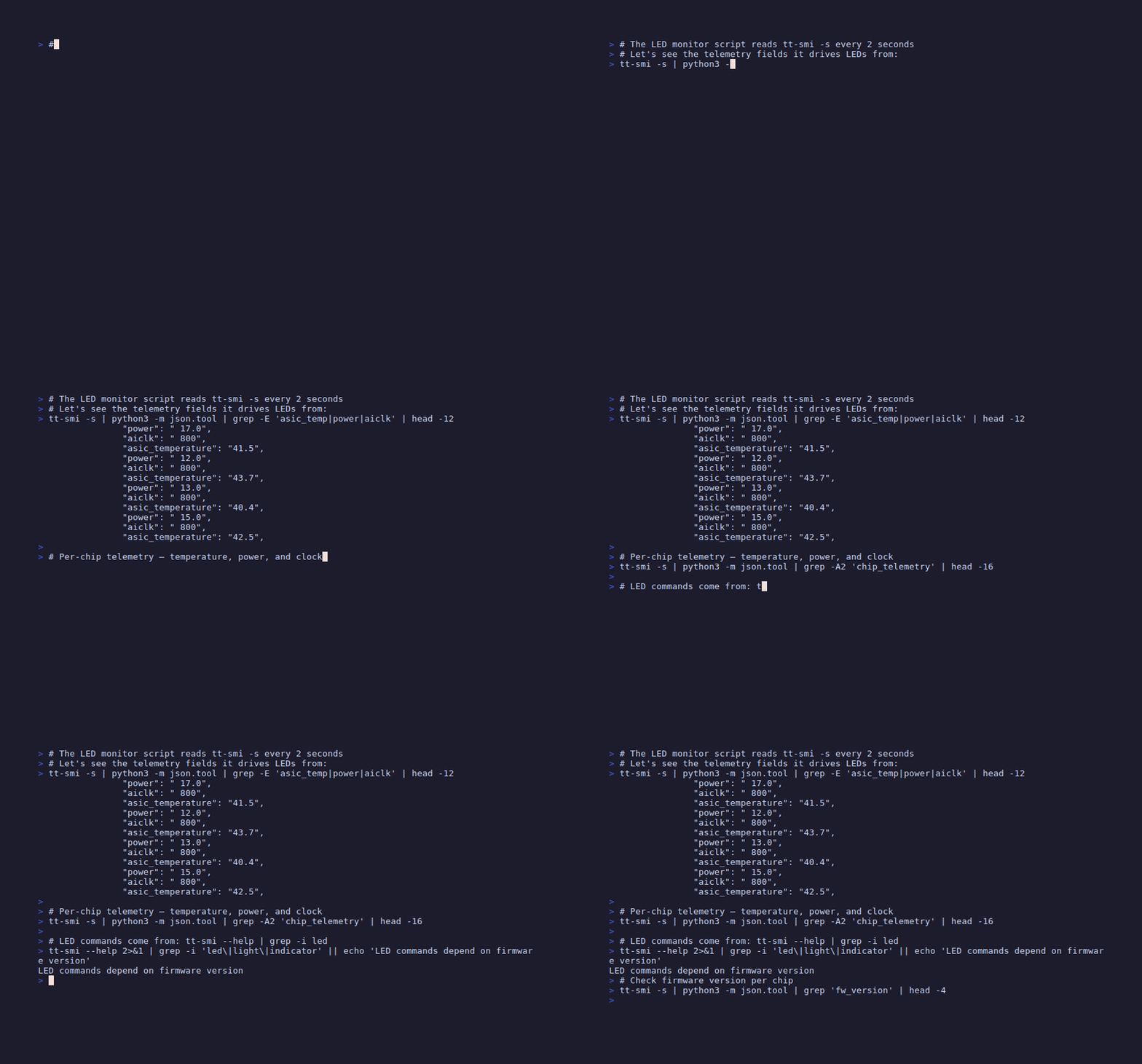
Run tt-smi -s to get a JSON snapshot of all chip state before you start scripting. This gives you the live field names you’ll be parsing.
What tt-smi -s Gives You
Every 1-second pulse of tt-smi -s returns a JSON document with a device_info list — one entry per chip, each with nested sub-objects rather than flat fields. The ones that matter for LED-driving logic live under telemetry:
telemetry.asic_temperature— ASIC die temperature in Celsius (as a string, e.g."40.3")telemetry.current— current draw in ampstelemetry.power— power consumption in wattstelemetry.voltage— chip supply voltagetelemetry.aiclk— AI clock frequency in MHz (higher when actively computing)
Firmware version lives separately, under firmwares.fw_bundle_version — there’s no arc_fw_version field.
A chip sitting idle has low aiclk. A chip running inference has elevated aiclk and rising asic_temperature. Those two signals alone let you build a three-state indicator: idle, working, hot.
A Monitoring Script
This script reads tt-smi -s every two seconds and calls your RGB tool’s own command based on chip temperature. It assumes OpenRGB’s CLI is on your PATH (openrgb --help to check) — swap in whatever you actually have:
#!/usr/bin/env python3
"""
QB2 LED monitor — drives chip indicators from tt-smi telemetry.
Reads chip temperature every 2s and sets LED state accordingly.

Temperature thresholds:
  < 60°C  → steady green (idle / normal)
  60-80°C → pulsing amber (active inference)
  > 80°C  → rapid blink red (thermal throttle zone)

This targets OpenRGB's CLI (`openrgb --help` to see its own device/mode/color flags —
there is no tt-smi LED command to discover; that was never real).
Adjust LED_CMD_* below to match your RGB tool's actual syntax.
"""

import subprocess
import json
import time
import sys

# ── LED command templates ─────────────────────────────────────────────────────
# Fill these in from your RGB tool's own --help output (e.g. `openrgb --help`).
# There is no tt-smi equivalent — tt-smi only reports telemetry.
LED_CMD_COOL   = "openrgb --device {device_id} --mode static --color 00FF80"   # steady teal
LED_CMD_ACTIVE = "openrgb --device {device_id} --mode breathing --color FFA000" # pulsing amber
LED_CMD_HOT    = "openrgb --device {device_id} --mode flashing --color FF0000" # rapid red

TEMP_ACTIVE_THRESHOLD = 60.0   # °C — above this = chip is working
TEMP_HOT_THRESHOLD    = 80.0   # °C — above this = thermal warning
POLL_INTERVAL_SEC     = 2.0

def get_chip_state():
    """Return list of per-chip dicts from tt-smi -s JSON output."""
    result = subprocess.run(
        ["tt-smi", "-s"],
        capture_output=True, text=True, timeout=5
    )
    if result.returncode != 0:
        return []
    try:
        data = json.loads(result.stdout)
        return data.get("device_info", [])
    except (json.JSONDecodeError, AttributeError):
        return []

def set_led(device_id: int, mode: str):
    """Drive a chip LED. mode is one of: cool, active, hot."""
    cmd_template = {
        "cool":   LED_CMD_COOL,
        "active": LED_CMD_ACTIVE,
        "hot":    LED_CMD_HOT,
    }.get(mode, LED_CMD_COOL)
    cmd = cmd_template.format(device_id=device_id)
    subprocess.run(cmd.split(), capture_output=True)

def classify(chip: dict) -> str:
    """Decide LED mode from a device_info entry — temperature lives under telemetry."""
    try:
        temp = float(chip.get("telemetry", {}).get("asic_temperature", 0.0))
    except (TypeError, ValueError):
        # Telemetry field missing or non-numeric (transient tt-smi hiccup) —
        # treat as unknown rather than crashing the monitor loop.
        return "cool"
    if temp > TEMP_HOT_THRESHOLD:
        return "hot"
    if temp > TEMP_ACTIVE_THRESHOLD:
        return "active"
    return "cool"

def main():
    print("QB2 LED monitor starting. Ctrl-C to stop.")
    prev_modes = {}
    while True:
        chips = get_chip_state()
        if not chips:
            print("  [warn] No chip data from tt-smi — is the driver loaded?",
                  file=sys.stderr)
        for i, chip in enumerate(chips):
            mode = classify(chip)
            if prev_modes.get(i) != mode:
                set_led(i, mode)
                temp = chip.get("telemetry", {}).get("asic_temperature", "?")
                print(f"  chip {i}: {mode} (temp={temp}°C)")
                prev_modes[i] = mode
        time.sleep(POLL_INTERVAL_SEC)

if __name__ == "__main__":
    try:
        main()
    except KeyboardInterrupt:
        print("\nStopped.")
Save this as ~/scripts/qb2-led-monitor.py and mark it executable:
mkdir -p ~/scripts
chmod +x ~/scripts/qb2-led-monitor.py
Test it in your terminal while running a model in another session. You should see mode changes printed as the chips heat up.
Running at Boot as a User Service
Once the script works manually, make it automatic. A systemd user service starts with your login and restarts if it crashes:
mkdir -p ~/.config/systemd/userCreate ~/.config/systemd/user/qb2-led-monitor.service:
[Unit]
Description=QB2 LED Monitor
After=default.target

[Service]
ExecStart=/usr/bin/python3 /home/%i/scripts/qb2-led-monitor.py
Restart=on-failure
RestartSec=5
StandardOutput=journal
StandardError=journal

[Install]
WantedBy=default.target
Enable and start it:
# Enable lingering so user services survive logout
loginctl enable-linger $USER

# Reload systemd and start the service
systemctl --user daemon-reload
systemctl --user enable qb2-led-monitor.service
systemctl --user start qb2-led-monitor.service

# Check it's running
systemctl --user status qb2-led-monitor.service
journalctl --user -u qb2-led-monitor.service -f
The LEDs will now respond to chip state automatically, every time you log in.
Heat map across one Blackhole chip. Your LED script mirrors this in physical hardware.
The classify() function in the script is the right place to add more nuance — voltage spike detection, fan speed crossings, or any other field from tt-smi -s. The monitor loop doesn’t care what you feed it.
Next: Fun Demos →